If you are using SharePoint and want to ensure, that your end users make use of your templates in SharePoint, you can make use of content types, to use word and excel templates in SharePoint.
Prerequisites
If you want to create use templates in your across multiple SharePoint sites, you need access to the SharePoint Admin center otherwise you just can create it for single sites.
You can use templates for word and excel files, which don’t have macros. If you have macros in your templates, you cannot use them as template for your content type.
What are content types?
You can imagine a content type as an object with meta data, which describes an object.
Example: invoice.
Meta data for an invoice are e.g. invoice date and due date.
I will show you how to configure content types in your content type hub, so you can make use of word and excel templates in SharePoint!
Create a template
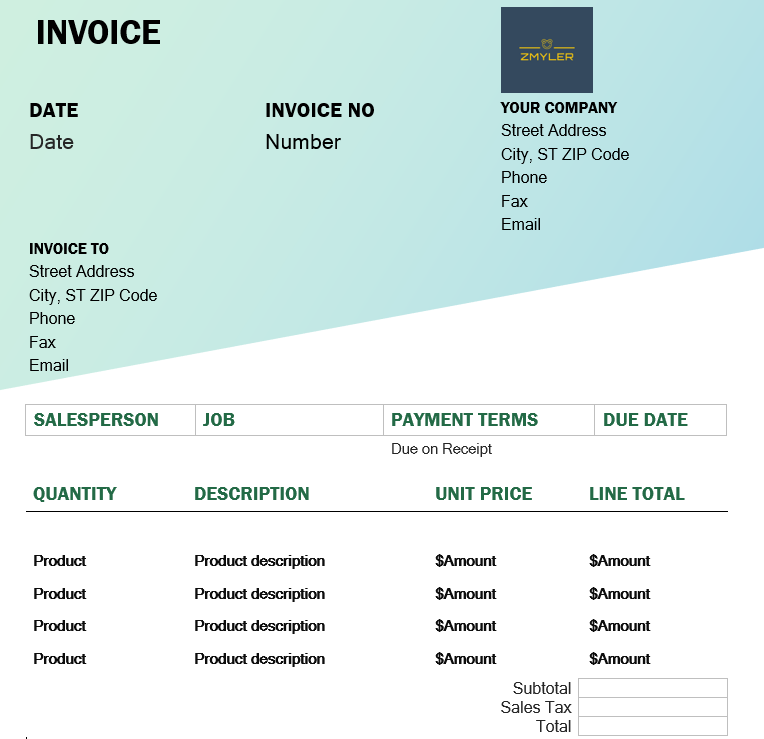
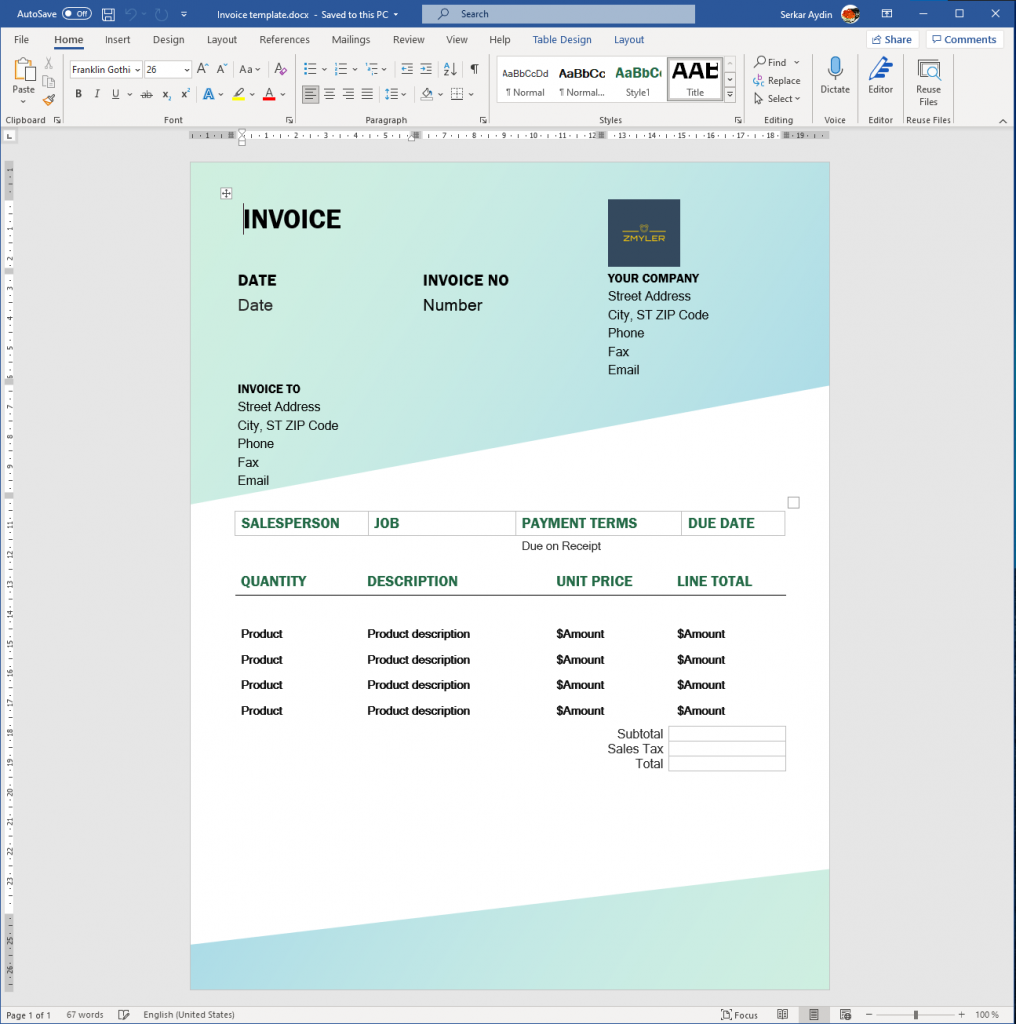
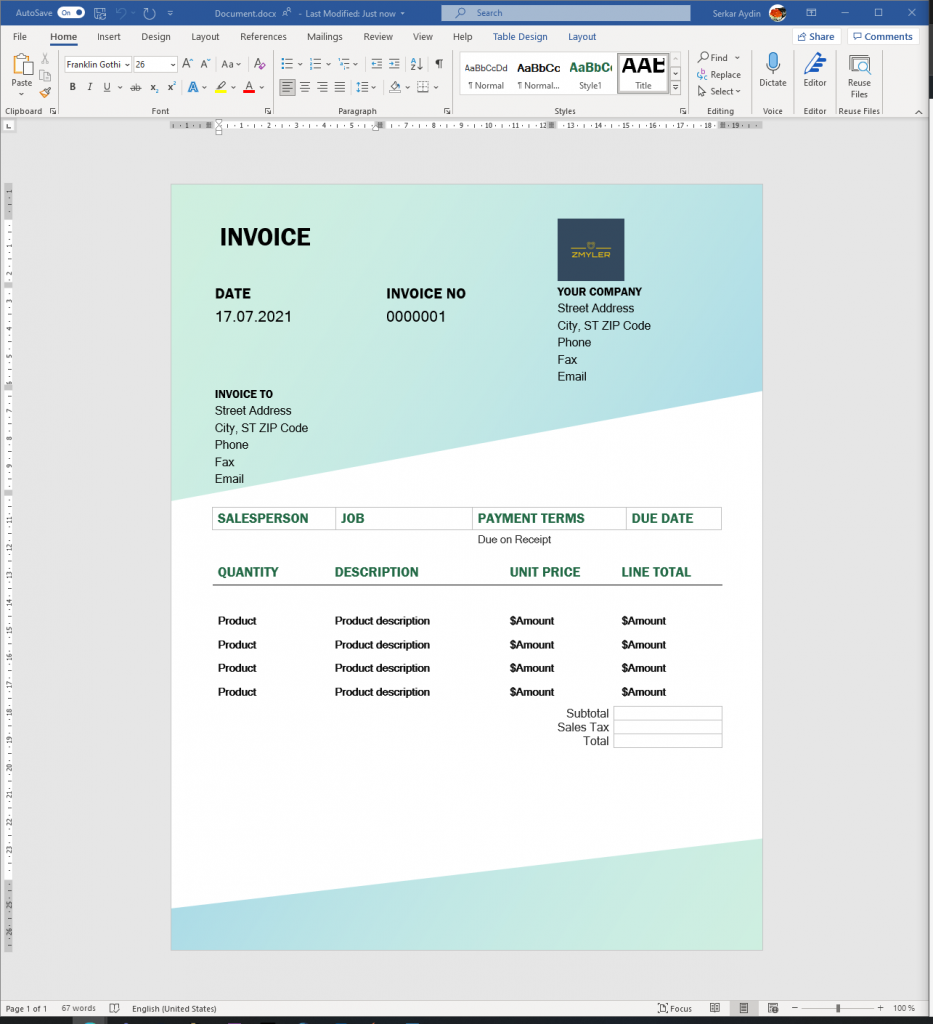
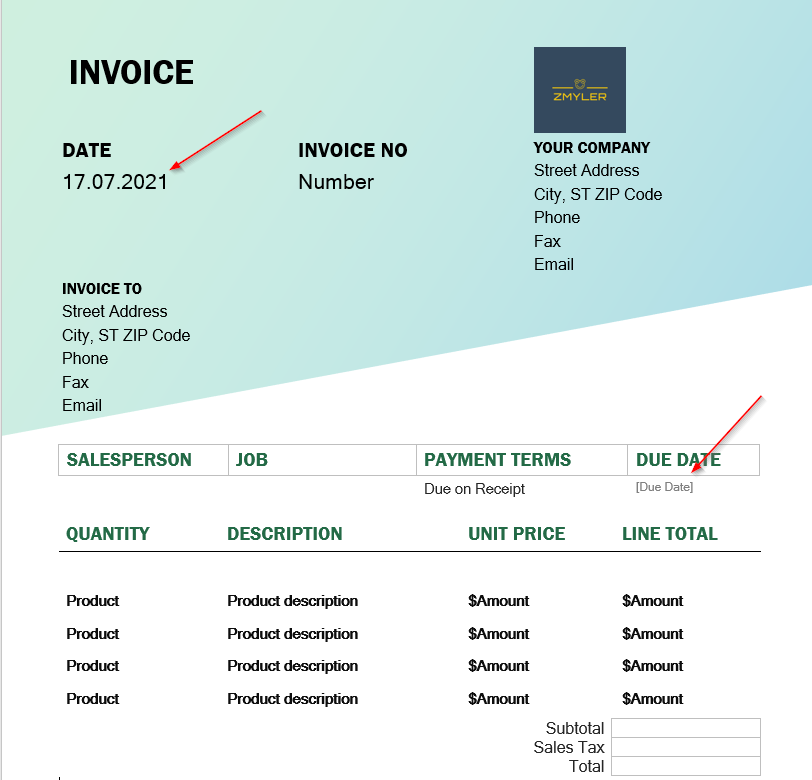
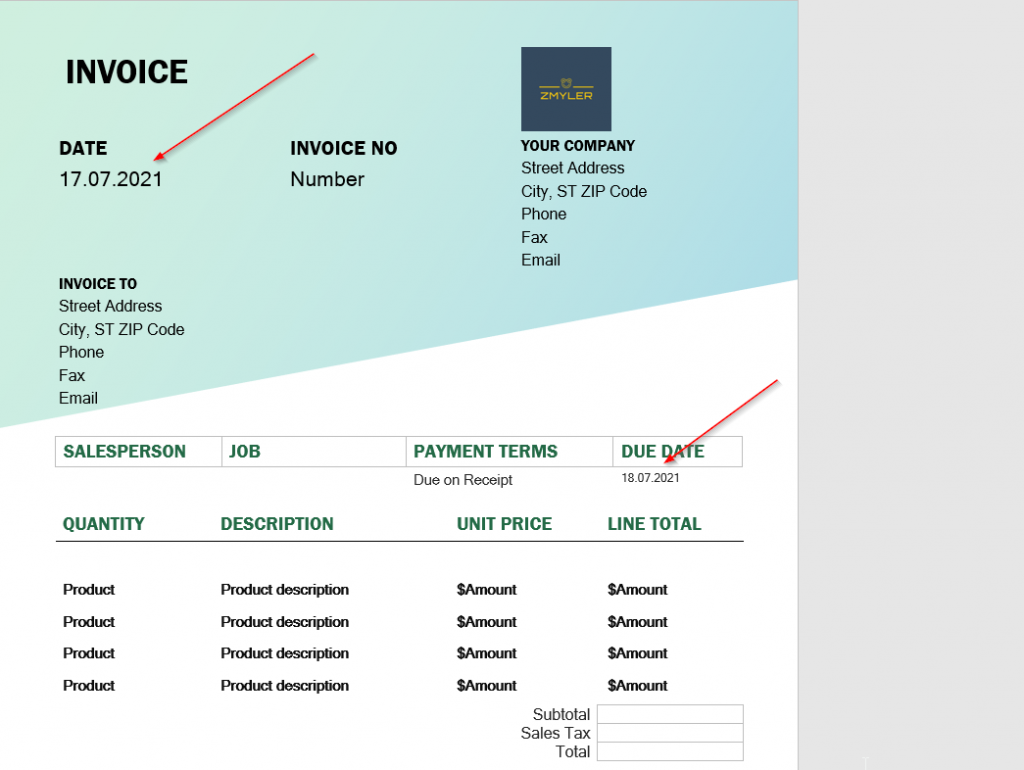
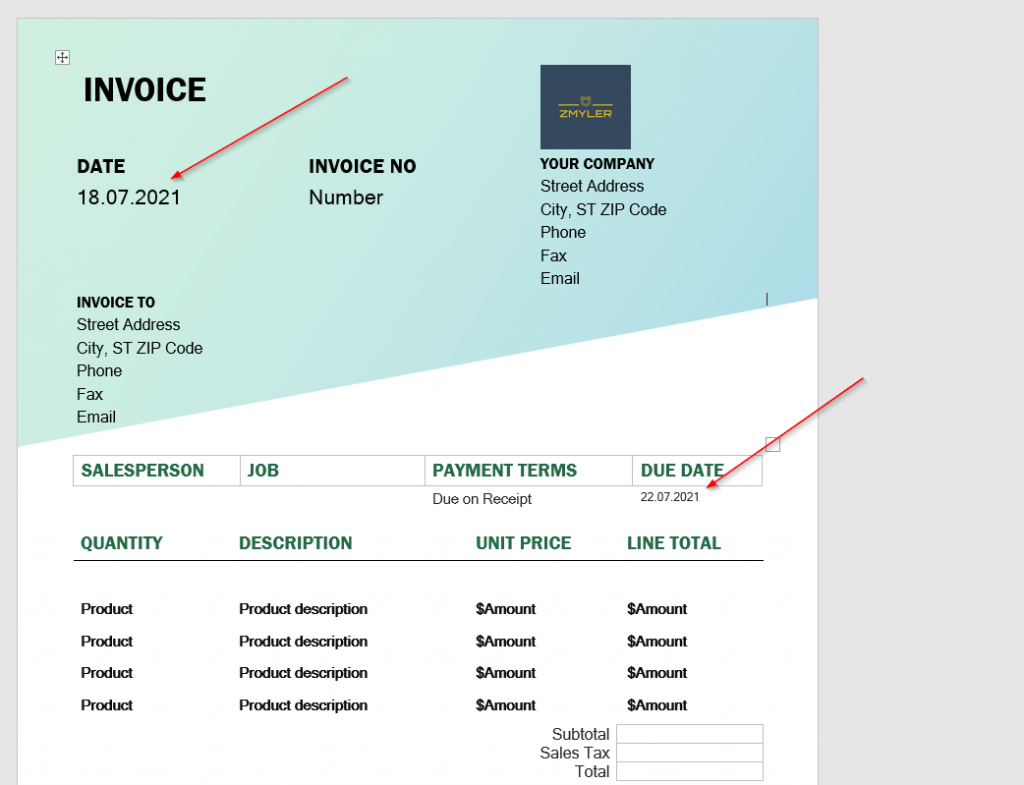
Before we start to use templates in SharePoint, we have to define a template. For our invoice, I took a template of Microsoft.
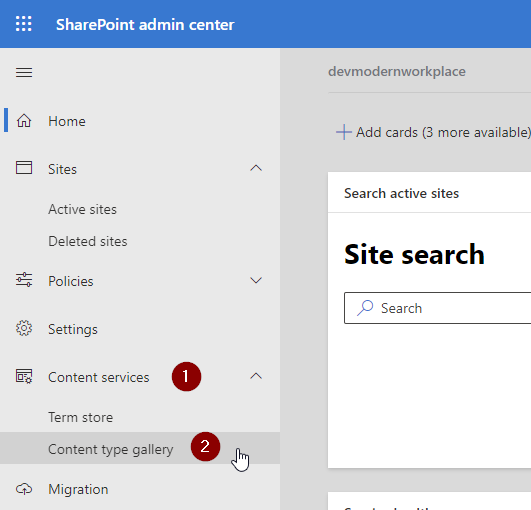
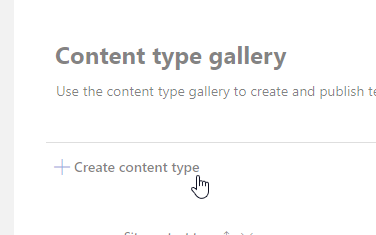
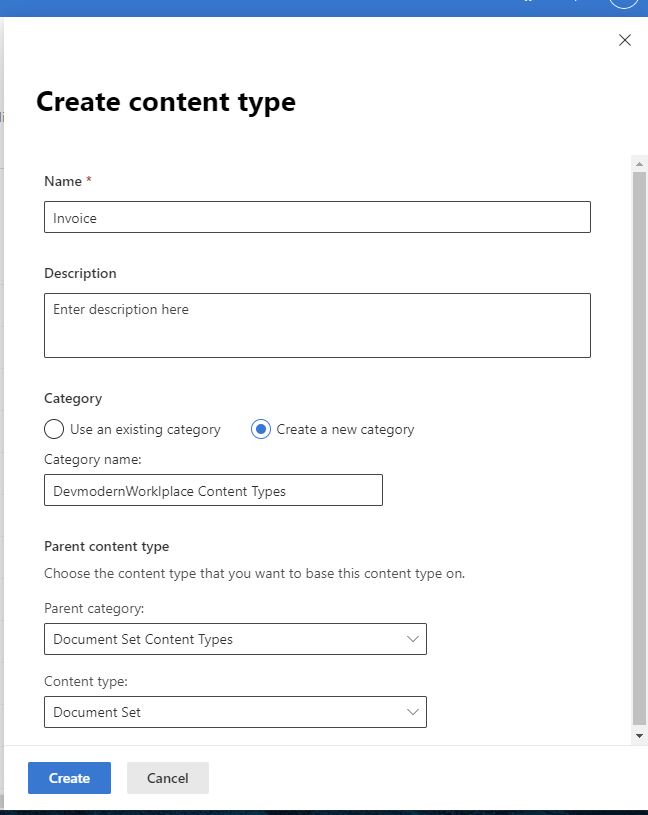
Give it a name, optionally a description define a category and set document content types as parent category and document as content type.
I chose to locate my content type invoice in the new category “DevModernWorkplace” category. You can also use the exisiting category document content types category. I would recommend a new category, so you see all your custom content types at one place.
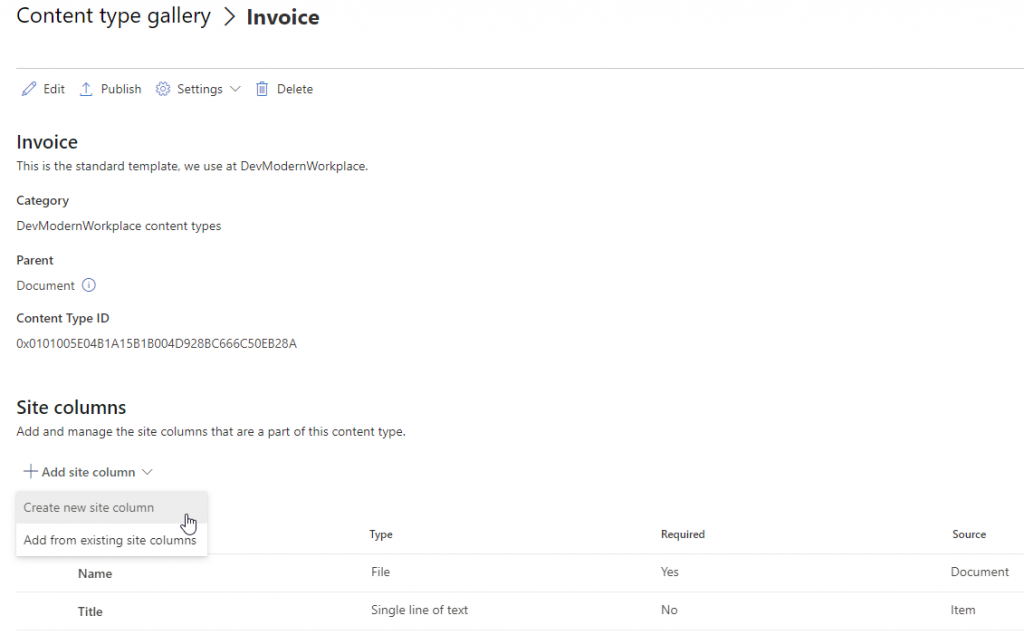
After your content type is created, I would recommend to add site columns. These site columns will show up in the library, where you will use this content type.
Add site columns to content type
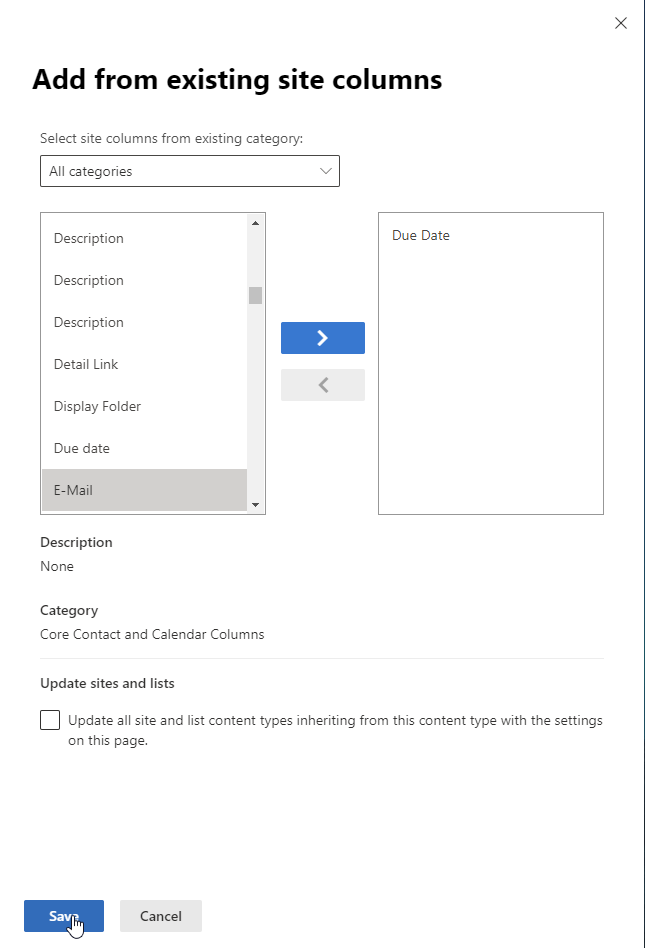
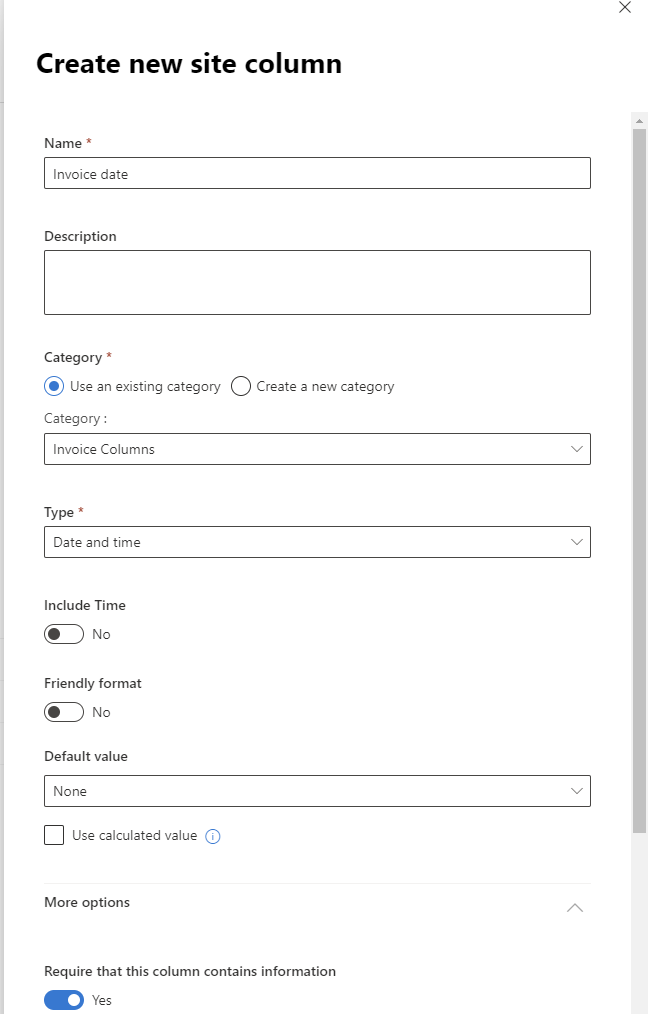
I have added the meta data due date from the existing site columns and added invoice date as new site columns and added the new site column to the new dedicated category “Invoice Columns”.
Add existing columnCreate new site column
Add template to content type
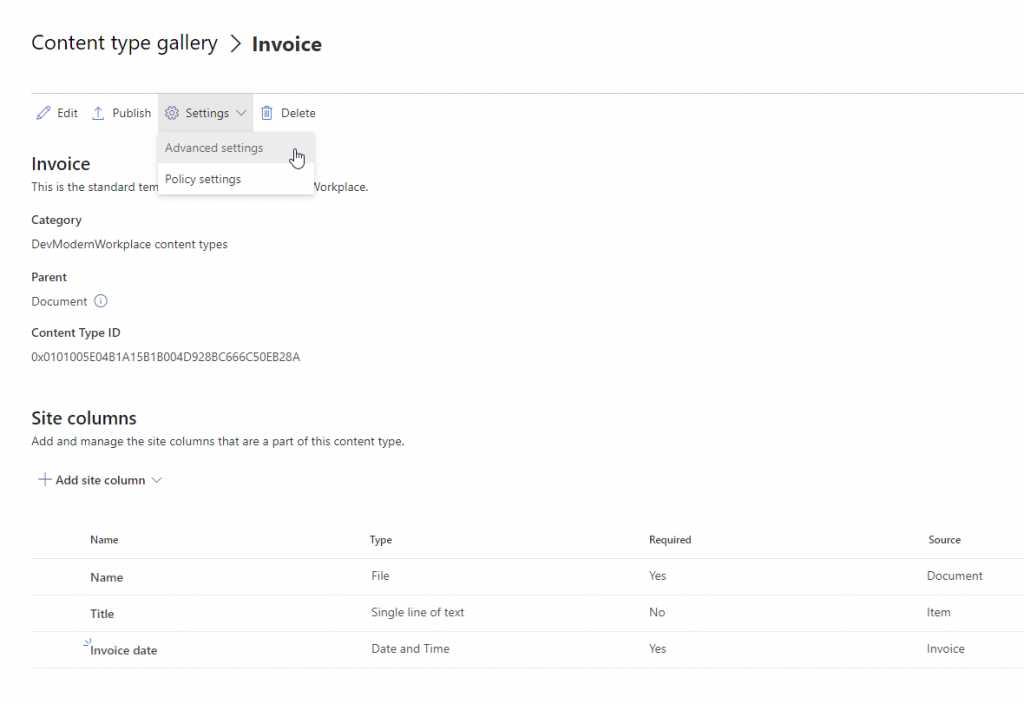
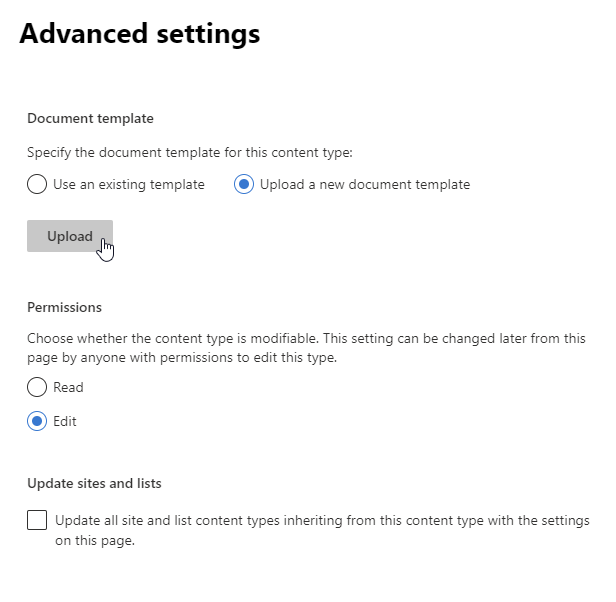
Now you can add your previously created template to your content type. Click on Settings and then on Advanced settings.
Click on upload a new document template and browse to your template. After selecting it, save it.
Publish content type
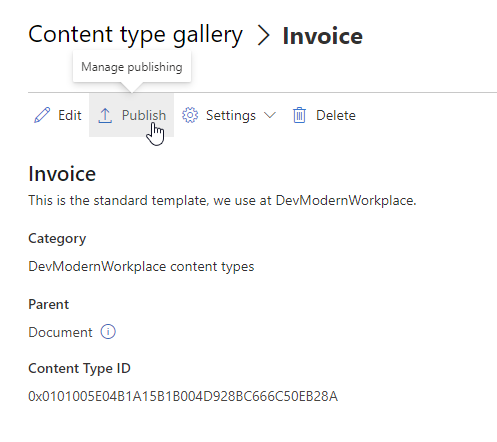
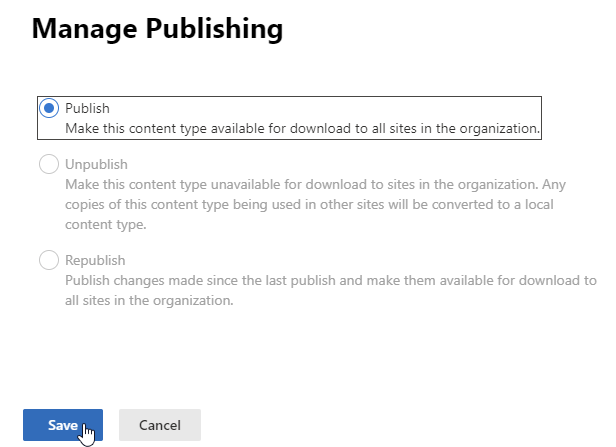
After adding the template, publish your content type.
Republish content type
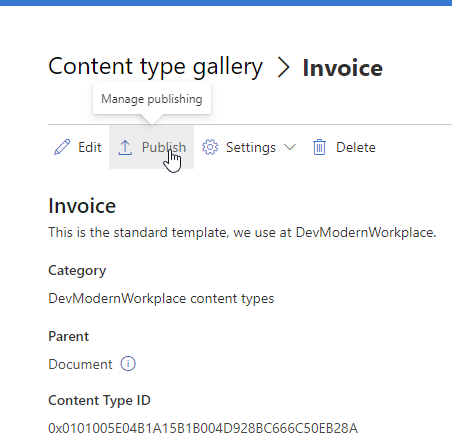
If you already published your content type, click on Publish.
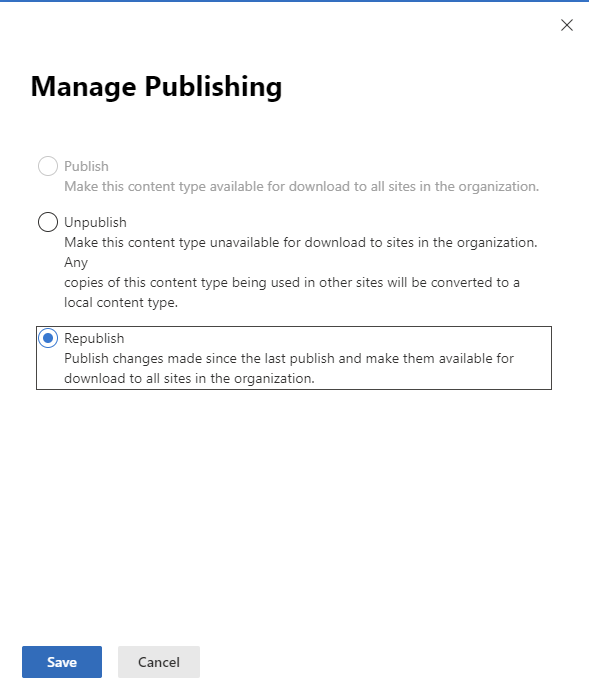
Click on Republish
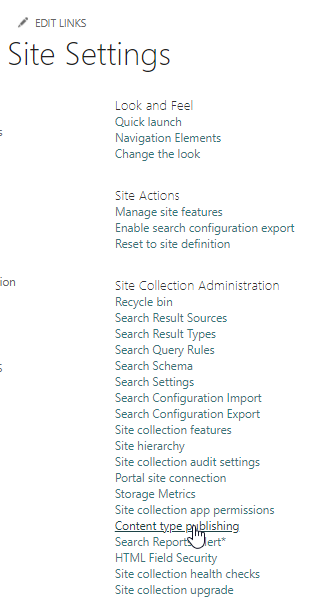
Switch to the site, where you have added the content type and visit the site settings. I am switching back to the sales site.
Click on Content type publishing.
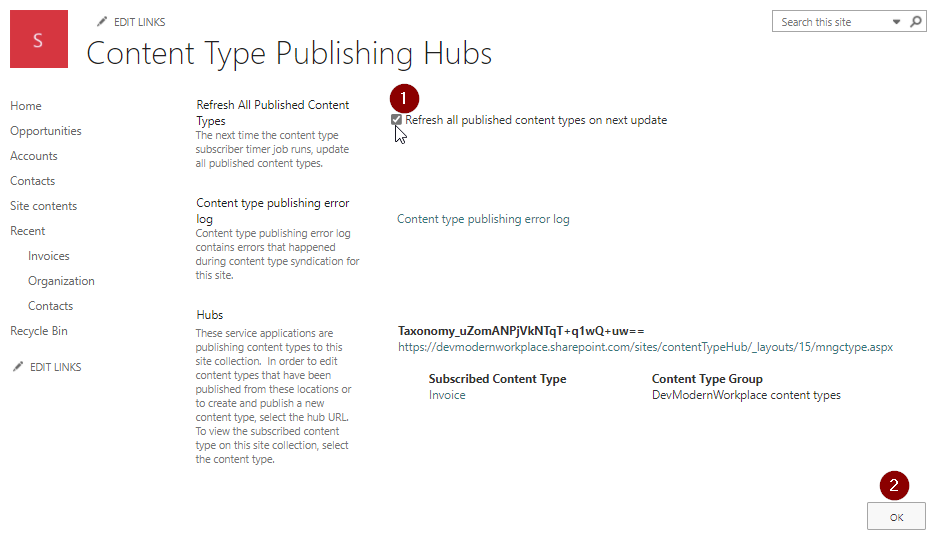
Check Refresh all published content types on next update and click on OK.
Add content type to your list
I have added a list invoices to the demo site and as you can see the default content types are configured.
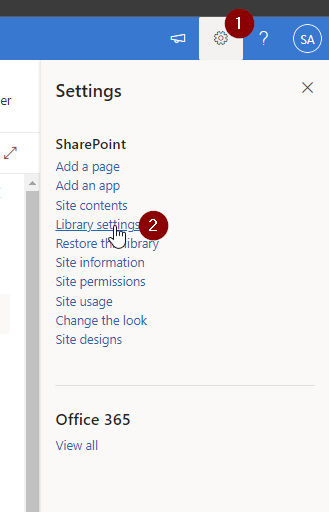
In order to add the invoice template, click on the gear -> Library settings.
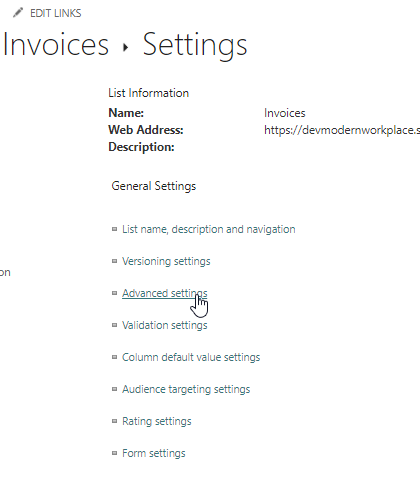
Click on Advanced settings
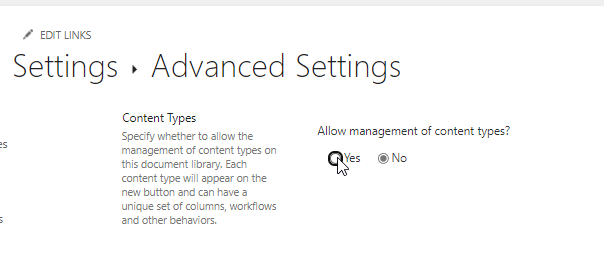
Set Allow management of content types? to Yes, scroll down to “Ok” to save your settings.
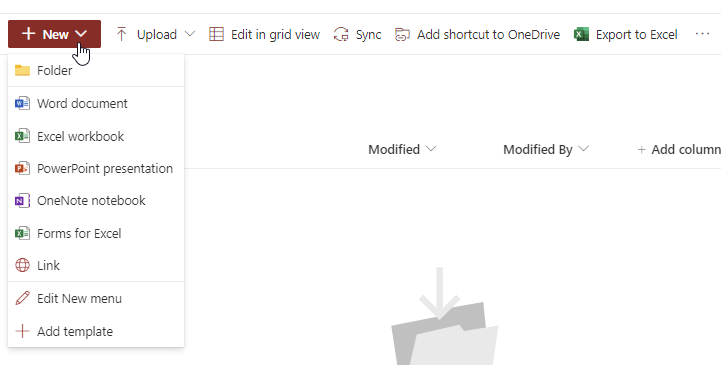
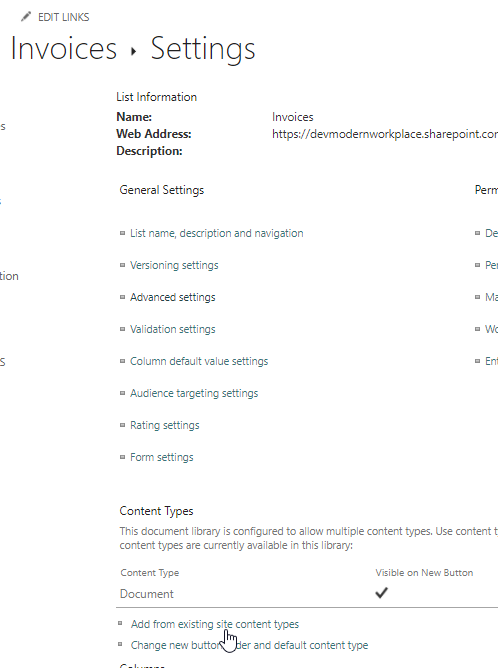
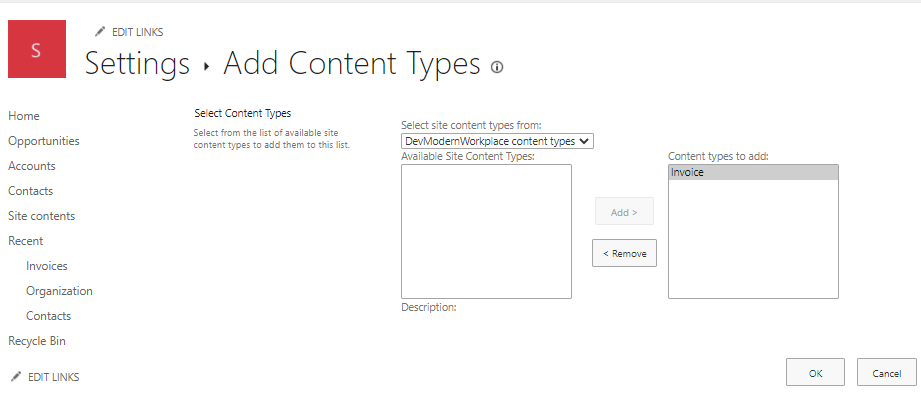
Add your content type by clicking on Add from existing site content types
If you don’t see your content type, ensure that you have published the content type and if you have published it, wait 5-10 minutes.
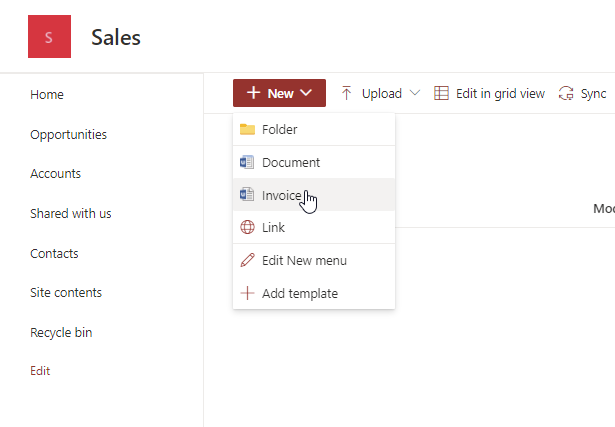
After confirming with OK, you can see the invoice content type
Bonus: Adding Metadata to your template
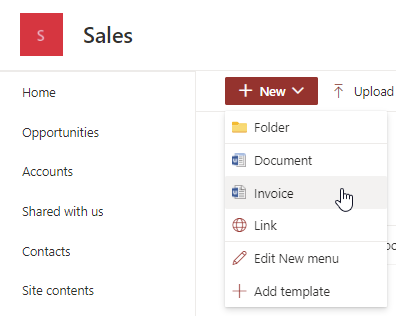
If you want to add metadata to your Word/ Excel template, create a document with your configured content type.
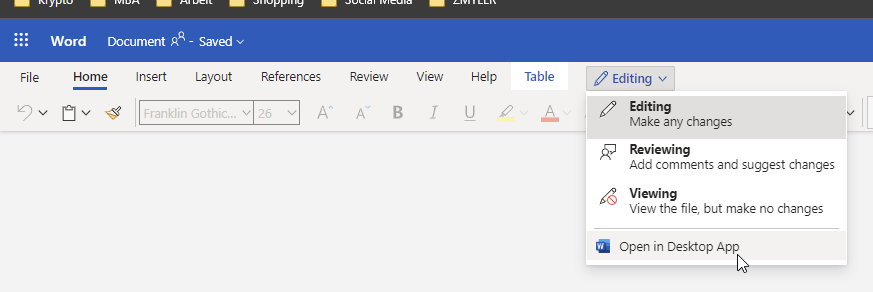
Click on editing -> Open in the Desktop App
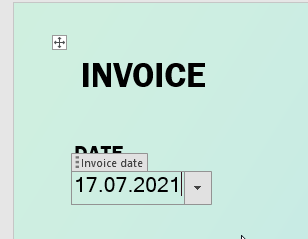
Mark the area, where you want to add the metadata.
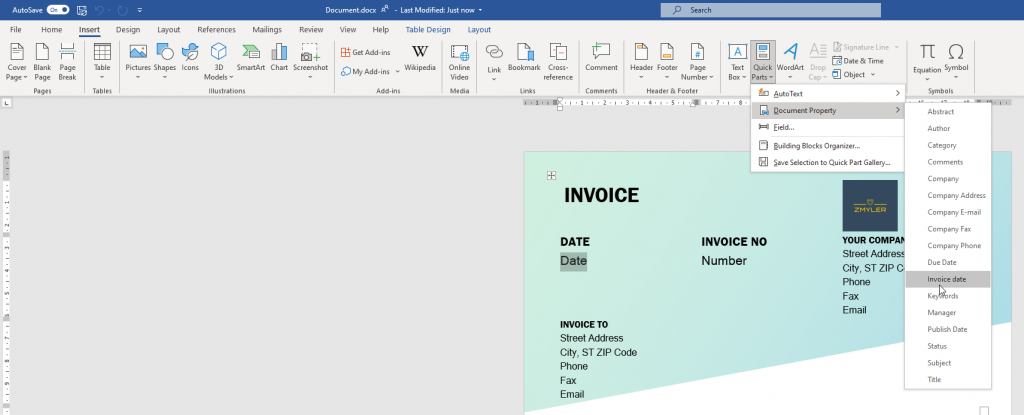
Click on tab Insert -> Quick Parts -> Document Property -> “Your Metadata”
Credentials are necessary, if you want to access systems or APIs. Credentials can be used interactively and within a script. If you want to use credentials in PowerShell to automate processes, you might have to export your credentials and import them within your automation solution.
In this article I will show you a few ways to make use of credentials, how to export and import credential objects and security considerations.
Functionality
You export the credentials with PowerShell the context the user whith which you are running the cmdlets, also the machine will be considered. So if you copy the credential file to another machine, it won’t work with the same user and you have to re-export the credential file.
Security considerations
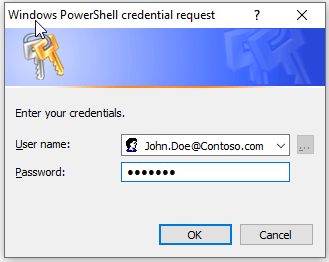
Every initialization of credentials (interactive or automated) will lead to a prompt like this. When you export credentials with PowerShell consider following advice:
Be sure, that you do this close to your authentication and do not enter your credentials on client/ servers, which are not trusted.
Why?
You might think this is safe. If we try to read the password, it looks like this:
But there is still a way to read the password:
The risk will be there, when you enter your credentials to a shell, which you are not owner of.
Recommendation
If you have to enter it in a Shell, which you do not controll, ensure, that the credential object will be initialized like this $Credential = $null
If possible, try to run your scripts within windows authentication. In PNP.PowerShell it looks like this:
But be sure to initialize the $Credential afterwards, so the potential security vector is as small as possible when you export credentials with PowerShell.
LINQ stands for Language Integrated Query and if you use LINQ in PowerShell it might boost the performance of your scripts. In this article, I’ll show you how to use LINQ in PowerShell for comparing arrays.
In this article, I will show you except and intersect of LINQ. There are many more methods. If you are interested in other methods, check out the official documentation of Microsoft.
Concept of using LINQ in PowerShell
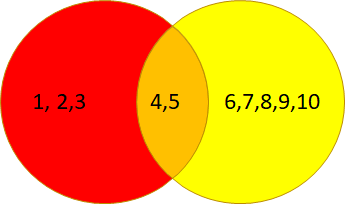
We have three amounts red, orange and yellow. The aim is to only get a specific amount e.g. only the red portion.
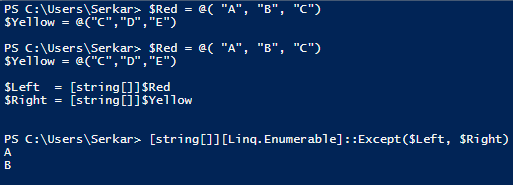
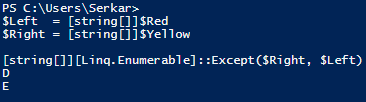
$Red = @( "A", "B", "C")
$Yellow = @("C","D","E")
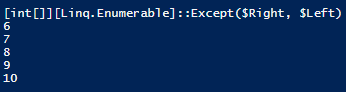
We also can do this for integer values.
$Red = @( 1..5)
$Yellow = @(4..10)
Using LINQ for Strings in arrays
I will show you how to use LINQ for string in this chapter. We will cover the methods except and intersect.
String – Get the red amount
In order to get the red amount, you have to do following:
Howdy guys, sometimes we create ton of sites just for testing. A clean tenant is a must for an efficient management. Have you ever removed sites by hand? It took me at least 18 seconds to remove ONE site restless by hand. Come on, there MUST be a way to do it faster. In this article I want to show you how you can remove SharePoint sites fastly by using Out-GridView.
Step 1 – Connect to SharePoint Online with PowerShell
In order to remove SharePoint Sites fastly, we connect to our admin Site with PNP PowerShell. Basically we make use of cmdlets handled in this article:
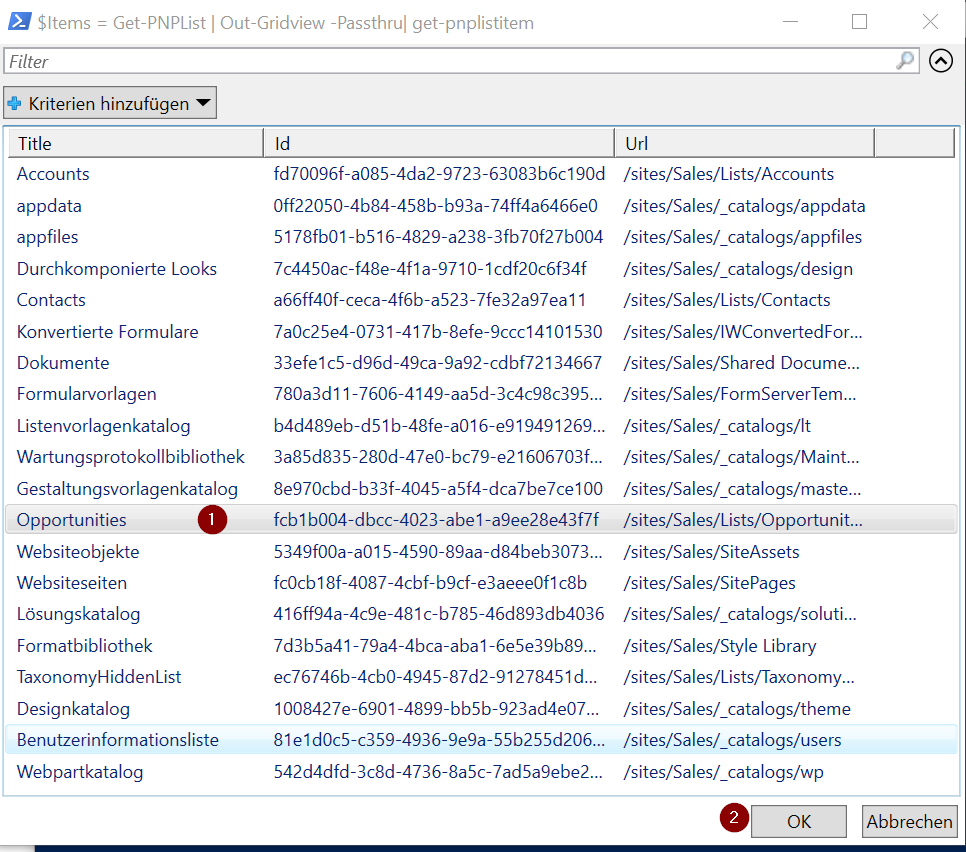
After connecting, I basically make use of Out-GridView -PassThru, to pass my selected sites for deletion. If you are not familiar with Out-GridView check following article. It will help definitelly:
Get-PnPTenantSite -IncludeOneDriveSites -Detailed  | Out-GridView -PassThru | ForEach-Object {

    if ($_.Template -eq "GROUP#0")
    {
        try
        {
            Remove-PnPMicrosoft365Group -Identity $_.GroupID
            Write-Host "Removed M365 Group $($_.GroupID)" -ForegroundColor Green
        }
        catch
        {
            Write-Error "Could not remove M365 Group $($_.GroupID) $($Error[0].ErrorDetails.Message)"
        }

    }
    else
    {
        try
        {
            Remove-PnPTenantSite -Url $_.Url  -Force -ErrorAction Stop
            Write-Host "Removed Site $($_.URL)" -ForegroundColor Green
        }
        catch
        {
            Write-Error "Could not remove Site $($Error[0].ErrorDetails.Message)"
        }
    }
}
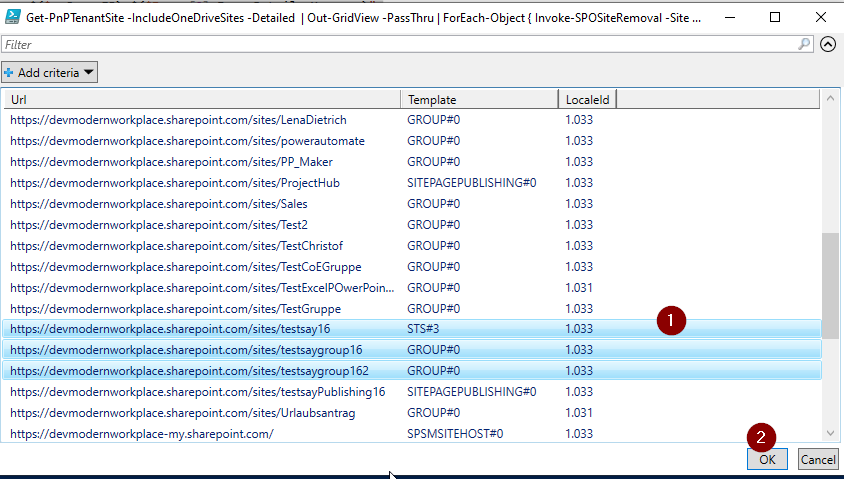
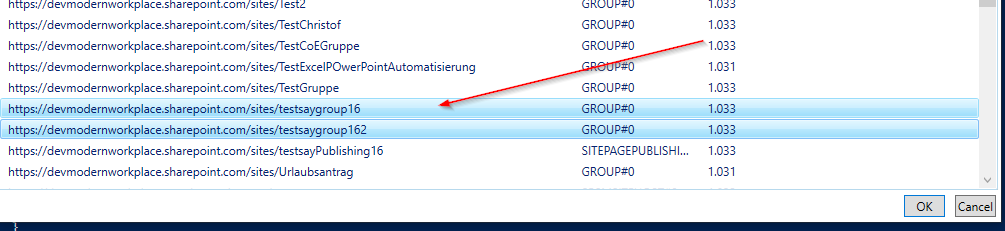
So what will happen now? A popup will show up, where you can select the sites, which you don’t want to use. As you can see, I marked 3 sites. After clicking okay, it will be removed, but you still we see them in the recycle bin – so no need for panic ;).
If you want to remove the sites without residue, you have to make use of following cmdlets. Sites, which belong to the a M365 Group will be put in recycle bin anyways.
Get-PnPTenantSite -IncludeOneDriveSites -Detailed  | Out-GridView -PassThru | ForEach-Object {

    if ($_.Template -eq "GROUP#0")
    {
        try
        {
            Remove-PnPMicrosoft365Group -Identity $_.GroupID
            Write-Host "Removed M365 Group $($_.GroupID)" -ForegroundColor Green
        }
        catch
        {
            Write-Error "Could not remove M365 Group $($_.GroupID) $($Error[0].ErrorDetails.Message)"
        }

    }
    else
    {
        try
        {
            Remove-PnPTenantSite -Url $_.Url  -Force -ErrorAction Stop -SkipRecycleBin
            Write-Host "Removed Site $($_.URL)" -ForegroundColor Green
        }
        catch
        {
            Write-Error "Could not remove Site $($Error[0].ErrorDetails.Message)"
        }
    }
}
Thats it! The three sites I have marked, are deleted now. In my case even restless.
Step 3 – Controll your Action
Controlling this, can be done by following cmdlet:
Rome was not build on a day so isn‘t our taxonomy. Business requirements change frequently, so we have to adapt our systems to support these changes. This article will show you how to change term labels ins SharePoint Online and what to consider.
You can change term labels in SharePoint Online easily. You just have to consider the term set propagation procedure. I‘ve made some interesting experience, which I would share with you.
Problem
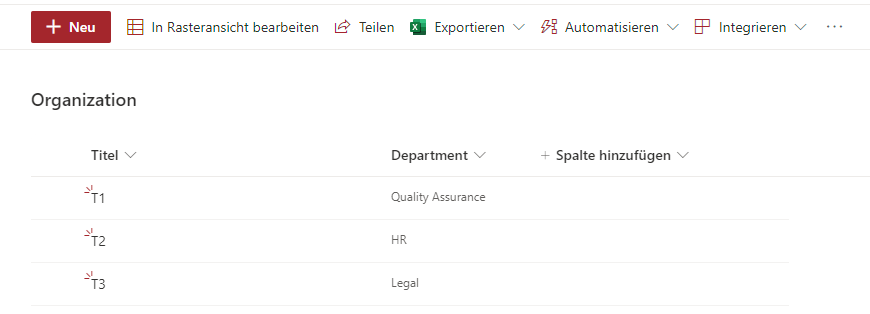
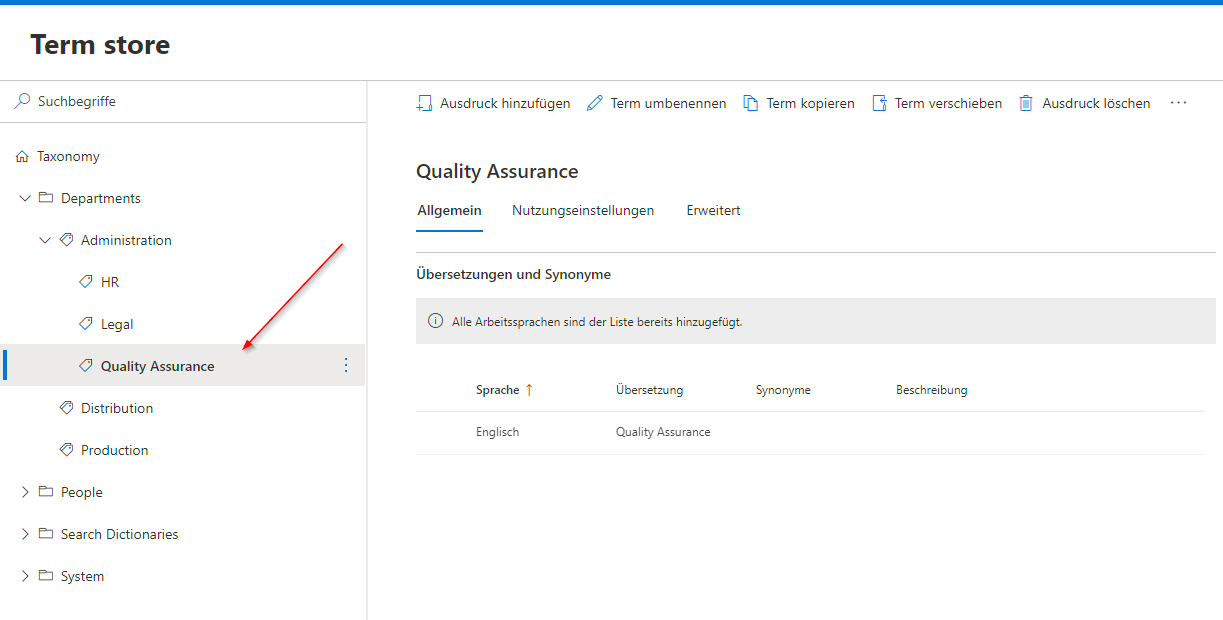
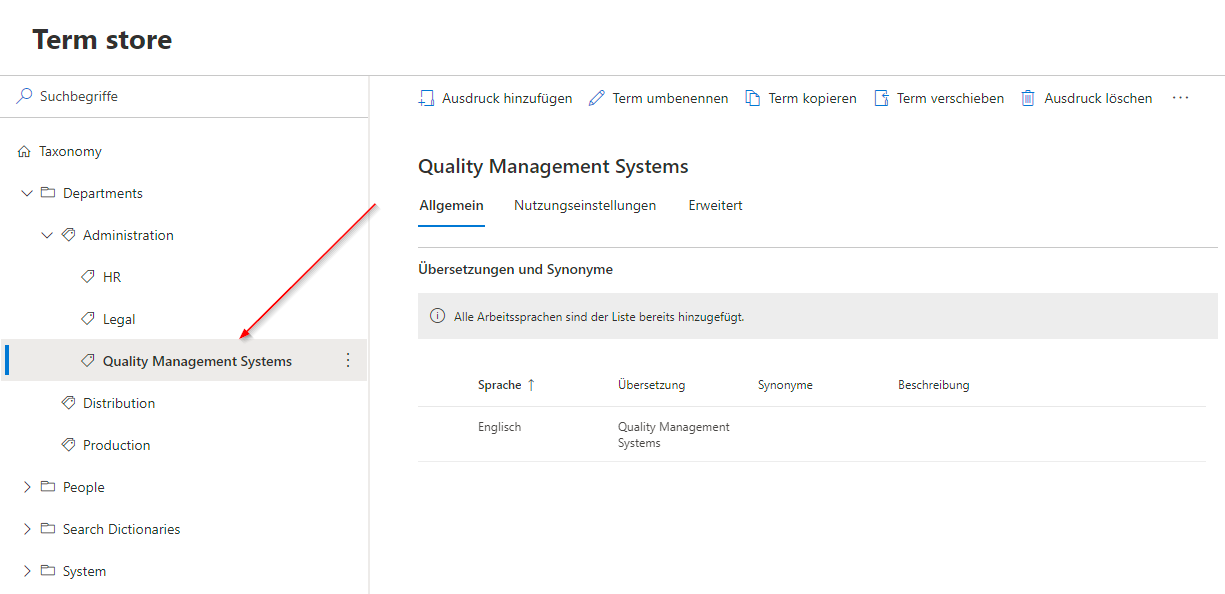
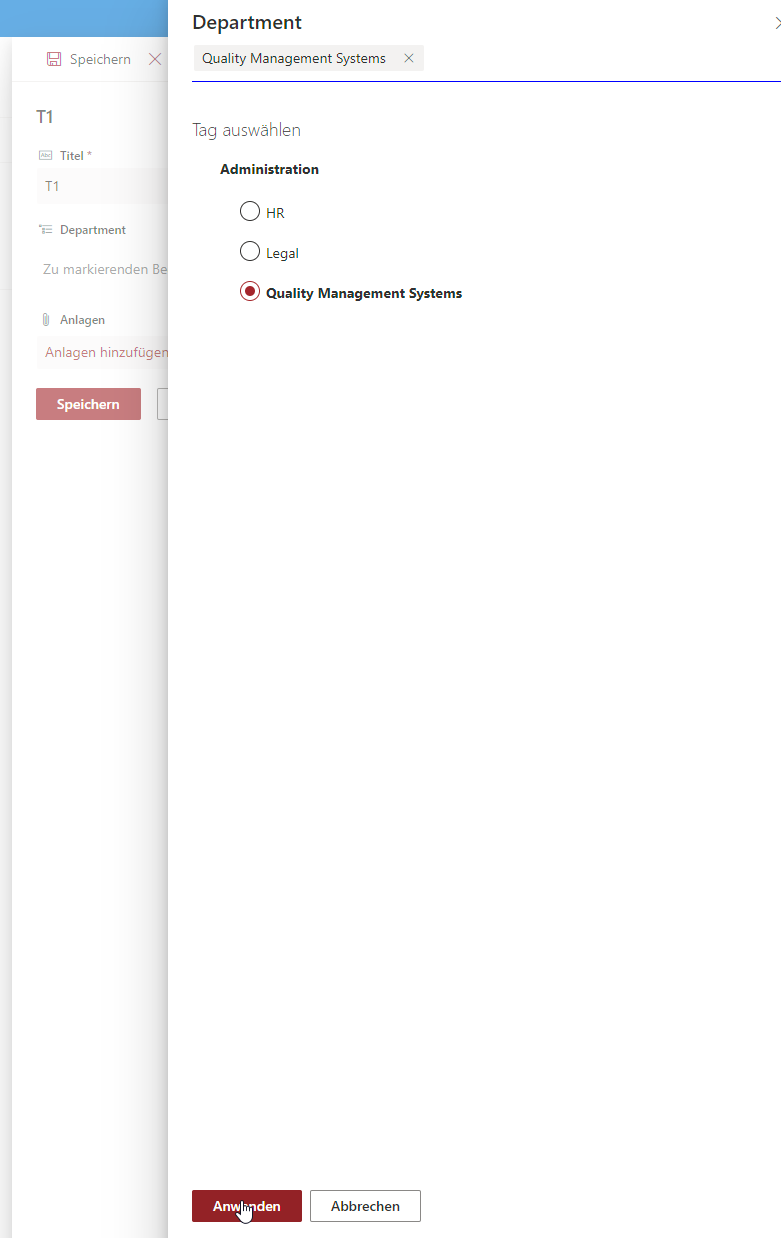
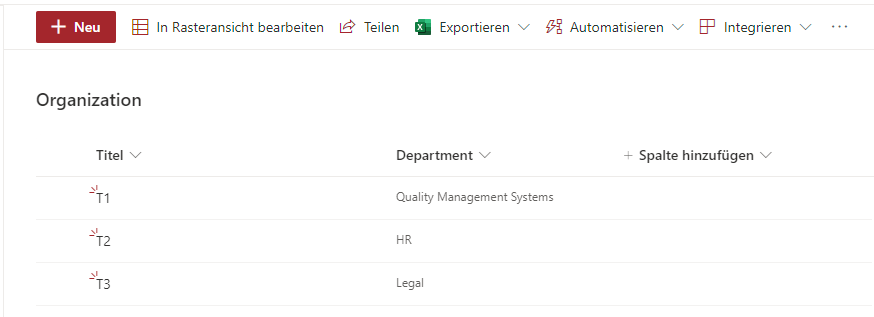
Following situation occurs: the term label of a customer is changing from “Quality Assurance” to “Quality Management Systems”. I changed the term label in the term store, but noticed, that the items and file metadata did not change in the SharePoint List.
I changed the term “Quality Assurance” to “Quality Management Systems”.
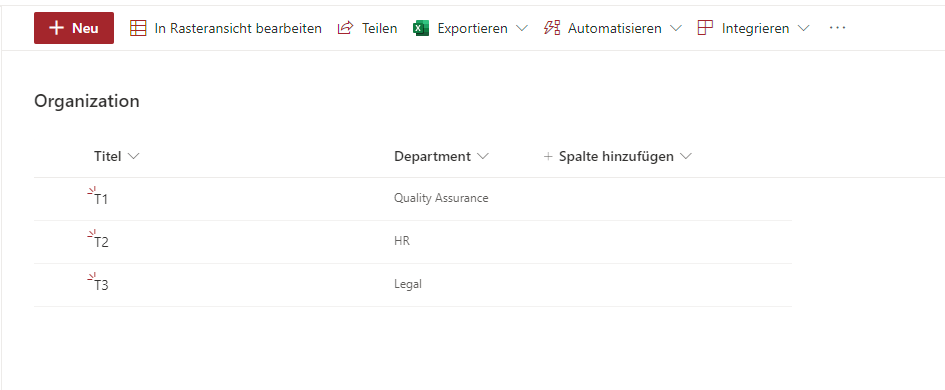
As you can see, the term is not updating in the list ‘Organization’
Even when editing the item, the term label stays the old one. Neither my customer, nor did understand, why it did not change.
How terms are propagated to sites
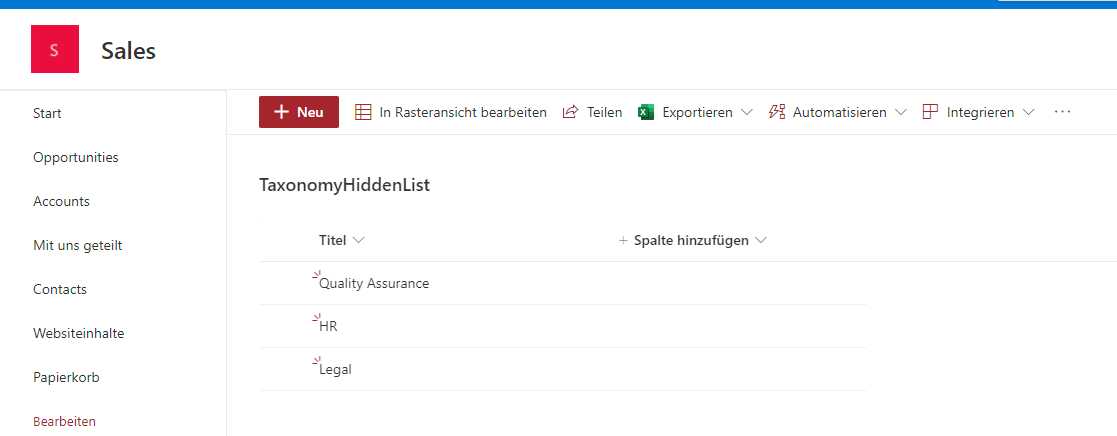
Everytime you using terms by adding a termset to a column, the terms are getting stored in the hidden taxonomy list of a site. You can find the list under following URL:
As you can see, the term is still “Quality Assurance”. The Taxonomy Update Scheduler timer job will update the taxonomy list and also the term within one hour.
If you change one term label, the procedure is like this:
You change the term in the term store
The Taxonomy Update Scheduler timer job will update the taxonomy list and also the term within one hour.
Your items and files are getting are up to date with the newest term label
Workaround
Caution: This workaround should only be used if the change have to be fulfilled urgently.
If you have to change the term label urgently, you can remove the item from the TaxonomyHiddenList.
After removing the item, in the taxonomy hidden list, you can see the change of the term label took effect in the list:
Conclusio
When you change term labels in SharePoint, you have to be patient. The timer job will do it’s work and if not, make use of the workaround.
We all can Imagine the scenario. You create sites in sharepoint and now you want to edit multiple sites afterwards with PowerShell. In order to be safe, we have to check, wether an connection exists and if yes to disconnect the current connection to have a clean processing of the sites. In this article I want to show you how can achieve dealing with existing SharePoint connections. If you don’t know how to connect to SharePoint Online, check the article.
Symptoms – How I tried it first
I tried to check the connection by a normal if query, but as you can see it throws everytime an error, so the script will be halted under normal circumstances. Changing the ErroActionPreference is something you could do for sure, but I would not recommend it, if you want to handle other upcomming potential errors of the API. So as you can see dealing with existing SharePoint connections in terms of checking, wether an connection exists, is not that easy.
if ((Get-PnPConnection) )
{
    Write-Host "Connection found"
}
Get-PnPConnection : The current connection holds no SharePoint context. Please use one of the Connect-PnPOnline commands which uses the -Url argument to connect.
In Zeile:2 Zeichen:6
+ if ((Get-PnPConnection) )
+      ~~~~~~~~~~~~~~~~~
    + CategoryInfo          : NotSpecified: (:) [Get-PnPConnection], InvalidOperationException
    + FullyQualifiedErrorId : System.InvalidOperationException,PnP.PowerShell.Commands.Base.GetPnPConnection
PS H:>>
if ((Get-PnPConnection) -ne $Null )
{
    Write-Host "Connection found"
}
Get-PnPConnection : The current connection holds no SharePoint context. Please use one of the Connect-PnPOnline commands which uses the -Url argument to connect.
In Zeile:2 Zeichen:6
+ if ((Get-PnPConnection) -ne $Null )
+      ~~~~~~~~~~~~~~~~~
    + CategoryInfo          : NotSpecified: (:) [Get-PnPConnection], InvalidOperationException
    + FullyQualifiedErrorId : System.InvalidOperationException,PnP.PowerShell.Commands.Base.GetPnPConnection
PS H:>>
if ((Get-PnPConnection|out-null) -ne $Null )
{
    Write-Host "Connection found"
}
Get-PnPConnection : The current connection holds no SharePoint context. Please use one of the Connect-PnPOnline commands which uses the -Url argument to connect.
In Zeile:2 Zeichen:6
+ if ((Get-PnPConnection|out-null) -ne $Null )
+      ~~~~~~~~~~~~~~~~~
    + CategoryInfo          : NotSpecified: (:) [Get-PnPConnection], InvalidOperationException
    + FullyQualifiedErrorId : System.InvalidOperationException,PnP.PowerShell.Commands.Base.GetPnPConnection
PS H:>>
if ((Get-PnPConnection -ErrorAction SilentlyContinue) -ne $Null )
{
    Write-Host "Connection found"
}
Get-PnPConnection : The current connection holds no SharePoint context. Please use one of the Connect-PnPOnline commands which uses the -Url argument to connect.
In Zeile:2 Zeichen:6
+ if ((Get-PnPConnection -ErrorAction SilentlyContinue) -ne $Null )
+      ~~~~~~~~~~~~~~~~~~~~~~~~~~~~~~~~~~~~~~~~~~~~~~~
    + CategoryInfo          : NotSpecified: (:) [Get-PnPConnection], InvalidOperationException
    + FullyQualifiedErrorId : System.InvalidOperationException,PnP.PowerShell.Commands.Base.GetPnPConnection
Solutions
Try Catch Solution
In order to handle this situation, you have to catchup the error.
The snippet tries to check wether there is an connection and if there is one, it will proceed and disconnect it. After disconnecting it I have set the variable $connection to $null, so I can process it later on.
BONUS 1: Invoke-PNPConnection with Credential object (No MFA enforcement)
A function which handles the whole procedure of cutting of the connection and reconnecting, makes the handling easier. In this case I have added an additional check of the contents of lists, because sometimes you do connect, but experience that the webserver is not ready yet – basically you get an 403 FORBIDDEN message in PowerShell.
NOTE: This will only work If your user has no MFA enforcement. If you have MFA enabled, I have another function for you.
Most of our times, we just need just a bunch of items, to export them or to change their values. This post should help you to show, how to handle filtering for SharePoint items. Besides filtering for SharePoint items with Where-Object, you can also make use of CAML (Collaborative Application Markup Language), which lets you get only the items, you need. It might increase the performance of your queries, when you are dealing with large amounts of data.
Where are the items, which I am looking for?
Preqrequistes
If we want to achieve filtering for SharePoint items, with a CAML query, we have to fulfill following prerequisites:
Permissions to access the list
Installed Module PNP.Powershell. If you don’t know how to, check the post.
Connection to the site via PNP.PowerShell. If you don’t know how to, check the post.
Considerations
You should take care of the case sensitivity of operands and column names
You should take care of the <view> part. Sometimes it is needed, sometimes not – so I would rely on the examples.
Query Schema
A query is structured like this
"<View><Query><Where><LOGICAL OPERATOR><FieldRef Name='INTERNAL NAME OF COLUMN'/><Value Type='VALUE TYPE'>VALUE</Value></LOGICAL OPERATOR></Where></Query></View>"
You can find the internal name of columns in two ways:
In order to filter by query paramter, you have to define a filter query, depending on your datatype (string, integer, boolean..) you have to choose a different query value type.
My blog would not keep it’s promise, If you would not find examples, which give you a fast way to adapt the scripts, so here we go!
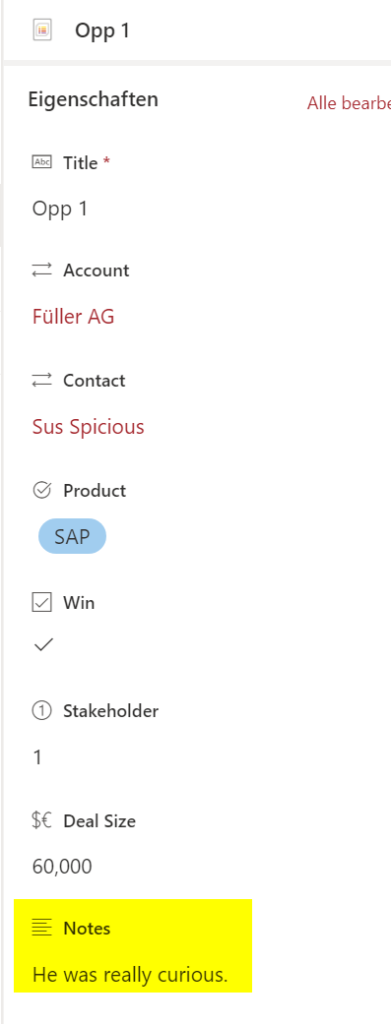
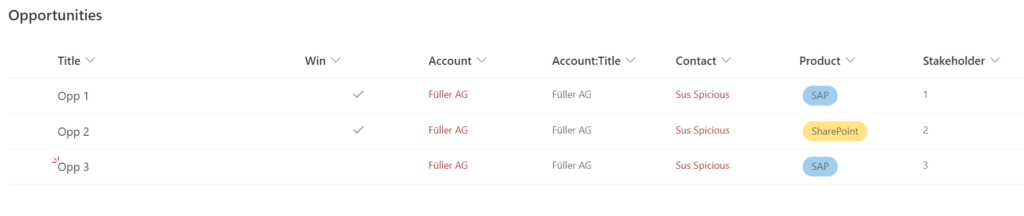
In my example, I am using my demo opportunities list. I have marked the names of the columns, the value types, the operands and the actual values bold. Mostly I am using the logical operator “eq”, but I think if you got the basic concept of this, you can adapt it to your solution easily and if not, we will find a way together.
Example for boolean
If you want to find items with TRUE values, you have to enter 1. For FALSE values, you have to make use of 0.
Get-PnPListItem : Mindestens ein Feld ist nicht richtig installiert. Wechseln Sie zur Listeneinstellungsseite, um diese Felder zu löschen.
In Zeile:1 Zeichen:1
+ Get-PnPListItem -List "Opportunities" -Query "<View><Query><Where><Gt ...
+ ~~~~~~~~~~~~~~~~~~~~~~~~~~~~~~~~~~~~~~~~~~~~~~~~~~~~~~~~~~~~~~~~~~~~~
    + CategoryInfo          : WriteError: (:) [Get-PnPListItem], ServerException
    + FullyQualifiedErrorId : EXCEPTION,PnP.PowerShell.Commands.Lists.GetListItem
Error message in english
Get-PnPListItem : One or more field types are not installed properly. Go to the list settings page to delete these fields.
In Zeile:1 Zeichen:1
+ Get-PnPListItem -List "Opportunities" -Query "<View><Query><Where><Gt ...
+ ~~~~~~~~~~~~~~~~~~~~~~~~~~~~~~~~~~~~~~~~~~~~~~~~~~~~~~~~~~~~~~~~~~~~~
    + CategoryInfo          : WriteError: (:) [Get-PnPListItem], ServerException
    + FullyQualifiedErrorId : EXCEPTION,PnP.PowerShell.Commands.Lists.GetListItem
Cause
You did not care of the case sensitivity of the column name
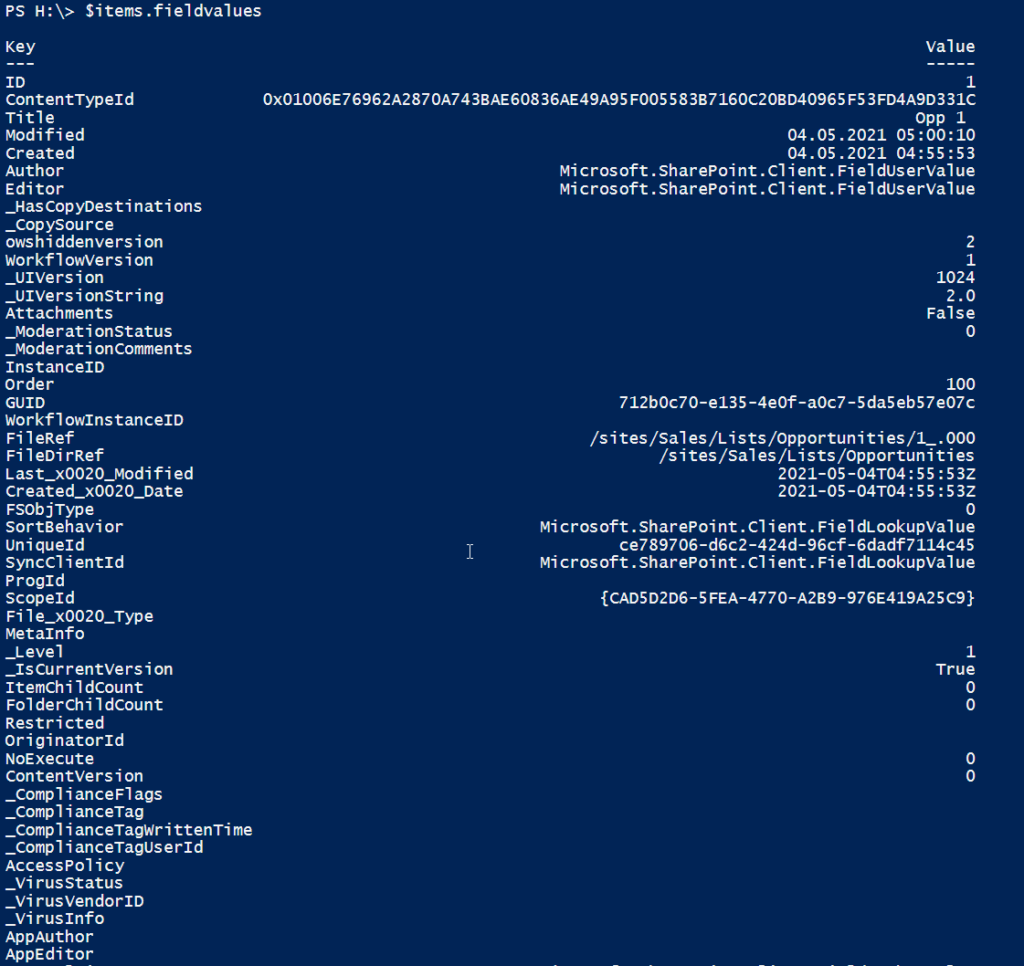
You have to determine the internal name of SharePoint columns, when you want to get the values of the items programatically or develop some apps with PowerApps. If you make use of display names of columns, you might not get the values of the columns, that’s why you should use the internal name of the columns, In this article I will show you how to do it by a step-by-step description.
Description
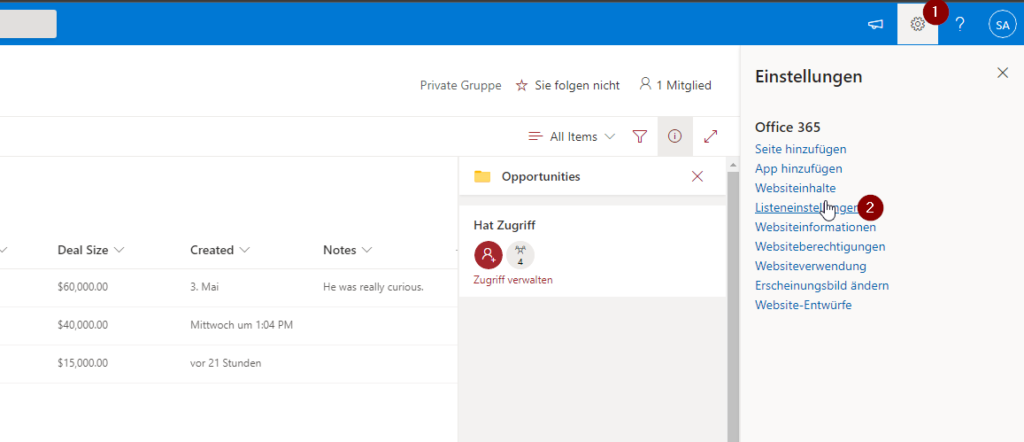
Browse to the list, where you want to get field internal name and open the list settings.
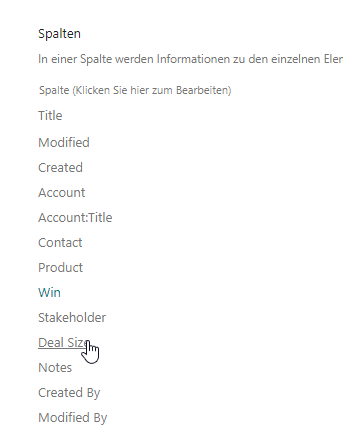
Scroll down to the SharePoint columns and click on the column, which you want to get the internal name of. In my example I want to check it for the SharePoint Column Deal Size.
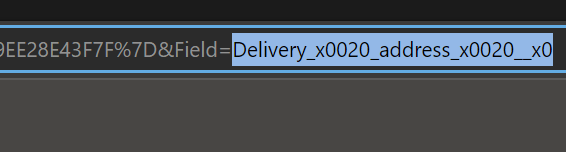
After clicking on Deal Size, I am checking the URL in the adress bar. The part after Field= is the internal name for the column. In my case it is DealSize.
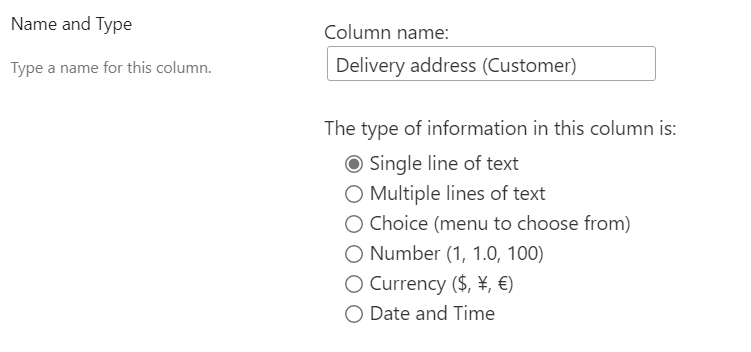
If you use special characters, you will notice, that it won’t be that easy to determine the internal name of the SharePoint columns. Let me show it to you for the column Delivery address (Customer). As you can see, it got _x0020 and some other placeholder, which are not guessable easily.