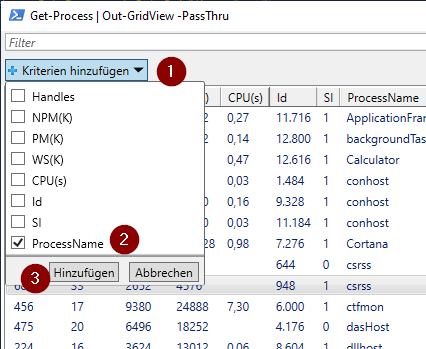
If you are working interactively with PowerShell, It might be unhandy to define all the filtering options with Where-Object. I will show you how to filter for PowerShell objects the traditional way and doing it with Out-Gridview.
Filter for PowerShell objects – the traditional way with Where-Object
If we are looking forward to filter in PowerShell, we normaly make use of Where-Object this. In my example I am looking forward for all proccesses, which contain the name msedge and the value for Handles is greater than 292. My query would look like this:
LINQ stands for Language Integrated Query and if you use LINQ in PowerShell it might boost the performance of your scripts. In this article, I’ll show you how to use LINQ in PowerShell for comparing arrays.
In this article, I will show you except and intersect of LINQ. There are many more methods. If you are interested in other methods, check out the official documentation of Microsoft.
Concept of using LINQ in PowerShell
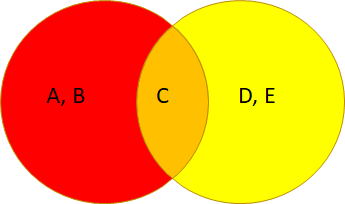
We have three amounts red, orange and yellow. The aim is to only get a specific amount e.g. only the red portion.
$Red = @( "A", "B", "C")
$Yellow = @("C","D","E")
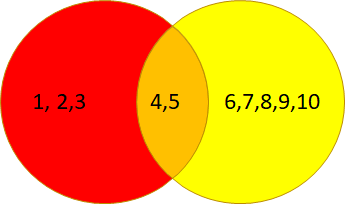
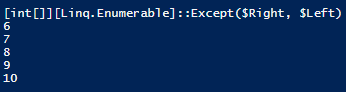
We also can do this for integer values.
$Red = @( 1..5)
$Yellow = @(4..10)
Using LINQ for Strings in arrays
I will show you how to use LINQ for string in this chapter. We will cover the methods except and intersect.
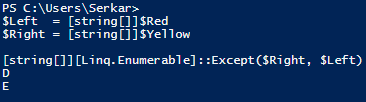
String – Get the red amount
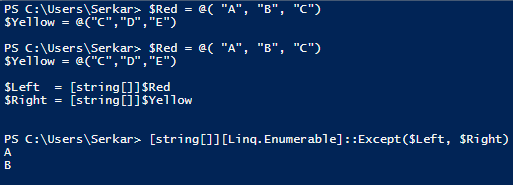
In order to get the red amount, you have to do following:
Most of our times, we just need just a bunch of items, to export them or to change their values. This post should help you to show, how to handle filtering for SharePoint items. Besides filtering for SharePoint items with Where-Object, you can also make use of CAML (Collaborative Application Markup Language), which lets you get only the items, you need. It might increase the performance of your queries, when you are dealing with large amounts of data.
Where are the items, which I am looking for?
Preqrequistes
If we want to achieve filtering for SharePoint items, with a CAML query, we have to fulfill following prerequisites:
Permissions to access the list
Installed Module PNP.Powershell. If you don’t know how to, check the post.
Connection to the site via PNP.PowerShell. If you don’t know how to, check the post.
Considerations
You should take care of the case sensitivity of operands and column names
You should take care of the <view> part. Sometimes it is needed, sometimes not – so I would rely on the examples.
Query Schema
A query is structured like this
"<View><Query><Where><LOGICAL OPERATOR><FieldRef Name='INTERNAL NAME OF COLUMN'/><Value Type='VALUE TYPE'>VALUE</Value></LOGICAL OPERATOR></Where></Query></View>"
You can find the internal name of columns in two ways:
In order to filter by query paramter, you have to define a filter query, depending on your datatype (string, integer, boolean..) you have to choose a different query value type.
My blog would not keep it’s promise, If you would not find examples, which give you a fast way to adapt the scripts, so here we go!
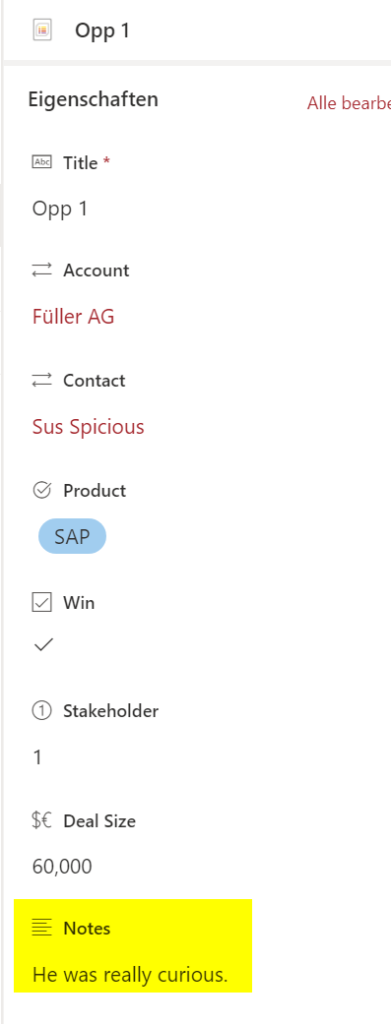
In my example, I am using my demo opportunities list. I have marked the names of the columns, the value types, the operands and the actual values bold. Mostly I am using the logical operator “eq”, but I think if you got the basic concept of this, you can adapt it to your solution easily and if not, we will find a way together.
Example for boolean
If you want to find items with TRUE values, you have to enter 1. For FALSE values, you have to make use of 0.
Get-PnPListItem : Mindestens ein Feld ist nicht richtig installiert. Wechseln Sie zur Listeneinstellungsseite, um diese Felder zu löschen.
In Zeile:1 Zeichen:1
+ Get-PnPListItem -List "Opportunities" -Query "<View><Query><Where><Gt ...
+ ~~~~~~~~~~~~~~~~~~~~~~~~~~~~~~~~~~~~~~~~~~~~~~~~~~~~~~~~~~~~~~~~~~~~~
    + CategoryInfo          : WriteError: (:) [Get-PnPListItem], ServerException
    + FullyQualifiedErrorId : EXCEPTION,PnP.PowerShell.Commands.Lists.GetListItem
Error message in english
Get-PnPListItem : One or more field types are not installed properly. Go to the list settings page to delete these fields.
In Zeile:1 Zeichen:1
+ Get-PnPListItem -List "Opportunities" -Query "<View><Query><Where><Gt ...
+ ~~~~~~~~~~~~~~~~~~~~~~~~~~~~~~~~~~~~~~~~~~~~~~~~~~~~~~~~~~~~~~~~~~~~~
    + CategoryInfo          : WriteError: (:) [Get-PnPListItem], ServerException
    + FullyQualifiedErrorId : EXCEPTION,PnP.PowerShell.Commands.Lists.GetListItem
Cause
You did not care of the case sensitivity of the column name