If you are working interactively with PowerShell, It might be unhandy to define all the filtering options with Where-Object. I will show you how to filter for PowerShell objects the traditional way and doing it with Out-Gridview.
Filter for PowerShell objects – the traditional way with Where-Object
If we are looking forward to filter in PowerShell, we normaly make use of Where-Object this. In my example I am looking forward for all proccesses, which contain the name msedge and the value for Handles is greater than 292. My query would look like this:
#traditional way
Get-Process  | Where-Object {$_.processname -contains "msedge" -and $_.Handles -gt 292}
Filter for PowerShell objects – Out-Gridview
I want to show you how to filter for Powershell objects easily by using following cmdlet:
Out-GridView -PassThruExample:
Get-Process | Out-GridView -PassThruDoing that results in a grid popping up.

Now you have multiple options.
You can make use of the filter of the out of the box filtering options. Let’s say I just want to find the msedge processes.
So I am adding the Processname as a filter criteria:
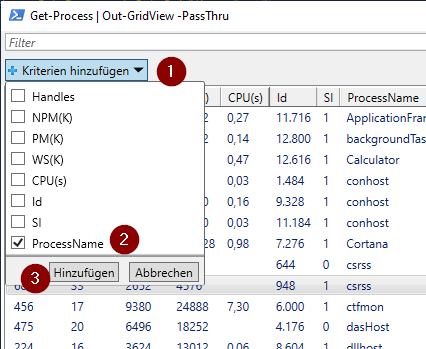
Adding ProcessName eligibles setting filtering following operators:
contains
does not contains
beginns with
is equal to
is not equal to
ends with
is empty
is not empty
Entering msedge to the contains field, shows only process entries, which contain msedge

Now you can add additional filters.


We can even now sort all the stuff by clicking on the column, which we want to sort for.

Export objects to Excel
If you mark everything with CTRL + A, you can copy all the stuff and put it e.g. straigth to Excel

If you want to process further with powershell, you can mark the entities needed and click on OK. I selected the first and the thridh entity.

As you see, PowerShell returns my selection

Conclusio
As you can see you can save time and coding lines, when use are working inteactively on PowerShell by filter forPowerShell objects with Out-Gridview.
You might find intersting
Filtering items with CAML. For further learnings check out the post: Filtering for SharePoint items with CAML Queries | SPO Scripts
Official documentation of Microsoft for the cmdlet Out-Gridview: Out-GridView (Microsoft.PowerShell.Utility) – PowerShell | Microsoft Docs