SharePoint sites are created very fast. With a few clicks, admins and users can create dozens of sites and subsites. Since it is so easy to create sites, we as admins should have an overview, what is going on at our SharePoint environment. You need also an overview of your environment, If you are looking forward to migrate your environment to a different environment. For this purpose I wrote scripts to get all sites and subsites of your SharePoint, so you can trim your SharePoint to your business needs. You will find a script for SharePoint Online and SharePoint Server.
If you run the script, an export will be created at the path, which you have specified. If you want to change the separation of columns to comma separated, change the following export line:
$Export | Export-Csv -Path $ExportPath -NoTypeInformation -Delimiter ";" -Forceto this:
$Export | Export-Csv -Path $ExportPath -NoTypeInformation -Delimiter "," -ForceGet all sites and subsites for SharePoint Online
For SharePoint Online I am using the PowerShell Module PNP.PowerShell. You have to install it on your client/ server, for this purpose.
Prerequisites
In order to get all sites and subsites, you need following prerequisites fulfilled:
- Installation of PNP PowerShell Module
Here you can see, how it can be done: Connect to SharePoint with PowerShell | SharePoint Online (workplace-automation.com/) - SharePoint Administrator role
- Access to all SharePoint sites
I wrote a blog post for this purpose, how you can get access to all sites: SharePoint Powershell add site collection administrator (workplace-automation.com/)
If you don’t have access to all SharePoint sites, you will only get the SharePoint sites (not the subsites).
PowerShell Script to get all sites and subsites for SharePoint Online
In this script I used an exported credential to authenticate with the PNP module. As always, please change the values in the parameter block.
$CredentialPath is the path to an exported credential file of the user with the SharePoint administrator role. If you leave the variable empty, the script will notice, that the credential is empty (line 47). Thus, it will ask you for the username and password for the user, and also the path, where the script can locate the credential file (line 17, 29 and 22). After the export, it will import the credential file to connect to SharePoint Online.
If you want to read more about the credential handling, consider reading Use credentials in PowerShell | SPO Scripts
Depending on your locality, you have to change the delimiter in the last line:
Param(
    $TenantUrl = "https://devmodernworkplace-admin.sharepoint.com/",
    $CredentialPath = "C:\Users\Serkar\Desktop\devmod.key",
    $DesktopPath = [System.Environment]::GetFolderPath([System.Environment+SpecialFolder]::Desktop),
    $ExportPath = $DesktopPath + "\SitesExport.csv"
)

Function Export-CredentialFile
{
    param(
    $Username,
    $Path
    )

    While ($Username -eq "" -or $null -eq $Username)
    {
        $Username = Read-Host "Please enter your username (john.doe@domain.de)"
    }

    While ($Path -eq ""-or $null -eq $Path)
    {
        $Path = Read-Host "Where should the credentials be exported to?"
    }
    $ParentPath = Split-Path $Path
    If ((Test-Path $ParentPath) -eq $false)
    {
        New-Item -ItemType Directory -Path $ParentPath
    }
    $Credential = Get-Credential($Username)
    $Credential | Export-Clixml -Path $Path
    Return $Credential
}
Function Import-CredentialFile ($Path)
{
    if (! (Test-Path $Path))
    {
        Write-Host "Could not find the credential object at $Path. Please export your credentials first"
    }
    else
    {
        Import-Clixml -Path $Path
    }
}

$Credential = Import-CredentialFile -Path $CredentialPath

If ($Credential -eq $null)
{
    $Username = Read-Host "Please enter your username (john.doe@domain.de)"
    Export-CredentialFile -Path $CredentialPath -Username $Username
    $Credential = Import-CredentialFile $CredentialPath
}

#Connect to tenant
Connect-PnPOnline -Url $TenantUrl -Credentials $Credential

$Export = New-Object System.Collections.Generic.List[object]

$Sites = Get-PnPTenantSite
$SitesCount = $Sites.Count
$i= 1

foreach ($Site in $Sites)
{
    Write-Host "($i / $SitesCount) Processing site $($Site.Url)"
    Disconnect-PnPOnline
    Connect-PnPOnline -Url $Site.Url -Credentials $Credential
    $Site = Get-PnPSite

    #get the information of the root
    $NewExport = New-Object PsObject -Property @{

            Url = $Site.URl
            SubSitesCount = (Get-PnPSubWebs -Recurse).count
            ParentWeb = $null
    }
    $Export.Add($NewExport)

    #get the information of subwebs
    Get-PnPSubWebs -Recurse  -Includes ParentWeb| ForEach-Object {
        $NewExport = New-Object PsObject -Property @{

            Url = $_.URl
            SubSitesCount = $_.Webs.count
            ParentWeb = $_.ParentWeb.ServerRelativeUrl
        }
        $Export.Add($NewExport)
    }
    $i++
}
$Export | Export-Csv -Path $ExportPath -NoTypeInformation -Delimiter ";" -Force
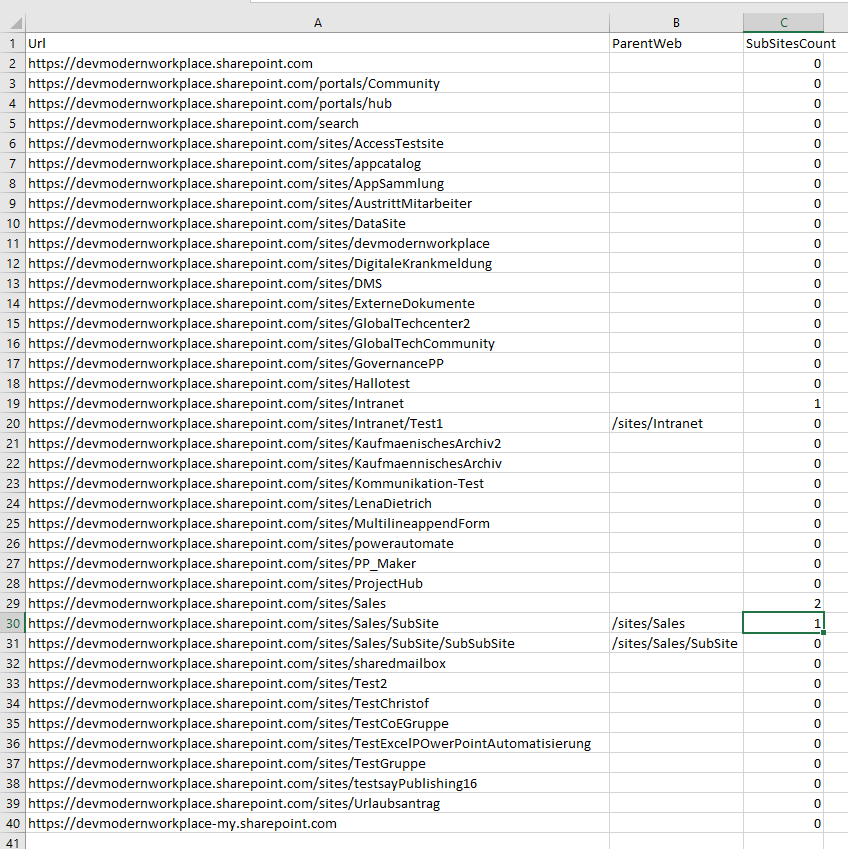
If you run the script, the export will be created on your desktop, which will look like this:
Get all sites and subsites for SharePoint Server
You can use this module for following SharePoint versions:
- SharePoint 2013
- SharePoint 2016
- SharePoint 2019
If you start this script, your user context is used to run the cmdlets. An dedicated authentication is not needed.
Prerequisites
In order to run this script, you need to use a user, with permissions to access each all subsites. For this purpose I am using the SP_Admin account or SP_Farm account.
If you want to configure it for different users, check out Salaudeen Rajacks article: Access is denied. (Exception from HRESULT: 0x80070005 (E_ACCESSDENIED)) on Get-SPWeb, New-SPUser, Get-SPUser, Set-SPUser, etc. – SharePoint Diary
PowerShell script to get all sites and subsites for SharePoint Server
Since we got no authentication, It is way shorter, than the SharePoint Online script. If your export is not delimited properly, consider to change the delimiter, which I have described in the beginning.
Param(
    $DesktopPath = [System.Environment]::GetFolderPath([System.Environment+SpecialFolder]::Desktop),
    $ExportPath = $DesktopPath + "\SitesExport.csv"
)

Add-PSSnapin Microsoft.SharePoint.PowerShell

$Export = New-Object System.Collections.Generic.List[object]

$Sites = Get-SPSite -Limit all
$SitesCount = $Sites.Count
$i= 1

foreach ($Site in $Sites)
{
    Write-Host "($i / $SitesCount) Processing site $($Site.Url)"

    #get the information of the root
    #removed one site from allwebs, because it contains also the root
    $NewExport = New-Object PsObject -Property @{

            Url = $Site.URl
            SubSitesCount = ($Site.AllWebs.Count - 1)
            ParentWeb = $null
    }
    $Export.Add($NewExport)

    #get the information of subwebs
    #Skip the first web, since it is the rootweb
    Get-SPWeb -Site $Site.Url -Limit all | Select-Object -Skip 1 | ForEach-Object {
        $NewExport = New-Object PsObject -Property @{

            Url = $_.URl
            SubSitesCount = $_.Webs.Count
            ParentWeb = $_.Site.Url

        }
        $Export.Add($NewExport)
    }
    $i++
}
$Export | Export-Csv -Path $ExportPath -NoTypeInformation -Delimiter ";" -Force
Conclusion
Getting an overview for migration/ clean up purposes is key for a clean migration. With the scripts, I have provided, you get a brief overview over your environment. If it does not work for you, please write me a mail: Serkar@workplace-automation.com.
Further reading
Here you can find the class for SPSite (SharePoint Server): SPSite Class (Microsoft.SharePoint) | Microsoft Docs