Category: Connect

  • 3 of the most important SharePoint PowerShell Modules and Snappins

    In my role as an automation consultant, I encounter several challenges, where you have to think out of the box. Thinking out of the box also means, to reconsider the tools, which you are using. If you start with SharePoint/ M365 automation, you will notice that there are at least three SharePoint PowerShell modules and snappins, with which you can automate your SharePoint environment. All of the SharePoint PowerShell modules/ snappins have indeed a reason for existence. In this article, I will show you where the focus of each module is, so you can get an idea, when to use which module. You will also get a overview, how to use all of them and what pros and cons eacht SharePoint PowerShell module/ snappin has.

    Think out of the box when designing an automation solution

    PNP PowerShell

    The beginning of PNP PowerShell was a community project of several developers, which have developed many client side object model (CSOM) wrappers for SharePoint 2013, 2016 and 2019. In fact PNP stands for Patterns and Practices. The modules are known as SharePointPnPPowerShell20xx or SharePointPnPPowerShellOnline. About the turn of the year all consolidated to PNP.PowerShell. Also the main focus from “catchall” have changed to the cloud version of SharePoint.

    When to use PNP PowerShell

    PNP.PowerShell is developing to one of the overreaching modules in Microsoft 365 cosmos. I would recommend to try everything first with PNP.PowerShell before you try doing it with SharePointOnlinePowerShell, since the development of the module goes on and on and you can do way more things with PNP PowerShell, than with SharePointOnlinePowerShell in terms of business process automation.

    Topics covered by PNP PowerShell

    Currently PNP PowerShell covers following topics and services:

    • SharePoint Online
    • SharePoint Server (on premises)
    • M365 Groups
    • Power Automate
    • Azure AD
    • SharePoint Syntex
    • Microsoft Teams
    • Microsoft Planner

    Pros and Cons of PNP PowerShell

    ProsCons
    ✅ You can use it for on-premises and cloud services❌ Some cmdlets are not working as expected e.g. Set-PNPSite -SitecollectionAdmin
    ✅ You can use it on all servers/ clients, which have access to the tenant/ farm (online or on-premises)❌ With constant development, cmdlets might change, so you have to monitor the changes, when updating the module
    ✅ Constant development of module❌ You have to consent the access with the global admin role
    ✅ Supports many branches of M365 (SharePoint, Teams, Planner etc.)❌ Microsoft Support won’t support if there is a bug in the modules. You have to open a request in github
    ✅ You don’t have to make breaking changes to your scripts if you move from SharePoint Server to SharePoint Online
    ✅ You can change a wide range of content in SharePoint (Sites, Lists, Items)
    ✅ You don’t need SharePoint Admin permission to connect to a site

    How to make use of PNP PowerShell?

    If you want to make use of PNP PowerShell, check out this blog post, which describes every step of it in detail: Connect to SharePoint with PowerShell | SharePoint Online (workplace-automation.com/)

    What can I change with PNP PowerShell?

    In this section, I want to give you an overview of what you can change with PNP Powershell. Indeed there are more objects in SharePoint. I focus in the first place on objects, which I think are mostly changed with PowerShell for business process automation.

    ObjectChanging
    possible
    with
    PNP PowerShell?
    CmdletPrequisitesReference
    TenantSet-PNPTenantSharePoint Admin RoleSet-PnPTenant (PnP.Powershell) | Microsoft Docs
    Hub SiteSet-PNPHubSite Access to SiteSet-PnPHubSite (PnP.Powershell) | Microsoft Docs
    SiteSet-PNPSiteAccess to Site Set-PnPSite (PnP.Powershell) | Microsoft Docs
    Sub SiteSet-PNPWeb Access to Site and SubsiteSet-PnPWeb (PnP.Powershell) | Microsoft Docs
    ListSet-PNPList Access to Site & ListSet-PnPList (PnP.Powershell) | Microsoft Docs
    LibrarySet-PNPSite Access to Site & Library Set-PnPList (PnP.Powershell) | Microsoft Docs
    ItemSet-PNPListItemAccess to Site & List & ItemSet-PnPListItem (PnP.Powershell) | Microsoft Docs
    FileSet-PNPListItem Access to Site & Library & FileSet-PnPListItem (PnP.Powershell) | Microsoft Docs
    PageSet-PNPage Access to Site & Library & Page Set-PnPPage (PnP.Powershell) | Microsoft Docs

    Who is maintaing PNP PowerShell?

    The module is maintained by the PNP Developer Community. At this stage I have to thank you guys for your hard and good work. It was really a game changer, when I didn’t had to use scripts on the SharePoint Server.

    Since it is all open source, you can also check the source code here: Microsoft 365 Community (github.com)

    You can find more about the community here: SharePoint Developer Community (SharePoint PnP) resources | Microsoft Docs

    What if I find a bug in PNP Powershell?

    Be sure to follow their rules, when you open an issue, so they can help you faster. In the first step check the discussions. You have to be patient, since it is a community developed module.

    If you find a bug, you have to open a github issue here: pnp/powershell: PnP PowerShell (github.com)

    SharePointOnlinePowerShell

    SharePointOnlinePowerShell is the official Module, which is published by Microsoft. In comparison to PNP Powershell, SharePointOnlinePowerShell focuses only on the administration of SharePoint Online.

    When to use SharePointOnlinePowerShell

    My strategy is to use SharePointOnlinePowerShell, when I experience a buggy behaviour by PNP.PowerShell. Altough it is the official SharePoint PowerShell module, you cannot change e.g. list items.

    Topics covered by SharePointOnlinePowerShell

    SharePointOnlinePowerShell is only focussing on SharePoint Online. You cannot connect to another service or to SharePoint Server (on premises).

    Pros and Cons of SharePointOnlinePowerShell

    ProsCons
    ✅ I have experienced more stability on this module – It tends to have less bugs❌ You can only administer SharePoint. Business process automation will be hard to cover with this module, because you cannot change webs, lists or items
    ✅ It is supported by Microsoft❌ You can use it only for SharePoint Online
    ✅ Constant development of module – I have not experienced any breaking changes❌ You have to have SharePoint admin role

    How to make use of SharePointOnlinePowerShell?

    I have described how to install and connect with this SharePoint PowerShell Module here: SharePointOnlinePowerShell: How to connect to SharePoint Online (workplace-automation.com/)

    What can I change with SharePointOnlinePowerShell ?

    In this section, I want to give you a overview of what you can change with PNP Powershell.

    ObjectChanging
    possible
    with
    SharePointOnlinePowerShell?
    CmdletPrequisitesReference
    TenantSet-SPOTenantSharePoint Admin RoleSet-SPOTenant (SharePointOnlinePowerShell) | Microsoft Docs
    Hub SiteSet-PNPHubSite SharePoint Admin RoleSet-SPOHubSite (SharePointOnlinePowerShell) | Microsoft Docs
    SiteSet-SPOSiteSharePoint Admin RoleSet-SPOSite (SharePointOnlinePowerShell) | Microsoft Docs
    Sub Site
    List
    Library
    Item
    File
    Page

    Who is maintaing SharePointOnlinePowerShell?

    The module is developed and maintained by Microsoft. You can find the source code is here: Microsoft 365 Community (github.com)

    What if I find a bug in SharePointOnlinePowerShell ?

    You can contact Microsoft Support or try to “Contact Owners” in PowerShellGallery: https://www.powershellgallery.com/packages/Microsoft.Online.SharePoint.PowerShell
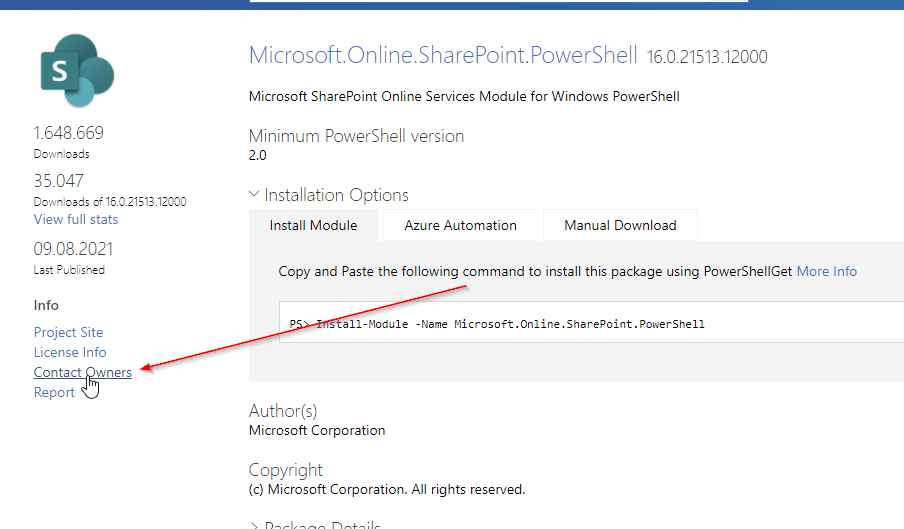
    SharePointOnlinePowerShell PowerShell Gallery

    Microsoft.SharePoint.PowerShell

    Microsoft.SharePoint PowerShell is the only type of cmdlets, which is not a SharePoint PowerShell Module, but a PSSnappin. Snapins are considered as the old way to add cmdlets and other resources. It’s focus is SharePoint Server.

    When to use Microsoft.SharePoint.PowerShell

    I recommend to use Microsoft.SharePoint.PowerShell in following situations:

    • You don’t plan to migrate the automation solution to SharePoint Online
    • You have access to the SharePoint Servers
    • You want to administer SharePoint Server

    Topics covered by Microsoft.SharePoint.PowerShell

    With Microsoft.SharePoint.PowerShell you can only connect to SharePoint Server (on premises). You can see all cmdlets here from the Microsoft reference: SharePointServer Module | Microsoft Docs

    Pros and Cons of Microsoft.SharePoint.PowerShell

    ProsCons
    ✅ Microsoft.SharePoint.PowerShell is a established PSSNappin, which tends to have very few bugs❌ You have to readapt the scripts, if you want to migrate to SharePoint Online
    ✅ It is supported by Microsoft❌ You can use it only for SharePoint Server
    ✅ You can change nearly everything with this SharePoint PowerShell Module on your SharePoint Server❌ You need SPShellAdmin rights to access SharePoint Server with this SharePoint PowerShell Module

    How to make use of Microsoft.SharePoint.PowerShell?

    1. Connect to SharePoint Server with a user, which is SPShellAdmin
    2. Start Windows PowerShell
    3. Type Add-PSSnapin Microsoft.SharePoint.Powershell
    4. You are connected!

    What can I change with Microsoft.SharePoint.PowerShell?

    If you work with this SharePoint PowerShell snappin, you will notice, that you have to use mostly the SpWeb classes to change everything below a SpWeb. Check out the Microsoft docs to see, which classes are below SPWeb: SPWeb Class (Microsoft.SharePoint) | Microsoft Docs. If you need help, don’t hesitate to contact me: Serkar@workplace-automation.com

    ObjectChanging
    possible
    with
    PNP PowerShell?
    CmdletPrequisitesReference
    FarmSet-SPFarmConfigSPShellAdminAcessSet-SPFarmConfig (SharePointServer) | Microsoft Docs
    SiteSet-SPSite SPShellAdminAcess Set-SPSite (SharePointServer) | Microsoft Docs
    Sub SiteSet-SPWeb SPShellAdminAcess Set-SPWeb (SharePointServer) | Microsoft Docs
    ListNo dedicated cmdlet. You have to call lists from web object
    (get-spweb "url").lists
    SPShellAdminAcess
    Library No dedicated cmdlet. You have to call libraries from web object

    (get-spweb "url").lists
    SPShellAdminAcess
    ItemNo dedicated cmdlet. You have to call libraries from list object

    (get-spweb "url").lists.items
    SPShellAdminAcess
    FileNo dedicated cmdlet -You have to call the file from the item object

    (get-spweb "url").lists.items[0].file
    SPShellAdminAcess
    PageNo dedicated cmdlet – You have to call it from the sitepages library. SPShellAdminAcess

    Who is maintaing Microsoft.SharePoint.PowerShell?

    The module is maintained by Microsoft.

    What if I find a bug in Microsoft.SharePoint.PowerShell?

    You can contact Microsoft Support and report the bug there.

    Conclusio

    As you saw each of the SharePoint PowerShell module / snappin got its pros and cons. PNP PowerShell is the number one choice, if you want to automate processes in Microsoft Cloud. Beside this SharePointOnlinePowerShell is the second tool recommended, If you only seek to administer SharePoint Online. As a final point Microsoft.SharePoint.PowerShell should be mentioned as a powerful tool if you want to administer SharePoint Server (on-premises). If I missed a point, I would appreciate, if you contact me: serkar@workplace-automation.com.

    Further Documentation

    This is the direct link to PNP documentation: http://aka.ms/m365pnp

    PNP provide code samples, which you can find here: PnP | Microsoft 365

    You can check out the PNP repro on github here. GitHub – pnp/powershell: PnP PowerShell

  • How to connect to SharePoint Online with SharePointOnlinePowerShell

    Besides the possibility to manage your SharePoint Online in the SharePoint admin center, you have the option to do it with PowerShell. For this tasks Microsoft has published the PowerShell module SharePointOnlinePowerShell. It’s focus is more administrative tasks, than process automation. You can e.g. change the SharePoints Tenants policies, but you cannot create list items with this PowerShell module. The module is constantly developed by Microsoft it bears 223 cmdlets (16.08.2021).

    Scope of SharePointOnlinePowerShell

    I recommend checking the scope with following cmdlet:

    Get-Command -Module Microsoft.Online.SharePoint.PowerShell | out-gridview -passthru

    Prerequisites

    • If you want to connect to SharePoint Online with SharePointOnlinePowerShell, you need a user with the SharePoint Administrator role.
    • You need Windows PowerShell 2.0 or higher to run the module

    Installation of SharePointOnlinePowerShell

    The name for the installation is different then in the documentation. The technical name is Microsoft.Online.SharePoint.PowerShell. You can install the module Microsoft.Online.SharePoint.PowerShell with following PowerShell cmdlet:

    Install-Module -Name Microsoft.Online.SharePoint.PowerShell

    If you have not trusted PSGallery yet, you will be prompted if you trust this repository. You can confirm it with “y”.

    Screenshot of the installation of SharePointOnlinePowerShell

    If you encounter this issue, start the PowerShell Session as an administrator:

    PS C:\Users\Serkar> Install-Module -Name Microsoft.Online.SharePoint.PowerShell
    Install-Module : Administrator rights are required to install modules in 'C:\Program Files\WindowsPowerShell\Modules'.
    Log on to the computer with an account that has Administrator rights, and then try again, or install
    'C:\Users\Serkar\Documents\WindowsPowerShell\Modules' by adding "-Scope CurrentUser" to your command. You can also try
    running the Windows PowerShell session with elevated rights (Run as Administrator).
    At line:1 char:1
    + Install-Module -Name Microsoft.Online.SharePoint.PowerShell
    + ~~~~~~~~~~~~~~~~~~~~~~~~~~~~~~~~~~~~~~~~~~~~~~~~~~~~~~~~~~~
        + CategoryInfo          : InvalidArgument: (:) [Install-Module], ArgumentException
        + FullyQualifiedErrorId : InstallModuleNeedsCurrentUserScopeParameterForNonAdminUser,Install-Module

    You can start PowerShell as an administrator like this:

    Start-Process powershell -Verb runAs

    You can also download it manually from PSGallery: PowerShell Gallery | Microsoft.Online.SharePoint.PowerShell 16.0.21513.12000

    Connect to SharePoint Online with SharePointOnlinePowerShell

    You can connect to SharePoint Online with an credential object or interactively. In this post I am describing both scenarios. Currently there is now way to do it with an Azure enterprise application, so you need a user. If you want to automate processes, I highly recommend a service user for this, since you don’t want your automation to crash, when you leave the company.

    Connect to SharePoint Online with SharePointOnlinePowerShell with Credential

    Note: You can only connect with an user with the SharePoint administrator role. It also won’t function, if you have multi factor authentication (MFA) enabled. For MFA check out the interactive instruction of this post.

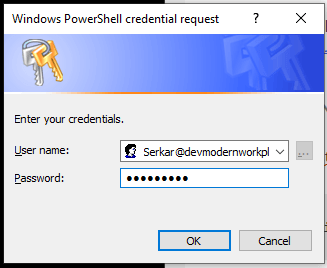
    In the first step create an credential object:

    $Credential = Get-Credential
    credential object for connecting to SharePoint Online

    After doing this, replace the adminurl and connect to SharePoint Online:

    Connect-SPOService -Url "ADMINURL" -Credential $Credential

    In my case it looks like this:

    Connect-SPOService -Url "https://devmodernworkplace-admin.sharepoint.com/" -Credential $Credential

    If you got no error, you have established the connection successfully.

    Connect to SharePoint Online with SharePointOnlinePowerShell interactively

    You can connect interactively with following cmdlet:

    Connect-SPOService -Url "ADMINNURL"

    In my case it is:

    Connect-SPOService -Url "https://devmodernworkplace-admin.sharepoint.com/"

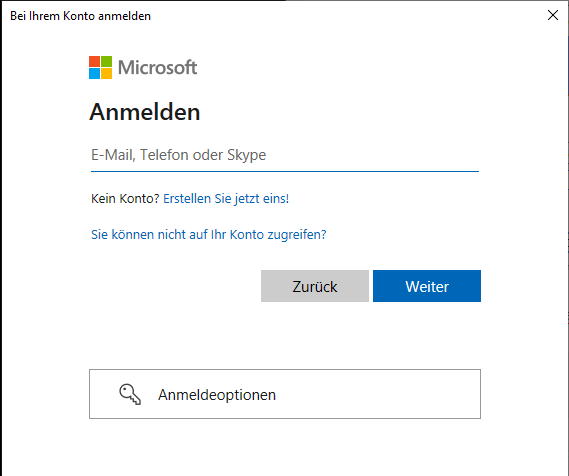
    You will see, that a login prompt will pop up:

    Login prompt, when logging in interactively

    Disconnect from SharePoint Online

    Disconnecting from SharePoint Online can be done like this. If you close your PowerShell Sesssion, you don’t have to do it. The connection is dropping automatically.

    Disconnect-SPOService

    Conclusio

    As you can see, there are at least two PowerShell modules – PNP.PowerShell and SharePointOnlinePowerShell to manage and automate your SharePoint tenant. With this module you can approach your Sharepoint Tenant more on as an administrator, than as somebody, who wants to automate business processes. I would not miss this module out of sight, when automating processes, because some cmdlets might be missing in the PNP PowerShell module or they might not work as expected.

    Further Reading

    If you want to focus more on automating processes, than on administering SharePoint, you should definitely check out how to connect with PNP.Powershell: Connect to SharePoint with PowerShell | SharePoint Online (workplace-automation.com/)

    If you want to see the original docs of Microsoft check out this article: Erste Schritte mit der SharePoint Online-Verwaltungsshell. | Microsoft Docs

  • Access SharePoint via Graph API in PowerShell

    Access SharePoint via Graph API in PowerShell

    Sometimes the use of PNP.PowerShell might not be sufficient. I encountered this experience, when I wanted to find out the usage of all sites. The Graph API provides methods, which you can use in your PowerShell Scripts. So in my example I wanted to get unused Sites with PowerShell. If you want to make use of it, you have to register an enterprise application and afterwards you can retrieve the information with an HTTP-Webrequest. In the following I will show you step by step how to access your SharePoint tenant with Graph API in PowerShell.


    Considerations – Find the right Graph API Method

    The Graph API has multiple methods, which we can use to analyze and change the content of our M365 services. In order to find the right method for your plan, check folllowing resources to see what the Graph API is capable of Microsoft Graph REST API v1.0 reference – Microsoft Graph v1.0 | Microsoft Docs. Based on the needed methods, you have to set up your enterprise application.

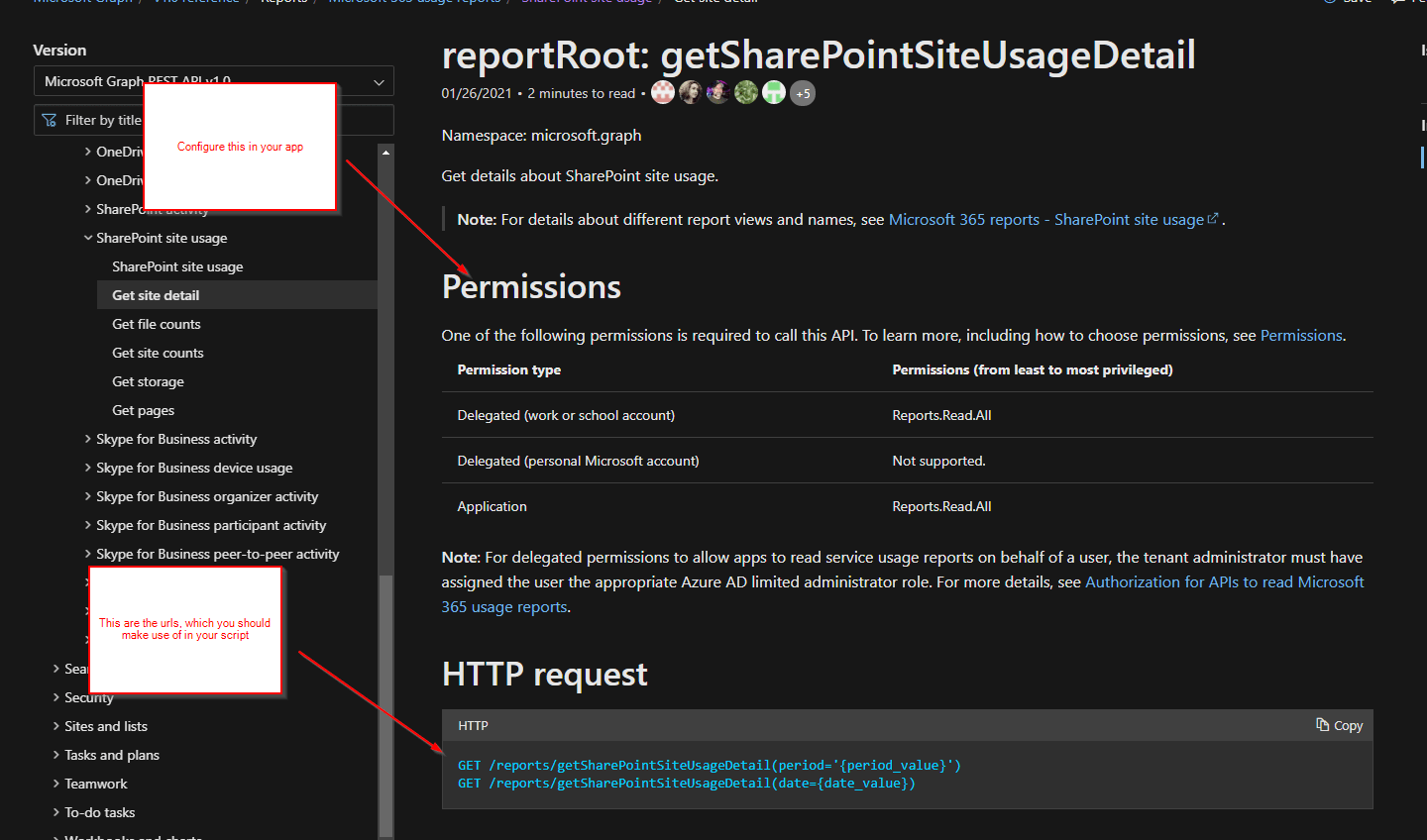
    Let’s assume, that you want to see the site usage of all sites in your tenant. In order to do this, you have to make use of following API method:

    GET /reports/getSharePointSiteUsageDetail(period='{period_value}’)
    GET /reports/getSharePointSiteUsageDetail(date={date_value})

    This API requires following permissions. We will consider them in this article. I want to analyze the sharepoint usage and want to update it to a list afterwards, that’s why I will make use of Application – Reports.Read.All

    Permission typePermissions (from least to most privileged)
    Delegated (work or school account)Reports.Read.All
    Delegated (personal Microsoft account)Not supported.
    ApplicationReports.Read.All
    SharePointSiteUsage Method Screenshot Graph API
    reportRoot: getSharePointSiteUsageDetail – Microsoft Graph v1.0 | Microsoft Docs

    Register the Enterprise Application

    After we figured out what permissions we need, we register the app.

    Prerequisites

    You have to have the role ‘Global Administrator’ to grant the permissions for an Enterprise Application.

    Registration

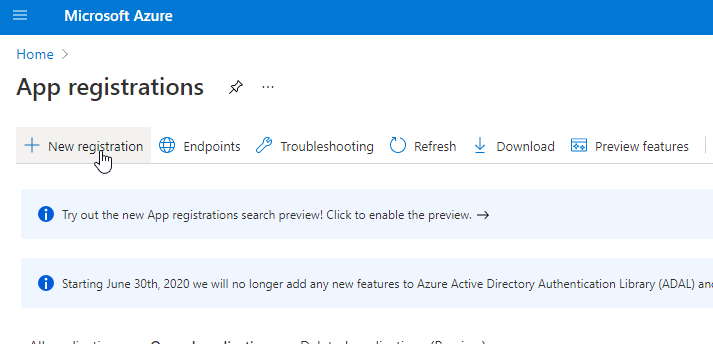
    Visit the Azure Portal URL and switdh to the app registrations sites. Directlink: App registrations – Microsoft Azure

    Click on new registration

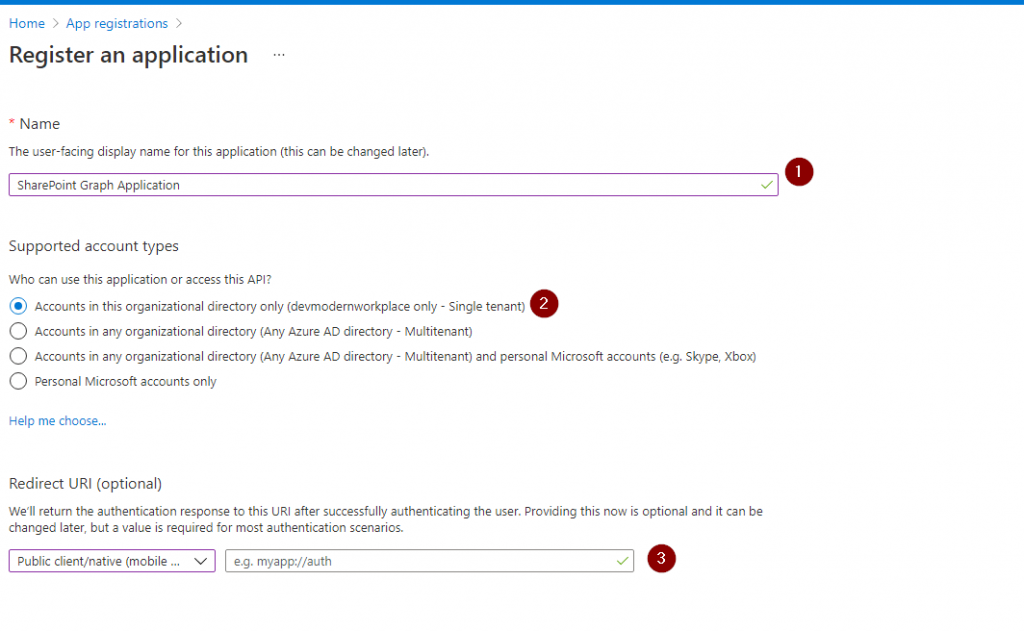
    Register New App for Graph Api

    Give your application a name, click on Accounts in this organizational directory only, select mobile as platform, after that click on register.

    Application Registration for Graph Api

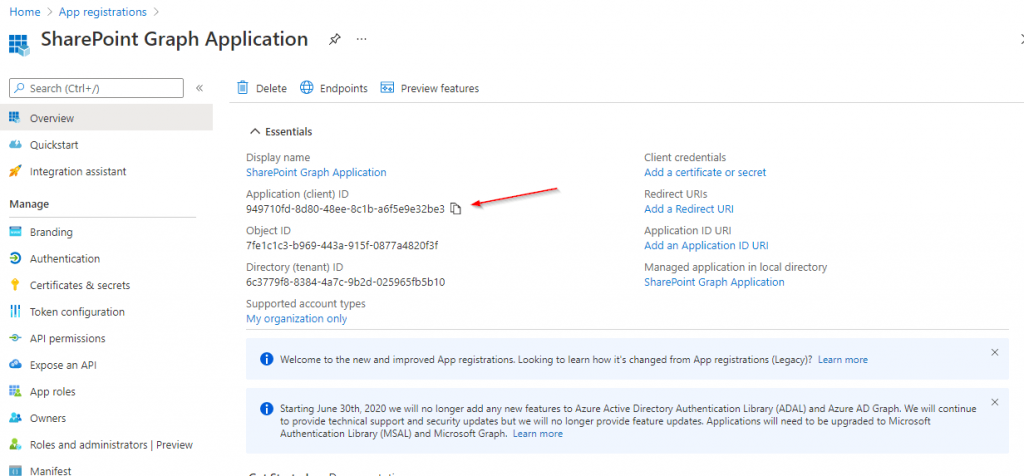
    Take a note of the Application (client) ID, you will need it to authenticate against the Graph API.

    Enterprise Application

    Grant API Permissions for App Registration

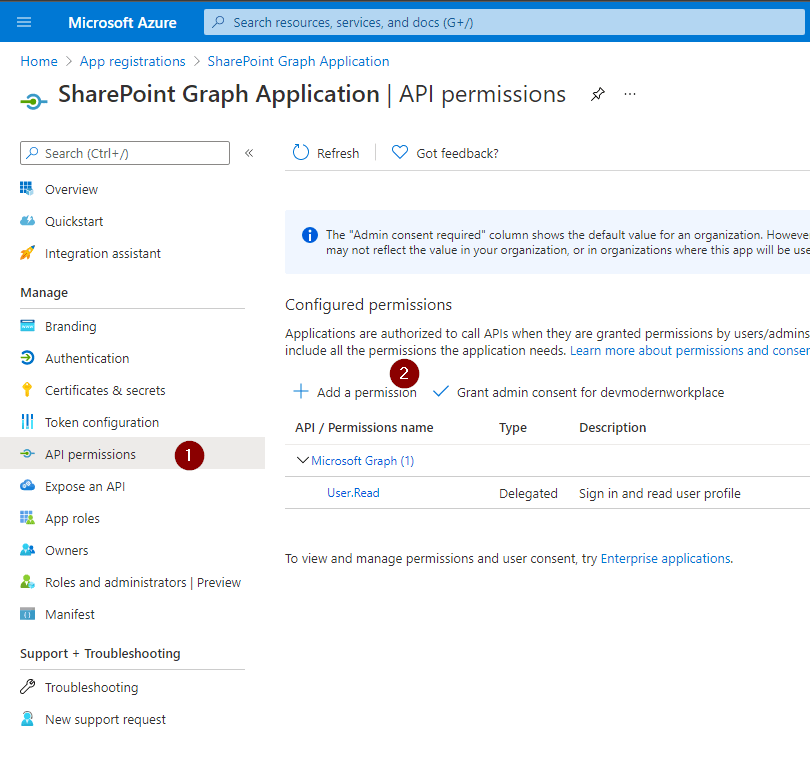
    After creating the app, we have to give it the permissions, which we have defined in the first step.

    Enterprise Application API permission

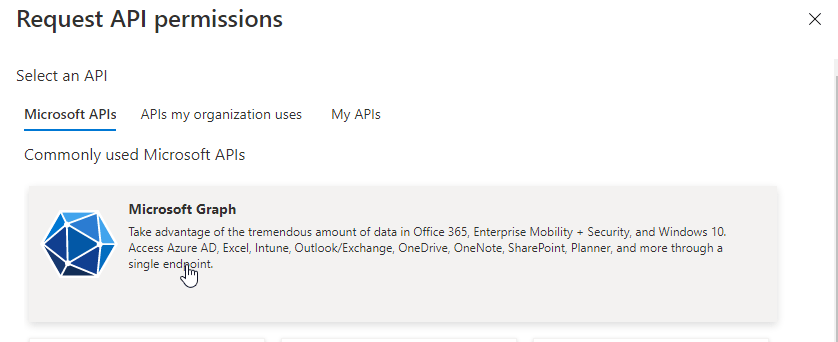
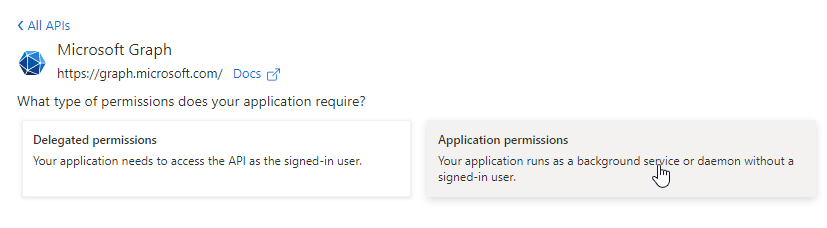
    Click on Microsoft Graph.

    Graph API screenshot

    Grant it Application permissions

    Application Permissions

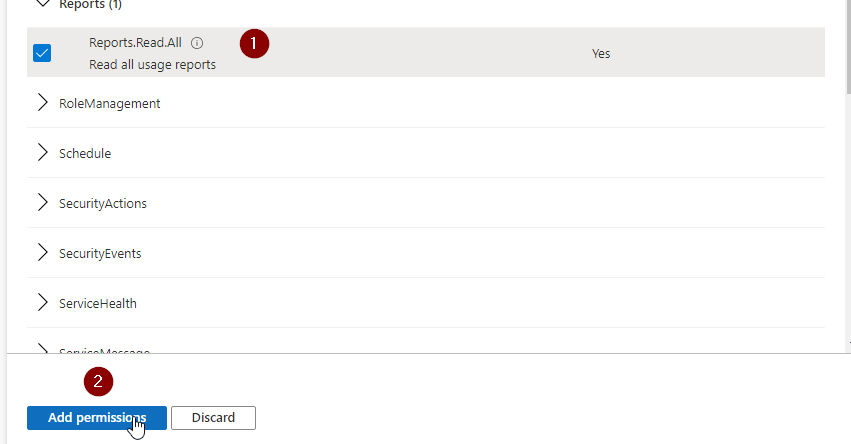
    Now you have to select the permissions, for which you want to use the Graph API. I just need the information for Reports.Read.All. If you don’t know which permission to take, check the considerations part of this post.

    reports.read.all permission for Graph API

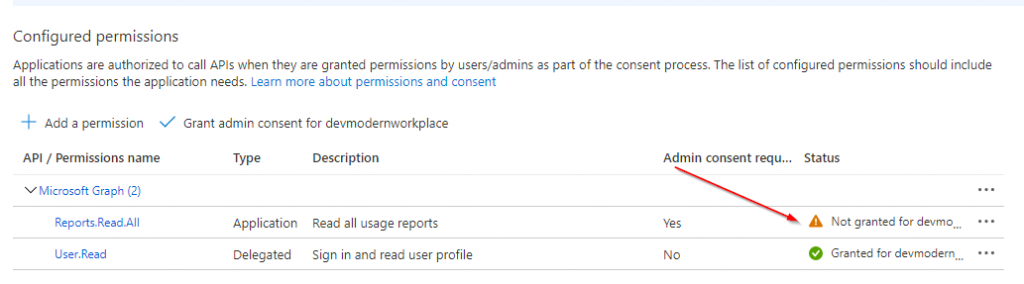
    As you can see, the permission is not granted for this tenant.

    not granted permissions screenshot for Graph API

    Create Client Secret for App Registration

    In order to authenticate to the Graph API in PowerShell, you have to create a client secret.

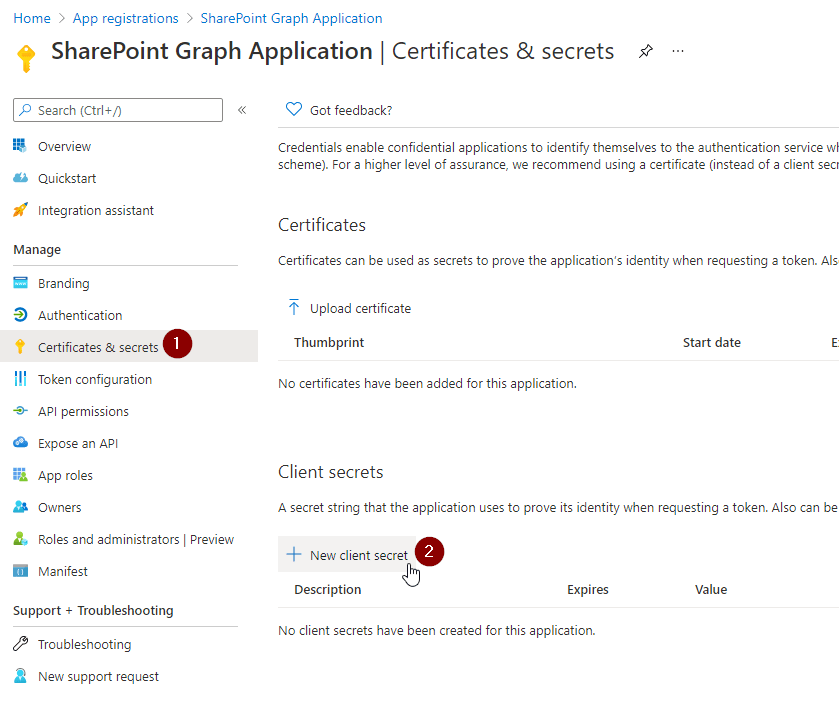
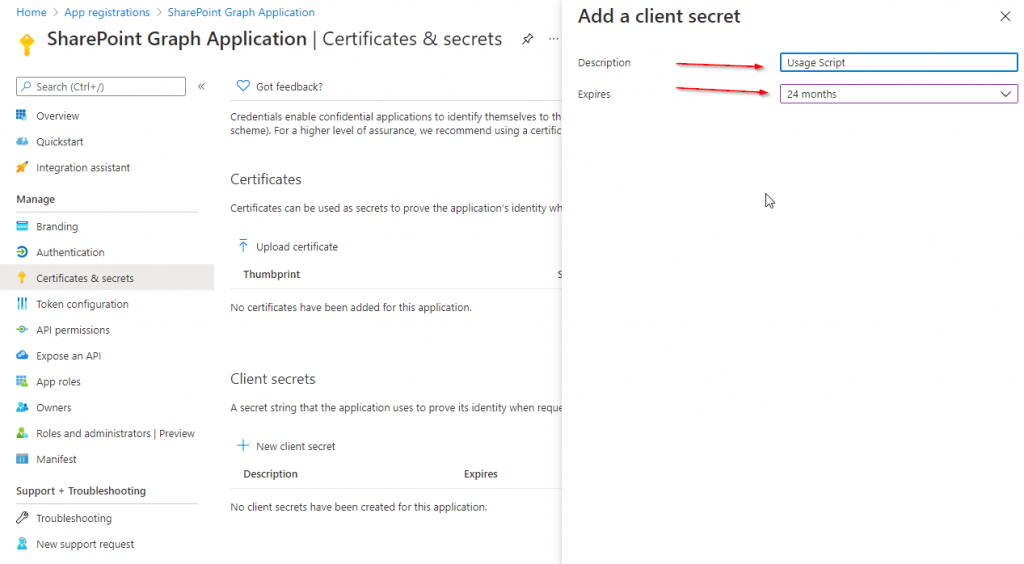
    Click on Certificates & secrets and then on New client secret

    Create client secret for Graph API enterprise application

    Set a Description and define when it will be expiring. I would recommend to give it a description, which you can recognize, for what it will be used in future. I have set 24 months, because I want to make use it in an automation, which should run for a long term. When finished, click Add.

    Usage Scripts client secret for Graph API

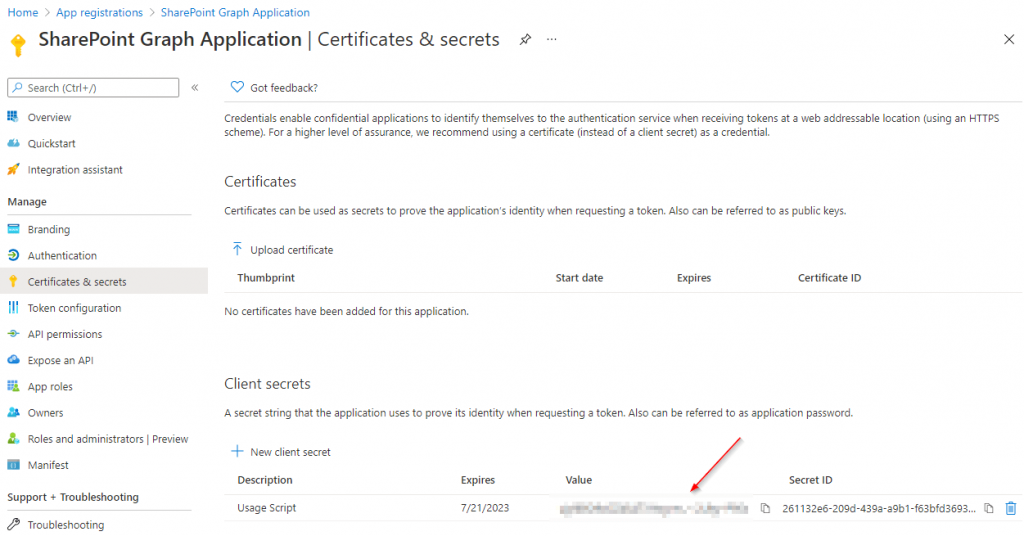
    Take Note of the value! You wont see it again, if you leave the site.

    Client Secret for Graph API obfuscated

    Consent the Requested permissions for App Registration

    Caution: You have to consent the created application with the global administrator role.

    https://login.microsoftonline.com/TENANTDomain/adminconsent?client_id=CLIENTID
    

    The URL for my dev tenant is like:

    https://login.microsoftonline.com/devmodernworkplace.onmicrosoft.com/adminconsent?client_id=949710fd-8d80-48ee-8c1b-a6f5e9e32be3

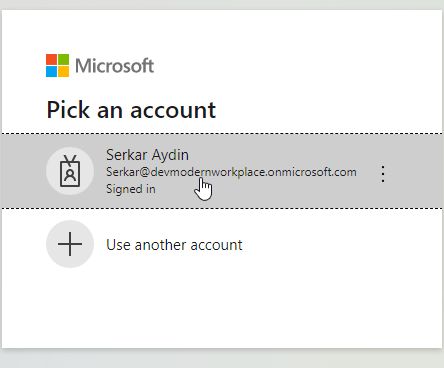
    Choose an account with global administrator role.

    Global administrator account login to grant permission for Graph API

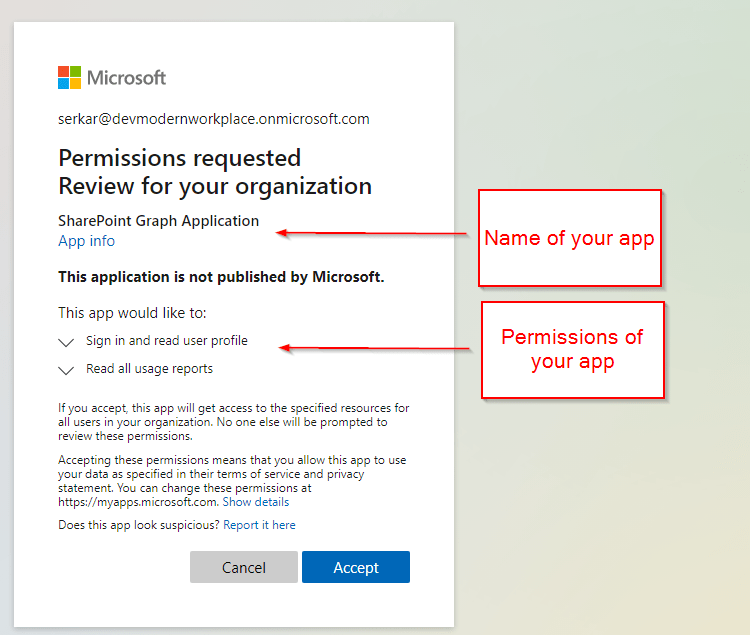
    As you can see the permissions, which we have configured, are showing up:

    permission grant for created app for Graph API

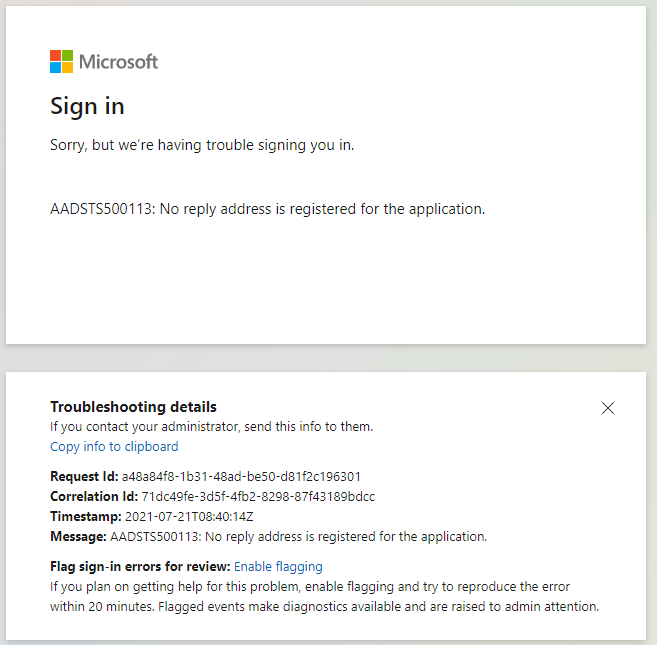
    Since you have not set a redirect url, you will encounter this issue, which you can ignore.

    this ocurs, since we have not configured a redirect url

    Check Permission consent

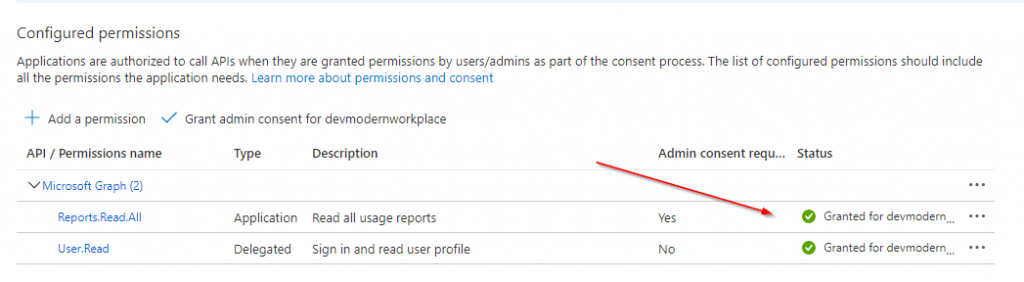
    You can check that the permission is granted, if you see the green check marks.

    granted permission for enterprise application for Graph API

    Script To Acess SharePoint via the Graph API (PowerShell)

    The script contains two parts. The first part is about authentication and the second is about getting the data provided.

    Authentication

    I am making use of a credential export to be sure, that nobody steals the credentials, when it is in plain text. If you don’t know how to, check out: Use credentials in PowerShell – SPO Scripts

    Function Export-CredentialFile 
    {
        param(
        [Parameter(Mandatory=$true,Position=0)]
        $Username,
        [Parameter(Mandatory=$true,Position=1)] 
        $Path
        )
        
        
        While ($Path -eq "")
        {
            $Path = Read-Host "The path does not exist. Where should the credentials be exported to?"
        }
        $ParentPath = Split-Path $Path
        If ((Test-Path $ParentPath) -eq $false)
        {
            New-Item -ItemType Directory -Path $ParentPath
        }
        $Credential = Get-Credential($Username)
        $Credential | Export-Clixml -Path $Path
        Return $Credential
    }
    Function Import-CredentialFile ($Path)
    {
        if (! (Test-Path $Path))
        {
            Write-Host "Could not find the credential object at $Path. Please export your credentials first"
            Export-CredentialFile
        }
        Import-Clixml -Path $Path
    }
    $AppId = '949710fd-8d80-48ee-8c1b-a6f5e9e32be3'
    $CredentialPath = "C:\temp\$AppId.key"
    Export-CredentialFile -Username $AppId -Path $CredentialPath

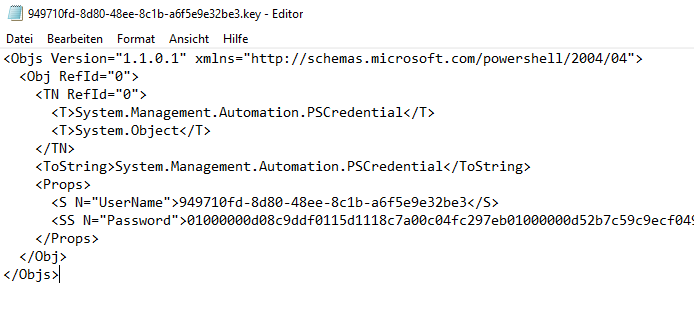
    After doing this, we notice, that the file with the app id as name, has an encrypted password. So we splitted credentials from script to increase the security. This credential file can only be used on the machine and with the user, who has created it.

    PowerShell credential object

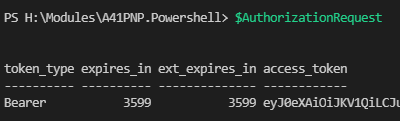
    If we run follwing script afterwards, we will notice, that the $AuthorizationRequest will show us a token with an bearer token.

    $AppId = '949710fd-8d80-48ee-8c1b-a6f5e9e32be3'
    $CredentialPath = "C:\temp\$AppId.key"
    $AppCredential = Import-CredentialFile -Path $CredentialPath
    
    $Scope = "https://graph.microsoft.com/.default"
    $Url = "https://login.microsoftonline.com/devmodernworkplace.onmicrosoft.com/oauth2/v2.0/token"
    
    $Body = @{
        client_id = $AppCredential.UserName
        client_secret = $AppCredential.GetNetworkCredential().password
        scope = $Scope
        grant_type = 'client_credentials'
    }
    
    $AuthorizationRequest = Invoke-RestMethod -Uri $Url -Method 'post' -Body $Body
    $AuthorizationRequest
    
    answer to the authorization request

    Access SharePoint Online with Authorization Token

    Now that we got the access token, we can connect to SharePoint Online with following script. You can use the uris (methods), defined in Microsoft docs.

    $Uri = "YOURURI"
    
    $Header = @{Authorization = "$($AuthorizationRequest.token_type) $($AuthorizationRequest.access_token)"}
    $SitesRequest = Invoke-RestMethod -Uri $Uri -Method 'Get'  -Headers $Header

    Get Site Usage Details

    You can get the site usage with following uri “https://graph.microsoft.com/beta/reports/getSharePointSiteUsageDetail(period='{D90}’)?`$format=application/json”. The number next to the D means the amount of days. So for my example it shows the usage of all sites for the last 90 days. You can replace D90 with D7, D30, and D180.

    With this script you can get the site usage for the last 90 days:

    $Uri = "https://graph.microsoft.com/beta/reports/getSharePointSiteUsageDetail(period='{D90}')?`$format=application/json"
    
    $Header = @{Authorization = "$($AuthorizationRequest.token_type) $($AuthorizationRequest.access_token)"}
    $SitesRequest = Invoke-RestMethod -Uri $Uri -Method 'get'  -Headers $Header 
    
    $Sites.value | Out-GridView -PassThru

    Bonus: Ready-to-Use Script

    If you want to make use of the script, you have to change the parameters $GraphUrl and $AppID.

    Param(
        $AppId = '949710fd-8d80-48ee-8c1b-a6f5e9e32be3',
        $GraphUrl = "https://login.microsoftonline.com/devmodernworkplace.onmicrosoft.com/oauth2/v2.0/token",
        $Scope = "https://graph.microsoft.com/.default",
        $Uri = "https://graph.microsoft.com/beta/reports/getOffice365GroupsActivityDetail`(`period=`'`D90`'`)?`$format=application/json",
    )
    
    Function Export-CredentialFile 
    {
        param(
        [Parameter(Mandatory=$true,Position=0)]
        $Username,
        [Parameter(Mandatory=$true,Position=1)] 
        $Path
        )
        
        
        While ($Path -eq "")
        {
            $Path = Read-Host "The path does not exist. Where should the credentials be exported to?"
        }
        $ParentPath = Split-Path $Path
        If ((Test-Path $ParentPath) -eq $false)
        {
            New-Item -ItemType Directory -Path $ParentPath
        }
        $Credential = Get-Credential($Username)
        $Credential | Export-Clixml -Path $Path
        Return $Credential
    }
    Function Import-CredentialFile ($Path)
    {
        if (! (Test-Path $Path))
        {
            Write-Host "Could not find the credential object at $Path. Please export your credentials first"
            Export-CredentialFile
        }
        Import-Clixml -Path $Path
    }
    
    $CredentialPath = "C:\temp\$AppId.key"
    Export-CredentialFile -Username $AppId -Path $CredentialPath
    
    $AppCredential = Import-CredentialFile -Path $CredentialPath
    
    $Body = @{
        client_id = $AppCredential.UserName
        client_secret = $AppCredential.GetNetworkCredential().password
        scope = $Scope
        grant_type = 'client_credentials'
    }
    
    $AuthorizationRequest = Invoke-RestMethod -Uri $GraphUrl -Method 'post' -Body $Body
    
    $Header = @{Authorization = "$($AuthorizationRequest.token_type) $($AuthorizationRequest.access_token)"}
    $SitesRequest = Invoke-RestMethod -Uri $Uri -Method 'get'  -Headers $Header 
    
    $SitesRequest.value | Out-GridView -PassThru

    Conclusio

    In this article you saw how to find the right permission for the enterprise application, which you need to access the SharePoint via the Graph API with PowerShell. After doing this, you can authenticate and analyze the data.

    Further Docs

    reportRoot: getSharePointSiteUsageDetail – Microsoft Graph v1.0 | Microsoft Docs

  • Dealing with existing SharePoint connections

    Dealing with existing SharePoint connections

    We all can Imagine the scenario. You create sites in sharepoint and now you want to edit multiple sites afterwards with PowerShell. In order to be safe, we have to check, wether an connection exists and if yes to disconnect the current connection to have a clean processing of the sites. In this article I want to show you how can achieve dealing with existing SharePoint connections. If you don’t know how to connect to SharePoint Online, check the article.


    Symptoms – How I tried it first

    Multiple paths as needles

    I tried to check the connection by a normal if query, but as you can see it throws everytime an error, so the script will be halted under normal circumstances. Changing the ErroActionPreference is something you could do for sure, but I would not recommend it, if you want to handle other upcomming potential errors of the API. So as you can see dealing with existing SharePoint connections in terms of checking, wether an connection exists, is not that easy.

    if ((Get-PnPConnection) )
    {
        Write-Host "Connection found"
    }
    Get-PnPConnection : The current connection holds no SharePoint context. Please use one of the Connect-PnPOnline commands which uses the -Url argument to connect.
    In Zeile:2 Zeichen:6
    + if ((Get-PnPConnection) )
    +      ~~~~~~~~~~~~~~~~~
        + CategoryInfo          : NotSpecified: (:) [Get-PnPConnection], InvalidOperationException
        + FullyQualifiedErrorId : System.InvalidOperationException,PnP.PowerShell.Commands.Base.GetPnPConnection
    PS H:>> 
    if ((Get-PnPConnection) -ne $Null )
    {
        Write-Host "Connection found"
    }
    Get-PnPConnection : The current connection holds no SharePoint context. Please use one of the Connect-PnPOnline commands which uses the -Url argument to connect.
    In Zeile:2 Zeichen:6
    + if ((Get-PnPConnection) -ne $Null )
    +      ~~~~~~~~~~~~~~~~~
        + CategoryInfo          : NotSpecified: (:) [Get-PnPConnection], InvalidOperationException
        + FullyQualifiedErrorId : System.InvalidOperationException,PnP.PowerShell.Commands.Base.GetPnPConnection
    PS H:>> 
    if ((Get-PnPConnection|out-null) -ne $Null )
    {
        Write-Host "Connection found"
    }
    Get-PnPConnection : The current connection holds no SharePoint context. Please use one of the Connect-PnPOnline commands which uses the -Url argument to connect.
    In Zeile:2 Zeichen:6
    + if ((Get-PnPConnection|out-null) -ne $Null )
    +      ~~~~~~~~~~~~~~~~~
        + CategoryInfo          : NotSpecified: (:) [Get-PnPConnection], InvalidOperationException
        + FullyQualifiedErrorId : System.InvalidOperationException,PnP.PowerShell.Commands.Base.GetPnPConnection
    PS H:>> 
    if ((Get-PnPConnection -ErrorAction SilentlyContinue) -ne $Null )
    {
        Write-Host "Connection found"
    }
    Get-PnPConnection : The current connection holds no SharePoint context. Please use one of the Connect-PnPOnline commands which uses the -Url argument to connect.
    In Zeile:2 Zeichen:6
    + if ((Get-PnPConnection -ErrorAction SilentlyContinue) -ne $Null )
    +      ~~~~~~~~~~~~~~~~~~~~~~~~~~~~~~~~~~~~~~~~~~~~~~~
        + CategoryInfo          : NotSpecified: (:) [Get-PnPConnection], InvalidOperationException
        + FullyQualifiedErrorId : System.InvalidOperationException,PnP.PowerShell.Commands.Base.GetPnPConnection

    Solutions

    sewing kit

    Try Catch Solution

    In order to handle this situation, you have to catchup the error.

    The snippet tries to check wether there is an connection and if there is one, it will proceed and disconnect it. After disconnecting it I have set the variable $connection to $null, so I can process it later on.

    try 
    {
        Get-PnPConnection -ErrorAction Stop
        Disconnect-PnPOnline
        $Connection = $null
    }
    catch 
    {
        $Connection = $null
    }

    BONUS 1: Invoke-PNPConnection with Credential object (No MFA enforcement)

    A function which handles the whole procedure of cutting of the connection and reconnecting, makes the handling easier. In this case I have added an additional check of the contents of lists, because sometimes you do connect, but experience that the webserver is not ready yet – basically you get an 403 FORBIDDEN message in PowerShell.

    NOTE: This will only work If your user has no MFA enforcement. If you have MFA enabled, I have another function for you.

    Function Invoke-PNPConnection ($Url, $Cred)
    {
        try 
        {
            Get-PnPConnection -ErrorAction Stop
            Disconnect-PnPOnline
            $Connection  = $null
        }
        catch
        {
            $Connection  = $null
        }
        $i = 1
        while ($null -eq $Connection -and $i -le 6 -and $null -eq $Lists)
        {
            Write-Verbose "Trying to connect to $Url for the $i time" 
            $Lists = $null
            Connect-PnPOnline -Url $Url -Credentials $Cred
            $Lists = Get-PnPList -ErrorAction SilentlyContinue
            $i++
            if ($i -ne 1 -and $null -eq $Lists)
            {
                Start-Sleep -Seconds 30
                Write-Verbose "Wait 30 Seconds"
            }
        }
        Write-Verbose "Connection to $Url established"
    }

    You can call the function like this

    $Cred = get-credential
    $Url = "https://contoso.sharepoint.com/sites/Sales"
    Invoke-PNPConnection -Url $Url -Cred $Cred

    Bonus 2: Invoke-PNPConnection interactively (MFA enforced)

    So if you use the scripts interactively (with MFA enforced users), you can make use of this function

    Function Invoke-PNPConnection ($Url)
    {
        try 
        {
            Get-PnPConnection -ErrorAction Stop
            Disconnect-PnPOnline
            $Connection  = $null
        }
        catch
        {
            $Connection  = $null
        }
        $i = 1
        while ($null -eq $Connection -and $i -le 6 -and $null -eq $Lists)
        {
            Write-Verbose"Trying to connect to $Url for the $i time" 
            $Lists = $null
            Connect-PnPOnline -Url $Url -Interactive
            $Lists = Get-PnPList -ErrorAction SilentlyContinue
            $i++
            if ($i -ne 1 -and $null -eq $Lists)
            {
                Start-Sleep -Seconds 30
                Write-Verbose "Wait 30 Seconds"
            }
        }
        Write-Verbose "Connection to $Url established"
    }

    Start the function like this


    $Url = "https://contoso.sharepoint.com/sites/Sales"
    Invoke-PNPConnection -Url $Url

    Conclusio

    There are ways to deal with the connections, you just have to think a bit OOTB 🙂

    patched teddy

    You might find intersting

    If you are not familiar with connecting to SharePoint, check out this Post: Connect to SharePoint Online with PowerShell

    Original article of PNP Connecting with PnP PowerShell | PnP PowerShell




    Images:
    Bild von Meine Reise geht hier leider zu Ende. Märchen beginnen mit auf Pixabay

    Bild von vargazs auf Pixabay

    Bild von Ina Hoekstra auf Pixabay

    Bild von saulhm auf Pixabay