In my role as an automation consultant, I encounter several challenges, where you have to think out of the box. Thinking out of the box also means, to reconsider the tools, which you are using. If you start with SharePoint/ M365 automation, you will notice that there are at least three SharePoint PowerShell modules and snappins, with which you can automate your SharePoint environment. All of the SharePoint PowerShell modules/ snappins have indeed a reason for existence. In this article, I will show you where the focus of each module is, so you can get an idea, when to use which module. You will also get a overview, how to use all of them and what pros and cons eacht SharePoint PowerShell module/ snappin has.

PNP PowerShell
The beginning of PNP PowerShell was a community project of several developers, which have developed many client side object model (CSOM) wrappers for SharePoint 2013, 2016 and 2019. In fact PNP stands for Patterns and Practices. The modules are known as SharePointPnPPowerShell20xx or SharePointPnPPowerShellOnline. About the turn of the year all consolidated to PNP.PowerShell. Also the main focus from “catchall” have changed to the cloud version of SharePoint.
When to use PNP PowerShell
PNP.PowerShell is developing to one of the overreaching modules in Microsoft 365 cosmos. I would recommend to try everything first with PNP.PowerShell before you try doing it with SharePointOnlinePowerShell, since the development of the module goes on and on and you can do way more things with PNP PowerShell, than with SharePointOnlinePowerShell in terms of business process automation.
Topics covered by PNP PowerShell
Currently PNP PowerShell covers following topics and services:
- SharePoint Online
- SharePoint Server (on premises)
- M365 Groups
- Power Automate
- Azure AD
- SharePoint Syntex
- Microsoft Teams
- Microsoft Planner
Pros and Cons of PNP PowerShell
| Pros | Cons |
| ✅ You can use it for on-premises and cloud services | ❌ Some cmdlets are not working as expected e.g. Set-PNPSite -SitecollectionAdmin |
| ✅ You can use it on all servers/ clients, which have access to the tenant/ farm (online or on-premises) | ❌ With constant development, cmdlets might change, so you have to monitor the changes, when updating the module |
| ✅ Constant development of module | ❌ You have to consent the access with the global admin role |
| ✅ Supports many branches of M365 (SharePoint, Teams, Planner etc.) | ❌ Microsoft Support won’t support if there is a bug in the modules. You have to open a request in github |
| ✅ You don’t have to make breaking changes to your scripts if you move from SharePoint Server to SharePoint Online | |
| ✅ You can change a wide range of content in SharePoint (Sites, Lists, Items) | |
| ✅ You don’t need SharePoint Admin permission to connect to a site |
How to make use of PNP PowerShell?
If you want to make use of PNP PowerShell, check out this blog post, which describes every step of it in detail: Connect to SharePoint with PowerShell | SharePoint Online (workplace-automation.com/)
What can I change with PNP PowerShell?
In this section, I want to give you an overview of what you can change with PNP Powershell. Indeed there are more objects in SharePoint. I focus in the first place on objects, which I think are mostly changed with PowerShell for business process automation.
| Object | Changing possible with PNP PowerShell? | Cmdlet | Prequisites | Reference |
| Tenant | ✅ | Set-PNPTenant | SharePoint Admin Role | Set-PnPTenant (PnP.Powershell) | Microsoft Docs |
| Hub Site | ✅ | Set-PNPHubSite | Access to Site | Set-PnPHubSite (PnP.Powershell) | Microsoft Docs |
| Site | ✅ | Set-PNPSite | Access to Site | Set-PnPSite (PnP.Powershell) | Microsoft Docs |
| Sub Site | ✅ | Set-PNPWeb | Access to Site and Subsite | Set-PnPWeb (PnP.Powershell) | Microsoft Docs |
| List | ✅ | Set-PNPList | Access to Site & List | Set-PnPList (PnP.Powershell) | Microsoft Docs |
| Library | ✅ | Set-PNPSite | Access to Site & Library | Set-PnPList (PnP.Powershell) | Microsoft Docs |
| Item | ✅ | Set-PNPListItem | Access to Site & List & Item | Set-PnPListItem (PnP.Powershell) | Microsoft Docs |
| File | ✅ | Set-PNPListItem | Access to Site & Library & File | Set-PnPListItem (PnP.Powershell) | Microsoft Docs |
| Page | ✅ | Set-PNPage | Access to Site & Library & Page | Set-PnPPage (PnP.Powershell) | Microsoft Docs |
Who is maintaing PNP PowerShell?
The module is maintained by the PNP Developer Community. At this stage I have to thank you guys for your hard and good work. It was really a game changer, when I didn’t had to use scripts on the SharePoint Server.
Since it is all open source, you can also check the source code here: Microsoft 365 Community (github.com)
You can find more about the community here: SharePoint Developer Community (SharePoint PnP) resources | Microsoft Docs
What if I find a bug in PNP Powershell?
Be sure to follow their rules, when you open an issue, so they can help you faster. In the first step check the discussions. You have to be patient, since it is a community developed module.
If you find a bug, you have to open a github issue here: pnp/powershell: PnP PowerShell (github.com)
SharePointOnlinePowerShell
SharePointOnlinePowerShell is the official Module, which is published by Microsoft. In comparison to PNP Powershell, SharePointOnlinePowerShell focuses only on the administration of SharePoint Online.
When to use SharePointOnlinePowerShell
My strategy is to use SharePointOnlinePowerShell, when I experience a buggy behaviour by PNP.PowerShell. Altough it is the official SharePoint PowerShell module, you cannot change e.g. list items.
Topics covered by SharePointOnlinePowerShell
SharePointOnlinePowerShell is only focussing on SharePoint Online. You cannot connect to another service or to SharePoint Server (on premises).
Pros and Cons of SharePointOnlinePowerShell
| Pros | Cons |
| ✅ I have experienced more stability on this module – It tends to have less bugs | ❌ You can only administer SharePoint. Business process automation will be hard to cover with this module, because you cannot change webs, lists or items |
| ✅ It is supported by Microsoft | ❌ You can use it only for SharePoint Online |
| ✅ Constant development of module – I have not experienced any breaking changes | ❌ You have to have SharePoint admin role |
How to make use of SharePointOnlinePowerShell?
I have described how to install and connect with this SharePoint PowerShell Module here: SharePointOnlinePowerShell: How to connect to SharePoint Online (workplace-automation.com/)
What can I change with SharePointOnlinePowerShell ?
In this section, I want to give you a overview of what you can change with PNP Powershell.
| Object | Changing possible with SharePointOnlinePowerShell? | Cmdlet | Prequisites | Reference |
| Tenant | ✅ | Set-SPOTenant | SharePoint Admin Role | Set-SPOTenant (SharePointOnlinePowerShell) | Microsoft Docs |
| Hub Site | ✅ | Set-PNPHubSite | SharePoint Admin Role | Set-SPOHubSite (SharePointOnlinePowerShell) | Microsoft Docs |
| Site | ✅ | Set-SPOSite | SharePoint Admin Role | Set-SPOSite (SharePointOnlinePowerShell) | Microsoft Docs |
| Sub Site | ❌ | |||
| List | ❌ | |||
| Library | ❌ | |||
| Item | ❌ | |||
| File | ❌ | |||
| Page | ❌ |
Who is maintaing SharePointOnlinePowerShell?
The module is developed and maintained by Microsoft. You can find the source code is here: Microsoft 365 Community (github.com)
What if I find a bug in SharePointOnlinePowerShell ?
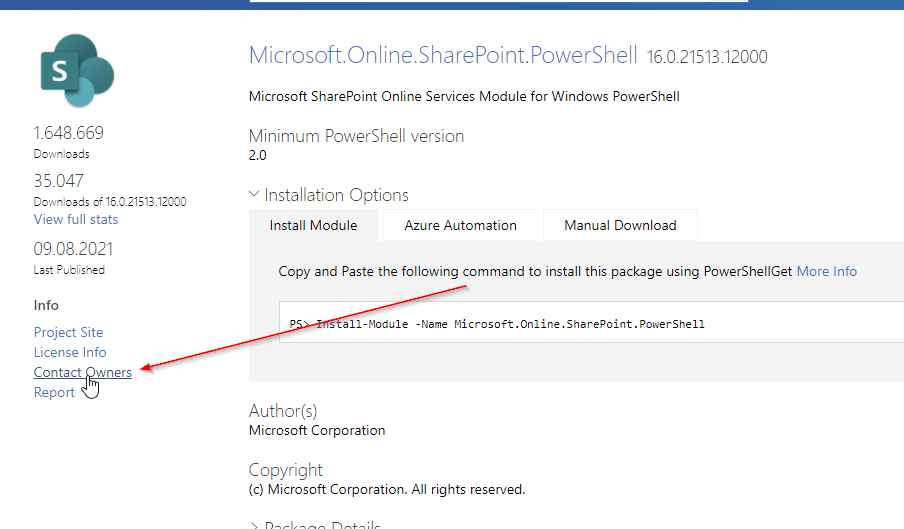
You can contact Microsoft Support or try to “Contact Owners” in PowerShellGallery: https://www.powershellgallery.com/packages/Microsoft.Online.SharePoint.PowerShell
Microsoft.SharePoint.PowerShell
Microsoft.SharePoint PowerShell is the only type of cmdlets, which is not a SharePoint PowerShell Module, but a PSSnappin. Snapins are considered as the old way to add cmdlets and other resources. It’s focus is SharePoint Server.
When to use Microsoft.SharePoint.PowerShell
I recommend to use Microsoft.SharePoint.PowerShell in following situations:
- You don’t plan to migrate the automation solution to SharePoint Online
- You have access to the SharePoint Servers
- You want to administer SharePoint Server
Topics covered by Microsoft.SharePoint.PowerShell
With Microsoft.SharePoint.PowerShell you can only connect to SharePoint Server (on premises). You can see all cmdlets here from the Microsoft reference: SharePointServer Module | Microsoft Docs
Pros and Cons of Microsoft.SharePoint.PowerShell
| Pros | Cons |
| ✅ Microsoft.SharePoint.PowerShell is a established PSSNappin, which tends to have very few bugs | ❌ You have to readapt the scripts, if you want to migrate to SharePoint Online |
| ✅ It is supported by Microsoft | ❌ You can use it only for SharePoint Server |
| ✅ You can change nearly everything with this SharePoint PowerShell Module on your SharePoint Server | ❌ You need SPShellAdmin rights to access SharePoint Server with this SharePoint PowerShell Module |
How to make use of Microsoft.SharePoint.PowerShell?
- Connect to SharePoint Server with a user, which is SPShellAdmin
- Start Windows PowerShell
- Type Add-PSSnapin Microsoft.SharePoint.Powershell
- You are connected!
What can I change with Microsoft.SharePoint.PowerShell?
If you work with this SharePoint PowerShell snappin, you will notice, that you have to use mostly the SpWeb classes to change everything below a SpWeb. Check out the Microsoft docs to see, which classes are below SPWeb: SPWeb Class (Microsoft.SharePoint) | Microsoft Docs. If you need help, don’t hesitate to contact me: Serkar@workplace-automation.com
| Object | Changing possible with PNP PowerShell? | Cmdlet | Prequisites | Reference |
| Farm | ✅ | Set-SPFarmConfig | SPShellAdminAcess | Set-SPFarmConfig (SharePointServer) | Microsoft Docs |
| Site | ✅ | Set-SPSite | SPShellAdminAcess | Set-SPSite (SharePointServer) | Microsoft Docs |
| Sub Site | ✅ | Set-SPWeb | SPShellAdminAcess | Set-SPWeb (SharePointServer) | Microsoft Docs |
| List | ✅ | No dedicated cmdlet. You have to call lists from web object(get-spweb "url").lists | SPShellAdminAcess | |
| Library | ✅ | No dedicated cmdlet. You have to call libraries from web object | SPShellAdminAcess | |
| Item | ✅ | No dedicated cmdlet. You have to call libraries from list object | SPShellAdminAcess | |
| File | ✅ | No dedicated cmdlet -You have to call the file from the item object | SPShellAdminAcess | |
| Page | ✅ | No dedicated cmdlet – You have to call it from the sitepages library. | SPShellAdminAcess |
Who is maintaing Microsoft.SharePoint.PowerShell?
The module is maintained by Microsoft.
What if I find a bug in Microsoft.SharePoint.PowerShell?
You can contact Microsoft Support and report the bug there.
Conclusio
As you saw each of the SharePoint PowerShell module / snappin got its pros and cons. PNP PowerShell is the number one choice, if you want to automate processes in Microsoft Cloud. Beside this SharePointOnlinePowerShell is the second tool recommended, If you only seek to administer SharePoint Online. As a final point Microsoft.SharePoint.PowerShell should be mentioned as a powerful tool if you want to administer SharePoint Server (on-premises). If I missed a point, I would appreciate, if you contact me: serkar@workplace-automation.com.
Further Documentation
This is the direct link to PNP documentation: http://aka.ms/m365pnp
PNP provide code samples, which you can find here: PnP | Microsoft 365
You can check out the PNP repro on github here. GitHub – pnp/powershell: PnP PowerShell