Hey folks, at some time we come to a point, where we want to know, what is going on in our intranet. Either if we plan to migrate the content to another tenant or to clean up our intranet. I wrote a step-by-step instruction for you to find get all lists and libraries in your SharePoint environment. At the end of this blog post, you’ll find also the ready-to-use script.
Since the official module of Microsoft does not include a cmdlet for lists, I will use the PNP.PowerShell module.
Prerequisites
Before we start with coding, we should be aware, that there are some prerequisites, we need to fulfil in order to get all lists and libraries in our farm.
- Access to your tenant from your client
- Installed PNP PowerShell Module. For more read: Connect to SharePoint with PowerShell | SharePoint Online (workplace-automation.com/)
- Installed Microsoft.Online.SharePoint.PowerShell Module. For more read: SharePointOnlinePowerShell: How to connect to SharePoint (workplace-automation.com/)
- Service user with the role SharePoint administrator
Step-by-Step Instruction to get all lists and libraries
Add your service account as admin to all sites
You might ask yourself, why is it necessary to add a service account to all sites. In SharePoint Server it works as soon as you have access to the SharePoint Shell. You need it because the cloud model does not provide access to all sites just by having the SharePoint admin role. You have to enable your service account with the rights to access the sites, prior accessing them.
Even if you have connected to the admin site, you will notice, that it does not work:

To add the service account to all sites, you have to make use of the module Microsoft.Online.SharePoint.PowerShell. If you are not familiar with this, check out SharePointOnlinePowerShell: How to connect to SharePoint (workplace-automation.com/).
Connecting to the environment, can be achieved with this cmdlets:.
$AdminUrl = "https://m365x388358-admin.sharepoint.com/"
$Credential = Get-Credential


Import-Module -Name Microsoft.Online.SharePoint.PowerShell
Connect-SPOService -Url $AdminUrl -Credential $Credential
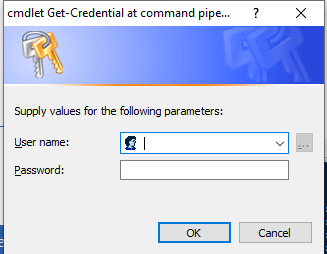
You’ll get a prompt for credentials. Provide the service account with SharePoint admin role here. We will reuse it later for the PNP module.
So after connecting, we can add our service user as site collection administrator with this script. Keep in mind to change the user variable to your service account’s user principal name.
$User = "admin@M365x388358.onmicrosoft.com"

$SPOSites = Get-SPOSite
foreach ($SPOSite in $SPOSites)
{
    Set-SPOUser -Site $SPOSite.Url -LoginName $User -IsSiteCollectionAdmin $true
}

Disconnect-SPOService
This is how the output looks for me:
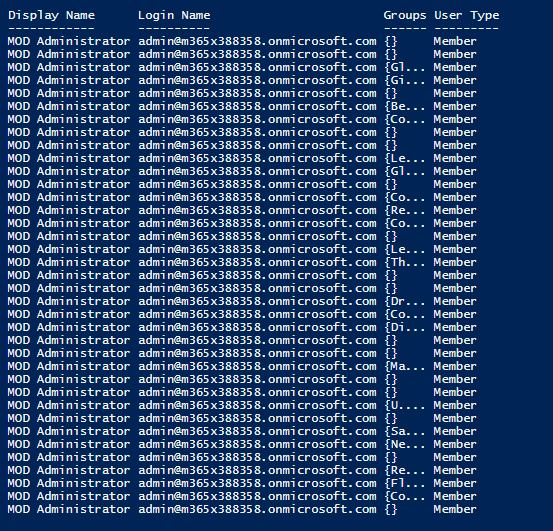
Since our service user has access to all sites, we can now proceed with our analysis.
Get all lists and libraries with PowerShell
For the purpose of an interactive analysis of all lists and libraries, it is sufficient to connect interactively to the tenant with this script:
$AdminUrl = "https://m365x388358-admin.sharepoint.com/"
$Credential = Get-Credential

Import-Module PNP.PowerShell
Connect-PnPOnline -Url $AdminUrl -Credentials $Credential
You have to replace the URL with your SharePoint admins URL.
If you run the cmdlet, credentials will be prompted. Please use a user account, which has the SharePoint administrator role granted. If you don’t know how to grant it, check out the official Microsoft references, they explain it with a video, which will help you.
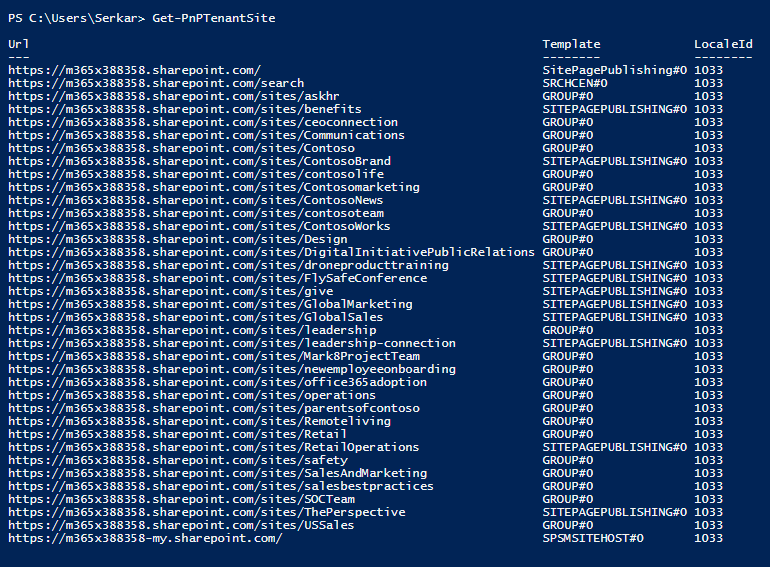
After you have provided the credentials, you are connected. You can test it by querying all sites.
Get-PnPTenantSiteAs you can see, I have a bunch of sites, which we will analyze further on.
$Export = New-Object System.Collections.Generic.List[object]
$Sites = Get-PnPTenantSite

$SitesCount = $Sites.Count
$i= 1


foreach ($Site in $Sites)
{
    Write-Host "($i / $SitesCount) Processing site $($Site.Url)"
    Disconnect-PnPOnline
    Connect-PnPOnline -Url $Site.Url -Credentials $Credential
    $Site = Get-PnPSite

    #get the information of the list
    Get-PnPList | ForEach-Object {

        $NewExport = New-Object PSObject -Property @{
            Title = $_.Title
            Id = $_.ID
            DefaultViewUrl =   $_.DefaultViewUrl
            ItemCount = $_.ItemCount
            ParentWebUrl = $_.ParentWebUrl
        }
        $Export.Add($NewExport)
    }

    $i++
}
You can export the information like this:
$Export | Export-Csv -Path "C:\Users\Serkar\Desktop\lists.csv" -Delimiter ";" -NoTypeInformationBased on your location, you have to change your delimiter to comma instead of semicolon.
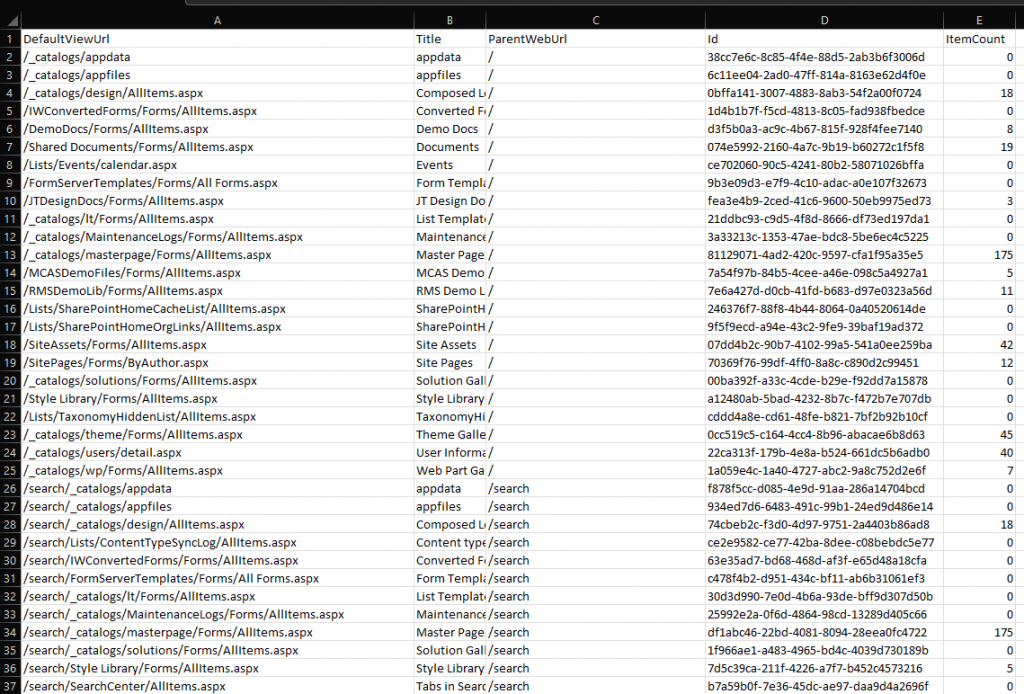
The result of our scripting is, that we now have the possiblity to see all lists and libraries and also to identify lists and libraries with huge amount of data in it. Since it is a CSV file, you can open it with Excel to analyze the data:
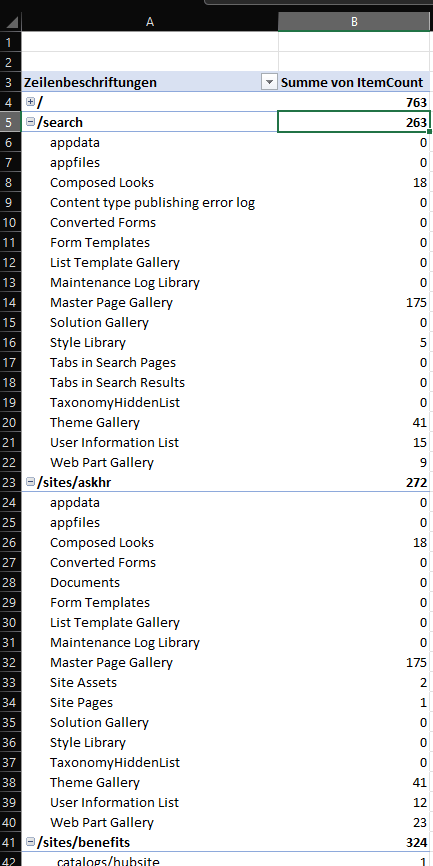
You can group all data with a pivot table, to see all lists to the corresponding web.
Bonus: Ready-to-use Script
#Provided by workplace-automation.com/

$User = "admin@M365x388358.onmicrosoft.com"
$AdminUrl = "https://m365x388358-admin.sharepoint.com/"
$ExportPath = "C:\Users\Serkar\Desktop\lists.csv"

$Credential = Get-Credential

#region Set admin permissions

Import-Module -Name Microsoft.Online.SharePoint.PowerShell
Connect-SPOService -Url $AdminUrl -Credential $Credential

$SPOSites = Get-SPOSite
foreach ($SPOSite in $SPOSites)
{
    Set-SPOUser -Site $SPOSite.Url -LoginName $User -IsSiteCollectionAdmin $true
}

Disconnect-SPOService

#endregion

#region get all lists and libraries
Import-Module PNP.PowerShell
Connect-PnPOnline -Url $AdminUrl -Credentials $Credential

$Export = New-Object System.Collections.Generic.List[object]
$Sites = Get-PnPTenantSite

$SitesCount = $Sites.Count
$i= 1


foreach ($Site in $Sites)
{
    Write-Host "($i / $SitesCount) Processing site $($Site.Url)"
    Disconnect-PnPOnline
    Connect-PnPOnline -Url $Site.Url -Credentials $Credential
    $Site = Get-PnPSite

    #get the information of the list
    Get-PnPList | ForEach-Object {

        $NewExport = New-Object PSObject -Property @{
            Title = $_.Title
            Id = $_.ID
            DefaultViewUrl =   $_.DefaultViewUrl
            ItemCount = $_.ItemCount
            ParentWebUrl = $_.ParentWebUrl
        }
        $Export.Add($NewExport)
    }

    $i++
}
#endregion

$Export | Export-Csv -Path $ExportPath -Delimiter ";" -NoTypeInformation