Tag: SharePoint

  • Access SharePoint via Graph API in PowerShell

    Access SharePoint via Graph API in PowerShell

    Sometimes the use of PNP.PowerShell might not be sufficient. I encountered this experience, when I wanted to find out the usage of all sites. The Graph API provides methods, which you can use in your PowerShell Scripts. So in my example I wanted to get unused Sites with PowerShell. If you want to make use of it, you have to register an enterprise application and afterwards you can retrieve the information with an HTTP-Webrequest. In the following I will show you step by step how to access your SharePoint tenant with Graph API in PowerShell.


    Considerations – Find the right Graph API Method

    The Graph API has multiple methods, which we can use to analyze and change the content of our M365 services. In order to find the right method for your plan, check folllowing resources to see what the Graph API is capable of Microsoft Graph REST API v1.0 reference – Microsoft Graph v1.0 | Microsoft Docs. Based on the needed methods, you have to set up your enterprise application.

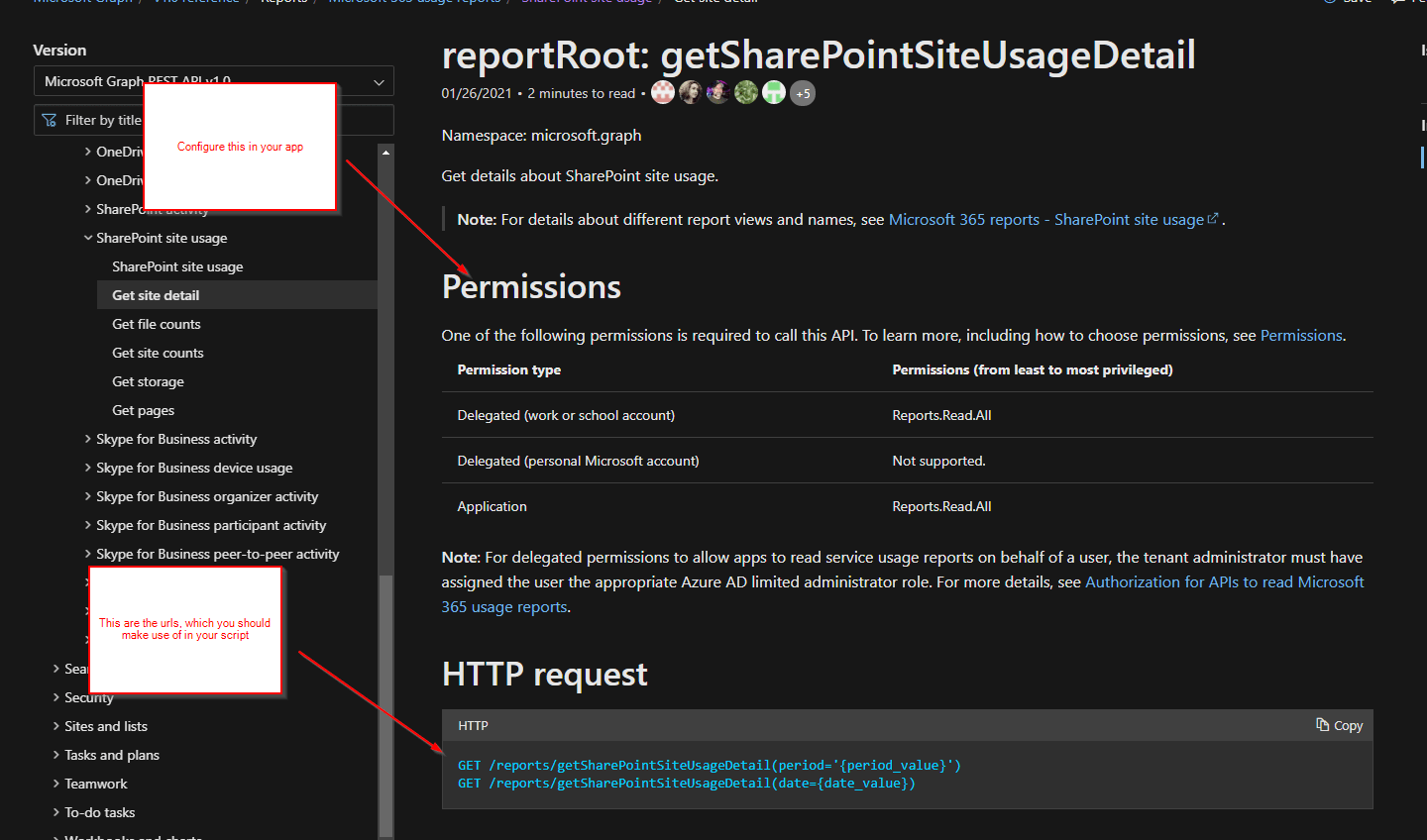
    Let’s assume, that you want to see the site usage of all sites in your tenant. In order to do this, you have to make use of following API method:

    GET /reports/getSharePointSiteUsageDetail(period='{period_value}’)
    GET /reports/getSharePointSiteUsageDetail(date={date_value})

    This API requires following permissions. We will consider them in this article. I want to analyze the sharepoint usage and want to update it to a list afterwards, that’s why I will make use of Application – Reports.Read.All

    Permission typePermissions (from least to most privileged)
    Delegated (work or school account)Reports.Read.All
    Delegated (personal Microsoft account)Not supported.
    ApplicationReports.Read.All
    SharePointSiteUsage Method Screenshot Graph API
    reportRoot: getSharePointSiteUsageDetail – Microsoft Graph v1.0 | Microsoft Docs

    Register the Enterprise Application

    After we figured out what permissions we need, we register the app.

    Prerequisites

    You have to have the role ‘Global Administrator’ to grant the permissions for an Enterprise Application.

    Registration

    Visit the Azure Portal URL and switdh to the app registrations sites. Directlink: App registrations – Microsoft Azure

    Click on new registration
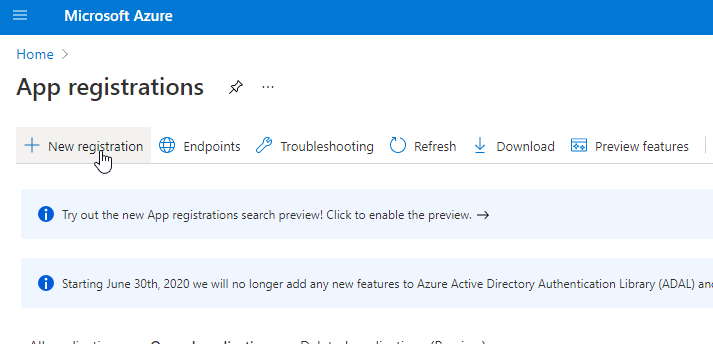
    Register New App for Graph Api

    Give your application a name, click on Accounts in this organizational directory only, select mobile as platform, after that click on register.
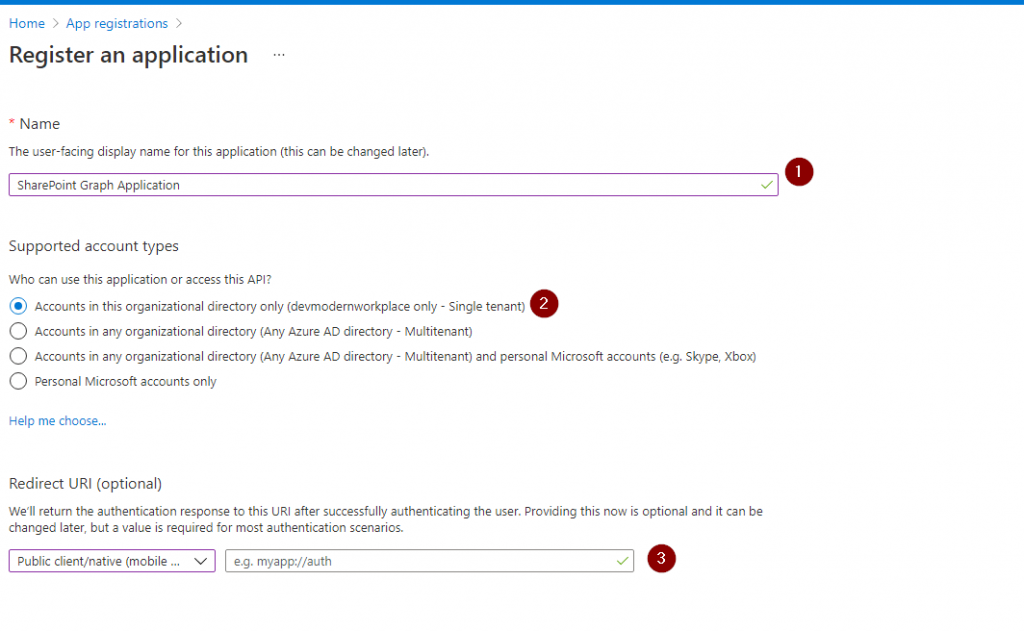
    Application Registration for Graph Api

    Take a note of the Application (client) ID, you will need it to authenticate against the Graph API.
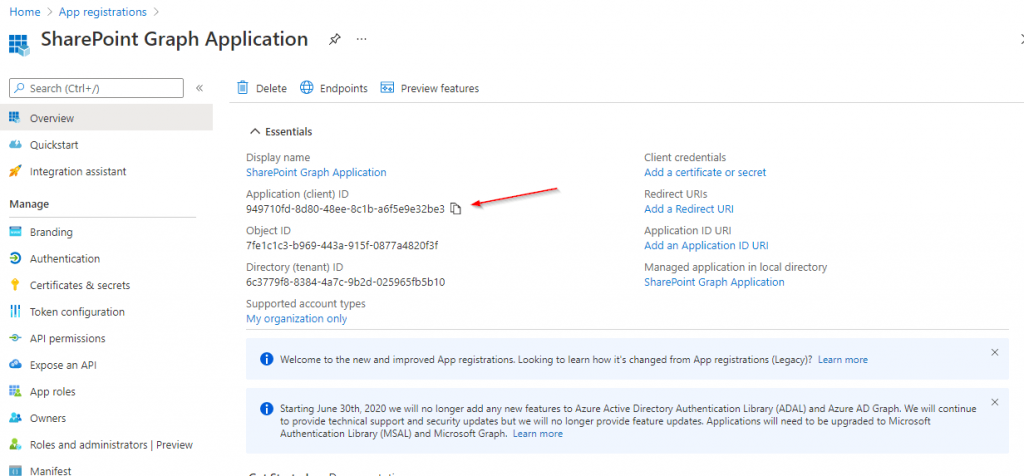
    Enterprise Application

    Grant API Permissions for App Registration

    After creating the app, we have to give it the permissions, which we have defined in the first step.
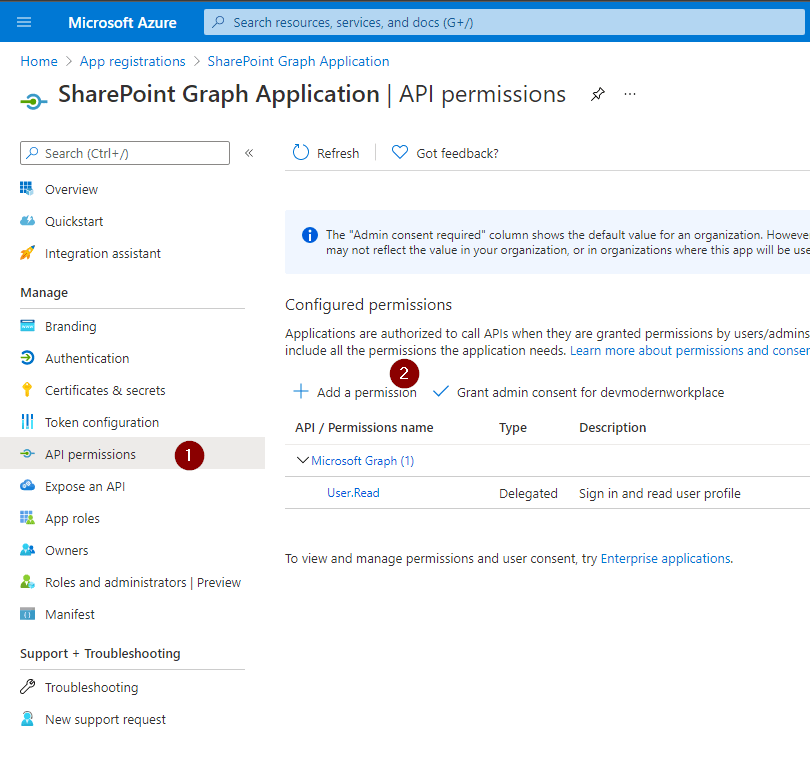
    Enterprise Application API permission

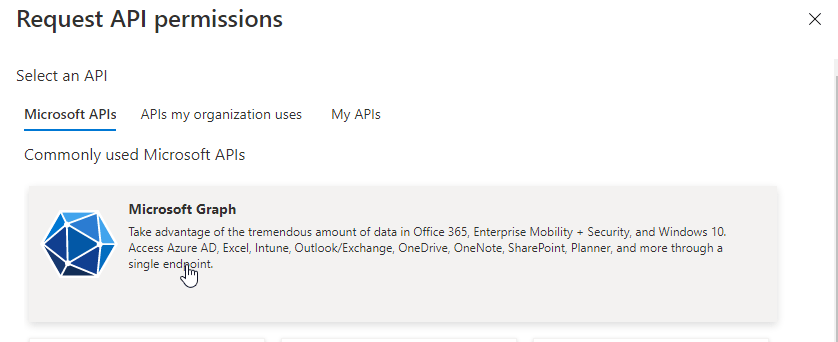
    Click on Microsoft Graph.

    Graph API screenshot

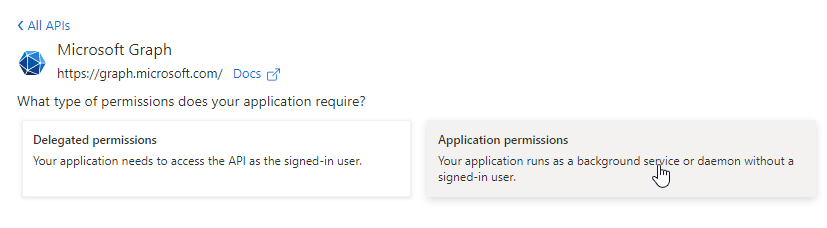
    Grant it Application permissions

    Application Permissions

    Now you have to select the permissions, for which you want to use the Graph API. I just need the information for Reports.Read.All. If you don’t know which permission to take, check the considerations part of this post.
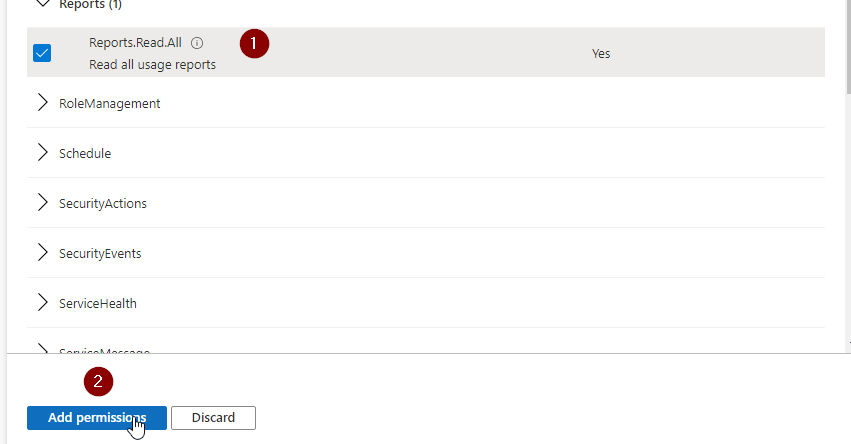
    reports.read.all permission for Graph API

    As you can see, the permission is not granted for this tenant.
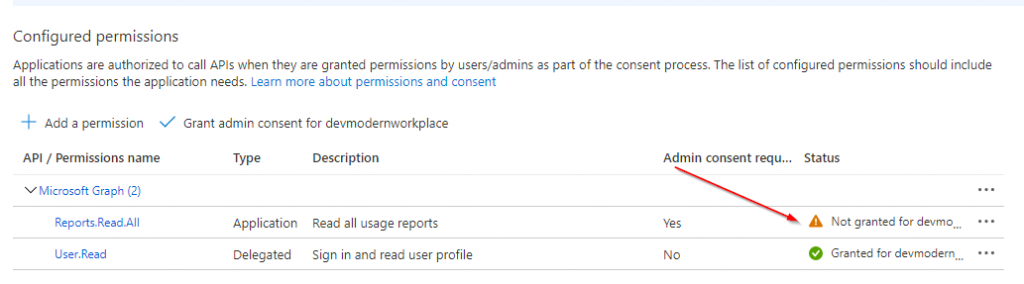
    not granted permissions screenshot for Graph API

    Create Client Secret for App Registration

    In order to authenticate to the Graph API in PowerShell, you have to create a client secret.

    Click on Certificates & secrets and then on New client secret
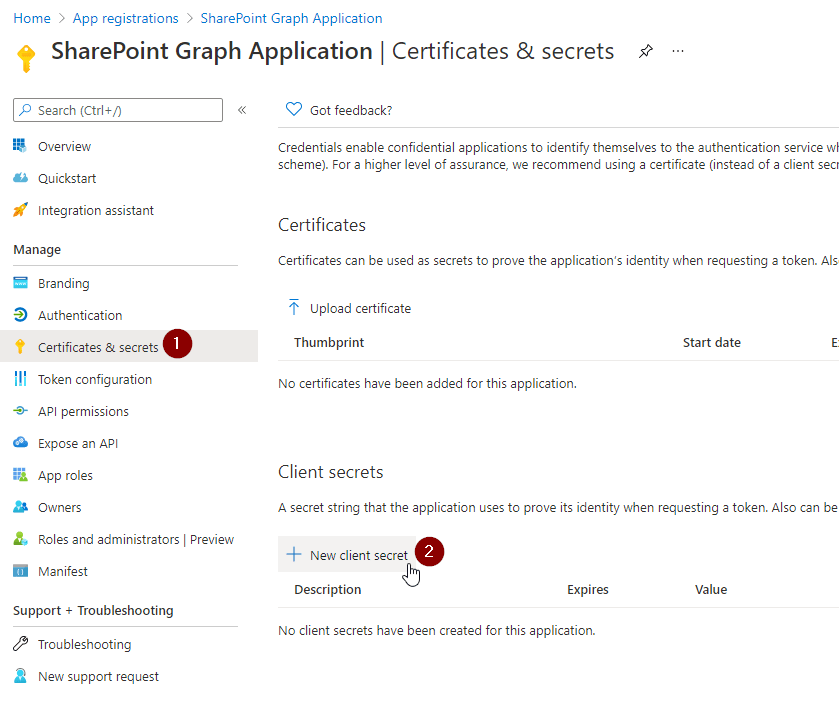
    Create client secret for Graph API enterprise application

    Set a Description and define when it will be expiring. I would recommend to give it a description, which you can recognize, for what it will be used in future. I have set 24 months, because I want to make use it in an automation, which should run for a long term. When finished, click Add.
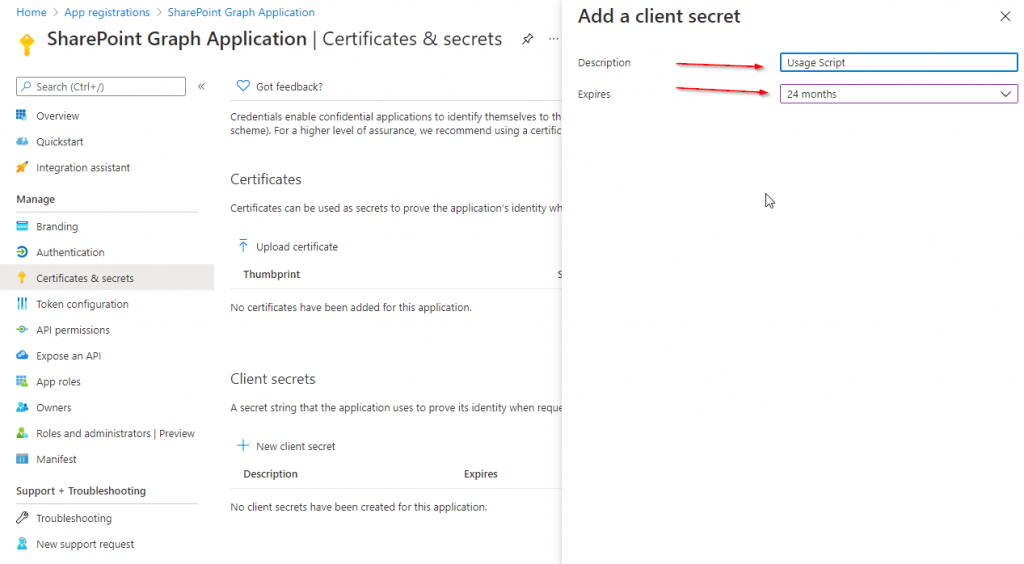
    Usage Scripts client secret for Graph API

    Take Note of the value! You wont see it again, if you leave the site.
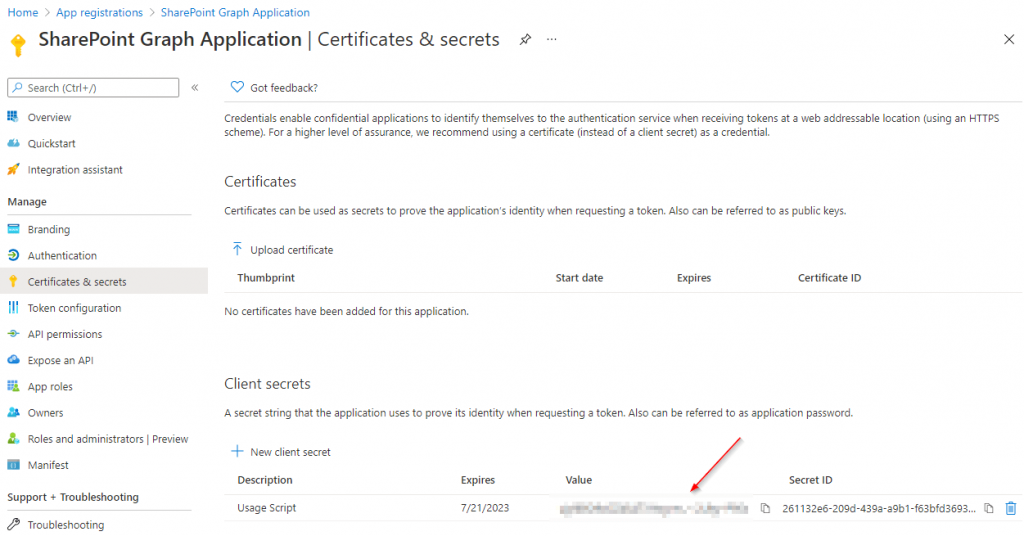
    Client Secret for Graph API obfuscated

    Consent the Requested permissions for App Registration

    Caution: You have to consent the created application with the global administrator role.

    https://login.microsoftonline.com/TENANTDomain/adminconsent?client_id=CLIENTID
    

    The URL for my dev tenant is like:

    https://login.microsoftonline.com/devmodernworkplace.onmicrosoft.com/adminconsent?client_id=949710fd-8d80-48ee-8c1b-a6f5e9e32be3

    Choose an account with global administrator role.
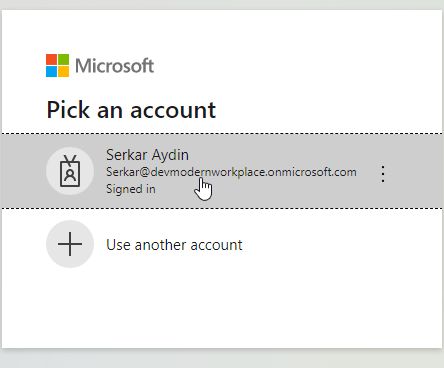
    Global administrator account login to grant permission for Graph API

    As you can see the permissions, which we have configured, are showing up:
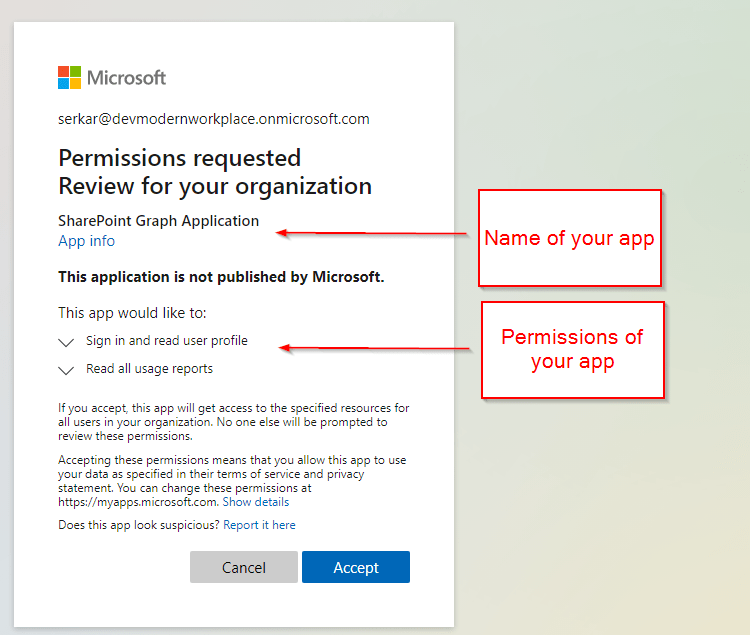
    permission grant for created app for Graph API

    Since you have not set a redirect url, you will encounter this issue, which you can ignore.
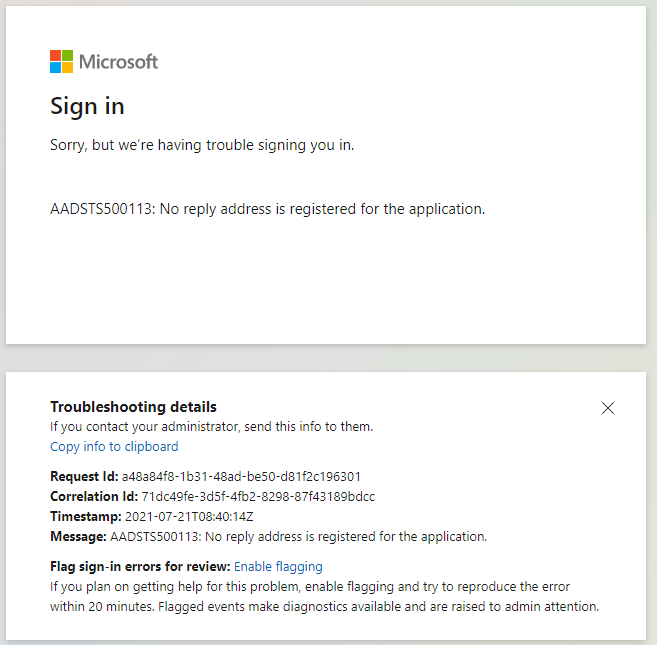
    this ocurs, since we have not configured a redirect url

    Check Permission consent

    You can check that the permission is granted, if you see the green check marks.
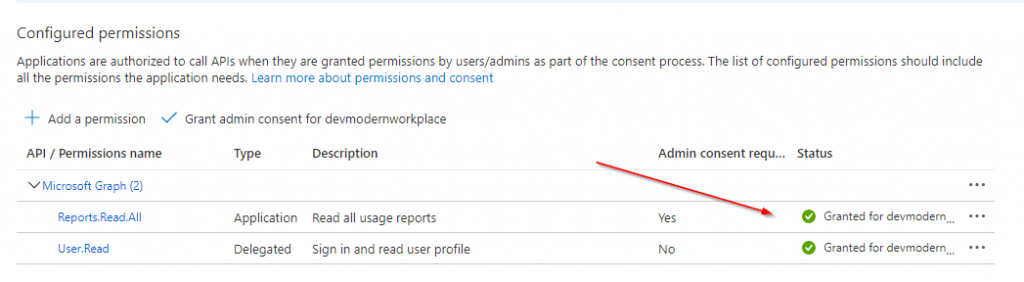
    granted permission for enterprise application for Graph API

    Script To Acess SharePoint via the Graph API (PowerShell)

    The script contains two parts. The first part is about authentication and the second is about getting the data provided.

    Authentication

    I am making use of a credential export to be sure, that nobody steals the credentials, when it is in plain text. If you don’t know how to, check out: Use credentials in PowerShell – SPO Scripts

    Function Export-CredentialFile 
    {
        param(
        [Parameter(Mandatory=$true,Position=0)]
        $Username,
        [Parameter(Mandatory=$true,Position=1)] 
        $Path
        )
        
        
        While ($Path -eq "")
        {
            $Path = Read-Host "The path does not exist. Where should the credentials be exported to?"
        }
        $ParentPath = Split-Path $Path
        If ((Test-Path $ParentPath) -eq $false)
        {
            New-Item -ItemType Directory -Path $ParentPath
        }
        $Credential = Get-Credential($Username)
        $Credential | Export-Clixml -Path $Path
        Return $Credential
    }
    Function Import-CredentialFile ($Path)
    {
        if (! (Test-Path $Path))
        {
            Write-Host "Could not find the credential object at $Path. Please export your credentials first"
            Export-CredentialFile
        }
        Import-Clixml -Path $Path
    }
    $AppId = '949710fd-8d80-48ee-8c1b-a6f5e9e32be3'
    $CredentialPath = "C:\temp\$AppId.key"
    Export-CredentialFile -Username $AppId -Path $CredentialPath

    After doing this, we notice, that the file with the app id as name, has an encrypted password. So we splitted credentials from script to increase the security. This credential file can only be used on the machine and with the user, who has created it.
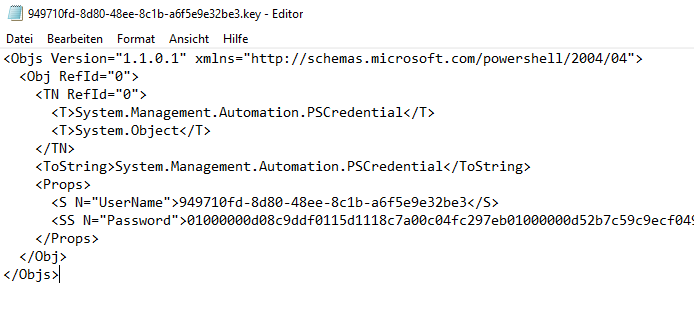
    PowerShell credential object

    If we run follwing script afterwards, we will notice, that the $AuthorizationRequest will show us a token with an bearer token.

    $AppId = '949710fd-8d80-48ee-8c1b-a6f5e9e32be3'
    $CredentialPath = "C:\temp\$AppId.key"
    $AppCredential = Import-CredentialFile -Path $CredentialPath
    
    $Scope = "https://graph.microsoft.com/.default"
    $Url = "https://login.microsoftonline.com/devmodernworkplace.onmicrosoft.com/oauth2/v2.0/token"
    
    $Body = @{
        client_id = $AppCredential.UserName
        client_secret = $AppCredential.GetNetworkCredential().password
        scope = $Scope
        grant_type = 'client_credentials'
    }
    
    $AuthorizationRequest = Invoke-RestMethod -Uri $Url -Method 'post' -Body $Body
    $AuthorizationRequest
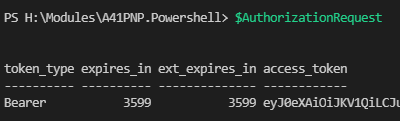
    
    answer to the authorization request

    Access SharePoint Online with Authorization Token

    Now that we got the access token, we can connect to SharePoint Online with following script. You can use the uris (methods), defined in Microsoft docs.

    $Uri = "YOURURI"
    
    $Header = @{Authorization = "$($AuthorizationRequest.token_type) $($AuthorizationRequest.access_token)"}
    $SitesRequest = Invoke-RestMethod -Uri $Uri -Method 'Get'  -Headers $Header

    Get Site Usage Details

    You can get the site usage with following uri “https://graph.microsoft.com/beta/reports/getSharePointSiteUsageDetail(period='{D90}’)?`$format=application/json”. The number next to the D means the amount of days. So for my example it shows the usage of all sites for the last 90 days. You can replace D90 with D7, D30, and D180.

    With this script you can get the site usage for the last 90 days:

    $Uri = "https://graph.microsoft.com/beta/reports/getSharePointSiteUsageDetail(period='{D90}')?`$format=application/json"
    
    $Header = @{Authorization = "$($AuthorizationRequest.token_type) $($AuthorizationRequest.access_token)"}
    $SitesRequest = Invoke-RestMethod -Uri $Uri -Method 'get'  -Headers $Header 
    
    $Sites.value | Out-GridView -PassThru

    Bonus: Ready-to-Use Script

    If you want to make use of the script, you have to change the parameters $GraphUrl and $AppID.

    Param(
        $AppId = '949710fd-8d80-48ee-8c1b-a6f5e9e32be3',
        $GraphUrl = "https://login.microsoftonline.com/devmodernworkplace.onmicrosoft.com/oauth2/v2.0/token",
        $Scope = "https://graph.microsoft.com/.default",
        $Uri = "https://graph.microsoft.com/beta/reports/getOffice365GroupsActivityDetail`(`period=`'`D90`'`)?`$format=application/json",
    )
    
    Function Export-CredentialFile 
    {
        param(
        [Parameter(Mandatory=$true,Position=0)]
        $Username,
        [Parameter(Mandatory=$true,Position=1)] 
        $Path
        )
        
        
        While ($Path -eq "")
        {
            $Path = Read-Host "The path does not exist. Where should the credentials be exported to?"
        }
        $ParentPath = Split-Path $Path
        If ((Test-Path $ParentPath) -eq $false)
        {
            New-Item -ItemType Directory -Path $ParentPath
        }
        $Credential = Get-Credential($Username)
        $Credential | Export-Clixml -Path $Path
        Return $Credential
    }
    Function Import-CredentialFile ($Path)
    {
        if (! (Test-Path $Path))
        {
            Write-Host "Could not find the credential object at $Path. Please export your credentials first"
            Export-CredentialFile
        }
        Import-Clixml -Path $Path
    }
    
    $CredentialPath = "C:\temp\$AppId.key"
    Export-CredentialFile -Username $AppId -Path $CredentialPath
    
    $AppCredential = Import-CredentialFile -Path $CredentialPath
    
    $Body = @{
        client_id = $AppCredential.UserName
        client_secret = $AppCredential.GetNetworkCredential().password
        scope = $Scope
        grant_type = 'client_credentials'
    }
    
    $AuthorizationRequest = Invoke-RestMethod -Uri $GraphUrl -Method 'post' -Body $Body
    
    $Header = @{Authorization = "$($AuthorizationRequest.token_type) $($AuthorizationRequest.access_token)"}
    $SitesRequest = Invoke-RestMethod -Uri $Uri -Method 'get'  -Headers $Header 
    
    $SitesRequest.value | Out-GridView -PassThru

    Conclusio

    In this article you saw how to find the right permission for the enterprise application, which you need to access the SharePoint via the Graph API with PowerShell. After doing this, you can authenticate and analyze the data.

    Further Docs

    reportRoot: getSharePointSiteUsageDetail – Microsoft Graph v1.0 | Microsoft Docs

  • How to use Word and Excel templates in SharePoint

    How to use Word and Excel templates in SharePoint

    If you are using SharePoint and want to ensure, that your end users make use of your templates in SharePoint, you can make use of content types, to use word and excel templates in SharePoint.


    Prerequisites

    If you want to create use templates in your across multiple SharePoint sites, you need access to the SharePoint Admin center otherwise you just can create it for single sites.

    You can use templates for word and excel files, which don’t have macros. If you have macros in your templates, you cannot use them as template for your content type.


    What are content types?

    You can imagine a content type as an object with meta data, which describes an object.

    Example: invoice.

    Meta data for an invoice are e.g. invoice date and due date.

    Invoice

    I will show you how to configure content types in your content type hub, so you can make use of word and excel templates in SharePoint!


    Create a template

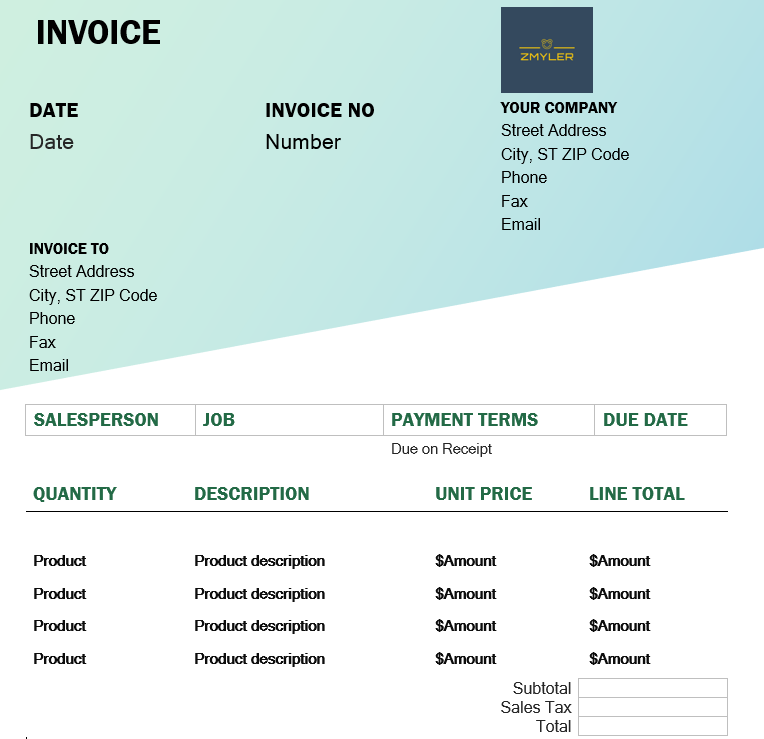
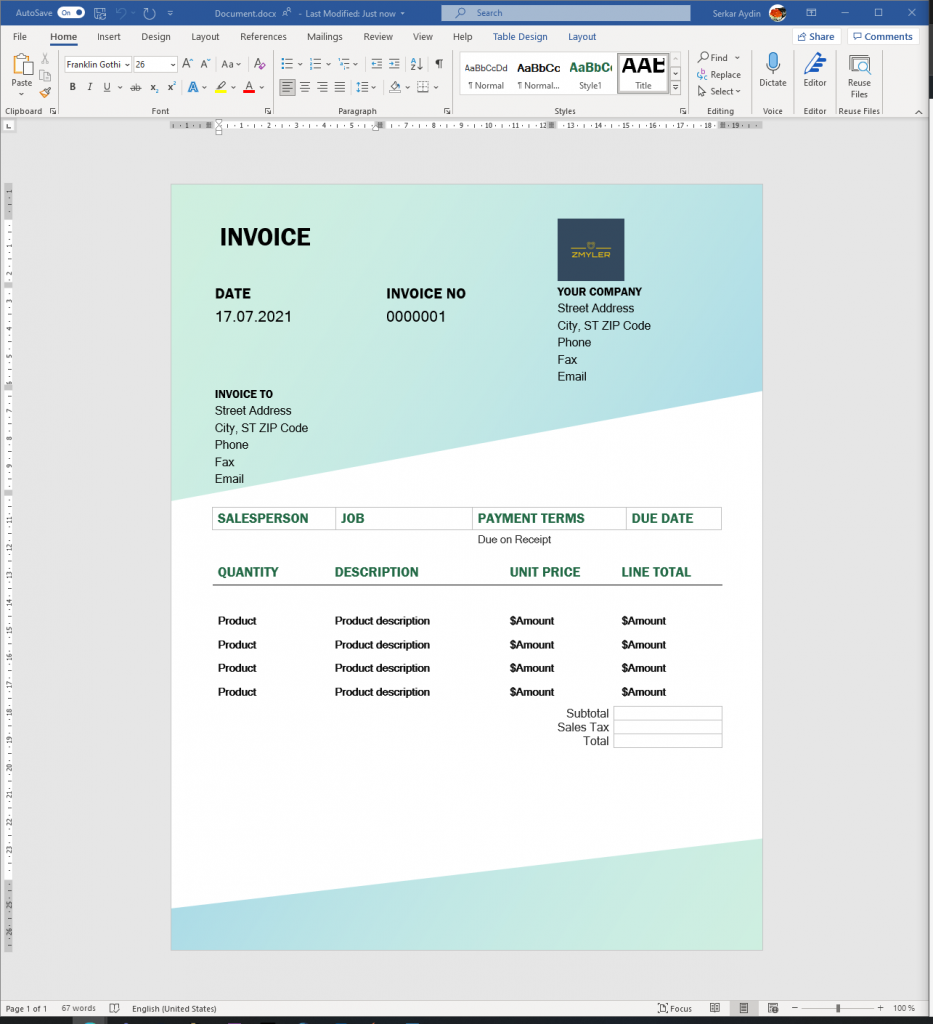
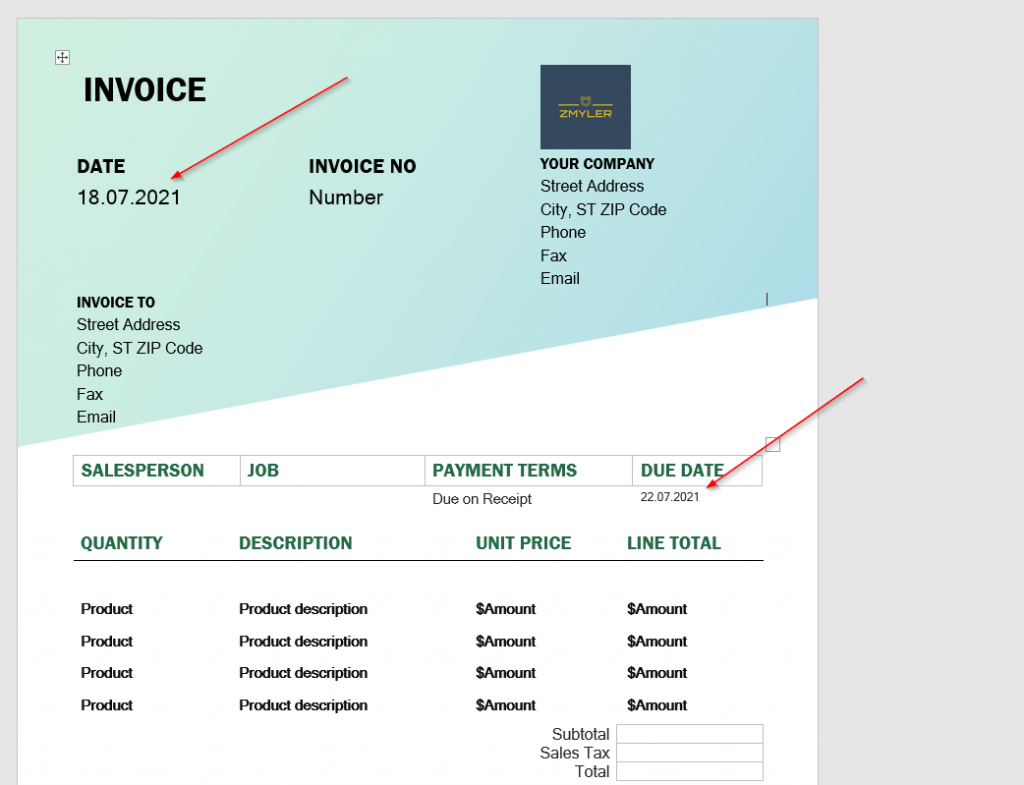
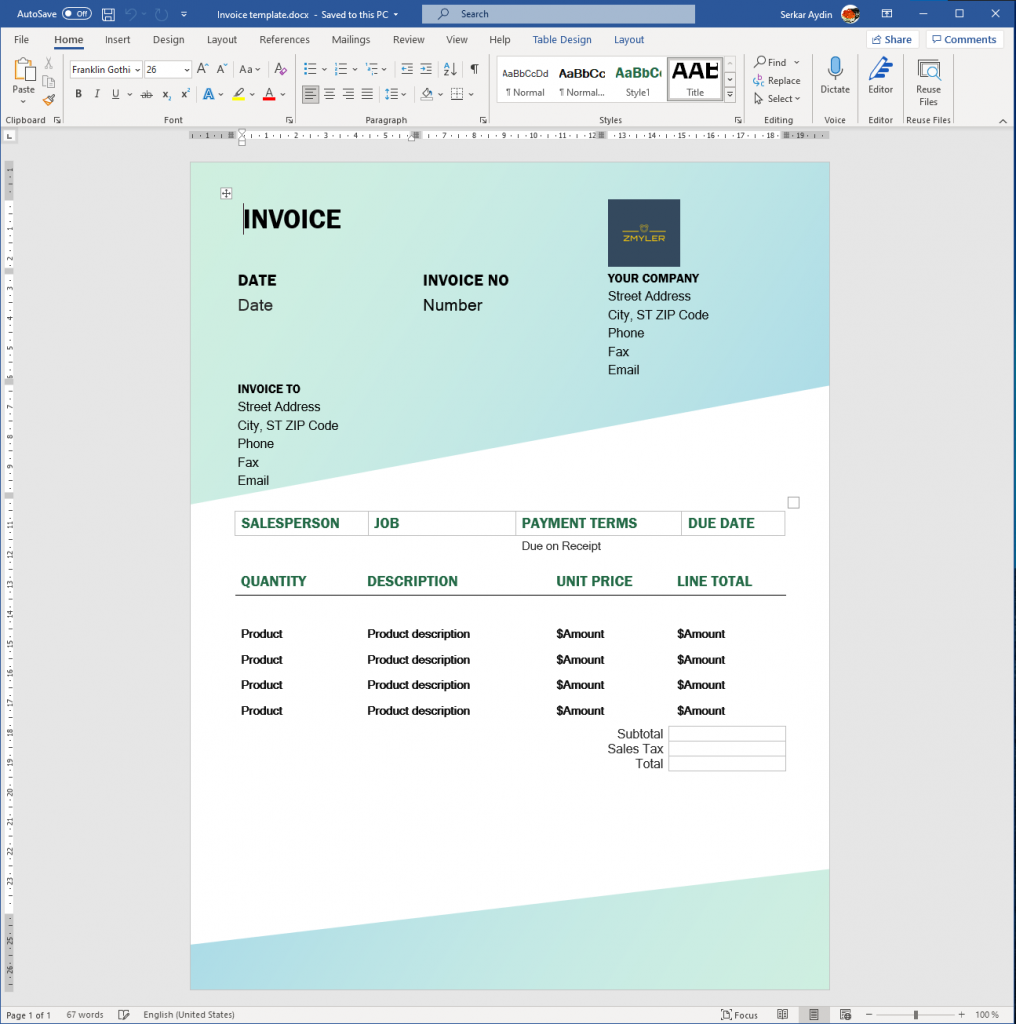
    Before we start to use templates in SharePoint, we have to define a template. For our invoice, I took a template of Microsoft.

    Invoice template
    Invoice template

    Create content type in SharePoint Admin Center

    To create a content type visit the admin center

    https://yourdomain-admin.sharepoint.com

    for my domain it is

    https://devmodernworkplace-admin.sharepoint.com/

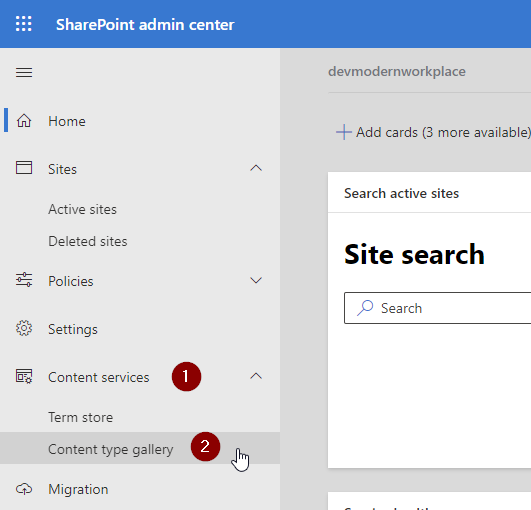
    Click on Content services -> Content type gallery

    SharePoint admin center

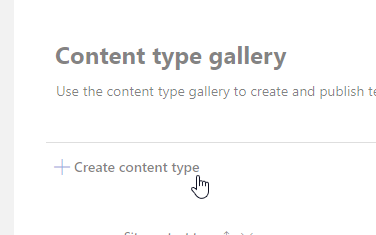
    Click on create a content type

    Create content type

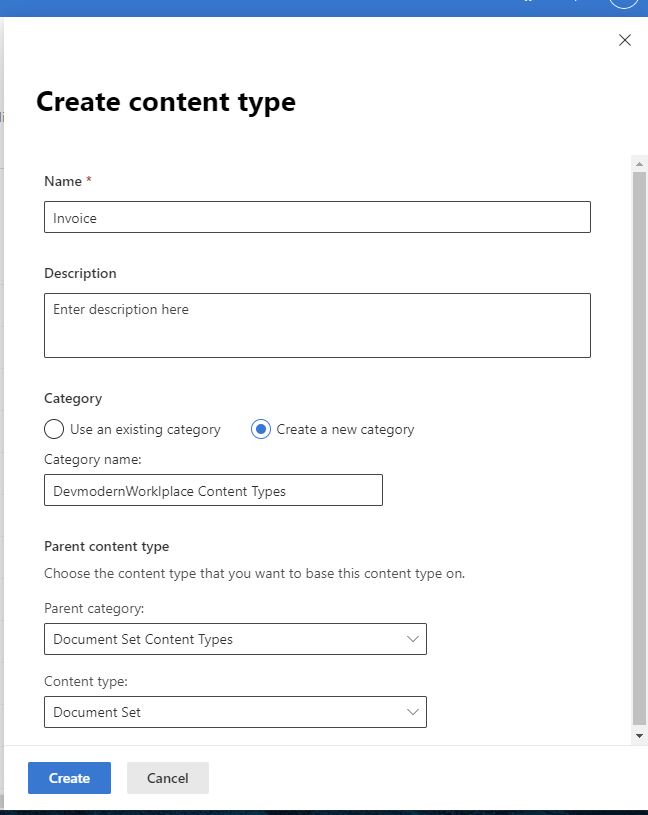
    Give it a name, optionally a description define a category and set document content types as parent category and document as content type.

    I chose to locate my content type invoice in the new category “DevModernWorkplace” category. You can also use the exisiting category document content types category. I would recommend a new category, so you see all your custom content types at one place.

    Conent type formular

    After your content type is created, I would recommend to add site columns. These site columns will show up in the library, where you will use this content type.

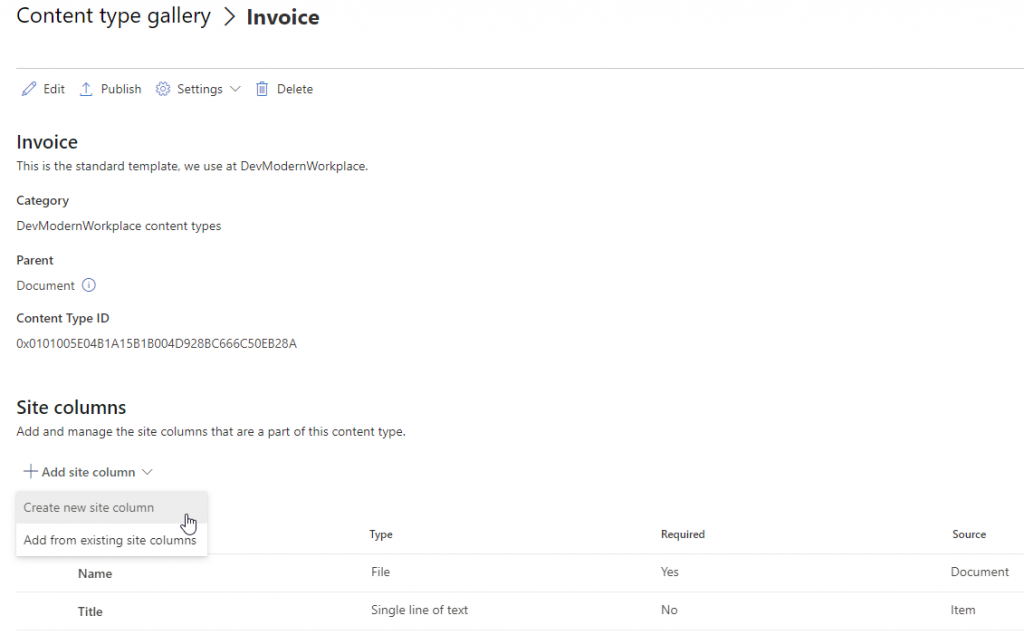
    Create new site column

    Add site columns to content type

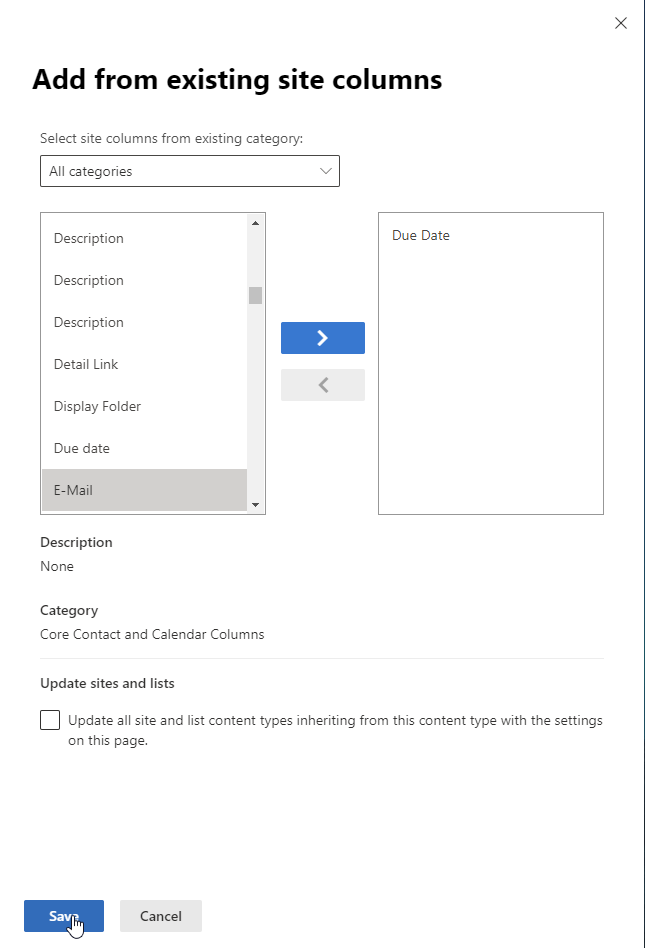
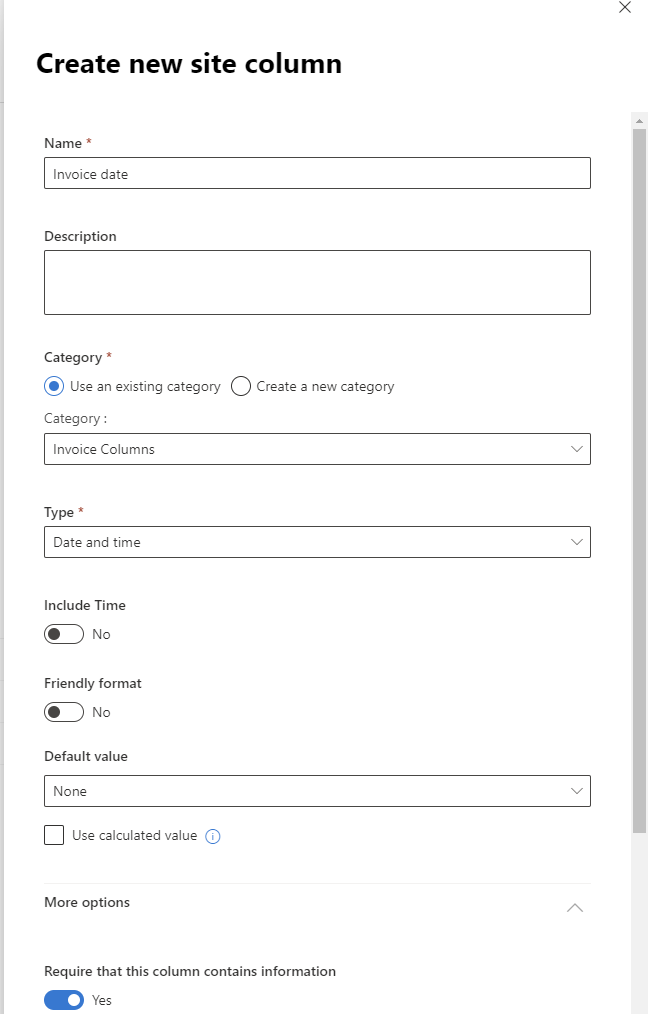
    I have added the meta data due date from the existing site columns and added invoice date as new site columns and added the new site column to the new dedicated category “Invoice Columns”.

    Add existing site columns
    Add existing column
    Create new site column
    Create new site column

    Add template to content type

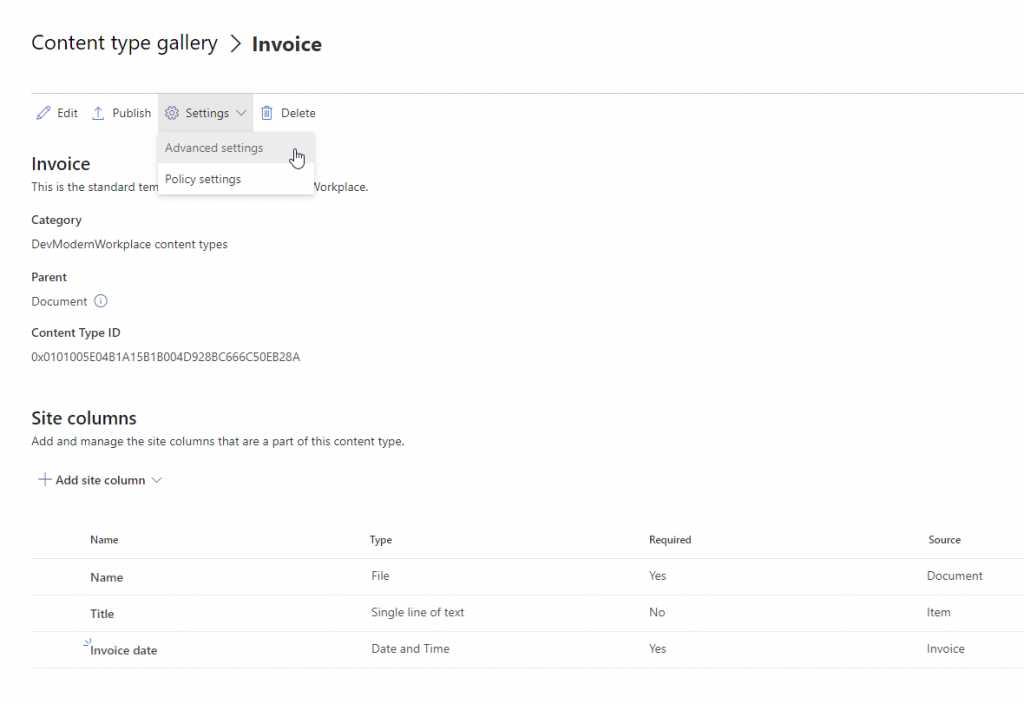
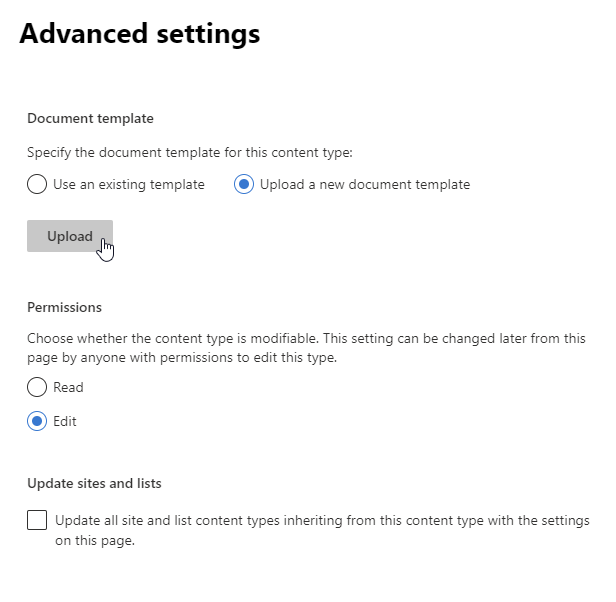
    Now you can add your previously created template to your content type. Click on Settings and then on Advanced settings.

    Advanced settings

    Click on upload a new document template and browse to your template. After selecting it, save it.

    Upload document template

    Publish content type

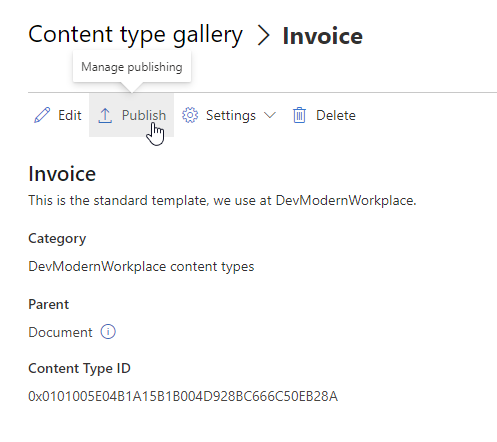
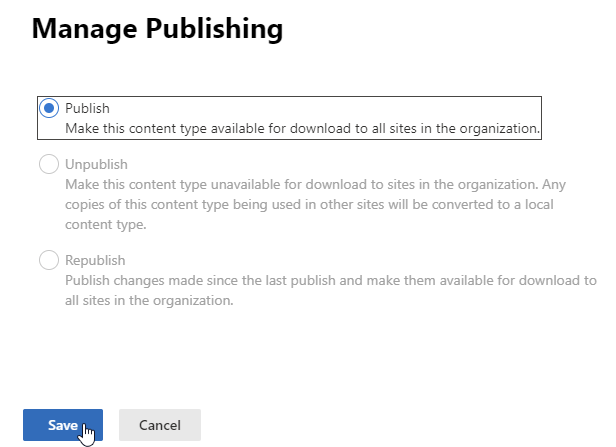
    After adding the template, publish your content type.

    Publish content type
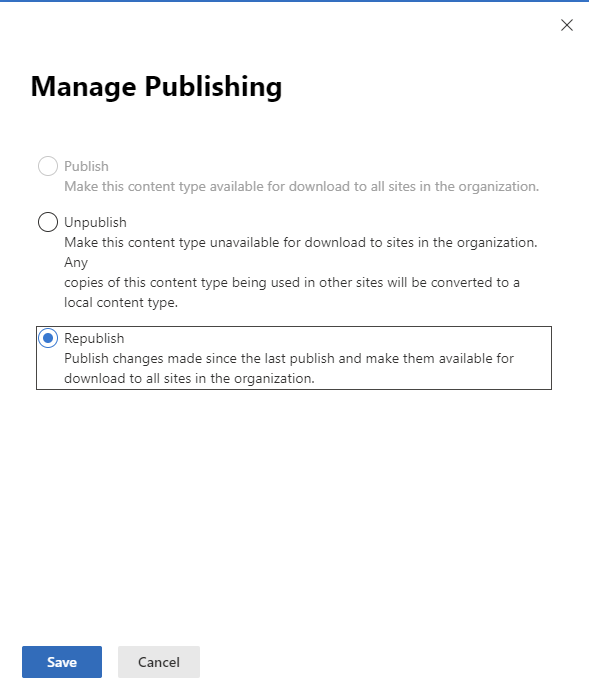
    Publish content types

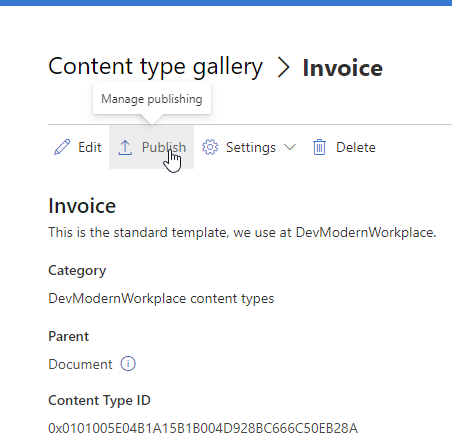
    Republish content type

    If you already published your content type, click on Publish.

    Click on Republish

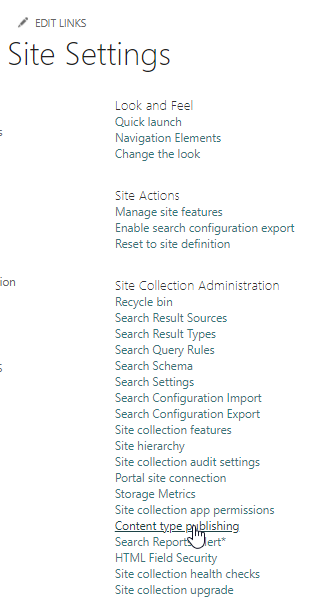
    Switch to the site, where you have added the content type and visit the site settings. I am switching back to the sales site.

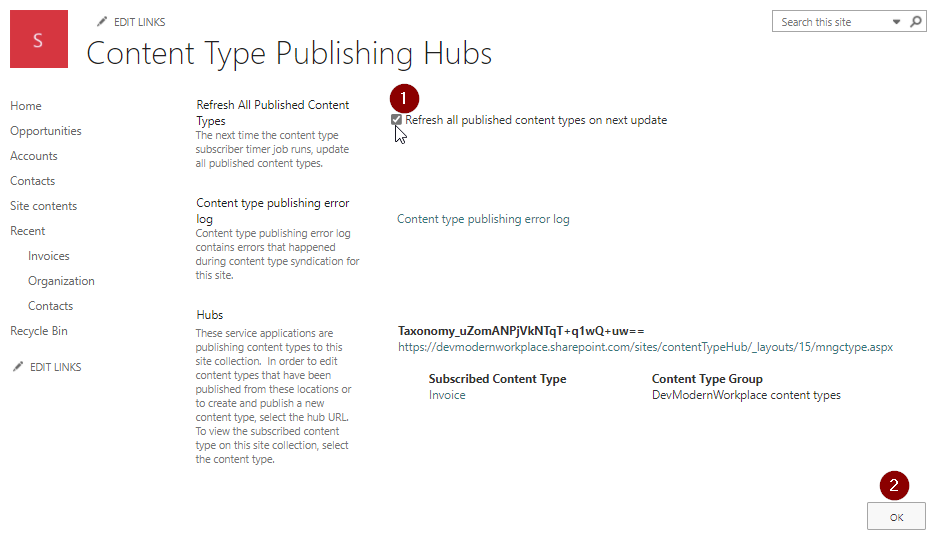
    Click on Content type publishing.

    Check Refresh all published content types on next update and click on OK.

    Add content type to your list

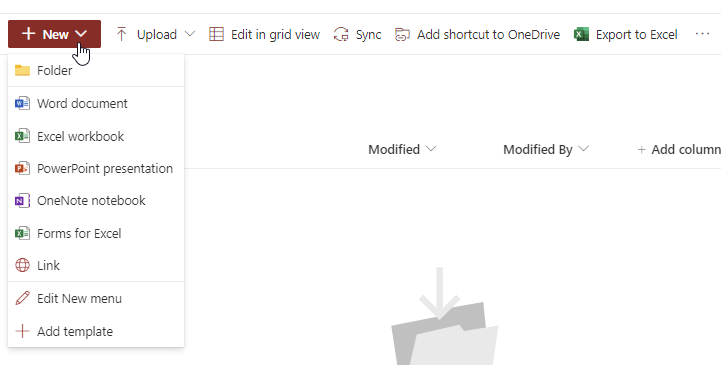
    I have added a list invoices to the demo site and as you can see the default content types are configured.

    invoice library

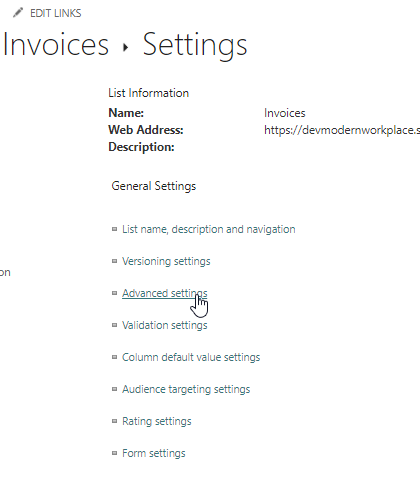
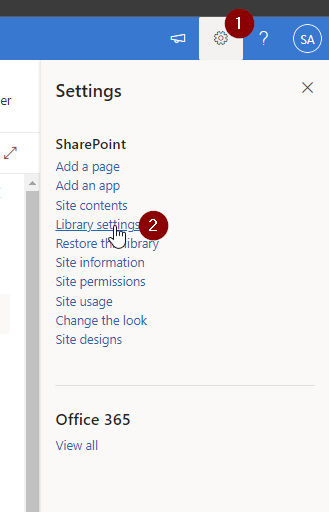
    In order to add the invoice template, click on the gear -> Library settings.

    Library settings navigation

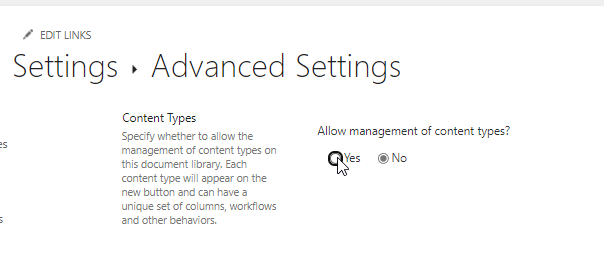
    Click on Advanced settings

    Library settings

    Set Allow management of content types? to Yes, scroll down to “Ok” to save your settings.

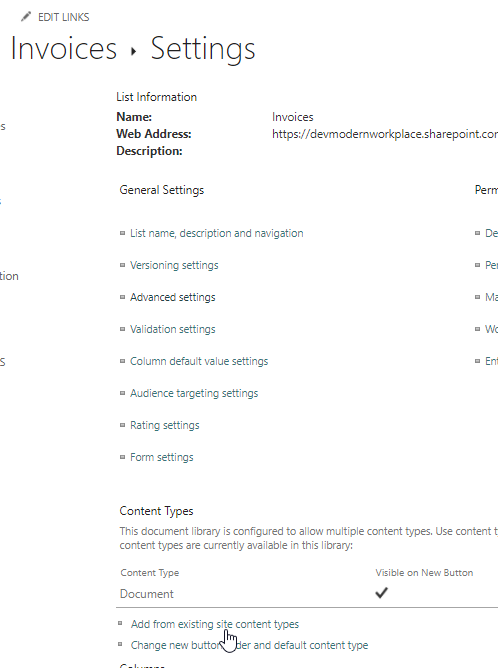
    Add your content type by clicking on Add from existing site content types

    If you don’t see your content type, ensure that you have published the content type and if you have published it, wait 5-10 minutes.

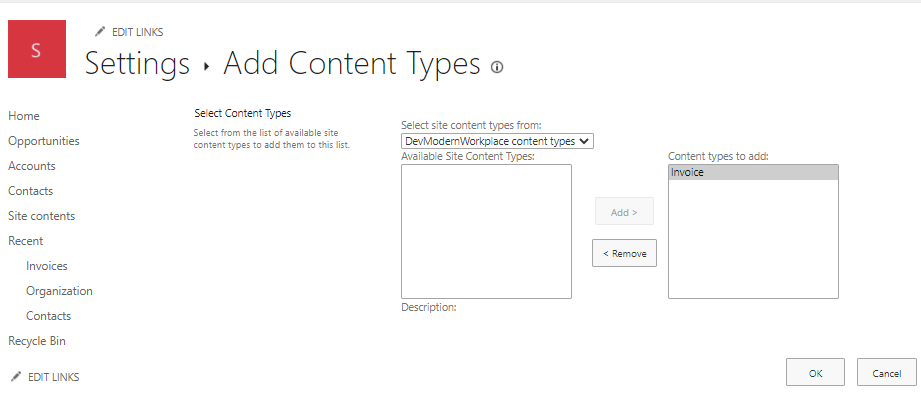
    Add content type to library

    After confirming with OK, you can see the invoice content type


    Bonus: Adding Metadata to your template

    If you want to add metadata to your Word/ Excel template, create a document with your configured content type.

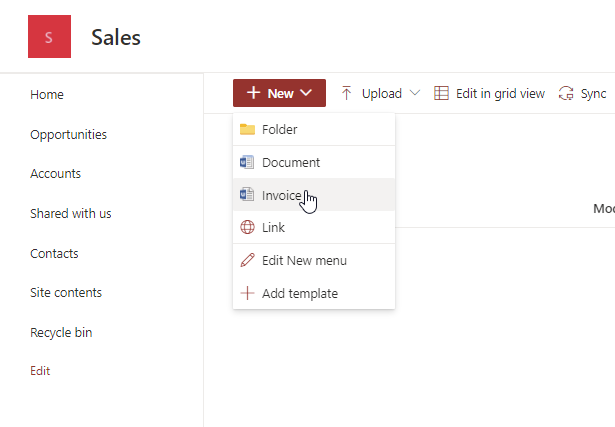
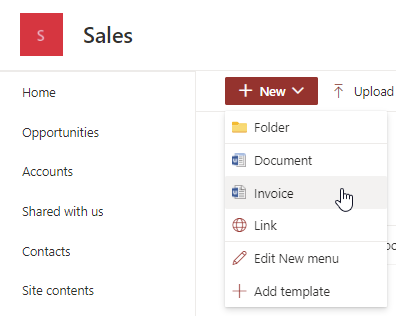
    Add invoice content type

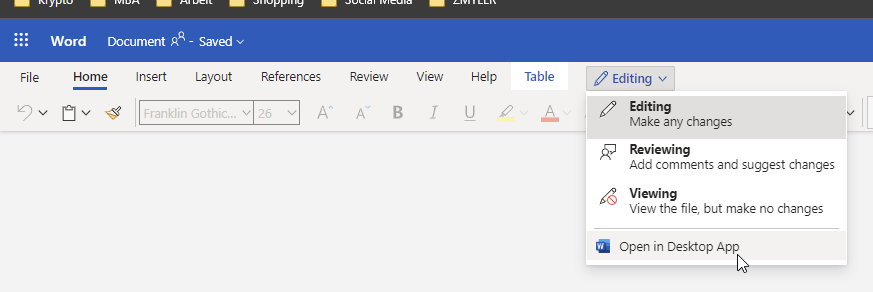
    Click on editing -> Open in the Desktop App

    Mark the area, where you want to add the metadata.

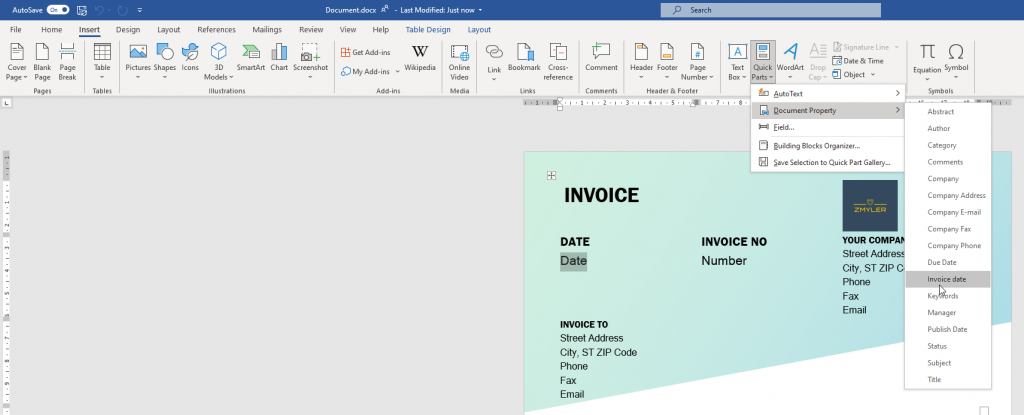
    Click on tab Insert -> Quick Parts -> Document Property -> “Your Metadata”

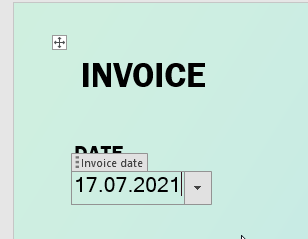
    I chose Invoice date

    I have added invoice date and due date

    Save the file locally.

    Now republish the template in your content type.

    there we are!

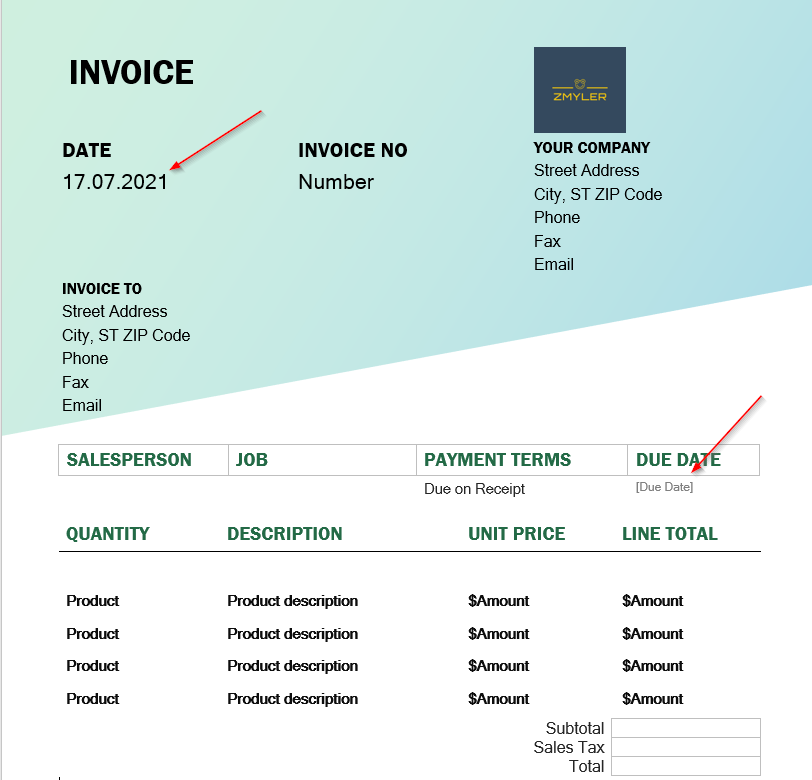
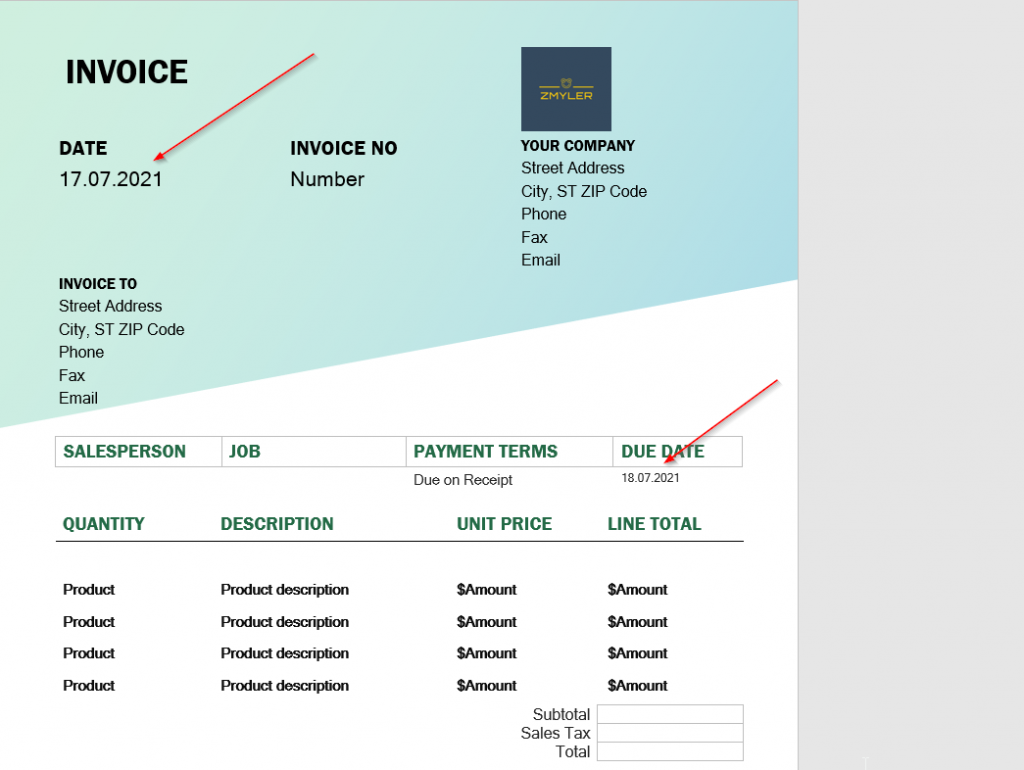
    If you change the metadata in SharePoint, the document gets updated automatically.

    Before:

    Previous metadata in invoice

    After:

    After metadata in invoice

    Date fields in the Library and in Word app are different

    Check out, the regional setting of your site. You might have different time zones configured for your client and your site.

    Conclusio

    Ensuring that Word and Excel templates are used in SharePoint online can be achieved by content types, published in the content type hub.

  • Dealing with existing SharePoint connections

    Dealing with existing SharePoint connections

    We all can Imagine the scenario. You create sites in sharepoint and now you want to edit multiple sites afterwards with PowerShell. In order to be safe, we have to check, wether an connection exists and if yes to disconnect the current connection to have a clean processing of the sites. In this article I want to show you how can achieve dealing with existing SharePoint connections. If you don’t know how to connect to SharePoint Online, check the article.


    Symptoms – How I tried it first

    Multiple paths as needles

    I tried to check the connection by a normal if query, but as you can see it throws everytime an error, so the script will be halted under normal circumstances. Changing the ErroActionPreference is something you could do for sure, but I would not recommend it, if you want to handle other upcomming potential errors of the API. So as you can see dealing with existing SharePoint connections in terms of checking, wether an connection exists, is not that easy.

    if ((Get-PnPConnection) )
    {
        Write-Host "Connection found"
    }
    Get-PnPConnection : The current connection holds no SharePoint context. Please use one of the Connect-PnPOnline commands which uses the -Url argument to connect.
    In Zeile:2 Zeichen:6
    + if ((Get-PnPConnection) )
    +      ~~~~~~~~~~~~~~~~~
        + CategoryInfo          : NotSpecified: (:) [Get-PnPConnection], InvalidOperationException
        + FullyQualifiedErrorId : System.InvalidOperationException,PnP.PowerShell.Commands.Base.GetPnPConnection
    PS H:>> 
    if ((Get-PnPConnection) -ne $Null )
    {
        Write-Host "Connection found"
    }
    Get-PnPConnection : The current connection holds no SharePoint context. Please use one of the Connect-PnPOnline commands which uses the -Url argument to connect.
    In Zeile:2 Zeichen:6
    + if ((Get-PnPConnection) -ne $Null )
    +      ~~~~~~~~~~~~~~~~~
        + CategoryInfo          : NotSpecified: (:) [Get-PnPConnection], InvalidOperationException
        + FullyQualifiedErrorId : System.InvalidOperationException,PnP.PowerShell.Commands.Base.GetPnPConnection
    PS H:>> 
    if ((Get-PnPConnection|out-null) -ne $Null )
    {
        Write-Host "Connection found"
    }
    Get-PnPConnection : The current connection holds no SharePoint context. Please use one of the Connect-PnPOnline commands which uses the -Url argument to connect.
    In Zeile:2 Zeichen:6
    + if ((Get-PnPConnection|out-null) -ne $Null )
    +      ~~~~~~~~~~~~~~~~~
        + CategoryInfo          : NotSpecified: (:) [Get-PnPConnection], InvalidOperationException
        + FullyQualifiedErrorId : System.InvalidOperationException,PnP.PowerShell.Commands.Base.GetPnPConnection
    PS H:>> 
    if ((Get-PnPConnection -ErrorAction SilentlyContinue) -ne $Null )
    {
        Write-Host "Connection found"
    }
    Get-PnPConnection : The current connection holds no SharePoint context. Please use one of the Connect-PnPOnline commands which uses the -Url argument to connect.
    In Zeile:2 Zeichen:6
    + if ((Get-PnPConnection -ErrorAction SilentlyContinue) -ne $Null )
    +      ~~~~~~~~~~~~~~~~~~~~~~~~~~~~~~~~~~~~~~~~~~~~~~~
        + CategoryInfo          : NotSpecified: (:) [Get-PnPConnection], InvalidOperationException
        + FullyQualifiedErrorId : System.InvalidOperationException,PnP.PowerShell.Commands.Base.GetPnPConnection

    Solutions

    sewing kit

    Try Catch Solution

    In order to handle this situation, you have to catchup the error.

    The snippet tries to check wether there is an connection and if there is one, it will proceed and disconnect it. After disconnecting it I have set the variable $connection to $null, so I can process it later on.

    try 
    {
        Get-PnPConnection -ErrorAction Stop
        Disconnect-PnPOnline
        $Connection = $null
    }
    catch 
    {
        $Connection = $null
    }

    BONUS 1: Invoke-PNPConnection with Credential object (No MFA enforcement)

    A function which handles the whole procedure of cutting of the connection and reconnecting, makes the handling easier. In this case I have added an additional check of the contents of lists, because sometimes you do connect, but experience that the webserver is not ready yet – basically you get an 403 FORBIDDEN message in PowerShell.

    NOTE: This will only work If your user has no MFA enforcement. If you have MFA enabled, I have another function for you.

    Function Invoke-PNPConnection ($Url, $Cred)
    {
        try 
        {
            Get-PnPConnection -ErrorAction Stop
            Disconnect-PnPOnline
            $Connection  = $null
        }
        catch
        {
            $Connection  = $null
        }
        $i = 1
        while ($null -eq $Connection -and $i -le 6 -and $null -eq $Lists)
        {
            Write-Verbose "Trying to connect to $Url for the $i time" 
            $Lists = $null
            Connect-PnPOnline -Url $Url -Credentials $Cred
            $Lists = Get-PnPList -ErrorAction SilentlyContinue
            $i++
            if ($i -ne 1 -and $null -eq $Lists)
            {
                Start-Sleep -Seconds 30
                Write-Verbose "Wait 30 Seconds"
            }
        }
        Write-Verbose "Connection to $Url established"
    }

    You can call the function like this

    $Cred = get-credential
    $Url = "https://contoso.sharepoint.com/sites/Sales"
    Invoke-PNPConnection -Url $Url -Cred $Cred

    Bonus 2: Invoke-PNPConnection interactively (MFA enforced)

    So if you use the scripts interactively (with MFA enforced users), you can make use of this function

    Function Invoke-PNPConnection ($Url)
    {
        try 
        {
            Get-PnPConnection -ErrorAction Stop
            Disconnect-PnPOnline
            $Connection  = $null
        }
        catch
        {
            $Connection  = $null
        }
        $i = 1
        while ($null -eq $Connection -and $i -le 6 -and $null -eq $Lists)
        {
            Write-Verbose"Trying to connect to $Url for the $i time" 
            $Lists = $null
            Connect-PnPOnline -Url $Url -Interactive
            $Lists = Get-PnPList -ErrorAction SilentlyContinue
            $i++
            if ($i -ne 1 -and $null -eq $Lists)
            {
                Start-Sleep -Seconds 30
                Write-Verbose "Wait 30 Seconds"
            }
        }
        Write-Verbose "Connection to $Url established"
    }

    Start the function like this


    $Url = "https://contoso.sharepoint.com/sites/Sales"
    Invoke-PNPConnection -Url $Url

    Conclusio

    There are ways to deal with the connections, you just have to think a bit OOTB 🙂

    patched teddy

    You might find intersting

    If you are not familiar with connecting to SharePoint, check out this Post: Connect to SharePoint Online with PowerShell

    Original article of PNP Connecting with PnP PowerShell | PnP PowerShell


    Images:
    Bild von Meine Reise geht hier leider zu Ende. Märchen beginnen mit auf Pixabay

    Bild von vargazs auf Pixabay

    Bild von Ina Hoekstra auf Pixabay

    Bild von saulhm auf Pixabay

  • Filtering for SharePoint items with CAML Queries

    Filtering for SharePoint items with CAML Queries

    Most of our times, we just need just a bunch of items, to export them or to change their values. This post should help you to show, how to handle filtering for SharePoint items. Besides filtering for SharePoint items with Where-Object, you can also make use of CAML (Collaborative Application Markup Language), which lets you get only the items, you need. It might increase the performance of your queries, when you are dealing with large amounts of data.

    Where are the items, which I am looking for?

    Preqrequistes

    If we want to achieve filtering for SharePoint items, with a CAML query, we have to fulfill following prerequisites:

    1. Permissions to access the list
    2. Installed Module PNP.Powershell. If you don’t know how to, check the post.
    3. Connection to the site via PNP.PowerShell. If you don’t know how to, check the post.

    Considerations

    1. You should take care of the case sensitivity of operands and column names
    2. You should take care of the <view> part. Sometimes it is needed, sometimes not – so I would rely on the examples.

    Query Schema

    A query is structured like this

     "<View><Query><Where><LOGICAL OPERATOR><FieldRef Name='INTERNAL NAME OF COLUMN'/><Value Type='VALUE TYPE'>VALUE</Value></LOGICAL OPERATOR></Where></Query></View>"

    You can find the internal name of columns in two ways:

    PowerShell or GUI.

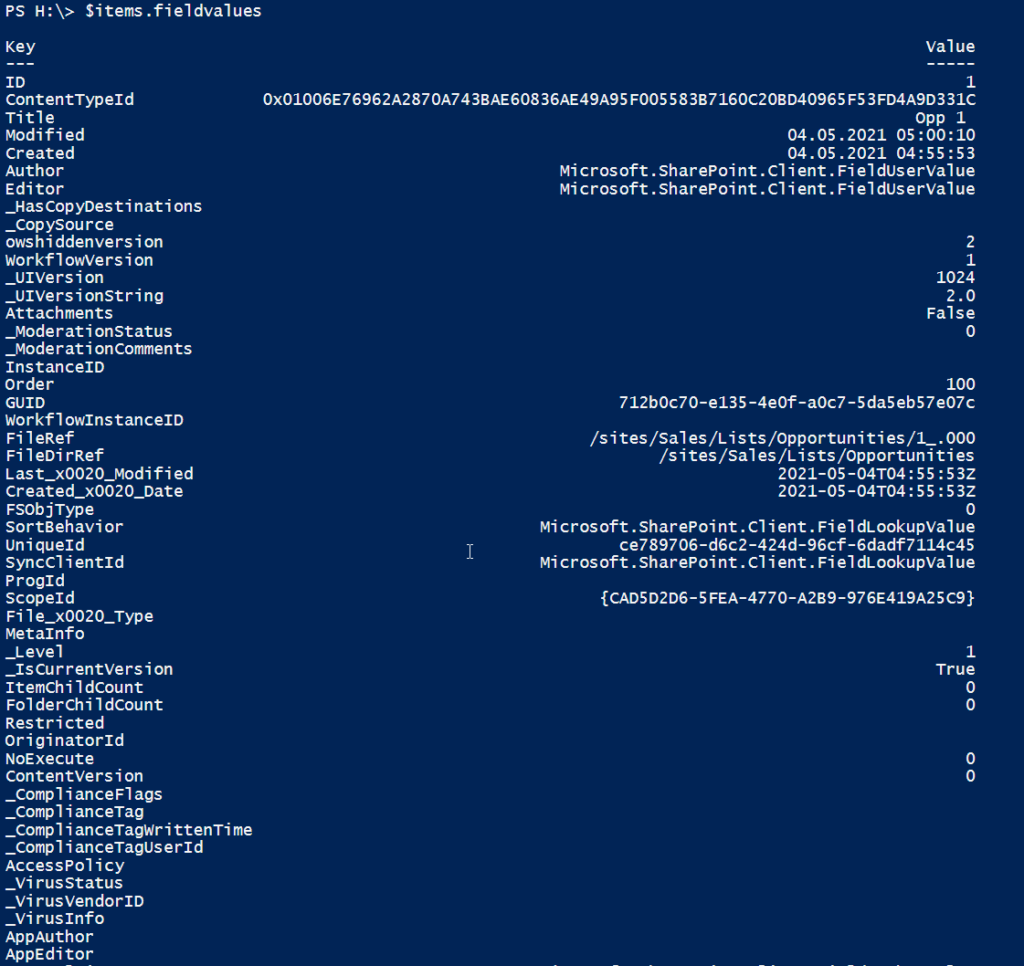
    Explanation for PowerShell: Getting FieldValues of Items | SPO Scripts
    Explanation for GUI: Determine internal name of SharePoint Columns with GUI (workplace-automation.com/)

    Value types

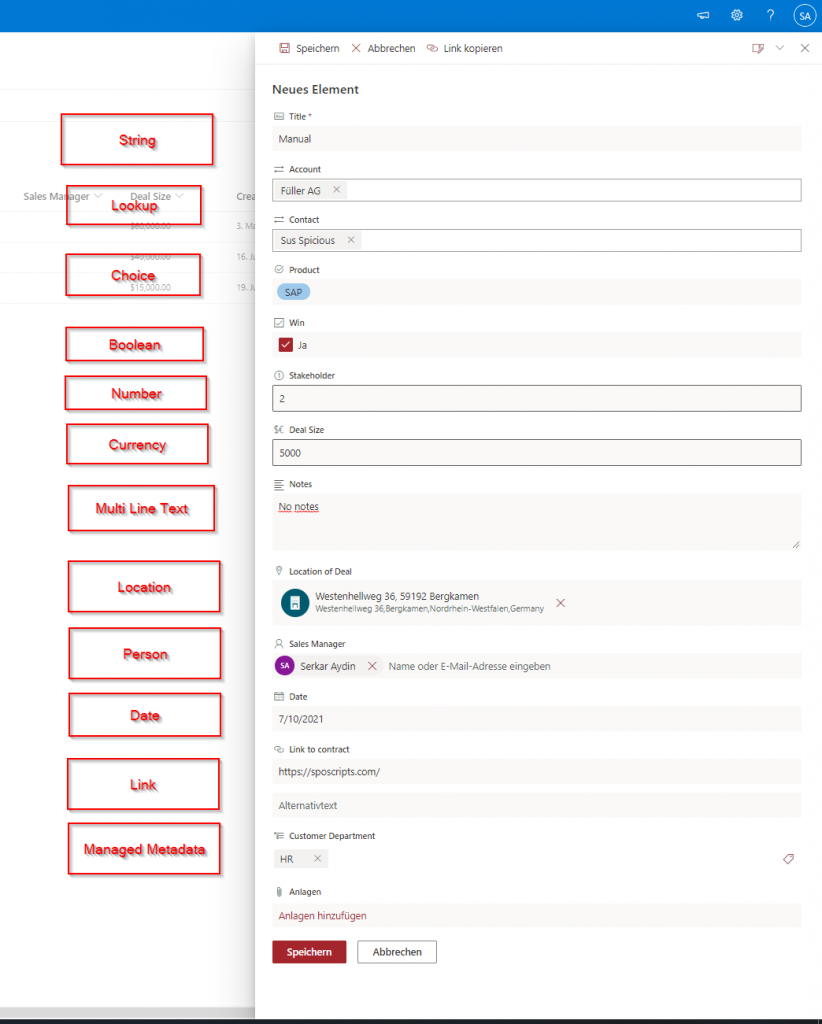
    TypeMeaningExamples
    BooleanIt means true or false. You can find this in yes/no checkboxestrue, false
    true reflects 1
    false reflects 0
    ChoiceIt reflects the choices in your sharepoint listapple, banana
    CurrencyIt reflects the amount of an defined currency5$
    DateTimeIt reflects a timestamp23.06.2021 15:30
    GUIDGlobally Unique Identifier (GUID)6154ff96-8209-457b-86dd-ee7dcd80b584
    IntegerIt reflects a number as an integer 10
    LookupLinks to another list: for example an Orders list may have a lookup field that links to customers in a Customer list;Füller AG
    NoteReflects a multi line text field. Not sortable or groupableLorem ipsum dolor sit amet, consectetuer adipiscing elit. Donec odio.

    Quisque volutpat mattis eros. Nullam malesuada erat ut turpis. Suspendisse urna nibh, viverra non, semper suscipit, posuere a, pede.
    TextReflects a single line text field. Sortable and groupable. Corresponds to the nvarchar SQL data type and represented by the SPFieldText class.Lorem ipsum dolor sit amet, consectetuer adipiscing elit.
    UserA Lookup field that references the UserInfo database table.Email TypeId LookupId LookupValue
    —– —— ——– ———–
    Serkar@devmodernworkplace.onmicrosoft.com {c956ab54-16bd-4c18-89d2-996f57282a6f} 11 Serkar Aydin
    Source: Field element (Field) | Microsoft Docs
    Logical Comparison Operators

    In this case X means your entry

    OperatorMeaning
    BeginsWithThe existing value begins with X
    ContainsThe existing value contains x
    DateRangesOverlapThe existing date overlaps the date range defined in x
    |---- 01.01.-07.01 ------|
    |---02.01-09.01 -----|
    EqThe existing value equals x
    GeqThe existing value is greater or equal x
    GtThe existing value is greater than x
    InX is one of the existing values
    Includeschecks, whether x is in the defined values
    NotIncluseschecks, whether x is not in the defined values
    IsNotNullChecks wheter the existing value is not null
    IsNullChecks wheter the existing value is null
    LeqThe existing value is lower equal x
    LtThe existing value is lower than x
    Source: Query schema in CAML | Microsoft Docs
    In order to filter by query paramter, you have to define a filter query, depending on your datatype (string, integer, boolean..) you have to choose a different query value type.

    Logical Joins

    OperatorMeaning
    AndBoth query operations have to be fulfilled
    OrOnly one query operation have to be fulfilled
    Source: Query schema in CAML | Microsoft Docs
    Query Examples
    My blog would not keep it’s promise, If you would not find examples, which give you a fast way to adapt the scripts, so here we go!

    In my example, I am using my demo opportunities list. I have marked the names of the columns, the value types, the operands and the actual values bold. Mostly I am using the logical operator “eq”, but I think if you got the basic concept of this, you can adapt it to your solution easily and if not, we will find a way together.

    Example for boolean

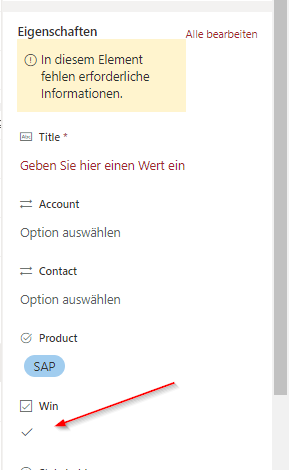
    If you want to find items with TRUE values, you have to enter 1. For FALSE values, you have to make use of 0.

    If boolean should be true:

    Get-PnPListItem -List "Opportunities" -Query "<View><Query><Where><Eq><FieldRef Name='Win'/><Value Type='Boolean'>1</Value></Eq></Where></Query></View>"

    If boolean should be false:

    Get-PnPListItem -List "Opportunities" -Query "<View><Query><Where><Eq><FieldRef Name='Win'/><Value Type='Boolean'>0</Value></Eq></Where></Query></View>" 

    Example for choice

    If you want to filter for values choice values, you have to make use of a query like this:

    Get-PnPListItem -List "Opportunities" -Query "<View><Query><Where><Eq><FieldRef Name='Product'/><Value Type='Choice'>SAP</Value></Eq></Where></Query></View>"

    Example for currency

    You have to enter the value of the amount without the currency sign.

    Get-PnPListItem -List "Opportunities" -Query "<View><Query><Where><Eq><FieldRef Name='DealSize'/><Value Type='Currency'>40000</Value></Eq></Where></Query></View>"

    Example for DateTime

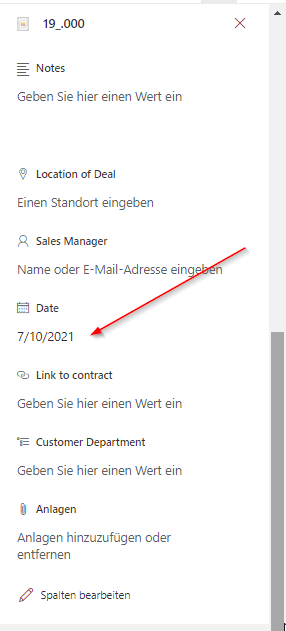
    You have to format date times according to this format (ISO8601).

    yyyy-MM-ddTHH:mm:ssZ

    You can do this by appending -Format s, when creating the variable

    $CreationDate = Get-Date "16.06.2021 20:04" -Format s

    If DateTime should exactly match a specific date

    $CreationDate = Get-Date "16.06.2021 20:04" -Format s
    Get-PnPListItem -List "Opportunities" -Query "<View><Query><Where><Eq><FieldRef Name='Created'/><Value Type='DateTime' IncludeTimeValue='FALSE'>$CreationDate</Value></Eq></Where></Query></View>"

    If DateTime should be after a specific date

    Example: I want to find all items, created after 15.06.2021.

    $CreationDate = Get-Date "15.06.2021" -Format s
    Get-PnPListItem -List "Opportunities" -Query "<View><Query><Where><Gt><FieldRef Name='Created'/><Value Type='DateTime' IncludeTimeValue='FALSE'>$CreationDate</Value></Gt></Where></Query></View>"

    If DateTime should be before a specific date

    Example: I want to find all items, created before 15.06.2021.

    Get-PnPListItem -List "Opportunities" -Query "<View><Query><Where><Lt><FieldRef Name='Created'/><Value Type='DateTime' IncludeTimeValue='FALSE'>$CreationDate</Value></Lt></Where></Query></View>"

    Example for GUID

    [GUID]$UniqueID= "b4ae9e9f-7103-459a-acb2-73573d035b36"
    Get-PnPListItem -List "Opportunities" -Query "<View><Query><Where><Eq><FieldRef Name='UniqueId'/><Value Type='GUID'>$UniqueID</Value></Eq></Where></Query></View>"

    Example for integer

    In this case I want to find all opportunites with 2 stakeholders.

    Get-PnPListItem -List "Opportunities" -Query "<View><Query><Where><Eq><FieldRef Name='Stakeholder'/><Value Type='Integer'>2</Value></Eq></Where></Query></View>"

    Example for lookup

    Get-PnPListItem -List "Opportunities" -Query "<Query><Where><Eq><FieldRef Name='Contact'/><Value Type='Lookup'>Sus Spicious</Value></Eq></Where></Query>"

    Example for Note aka multi line text

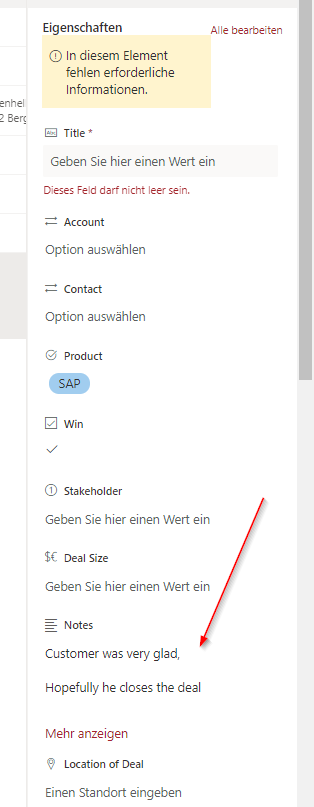
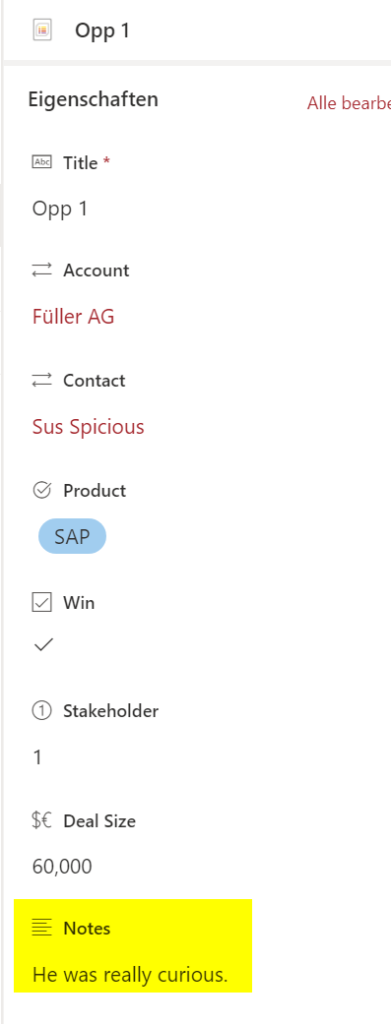
    Get-PnPListItem -List "Opportunities" -Query "<Query><Where><Eq><FieldRef Name='Notes'/><Value Type='Note'>He was really curious.</Value></Eq></Where></Query>"

    Example for text aka string

    In this Query, I am looking for items, where the title equals Opp 3.

    Get-PnPListItem -List "Opportunities" -Query "<Query><Where><Eq><FieldRef Name='Title'/><Value Type='Text'>Opp 3</Value></Eq></Where></Query>"

    Example for user

    In this query, I am looking for items, where the authors UPN is Serkar@devmodernworkplace.onmicrosoft.com.

    Get-PnPListItem -List "Opportunities" -Query "<Query><Where><Eq><FieldRef Name='Author' /><Value Type='User'>Serkar@devmodernworkplace.onmicrosoft.com</Value></Eq></Where></Query>"

    Example for OR

    In this query, I am looking for items, where the value for Stakeholder is 1 or the value Win is yes.

    Get-PnPListItem -List $ListName -Query "<View><Query><Where><Or><Eq><FieldRef Name='Stakeholder'/><Value Type='Integer'>1</Value></Eq><Eq><FieldRef Name='Win'/><Value Type='Boolean'>1</Value></Eq></Or></Where></Query></View>"

    Example for AND

    In this query, I am looking for items, where the value for Stakeholder is 1 and the value Win is yes.

    Get-PnPListItem -List $ListName -Query "<View><Query><Where><And><Eq><FieldRef Name='Stakeholder'/><Value Type='Integer'>1</Value></Eq><Eq><FieldRef Name='Win'/><Value Type='Boolean'>1</Value></Eq></And></Where></Query></View>"

    Complete example

    $Url = "https://devmodernworkplace.sharepoint.com/sites/Sales" 
    $ListName = "Opportunities"
    
    Connect-PnPOnline -Url $Url -Interactive
    
    $AmountOfStakeholders = 2
    $ColumName = "Stakeholder"
    
    Get-PnPListItem -List $ListName -Query "<View><Query><Where><Eq><FieldRef Name='$ColumName'/><Value Type='Integer'>$AmountOfStakeholders</Value></Eq></Where></Query></View>"

    Troubleshooting

    I am getting to many items

    Error

    You get nearly every item in the list, but you are filtering for specific SharePoint items

    Cause

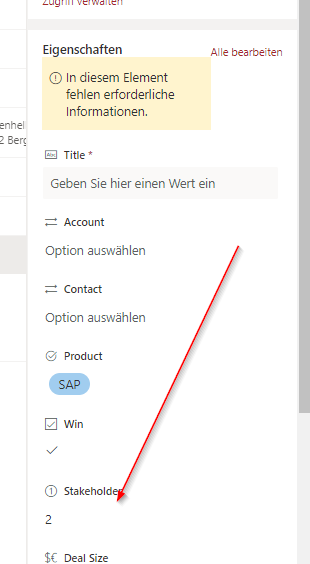
    Maybe you forgot the <View> part?

    Resolution

    Without view:

    With view:

    Get-PnPListItem -List "Opportunities" -Query "<View><Query><Where><Eq><FieldRef Name='Stakeholder'/><Value Type='Integer'>2</Value></Eq></Where></Query></View>"

    Exception from HRESULT: 0x80131904

    Error message:

    Get-PnPListItem : Exception from HRESULT: 0x80131904
    In Zeile:1 Zeichen:1
    + Get-PnPListItem -List "Opportunities" -Query "<View><Query><Where><gt ...
    + ~~~~~~~~~~~~~~~~~~~~~~~~~~~~~~~~~~~~~~~~~~~~~~~~~~~~~~~~~~~~~~~~~~~~~
        + CategoryInfo          : WriteError: (:) [Get-PnPListItem], ServerException
        + FullyQualifiedErrorId : EXCEPTION,PnP.PowerShell.Commands.Lists.GetListItem

    Cause:

    You did not care about the case sensitivity of the logical operands

    Resolution:

    Wrong:

    Get-PnPListItem -List "Opportunities" -Query "<View><Query><Where><gt><FieldRef Name='Created'/><Value Type='DateTime' IncludeTimeValue='FALSE'>$CreationDate</Value></gt></Where></Query></View>"

    Right:

    Get-PnPListItem -List "Opportunities" -Query "<View><Query><Where><Gt><FieldRef Name='Created'/><Value Type='DateTime' IncludeTimeValue='FALSE'>$CreationDate</Value></Gt></Where></Query></View>"

    Field types are not installed properly

    Error message in german

    Get-PnPListItem : Mindestens ein Feld ist nicht richtig installiert. Wechseln Sie zur Listeneinstellungsseite, um diese Felder zu löschen.
    In Zeile:1 Zeichen:1
    + Get-PnPListItem -List "Opportunities" -Query "<View><Query><Where><Gt ...
    + ~~~~~~~~~~~~~~~~~~~~~~~~~~~~~~~~~~~~~~~~~~~~~~~~~~~~~~~~~~~~~~~~~~~~~
        + CategoryInfo          : WriteError: (:) [Get-PnPListItem], ServerException
        + FullyQualifiedErrorId : EXCEPTION,PnP.PowerShell.Commands.Lists.GetListItem

    Error message in english

    Get-PnPListItem : One or more field types are not installed properly. Go to the list settings page to delete these fields.
    In Zeile:1 Zeichen:1
    + Get-PnPListItem -List "Opportunities" -Query "<View><Query><Where><Gt ...
    + ~~~~~~~~~~~~~~~~~~~~~~~~~~~~~~~~~~~~~~~~~~~~~~~~~~~~~~~~~~~~~~~~~~~~~
        + CategoryInfo          : WriteError: (:) [Get-PnPListItem], ServerException
        + FullyQualifiedErrorId : EXCEPTION,PnP.PowerShell.Commands.Lists.GetListItem

    Cause

    You did not care of the case sensitivity of the column name

    Resolution

    Wrong:

    Get-PnPListItem -List "Opportunities" -Query "<View><Query><Where><Gt><FieldRef Name='created'/><Value Type='DateTime' IncludeTimeValue='FALSE'>$CreationDate</Value></Gt></Where></Query></View>"

    Right:

    Get-PnPListItem -List "Opportunities" -Query "<View><Query><Where><Gt><FieldRef Name='Created'/><Value Type='DateTime' IncludeTimeValue='FALSE'>$CreationDate</Value></Gt></Where></Query></View>"

    Bild von Deedee86 auf Pixabay

  • Determine internal name of SharePoint Columns with GUI

    Determine internal name of SharePoint Columns with GUI

    You have to determine the internal name of SharePoint columns, when you want to get the values of the items programatically or develop some apps with PowerApps. If you make use of display names of columns, you might not get the values of the columns, that’s why you should use the internal name of the columns, In this article I will show you how to do it by a step-by-step description.

    Description

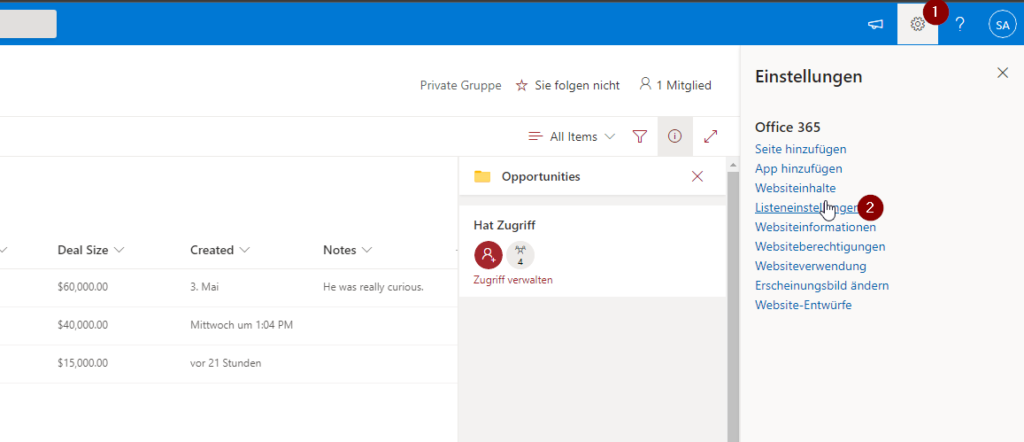
    Browse to the list, where you want to get field internal name and open the list settings.

    List settings to see internal name of SharePoint Columns

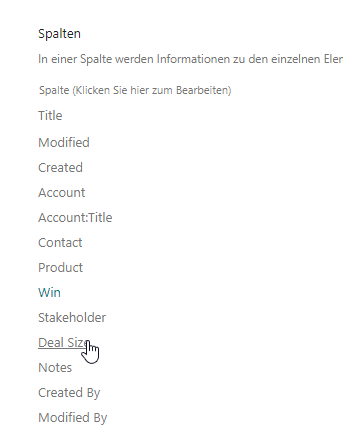
    Scroll down to the SharePoint columns and click on the column, which you want to get the internal name of. In my example I want to check it for the SharePoint Column Deal Size.

    Example of an SharePoint Column in library settings

    After clicking on Deal Size, I am checking the URL in the adress bar. The part after Field= is the internal name for the column. In my case it is DealSize.

    Internal name of an SharePoint Column

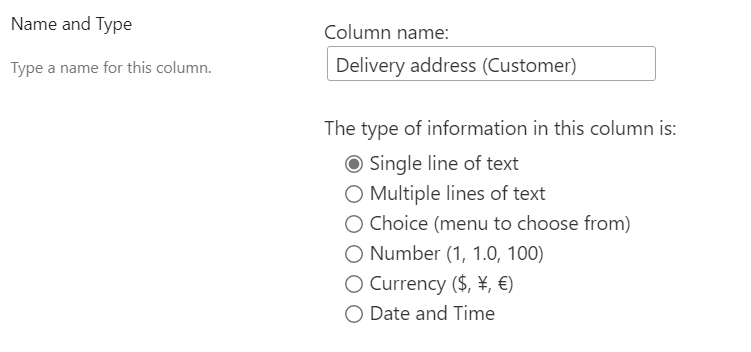
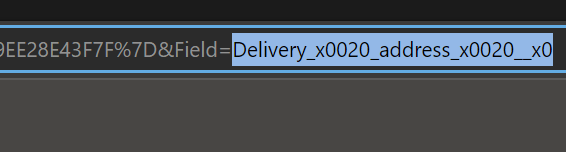
    If you use special characters, you will notice, that it won’t be that easy to determine the internal name of the SharePoint columns. Let me show it to you for the column Delivery address (Customer). As you can see, it got _x0020 and some other placeholder, which are not guessable easily.

    SharePoint Column Delivery address (Customer)
    Internal Name of Delivery adress (Customer)

    You might find intersting

    If you want to create a column, consider the official article of microsoft: Create a column in a list or library – SharePoint (microsoft.com)

    You can deterimine the internal name of a SharePoint Column programatically like this: Getting FieldValues of Items – SPO Scripts

  • Getting Fieldvalues of Items

    Getting Fieldvalues of Items

    Getting all values of all items

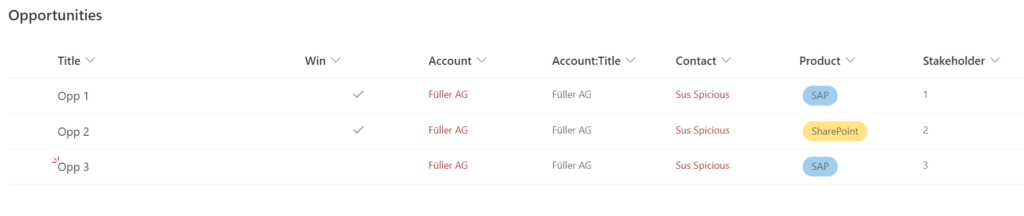
    If you want to retrieve all fieldvalues of an item, you can use following steps. I am getting the opportunities of the sales department

    Screenshot of SharePoint List with values of items
    • Connect to SharePoint Online with PNP. If you don’t know how to, check the post. I am connecting with the sales site

      Connect-PnPOnline -Url "https://devmodernworkplace.sharepoint.com/sites/Sales" -Interactive
    • After connecting, get the list.

      $Items =Get-PnPListItem -List "YourList"

      I am using the list opportunities:

      $Items =Get-PnPListItem -List "Opportunities"

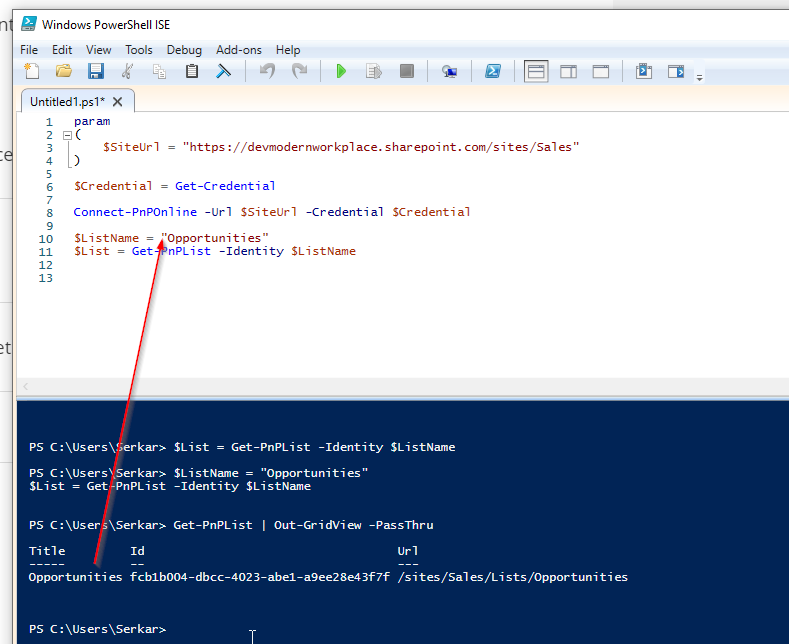
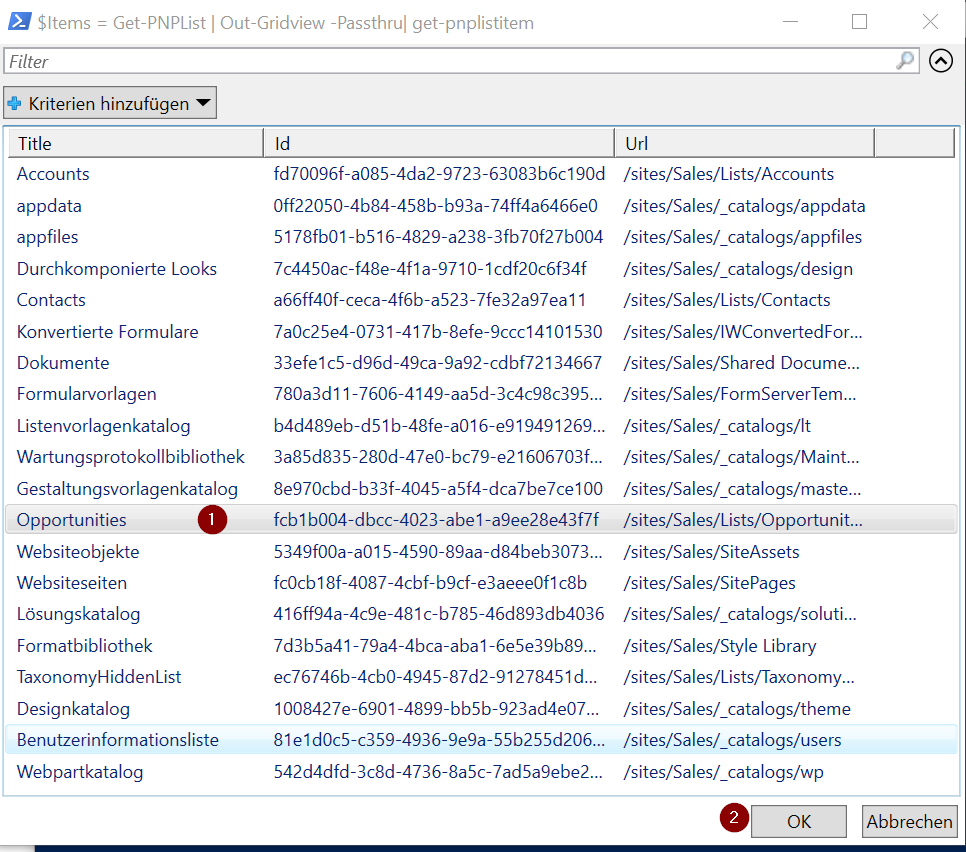
      If you don’t know what the internal name of your list is, you can make use of the cmdlet

      $Items = Get-PNPListItem | Out-Gridview -Passthru
    out grid view with lists

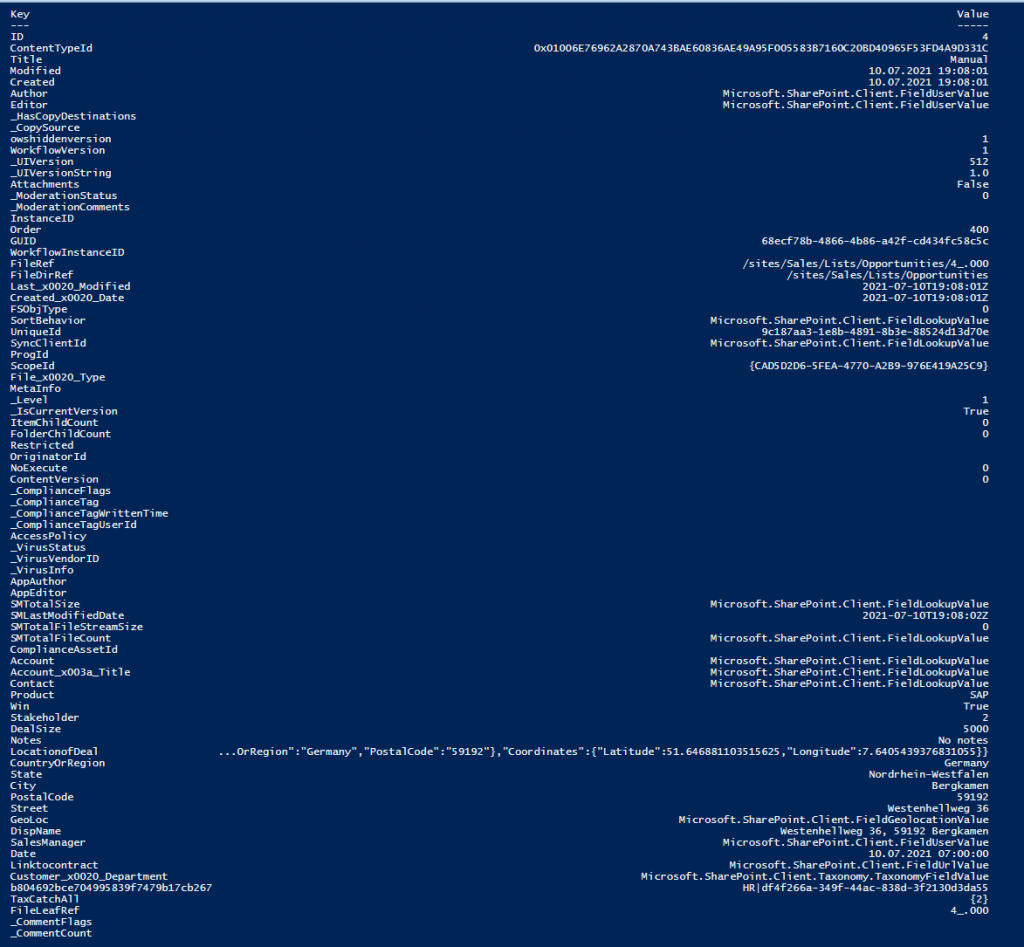
    After getting the items, you can get all fieldvalues like this:
    $Items.Fieldvalues

    Screenshot of all values of items

    Filter items by specific value

    You can filter items like this. You have to use the key, which you get with $Items. FieldValues

    Filter by Where Object

    $Item = $Items | Where-Object {$_.Fieldvalues["KEY"] -eq "VALUE"}

    I filter for items with the title Opp 2

    $Item = $Items | Where-Object {$_.Fieldvalues["Title"] -eq "Opp 2"}

    Filter by -Query Parameter

    I have created a separate post for this. Check it out.

    Getting only specific amount of Items

    It might happen, that your list contains many items. In order to get only 1000 Items, make use of the parameter -PageSize

    Get-PnPListItem -List "Opportunities" -PageSize 1000

    Getting a specific value for specific item

    First get one single item, either by filtering, or by using the index

    You can use indexing with following method

    $Item= $Items[INDEX]

    For the first Item: $Item = $Items[0]

    For the second Item: $Item = $Items[1] etc,

    If you got a single item, you can get the fieldvalues like this:

    $item.FieldValues.KEY

    In my case I use the key “Product”

    $item.FieldValues.Product

    screenshot of specific value

    Or “Contact”

    screenshot of specific contact value

    Example script to get all fieldvalues for all items

    $Url = "https://devmodernworkplace.sharepoint.com/sites/Sales" 
    $ListName = "Opportunities"
    
    Connect-PnPOnline -Url $Url -Interactive
    $Items = Get-PnPListItem -List $ListName
    
    $Items.Fieldvalues

    Example script to get all fieldvalues for a specific item

    $Url = "https://devmodernworkplace.sharepoint.com/sites/Sales" 
    $ListName = "Opportunities"
    
    Connect-PnPOnline -Url $Url -Interactive
    $Items = Get-PnPListItem -List $ListName
    
    $Item =  $Items | Where-Object {$_.Fieldvalues["Title"] -eq "Opp 2"}
    
    $item.FieldValues