Since SharePoint is not the only system you are using in your company, it might help to know how to upload documents to SharePoint from different systems programmatically. In this article, I want to show you what you can upload all types of files to SharePoint and what to consider, when you want to upload documents to SharePoint with PowerShell.
Prerequisites
In order to upload documents to SharePoint programmatically, you have to ensure, that these prerequisites are met.
- PNP.PowerShell Module must be installed. For more, read this article: Connect to SharePoint with PowerShell | SharePoint Online (workplace-automation.com/)
- You need to have owner rights for the library
- You need to allow custom site scripts for the site
Before you run the scripts
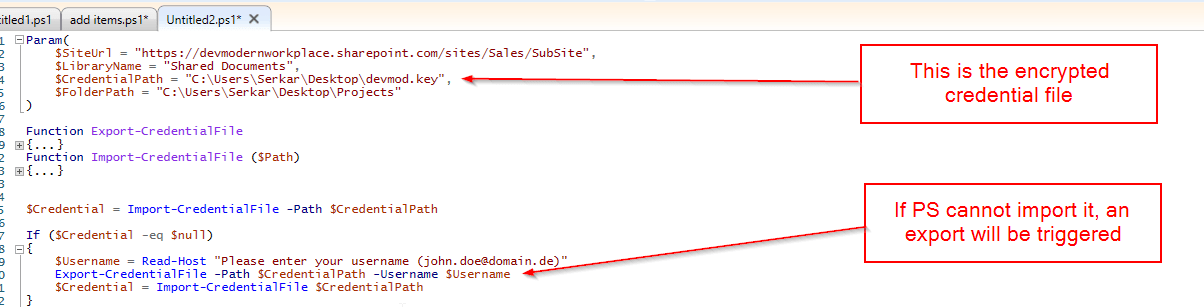
In the following script, I have used a credential file, which you also should generate. Why? Because the purpose of this script, is to run in the background, without a credential prompt, so you can use it in a scheduled task. Don’t forget to change the parameters to your corresponding scenario.
PowerShell Scripts
I have provided a script to upload a single file and one to upload multiple files to the library.
Upload single document to SharePoint with PowerShell
With this script you can upload a single document to SharePoint with a PowerShell script. The script is ready to be used for a scheduled task, but before you plan it, run it with your service account.
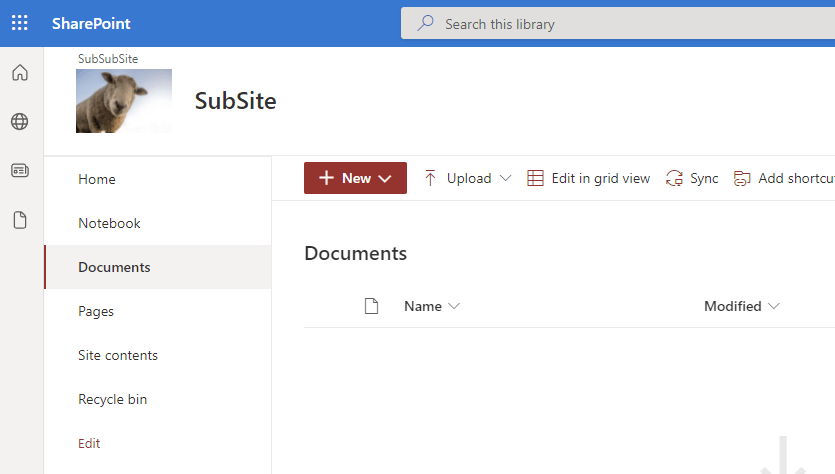
Before:
Param(
    $SiteUrl = "https://devmodernworkplace.sharepoint.com/sites/Sales/SubSite",
    $LibraryName = "Documents",
    $CredentialPath = "C:\Users\Serkar\Desktop\devmod.key",
    $FilePath = "C:\Users\Serkar\Desktop\Projectscope.xlsx"
)

Function Export-CredentialFile
{
    param(
    $Username,
    $Path
    )
    While ($Username -eq "" -or $null -eq $Username)
    {
        $Username = Read-Host "Please enter your username (john.doe@domain.de)"
    }

    While ($Path -eq ""-or $null -eq $Path)
    {
        $Path = Read-Host "Where should the credentials be exported to?"
    }
    $ParentPath = Split-Path $Path
    If ((Test-Path $ParentPath) -eq $false)
    {
        New-Item -ItemType Directory -Path $ParentPath
    }
    $Credential = Get-Credential($Username)
    $Credential | Export-Clixml -Path $Path
    Return $Credential
}
Function Import-CredentialFile ($Path)
{
    if (! (Test-Path $Path))
    {
        Write-Host "Could not find the credential object at $Path. Please export your credentials first"
    }
    else
    {
        Import-Clixml -Path $Path
    }
}


$Credential = Import-CredentialFile -Path $CredentialPath

If ($Credential -eq $null)
{
    $Username = Read-Host "Please enter your username (john.doe@domain.de)"
    Export-CredentialFile -Path $CredentialPath -Username $Username
    $Credential = Import-CredentialFile $CredentialPath
}

#Connect to site
Connect-PnPOnline -Url $SiteUrl -Credentials $Credential

#upload documents to SharePoint
Add-PnPFile -Path $FilePath -Folder $LibraryName
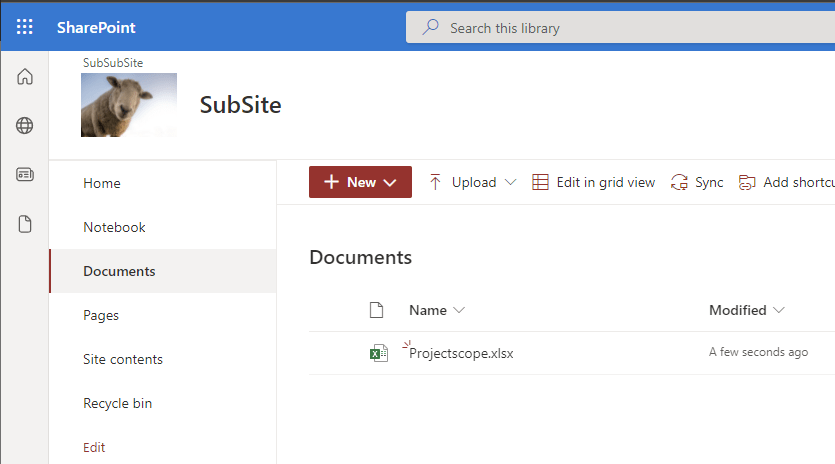
After:
Upload multiple documents to SharePoint with PowerShell
In order to upload multiple documents to SharePoint, I recommend putting the files in a dedicated folder, so the script can iterate through all documents in the folder.
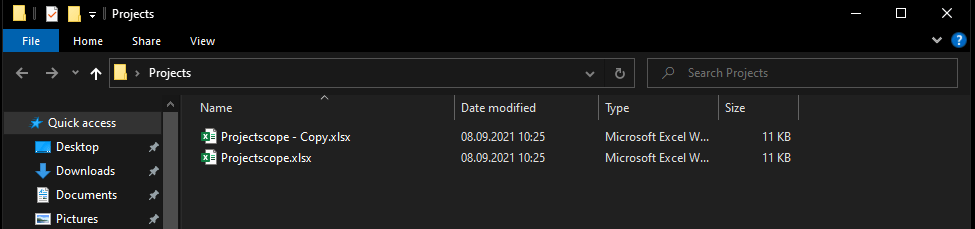
Before:
Param(
    $SiteUrl = "https://devmodernworkplace.sharepoint.com/sites/Sales/SubSite",
    $LibraryName = "Shared Documents",
    $CredentialPath = "C:\Users\Serkar\Desktop\devmod.key",
    $FolderPath = "C:\Users\Serkar\Desktop\Projects"
)

Function Export-CredentialFile
{
    param(
    $Username,
    $Path
    )
    While ($Username -eq "" -or $null -eq $Username)
    {
        $Username = Read-Host "Please enter your username (john.doe@domain.de)"
    }

    While ($Path -eq ""-or $null -eq $Path)
    {
        $Path = Read-Host "Where should the credentials be exported to?"
    }
    $ParentPath = Split-Path $Path
    If ((Test-Path $ParentPath) -eq $false)
    {
        New-Item -ItemType Directory -Path $ParentPath
    }
    $Credential = Get-Credential($Username)
    $Credential | Export-Clixml -Path $Path
    Return $Credential
}
Function Import-CredentialFile ($Path)
{
    if (! (Test-Path $Path))
    {
        Write-Host "Could not find the credential object at $Path. Please export your credentials first"
    }
    else
    {
        Import-Clixml -Path $Path
    }
}


$Credential = Import-CredentialFile -Path $CredentialPath

If ($Credential -eq $null)
{
    $Username = Read-Host "Please enter your username (john.doe@domain.de)"
    Export-CredentialFile -Path $CredentialPath -Username $Username
    $Credential = Import-CredentialFile $CredentialPath
}

#Connect to site
Connect-PnPOnline -Url $SiteUrl -Credentials $Credential


#upload documents to SharePoint
Get-ChildItem -Path $FolderPath |ForEach-Object {
    Add-PnPFile -Path $_.FullName -Folder $LibraryName

}
After:
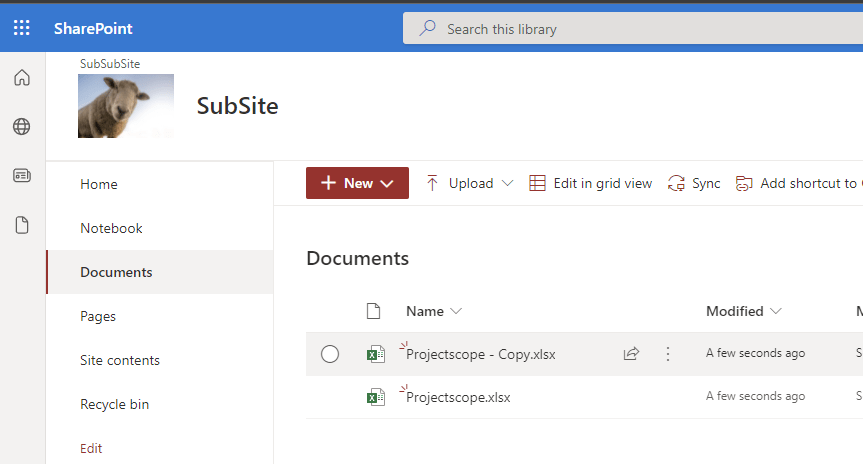
Troubleshooting
Access denied

Add-PnPFile -Path $FilePath -Folder $LibraryName
Add-PnPFile : Access denied.
At line:1 char:1
+ Add-PnPFile -Path $FilePath -Folder $LibraryName
+ ~~~~~~~~~~~~~~~~~~~~~~~~~~~~~~~~~~~~~~~~~~~~~~~~
    + CategoryInfo          : WriteError: (:) [Add-PnPFile], ServerUnauthorizedAccessException
    + FullyQualifiedErrorId : EXCEPTION,PnP.PowerShell.Commands.Files.AddFile
If you experience this issue, custom scripts are not allowed on this site. You have to enable it by connecting to the tenant with a SharePoint Administrator and enabling custom scripts:
$SiteUrl = "https://devmodernworkplace.sharepoint.com/sites/Sales"
$TenantUrl = "https://devmodernworkplace-admin.sharepoint.com/"

Connect-PnPOnline $TenantUrl -interactive
Set-PnPTenantSite $SiteUrl -DenyAddAndCustomizePages:$false
Disconnect-PnPOnline
If you want to read more about custom site scripts, check out this article: Allow or prevent custom script – SharePoint in Microsoft 365 | Microsoft Docs
Further Readin
If you want to upload files with Graph, check out the recent blog post:
How to Upload Files to SharePoint using Graph API PowerShell (workplace-automation.com/)