Category: SharePoint

  • Determine internal name of SharePoint Columns with GUI

    Determine internal name of SharePoint Columns with GUI

    You have to determine the internal name of SharePoint columns, when you want to get the values of the items programatically or develop some apps with PowerApps. If you make use of display names of columns, you might not get the values of the columns, that’s why you should use the internal name of the columns, In this article I will show you how to do it by a step-by-step description.

    Description

    Browse to the list, where you want to get field internal name and open the list settings.
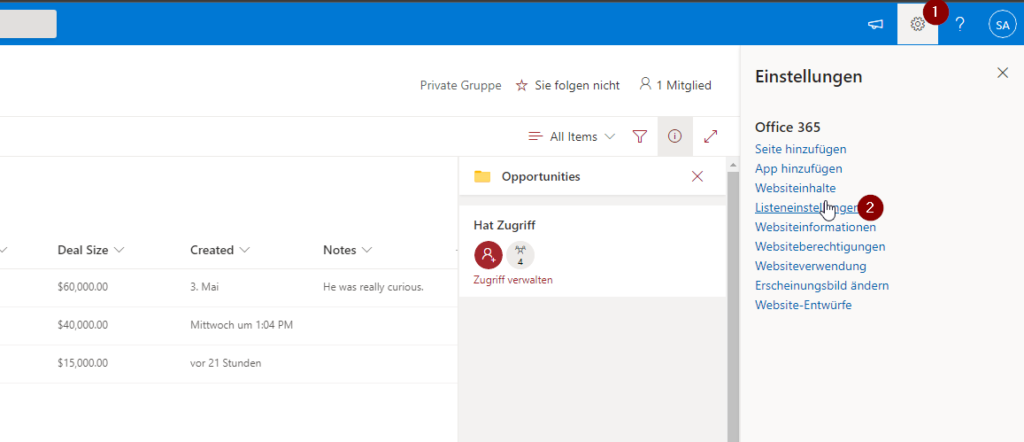
    List settings to see internal name of SharePoint Columns

    Scroll down to the SharePoint columns and click on the column, which you want to get the internal name of. In my example I want to check it for the SharePoint Column Deal Size.
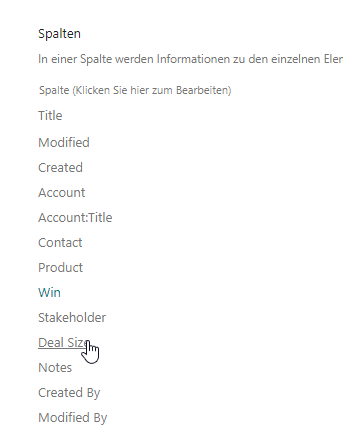
    Example of an SharePoint Column in library settings

    After clicking on Deal Size, I am checking the URL in the adress bar. The part after Field= is the internal name for the column. In my case it is DealSize.

    Internal name of an SharePoint Column

    If you use special characters, you will notice, that it won’t be that easy to determine the internal name of the SharePoint columns. Let me show it to you for the column Delivery address (Customer). As you can see, it got _x0020 and some other placeholder, which are not guessable easily.
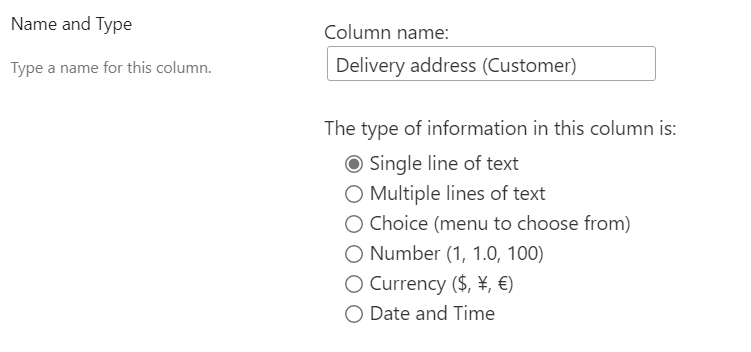
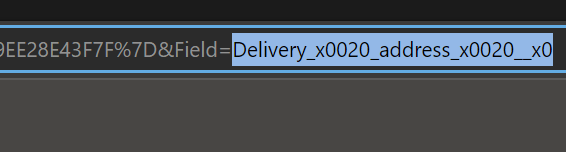
    SharePoint Column Delivery address (Customer)
    Internal Name of Delivery adress (Customer)

    You might find intersting

    If you want to create a column, consider the official article of microsoft: Create a column in a list or library – SharePoint (microsoft.com)

    You can deterimine the internal name of a SharePoint Column programatically like this: Getting FieldValues of Items – SPO Scripts

  • Getting Fieldvalues of Items

    Getting Fieldvalues of Items

    Getting all values of all items

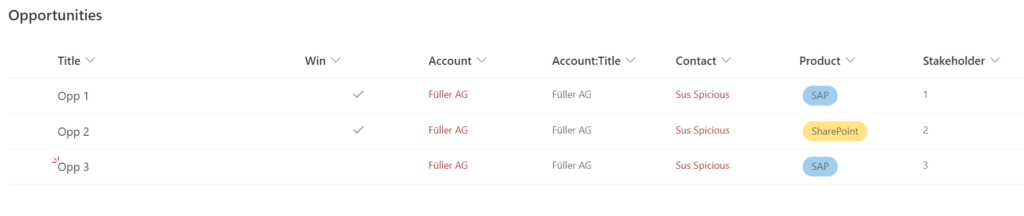
    If you want to retrieve all fieldvalues of an item, you can use following steps. I am getting the opportunities of the sales department

    Screenshot of SharePoint List with values of items
    • Connect to SharePoint Online with PNP. If you don’t know how to, check the post. I am connecting with the sales site

      Connect-PnPOnline -Url "https://devmodernworkplace.sharepoint.com/sites/Sales" -Interactive
    • After connecting, get the list.

      $Items =Get-PnPListItem -List "YourList"

      I am using the list opportunities:

      $Items =Get-PnPListItem -List "Opportunities"

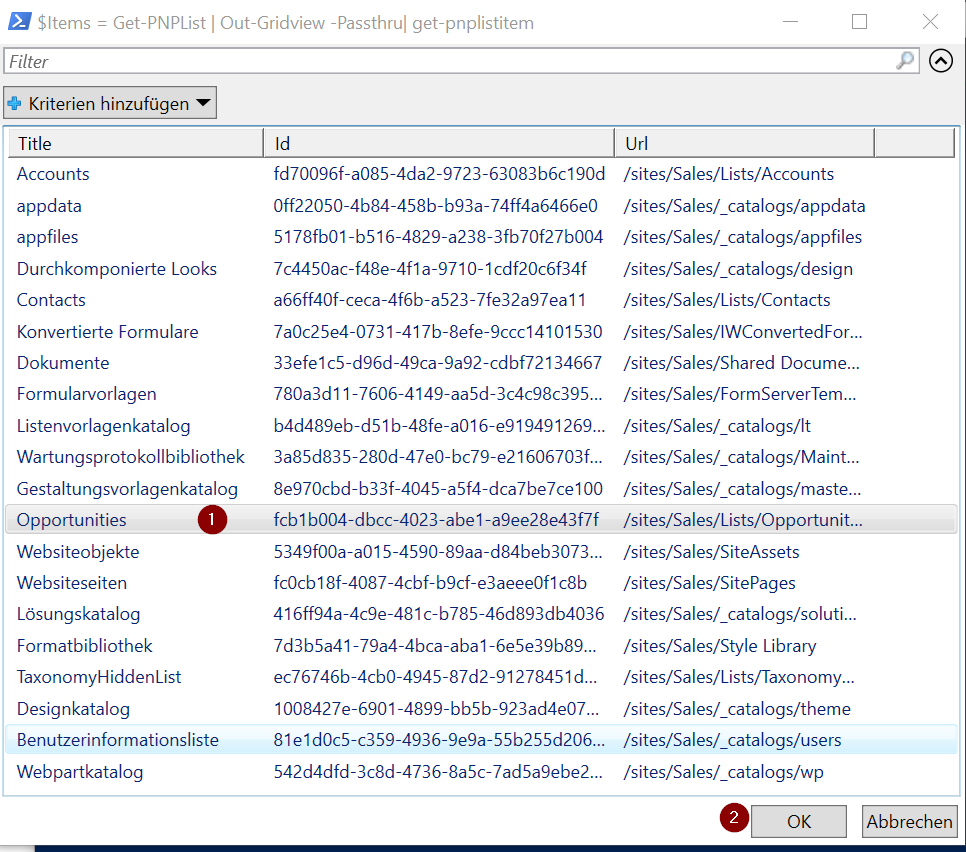
      If you don’t know what the internal name of your list is, you can make use of the cmdlet

      $Items = Get-PNPListItem | Out-Gridview -Passthru
    out grid view with lists

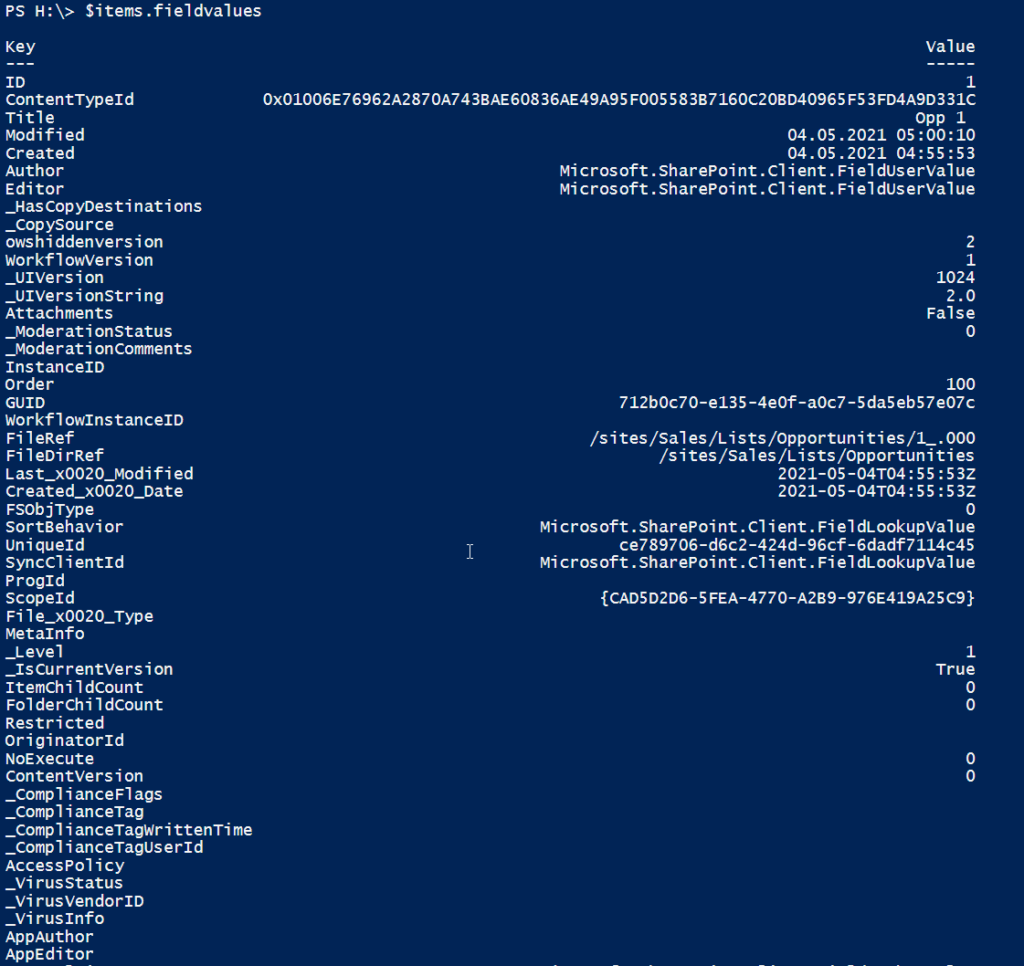
    After getting the items, you can get all fieldvalues like this:
    $Items.Fieldvalues

    Screenshot of all values of items

    Filter items by specific value

    You can filter items like this. You have to use the key, which you get with $Items. FieldValues

    Filter by Where Object

    $Item = $Items | Where-Object {$_.Fieldvalues["KEY"] -eq "VALUE"}

    I filter for items with the title Opp 2

    $Item = $Items | Where-Object {$_.Fieldvalues["Title"] -eq "Opp 2"}

    Filter by -Query Parameter

    I have created a separate post for this. Check it out.

    Getting only specific amount of Items

    It might happen, that your list contains many items. In order to get only 1000 Items, make use of the parameter -PageSize

    Get-PnPListItem -List "Opportunities" -PageSize 1000

    Getting a specific value for specific item

    First get one single item, either by filtering, or by using the index

    You can use indexing with following method

    $Item= $Items[INDEX]

    For the first Item: $Item = $Items[0]

    For the second Item: $Item = $Items[1] etc,

    If you got a single item, you can get the fieldvalues like this:

    $item.FieldValues.KEY

    In my case I use the key “Product”

    $item.FieldValues.Product

    screenshot of specific value

    Or “Contact”

    screenshot of specific contact value

    Example script to get all fieldvalues for all items

    $Url = "https://devmodernworkplace.sharepoint.com/sites/Sales" 
    $ListName = "Opportunities"
    
    Connect-PnPOnline -Url $Url -Interactive
    $Items = Get-PnPListItem -List $ListName
    
    $Items.Fieldvalues

    Example script to get all fieldvalues for a specific item

    $Url = "https://devmodernworkplace.sharepoint.com/sites/Sales" 
    $ListName = "Opportunities"
    
    Connect-PnPOnline -Url $Url -Interactive
    $Items = Get-PnPListItem -List $ListName
    
    $Item =  $Items | Where-Object {$_.Fieldvalues["Title"] -eq "Opp 2"}
    
    $item.FieldValues