Category: SharePoint

  • How to get SharePoint List Items with Graph API (PowerShell)

    How to get SharePoint List Items with Graph API (PowerShell)

    In this article, I want to show you how to get SharePoint List Items with Graph API. Sometimes we are limited to the tools we can use, so we need to think about other approaches, to get our aim delivered. In this article, I want to show you how you can get SharePoint List items with the Microsoft Graph API by using PowerShell.

    To get SharePoint List Items with Graph API, you can follow the next three steps:

    1. Configure the Azure Enterprise Application
    2. Grant the Enterprise Application the Permission
    3. Get SharePoint List Items with Graph API in PowerShell

    Prerequistes

    Step 1: Configure the Azure Enterprise Application

    I am following the least privilege approach and grant only the necessary permission for the app registration.

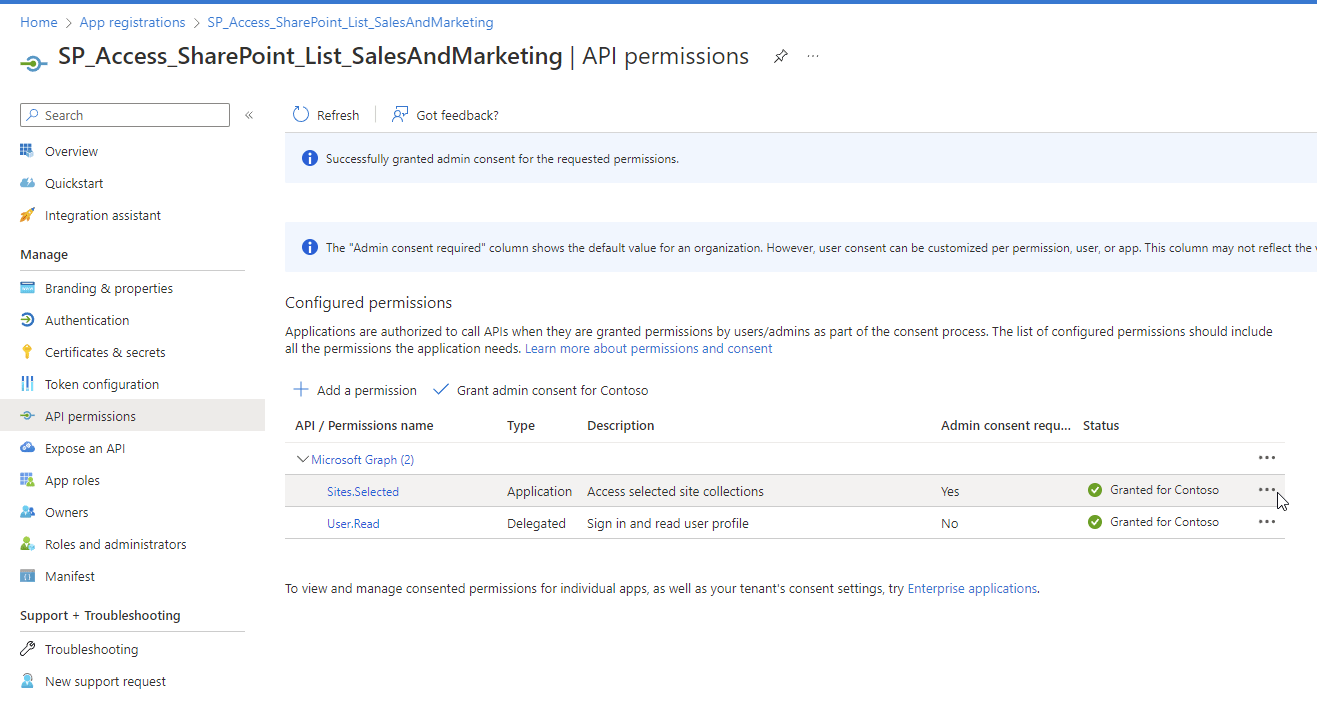
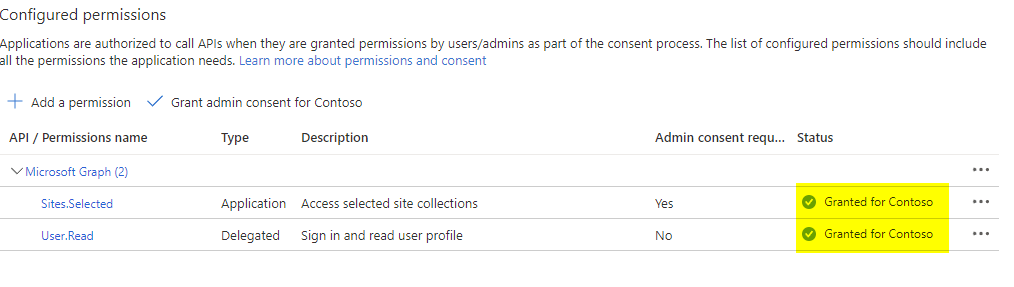
    Hence I have created an App registration with following permissions:

    Permission NameType
    Sites.Selected Application
    User.ReadDelegated
    Application Registration in Microsoft Azure for reading SharePoint List Items

    If you don’t know how to create it, follow my next steps, otherwise if you are familiar with it, you can also skip to the Step 2 – Grant the Enterprise Application the Permission.

    1. Browse to Azure Portal and Search for Application Registrations and click on New registration
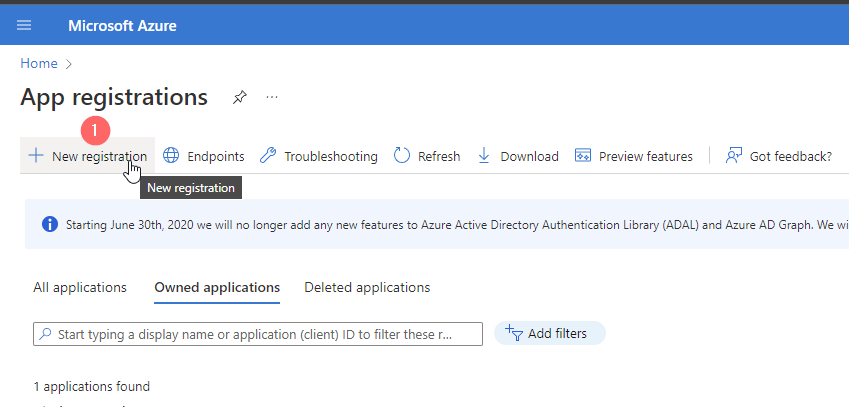
    Create a new Azure App registration Screenshot

    2. Give the App a meaningful name, which follows your organization standards (Differnt admins should recognize what the purpose for this app is) and Register it
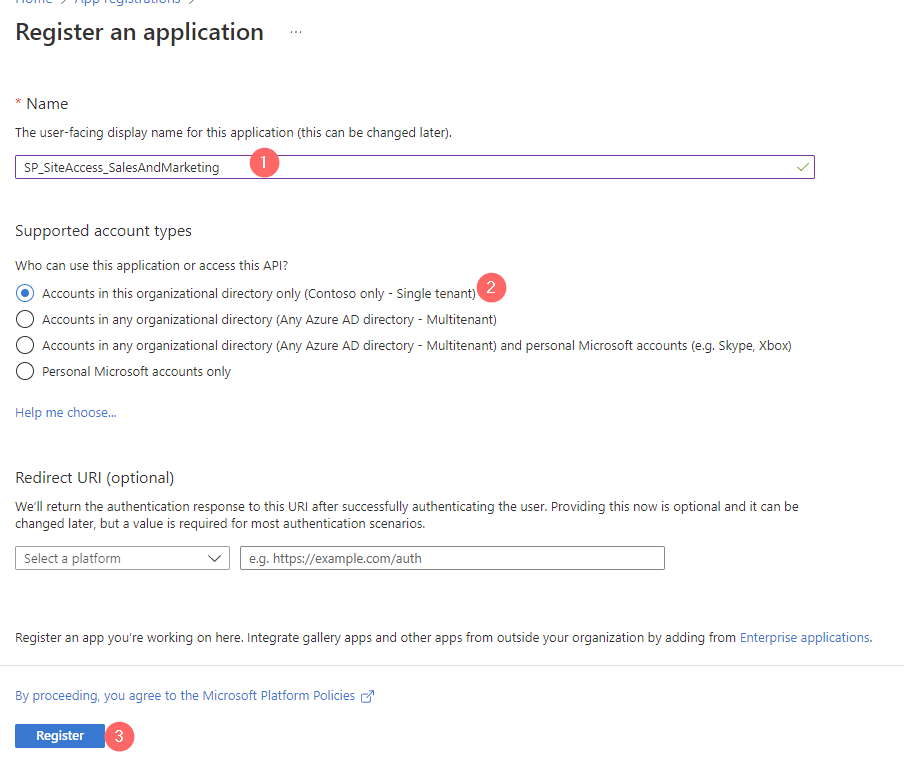
    Registration of new App registration in Azure Portal

    3. Note down the Application ID and go to Certificates & Secrets
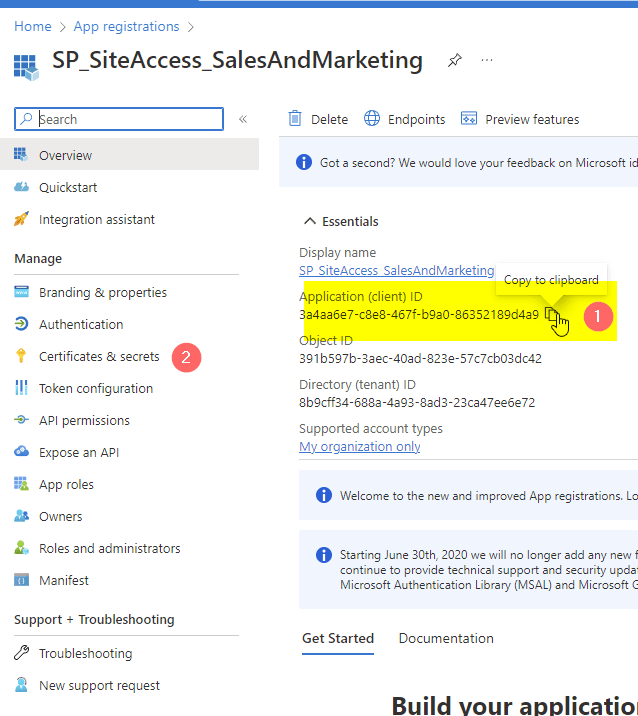
    Display of Application Registration in Azure Portal

    4. Create a new client secret or upload a certificate (I will show the secret approach)
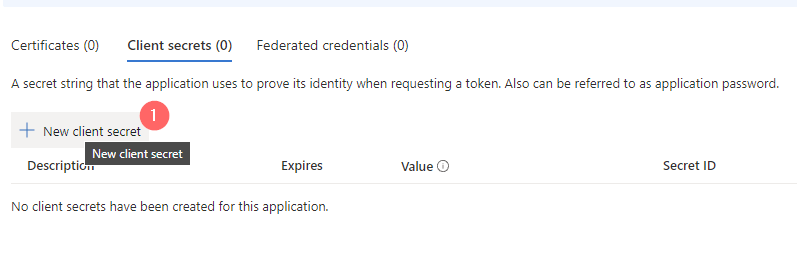
    Creation of new client secret in Azure Portal

    5. Also here a meaningful name is supportive for other colleauges. For the duration it makes sense to go with a reasonable duration. I would go with the recommendation of Microsoft as you might have lost this application out of sight in 24 months, which is the maximum duration for a client secret.
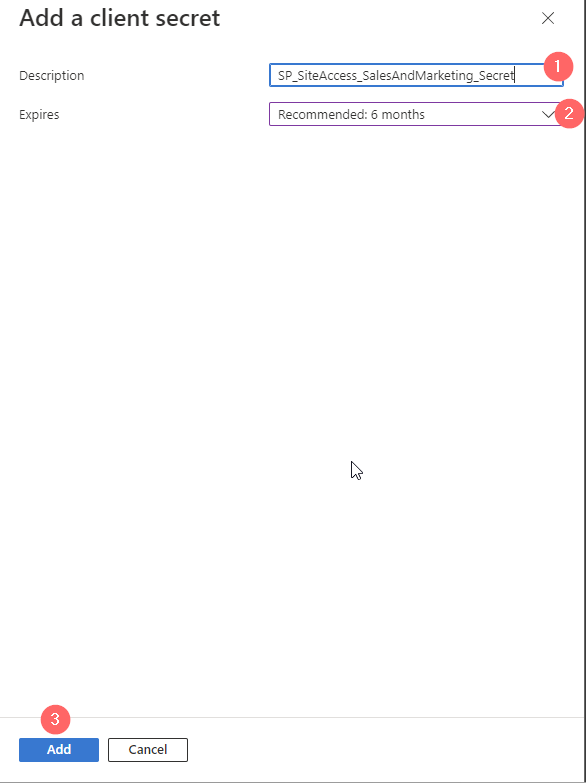
    Creation of client secret for an App registration
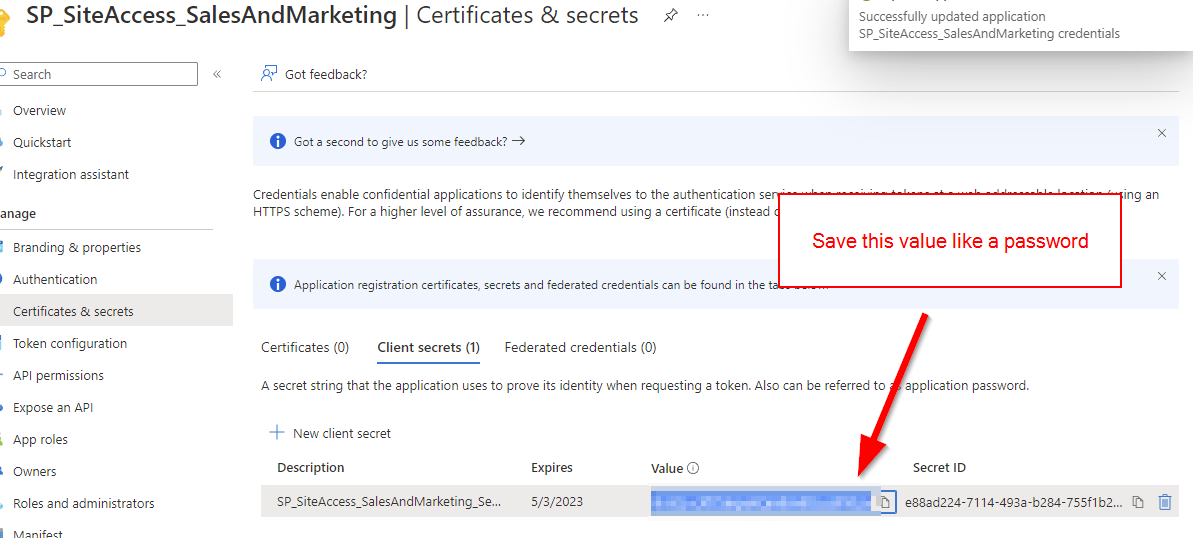
    6. Now you will have ONE chance to note down the client secret. Treat it like a password. Depending on your App Permission your App might be powerful. Hence you should save for instance in a Password Manager.
    Client Secret Exposure for App registration

    7. Now Click on API permissions on the left navigation pane and add a permission for Microsoft Graph
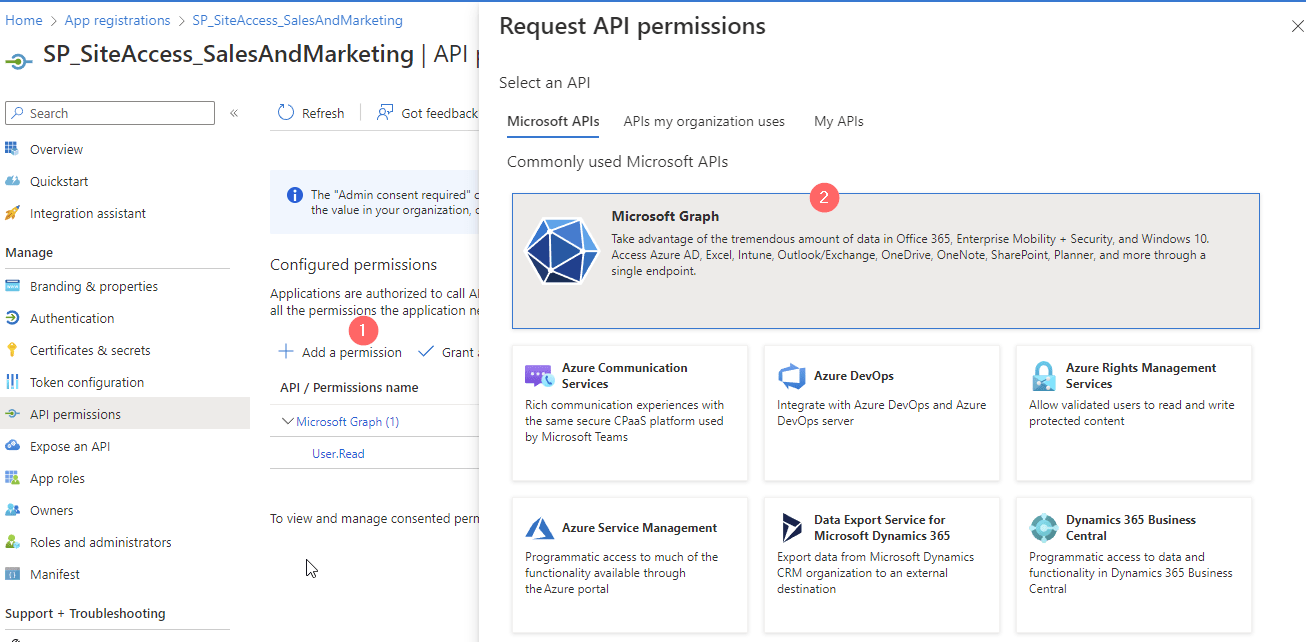
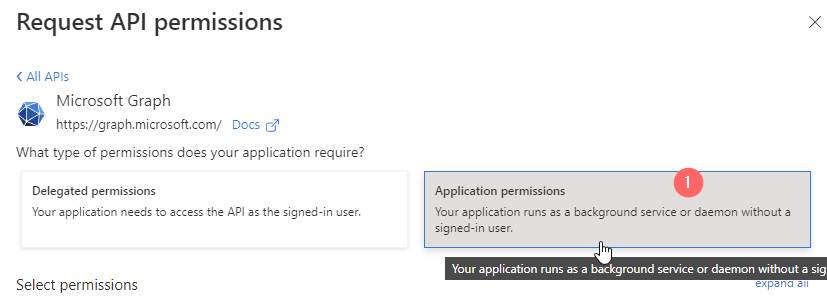
    Adding Permission for Microsoft Graph
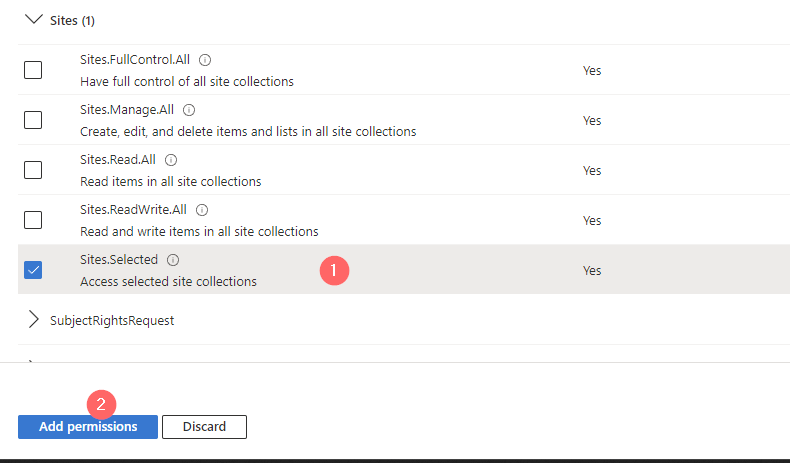
    8. Add the Application Permission Sites.Selected if you want the code run in the background without a signed-in user.
    API Permission for Application Permissions
    Sites.Selected Graph Permissions
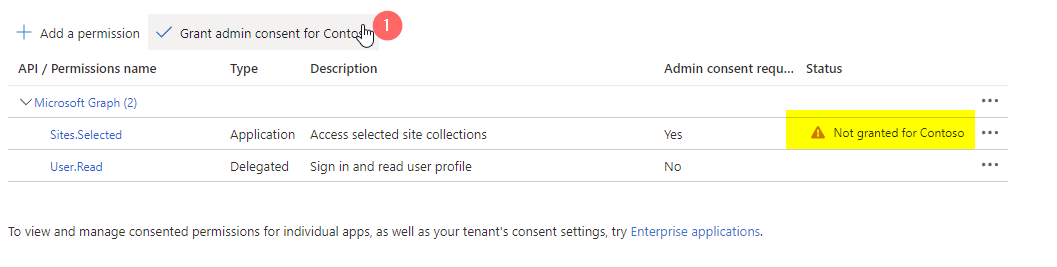
    9. Once you added that, you will need to consent the permission from a global administrator.
    Not granted permissions for sites.selected
    Granted permissions look like this:
    Granted app registration permissions

    That’s it. You created an Azure App registration with Sites.Selected permission, where you need now to grant the permissions for the specific site.

    Step 2: Grant the Enterprise Application the Permission

    For this step you need to ensure that PNP Module is installed on your client and that you are allowed to use it.

    If both conditions are appliying, you can use this code to grant Enterprise App, created in Step 1 the right permission for the site. In this case I am granting a read role.

    Import-Module PnP.PowerShell
    
    $AppID = "9ea2120f-288c-47b6-8895-31e0fb4d9211"
    
    $DisplayNameofSitePermission = "Enterprise Application SP_Access_SharePoint_List_SalesAndMarketing"
    $SiteURL = "https://m365x323732.sharepoint.com/sites/SalesAndMarketing"
    
    
    Connect-PnPOnline -Url $SiteURL -Interactive
    Grant-PnPAzureADAppSitePermission -AppId $AppID -DisplayName $DisplayNameofSitePermission -Site $SiteURL -Permissions Read 

    You will need to log in with an account, which has access to the site.

    After that you will see, that the Enterprise Application has now read access to the Site.
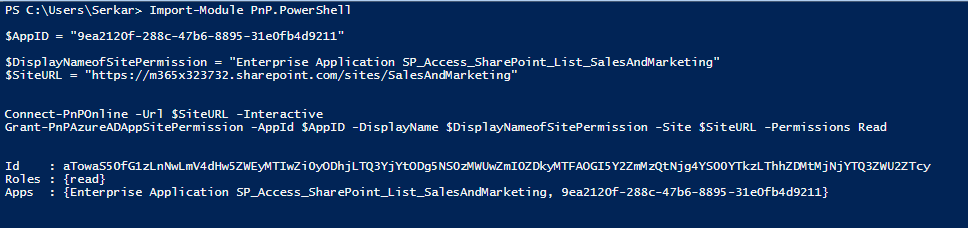
    Screenshot of PowerShell, which indicates that Site Access is now working

    Step 3: Get SharePoint List Items with Graph API in PowerShell

    As the enterprise application has now the permission to read contents from the designated SharePoint Site, you are able to read the contents of the SharePoint Site.

    For this we need the app credentials and the site id of the site for which you want to read out the content.

    <siteurl>/_api/site/id

    For my example it is:

    https://m365x323732.sharepoint.com/sites/SalesAndMarketing/_api/site/id

    Screenshot of the SharePoint site Id

    Once you adjusted the parameters, you can run the script

    Param (
        $AppID = "9ea2120f-288c-47b6-8895-31e0fb4d9211",
        $Scope = "https://graph.microsoft.com/.default",
        $Tenant = "m365x323732",
        $SiteID = "e35cee33-6d10-4e2c-a83b-496a26062ad3",
        $ListTitle = "Product%20List"
    )
    
    Import-Module PnP.PowerShell
    
    
    $AppCredential = Get-Credential($AppID)
    
    #region authorize
    
    $Body = @{
        client_id = $AppCredential.UserName
        client_secret = $AppCredential.GetNetworkCredential().password
        scope = $Scope
        grant_type = 'client_credentials'
    }
    
    $GraphUrl = "https://login.microsoftonline.com/$($Tenant).onmicrosoft.com/oauth2/v2.0/token"
    $AuthorizationRequest = Invoke-RestMethod -Uri $GraphUrl -Method "Post" -Body $Body
    $Access_token = $AuthorizationRequest.Access_token
    
    $Header = @{
    
        Authorization = $AuthorizationRequest.access_token
    }
    
    #endregion
    
    #region get items
    
    $GraphUrl = "https://graph.microsoft.com/v1.0/sites/$SiteID/lists/$ListTitle/items?expand=fields"
    
    $Items  = Invoke-RestMethod -Uri $GraphUrl -Method 'GET' -Body $Body -Headers $Header
    $Items.value.fields
    #endregion 
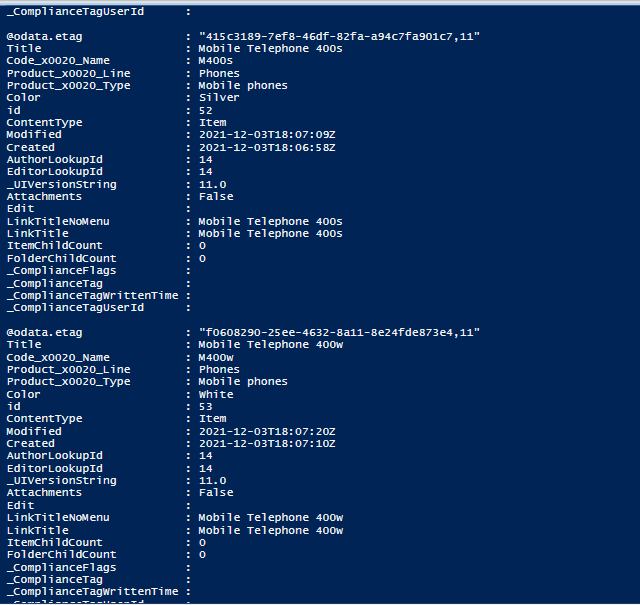
    get SharePoint List Items with Graph API

    Further reference

    To understand how Microsoft Graph API works, check out this article from Microsoft:
    Use the Microsoft Graph API – Microsoft Graph | Microsoft Learn

    You might also be interested in getting all SharePoint lists with PowerShell
    SharePoint Online: How to get all lists and libraries (workplace-automation.com/)
  • How to get all lists and libraries in SharePoint Online

    How to get all lists and libraries in SharePoint Online

    Hey folks, at some time we come to a point, where we want to know, what is going on in our intranet. Either if we plan to migrate the content to another tenant or to clean up our intranet. I wrote a step-by-step instruction for you to find get all lists and libraries in your SharePoint environment. At the end of this blog post, you’ll find also the ready-to-use script.

    Since the official module of Microsoft does not include a cmdlet for lists, I will use the PNP.PowerShell module.

    Prerequisites

    Before we start with coding, we should be aware, that there are some prerequisites, we need to fulfil in order to get all lists and libraries in our farm.

    Step-by-Step Instruction to get all lists and libraries

    Add your service account as admin to all sites

    You might ask yourself, why is it necessary to add a service account to all sites. In SharePoint Server it works as soon as you have access to the SharePoint Shell. You need it because the cloud model does not provide access to all sites just by having the SharePoint admin role. You have to enable your service account with the rights to access the sites, prior accessing them.

    Even if you have connected to the admin site, you will notice, that it does not work:

    Error message for not found list

    To add the service account to all sites, you have to make use of the module Microsoft.Online.SharePoint.PowerShell. If you are not familiar with this, check out SharePointOnlinePowerShell: How to connect to SharePoint (workplace-automation.com/).

    Connecting to the environment, can be achieved with this cmdlets:.

    
    $AdminUrl = "https://m365x388358-admin.sharepoint.com/" 
    $Credential = Get-Credential
    
    
    Import-Module -Name Microsoft.Online.SharePoint.PowerShell
    Connect-SPOService -Url $AdminUrl -Credential $Credential

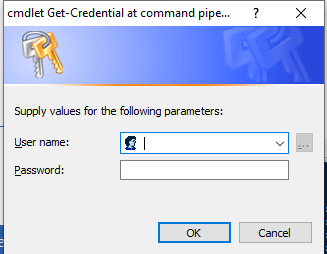
    You’ll get a prompt for credentials. Provide the service account with SharePoint admin role here. We will reuse it later for the PNP module.

    Prompt for credential

    So after connecting, we can add our service user as site collection administrator with this script. Keep in mind to change the user variable to your service account’s user principal name.

    $User = "admin@M365x388358.onmicrosoft.com"
    
    $SPOSites = Get-SPOSite 
    foreach ($SPOSite in $SPOSites)
    {
        Set-SPOUser -Site $SPOSite.Url -LoginName $User -IsSiteCollectionAdmin $true
    }
    
    Disconnect-SPOService

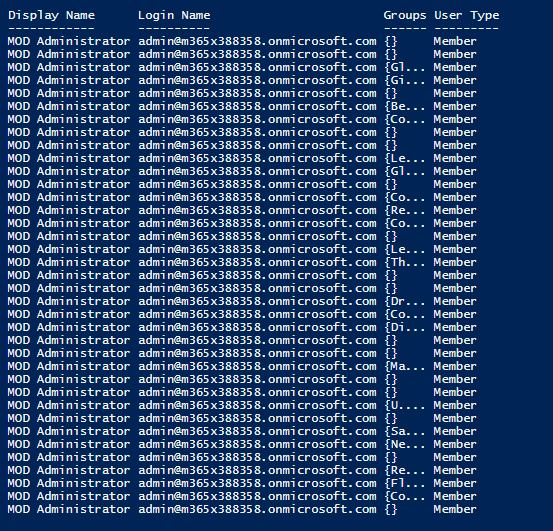
    This is how the output looks for me:

    Output of the cmdlet, after adding site collection administrator permission

    Since our service user has access to all sites, we can now proceed with our analysis.

    Get all lists and libraries with PowerShell

    For the purpose of an interactive analysis of all lists and libraries, it is sufficient to connect interactively to the tenant with this script:

    
    $AdminUrl = "https://m365x388358-admin.sharepoint.com/" 
    $Credential = Get-Credential
    
    Import-Module PNP.PowerShell
    Connect-PnPOnline -Url $AdminUrl -Credentials $Credential
    

    You have to replace the URL with your SharePoint admins URL.

    If you run the cmdlet, credentials will be prompted. Please use a user account, which has the SharePoint administrator role granted. If you don’t know how to grant it, check out the official Microsoft references, they explain it with a video, which will help you.

    Prompt for credential

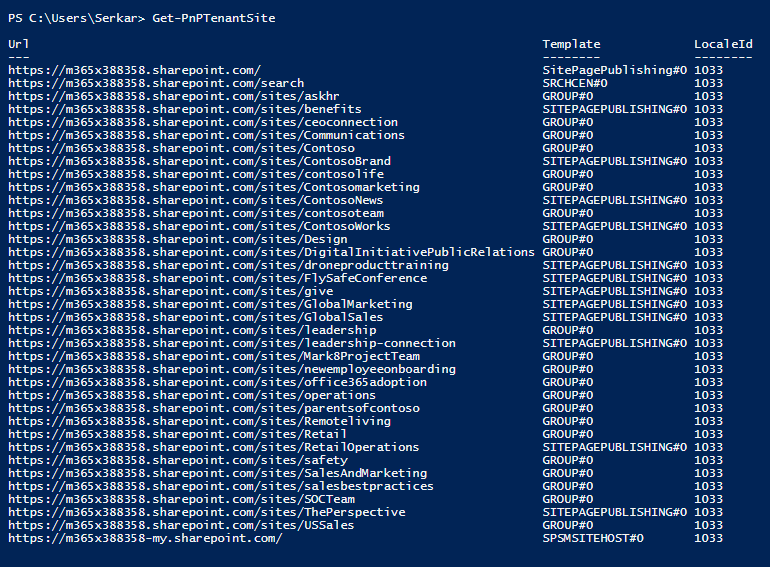
    After you have provided the credentials, you are connected. You can test it by querying all sites.

    Get-PnPTenantSite

    As you can see, I have a bunch of sites, which we will analyze further on.

    All sites in PowerShell
    $Export = New-Object System.Collections.Generic.List[object]
    $Sites = Get-PnPTenantSite
    
    $SitesCount = $Sites.Count
    $i= 1
    
    
    foreach ($Site in $Sites)
    {
        Write-Host "($i / $SitesCount) Processing site $($Site.Url)"
        Disconnect-PnPOnline
        Connect-PnPOnline -Url $Site.Url -Credentials $Credential
        $Site = Get-PnPSite
        
        #get the information of the list
        Get-PnPList | ForEach-Object { 
    
            $NewExport = New-Object PSObject -Property @{
                Title = $_.Title
                Id = $_.ID
                DefaultViewUrl =   $_.DefaultViewUrl
                ItemCount = $_.ItemCount
                ParentWebUrl = $_.ParentWebUrl
            }
            $Export.Add($NewExport)
        }
        
        $i++
    }

    You can export the information like this:

    $Export | Export-Csv -Path "C:\Users\Serkar\Desktop\lists.csv" -Delimiter ";" -NoTypeInformation

    Based on your location, you have to change your delimiter to comma instead of semicolon.

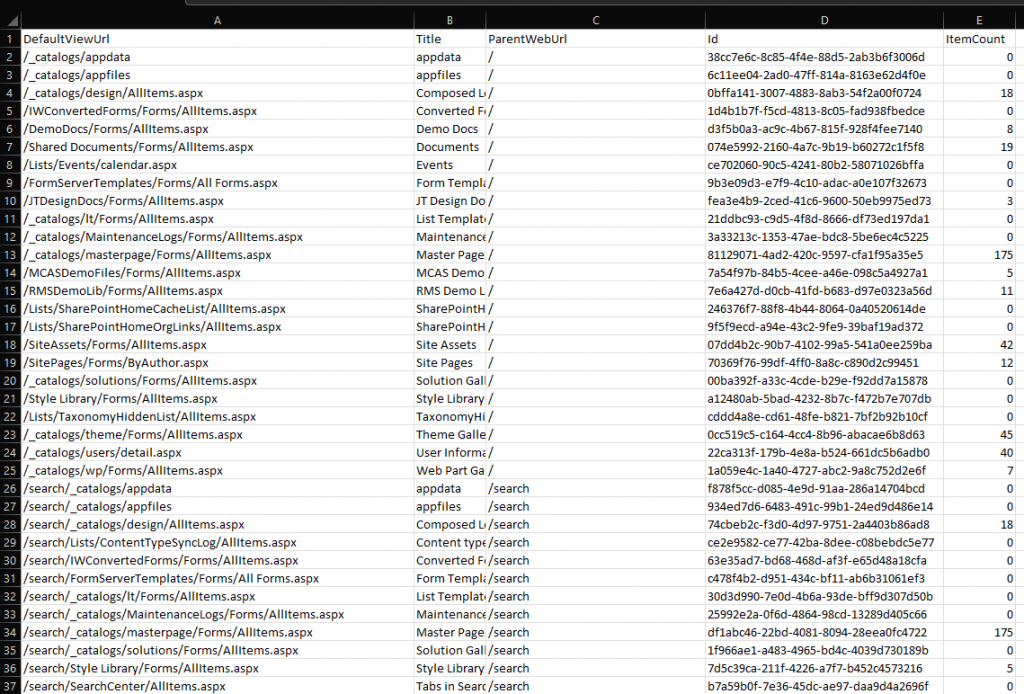
    The result of our scripting is, that we now have the possiblity to see all lists and libraries and also to identify lists and libraries with huge amount of data in it. Since it is a CSV file, you can open it with Excel to analyze the data:

    get all lists and libraries in Excel

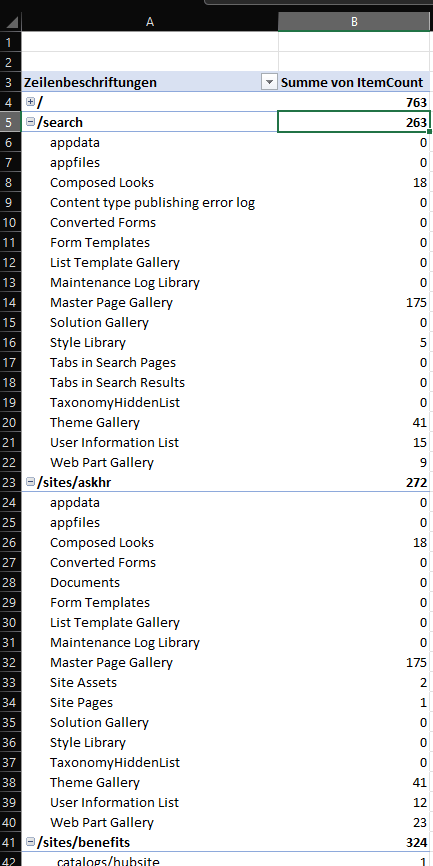
    You can group all data with a pivot table, to see all lists to the corresponding web.

    get all lists and libraries in a pivot table

    Bonus: Ready-to-use Script

    #Provided by workplace-automation.com/
    
    $User = "admin@M365x388358.onmicrosoft.com"
    $AdminUrl = "https://m365x388358-admin.sharepoint.com/"
    $ExportPath = "C:\Users\Serkar\Desktop\lists.csv"
    
    $Credential = Get-Credential
    
    #region Set admin permissions
    
    Import-Module -Name Microsoft.Online.SharePoint.PowerShell
    Connect-SPOService -Url $AdminUrl -Credential $Credential
    
    $SPOSites = Get-SPOSite 
    foreach ($SPOSite in $SPOSites)
    {
        Set-SPOUser -Site $SPOSite.Url -LoginName $User -IsSiteCollectionAdmin $true
    }
    
    Disconnect-SPOService
    
    #endregion
    
    #region get all lists and libraries
    Import-Module PNP.PowerShell
    Connect-PnPOnline -Url $AdminUrl -Credentials $Credential
    
    $Export = New-Object System.Collections.Generic.List[object]
    $Sites = Get-PnPTenantSite
    
    $SitesCount = $Sites.Count
    $i= 1
    
    
    foreach ($Site in $Sites)
    {
        Write-Host "($i / $SitesCount) Processing site $($Site.Url)"
        Disconnect-PnPOnline
        Connect-PnPOnline -Url $Site.Url -Credentials $Credential
        $Site = Get-PnPSite
        
        #get the information of the list
        Get-PnPList | ForEach-Object { 
    
            $NewExport = New-Object PSObject -Property @{
                Title = $_.Title
                Id = $_.ID
                DefaultViewUrl =   $_.DefaultViewUrl
                ItemCount = $_.ItemCount
                ParentWebUrl = $_.ParentWebUrl
            }
            $Export.Add($NewExport)
        }
        
        $i++
    }
    #endregion
    
    $Export | Export-Csv -Path $ExportPath -Delimiter ";" -NoTypeInformation 
  • Upload documents to SharePoint (PNP.PowerShell)

    Upload documents to SharePoint (PNP.PowerShell)

    Since SharePoint is not the only system you are using in your company, it might help to know how to upload documents to SharePoint from different systems programmatically. In this article, I want to show you what you can upload all types of files to SharePoint and what to consider, when you want to upload documents to SharePoint with PowerShell.

    Prerequisites

    In order to upload documents to SharePoint programmatically, you have to ensure, that these prerequisites are met.

    Before you run the scripts

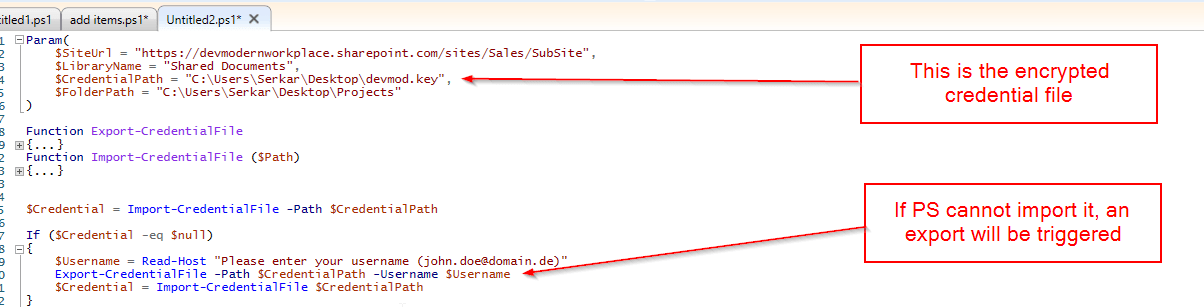
    In the following script, I have used a credential file, which you also should generate. Why? Because the purpose of this script, is to run in the background, without a credential prompt, so you can use it in a scheduled task. Don’t forget to change the parameters to your corresponding scenario.

    Explanation of credential handling

    PowerShell Scripts

    I have provided a script to upload a single file and one to upload multiple files to the library.

    Upload single document to SharePoint with PowerShell

    With this script you can upload a single document to SharePoint with a PowerShell script. The script is ready to be used for a scheduled task, but before you plan it, run it with your service account.

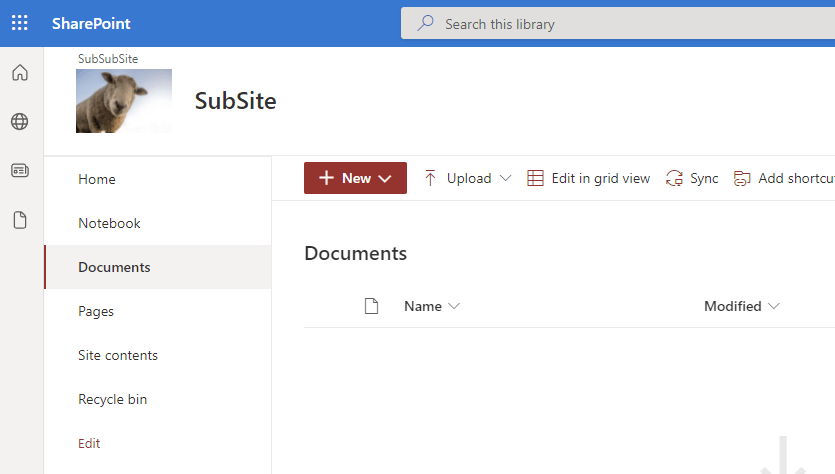
    Before:

    SharePoint library before upload documents to SharePoint proceeded

    Param(
        $SiteUrl = "https://devmodernworkplace.sharepoint.com/sites/Sales/SubSite",
        $LibraryName = "Documents",
        $CredentialPath = "C:\Users\Serkar\Desktop\devmod.key",
        $FilePath = "C:\Users\Serkar\Desktop\Projectscope.xlsx"
    )
    
    Function Export-CredentialFile 
    {
        param(
        $Username,
        $Path
        )
        While ($Username -eq "" -or $null -eq $Username)
        {
            $Username = Read-Host "Please enter your username (john.doe@domain.de)"
        }
        
        While ($Path -eq ""-or $null -eq $Path)
        {
            $Path = Read-Host "Where should the credentials be exported to?"
        }
        $ParentPath = Split-Path $Path
        If ((Test-Path $ParentPath) -eq $false)
        {
            New-Item -ItemType Directory -Path $ParentPath
        }
        $Credential = Get-Credential($Username)
        $Credential | Export-Clixml -Path $Path
        Return $Credential
    }
    Function Import-CredentialFile ($Path)
    {
        if (! (Test-Path $Path))
        {
            Write-Host "Could not find the credential object at $Path. Please export your credentials first"
        }
        else
        {
            Import-Clixml -Path $Path
        }
    }
    
    
    $Credential = Import-CredentialFile -Path $CredentialPath 
    
    If ($Credential -eq $null)
    {
        $Username = Read-Host "Please enter your username (john.doe@domain.de)"
        Export-CredentialFile -Path $CredentialPath -Username $Username
        $Credential = Import-CredentialFile $CredentialPath
    }
    
    #Connect to site
    Connect-PnPOnline -Url $SiteUrl -Credentials $Credential
    
    #upload documents to SharePoint
    Add-PnPFile -Path $FilePath -Folder $LibraryName

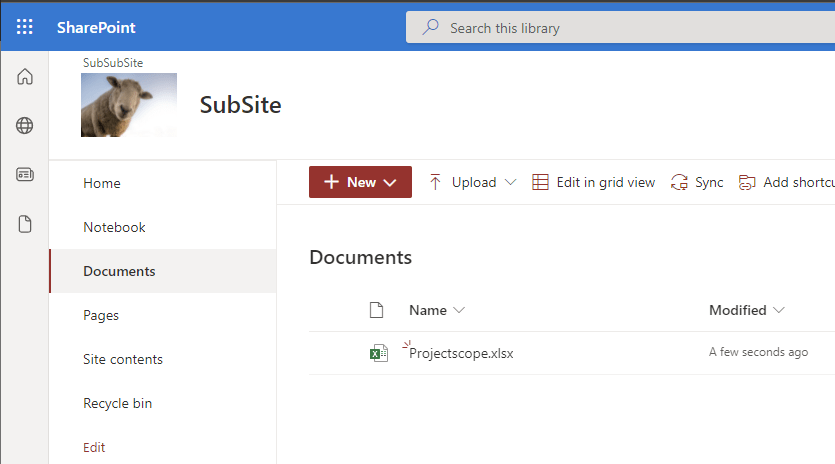
    After:

    SharePoint library after upload documents to SharePoint proceeded

    Upload multiple documents to SharePoint with PowerShell

    In order to upload multiple documents to SharePoint, I recommend putting the files in a dedicated folder, so the script can iterate through all documents in the folder.

    Screenshot of a folder, where all documents are located in

    Before:

    SharePoint library before upload documents to SharePoint proceeded
    Param(
        $SiteUrl = "https://devmodernworkplace.sharepoint.com/sites/Sales/SubSite",
        $LibraryName = "Shared Documents",
        $CredentialPath = "C:\Users\Serkar\Desktop\devmod.key",
        $FolderPath = "C:\Users\Serkar\Desktop\Projects"
    )
    
    Function Export-CredentialFile 
    {
        param(
        $Username,
        $Path
        )
        While ($Username -eq "" -or $null -eq $Username)
        {
            $Username = Read-Host "Please enter your username (john.doe@domain.de)"
        }
        
        While ($Path -eq ""-or $null -eq $Path)
        {
            $Path = Read-Host "Where should the credentials be exported to?"
        }
        $ParentPath = Split-Path $Path
        If ((Test-Path $ParentPath) -eq $false)
        {
            New-Item -ItemType Directory -Path $ParentPath
        }
        $Credential = Get-Credential($Username)
        $Credential | Export-Clixml -Path $Path
        Return $Credential
    }
    Function Import-CredentialFile ($Path)
    {
        if (! (Test-Path $Path))
        {
            Write-Host "Could not find the credential object at $Path. Please export your credentials first"
        }
        else
        {
            Import-Clixml -Path $Path
        }
    }
    
    
    $Credential = Import-CredentialFile -Path $CredentialPath 
    
    If ($Credential -eq $null)
    {
        $Username = Read-Host "Please enter your username (john.doe@domain.de)"
        Export-CredentialFile -Path $CredentialPath -Username $Username
        $Credential = Import-CredentialFile $CredentialPath
    }
    
    #Connect to site
    Connect-PnPOnline -Url $SiteUrl -Credentials $Credential
    
    
    #upload documents to SharePoint
    Get-ChildItem -Path $FolderPath |ForEach-Object {
        Add-PnPFile -Path $_.FullName -Folder $LibraryName
    
    }

    After:

    SharePoint library after upload documents to SharePoint proceeded

    Troubleshooting

    Access denied

    Access denied error message
    Add-PnPFile -Path $FilePath -Folder $LibraryName
    Add-PnPFile : Access denied.
    At line:1 char:1
    + Add-PnPFile -Path $FilePath -Folder $LibraryName
    + ~~~~~~~~~~~~~~~~~~~~~~~~~~~~~~~~~~~~~~~~~~~~~~~~
        + CategoryInfo          : WriteError: (:) [Add-PnPFile], ServerUnauthorizedAccessException
        + FullyQualifiedErrorId : EXCEPTION,PnP.PowerShell.Commands.Files.AddFile

    If you experience this issue, custom scripts are not allowed on this site. You have to enable it by connecting to the tenant with a SharePoint Administrator and enabling custom scripts:

    $SiteUrl = "https://devmodernworkplace.sharepoint.com/sites/Sales"
    $TenantUrl = "https://devmodernworkplace-admin.sharepoint.com/"
    
    Connect-PnPOnline $TenantUrl -interactive
    Set-PnPTenantSite $SiteUrl -DenyAddAndCustomizePages:$false
    Disconnect-PnPOnline

    If you want to read more about custom site scripts, check out this article: Allow or prevent custom script – SharePoint in Microsoft 365 | Microsoft Docs

    Further Readin

    If you want to upload files with Graph, check out the recent blog post:

    How to Upload Files to SharePoint using Graph API PowerShell (workplace-automation.com/)
  • SharePoint Site Usage: Get active Sites for last 6 months with PowerShell

    SharePoint Site Usage: Get active Sites for last 6 months with PowerShell

    Hi folks, when migrating our SharePoint to SharePoint Online, it can be really hard to separate the wheat from the chaff. SharePoint Site usage helps you find, what is actually used in your current farm. SharePoint farms grow by new projects and with the change of structures. If you want to have an overview, it is every time a good idea, to get rid of old stuff.

    Administrators, who is searching for SharePoint Site usage

    In a previous article, I showed you how to get all sites and subsites in SharePoint Online. This is a good basis, but if you need more, you should definitely continue reading. In this article, I want to show you one of my tools, which shows you the SharePoint site usage for previous months, so you understand what is needed in your new environment and what’s not. I am getting the data by using the interface IAnalyticsItemData of the search analytics component.

    Prerequisites

    • SharePoint Search is up and running
    • You have access to SharePoint Server with a highly privileged account (SP_Admin or SP_Farm)

    Description of the PowerShell script

    This script iterates through all sites and asks the Search service application for the roll-up analytics data for the month specific month. The offset is the integer, which states a gap between the current month and the offset month.

    Example:

    If the variable PrevMonthOffset is 3, it is 3 months ago from the current month.

    After you run the script and export will be created at your user’s desktop with all the site usage for the previous months. The current configuration in the script shows the SharePoint Site usage for the previous six months ($PrevMonthOffset = 6). You can change it for more months, if you need to.

    SharePoint Site Usage PowerShell script

    If you run the script like this, you do get the SharePoint site usage statistics for the last six months.

    param (
        $DesktopPath = [System.Environment]::GetFolderPath([System.Environment+SpecialFolder]::Desktop),
        $global:exportpath = $DesktopPath + "\sitestats.csv",
        $PrevMonthOffset = 6
    )
    
    Add-PSSnapin "Microsoft.SharePoint.PowerShell"
    
    $global:SuccesCount = 0
    $global:ErrorCount= 0
    
    $SearchApp = Get-SPEnterpriseSearchServiceApplication
    
    function Get-Stats {
        param
        (
            $SiteCollection,
            $Subsite,
            $PrevMonthOffset
        )
    
        $Offset = $PrevMonthOffset
        while ($Offset -lt 6)
        {
            [System.Int32]$Hits =0
            [System.Int32]$UniqueVisitor =0
            $Offsetfactor = -1 * $Offset
            $RootResult = $SearchApp.GetRollupAnalyticsItemData(1,[System.Guid]::Empty,$SiteCollection.ID,$Subsite.id)
            $Date = (Get-Date).AddMonths($Offsetfactor)    
            
            $RootResult.GetMonthlyData($Date,[REF]$Hits,[REF]$UniqueVisitor)
            $HitsPreviousName = "_HitsPrevious"+$Offset + "month" 
            $UniqueVisitorName = "_UniqueVisitor" +$Offset +"month"
    
            $Subsite | Add-Member -MemberType NoteProperty -Name $HitsPreviousName -Value $Hits -Force
            $Subsite | Add-Member -MemberType NoteProperty -Name $UniqueVisitorName -Value $UniqueVisitor -Force


            $Offset ++
        }
        try
        {
            $Subsite | Select-Object url, *_* | Export-Csv -Path $exportpath -Append -Delimiter ";" -NoTypeInformation -ErrorAction Stop
            $global:SuccesCount++
        }
        catch
        {
            $Subsite.url
            $global:ErrorCount++
        }
    }
    
    $SiteCollections = Get-SPSite -Limit All
    
    Foreach ($SiteCollection in $SiteCollections)
    {
        $SiteCollection.AllWebs | ForEach-Object{ Get-Stats -SiteCollection $SiteCollection -Subsite $_ -PrevMonthOffset $PrevMonthOffset}
    
    }
    
    Write-Host "success: $global:SuccesCount error: $global:ErrorCount "

    Further reading

    There are a few more methods the analytics item data provides. You can find them here:

    GetDailyData(DateTime, Int32, Int32)
    GetHitCountForDay(DateTime)
    GetHitCountForMonth(DateTime)
    GetMonthlyData(DateTime, Int32, Int32)
    GetUniqueUsersCountForDay(DateTime)
    GetUniqueUsersCountForMonth(DateTime)

    IAnalyticsItemData Interface (Microsoft.Office.Server.Search.Analytics) | Microsoft Docs

    Image reference

    Data vector created by stories – www.freepik.com

    Image by mohamed Hassan from Pixabay

  • SharePoint get all sites and subsites PowerShell script

    SharePoint get all sites and subsites PowerShell script

    SharePoint sites are created very fast. With a few clicks, admins and users can create dozens of sites and subsites. Since it is so easy to create sites, we as admins should have an overview, what is going on at our SharePoint environment. You need also an overview of your environment, If you are looking forward to migrate your environment to a different environment. For this purpose I wrote scripts to get all sites and subsites of your SharePoint, so you can trim your SharePoint to your business needs. You will find a script for SharePoint Online and SharePoint Server.

    If you run the script, an export will be created at the path, which you have specified. If you want to change the separation of columns to comma separated, change the following export line:

    $Export | Export-Csv -Path $ExportPath -NoTypeInformation -Delimiter ";" -Force

    to this:

    $Export | Export-Csv -Path $ExportPath -NoTypeInformation -Delimiter "," -Force

    Get all sites and subsites for SharePoint Online

    For SharePoint Online I am using the PowerShell Module PNP.PowerShell. You have to install it on your client/ server, for this purpose.

    Prerequisites

    In order to get all sites and subsites, you need following prerequisites fulfilled:

    1. Installation of PNP PowerShell Module
      Here you can see, how it can be done: Connect to SharePoint with PowerShell | SharePoint Online (workplace-automation.com/)
    2. SharePoint Administrator role
    3. Access to all SharePoint sites
      I wrote a blog post for this purpose, how you can get access to all sites: SharePoint Powershell add site collection administrator (workplace-automation.com/)

    If you don’t have access to all SharePoint sites, you will only get the SharePoint sites (not the subsites).

    PowerShell Script to get all sites and subsites for SharePoint Online

    In this script I used an exported credential to authenticate with the PNP module. As always, please change the values in the parameter block.

    $CredentialPath is the path to an exported credential file of the user with the SharePoint administrator role. If you leave the variable empty, the script will notice, that the credential is empty (line 47). Thus, it will ask you for the username and password for the user, and also the path, where the script can locate the credential file (line 17, 29 and 22). After the export, it will import the credential file to connect to SharePoint Online.

    If you want to read more about the credential handling, consider reading Use credentials in PowerShell | SPO Scripts

    Depending on your locality, you have to change the delimiter in the last line:

    Param(
        $TenantUrl = "https://devmodernworkplace-admin.sharepoint.com/",
        $CredentialPath = "C:\Users\Serkar\Desktop\devmod.key",
        $DesktopPath = [System.Environment]::GetFolderPath([System.Environment+SpecialFolder]::Desktop),
        $ExportPath = $DesktopPath + "\SitesExport.csv"
    )
    
    Function Export-CredentialFile 
    {
        param(
        $Username,
        $Path
        )
    
        While ($Username -eq "" -or $null -eq $Username)
        {
            $Username = Read-Host "Please enter your username (john.doe@domain.de)"
        }
        
        While ($Path -eq ""-or $null -eq $Path)
        {
            $Path = Read-Host "Where should the credentials be exported to?"
        }
        $ParentPath = Split-Path $Path
        If ((Test-Path $ParentPath) -eq $false)
        {
            New-Item -ItemType Directory -Path $ParentPath
        }
        $Credential = Get-Credential($Username)
        $Credential | Export-Clixml -Path $Path
        Return $Credential
    }
    Function Import-CredentialFile ($Path)
    {
        if (! (Test-Path $Path))
        {
            Write-Host "Could not find the credential object at $Path. Please export your credentials first"
        }
        else
        {
            Import-Clixml -Path $Path
        }
    }
    
    $Credential = Import-CredentialFile -Path $CredentialPath 
    
    If ($Credential -eq $null)
    {
        $Username = Read-Host "Please enter your username (john.doe@domain.de)"
        Export-CredentialFile -Path $CredentialPath -Username $Username
        $Credential = Import-CredentialFile $CredentialPath
    }
    
    #Connect to tenant
    Connect-PnPOnline -Url $TenantUrl -Credentials $Credential
    
    $Export = New-Object System.Collections.Generic.List[object]
    
    $Sites = Get-PnPTenantSite
    $SitesCount = $Sites.Count
    $i= 1
    
    foreach ($Site in $Sites)
    {
        Write-Host "($i / $SitesCount) Processing site $($Site.Url)"
        Disconnect-PnPOnline
        Connect-PnPOnline -Url $Site.Url -Credentials $Credential
        $Site = Get-PnPSite
        
        #get the information of the root
        $NewExport = New-Object PsObject -Property @{
        
                Url = $Site.URl
                SubSitesCount = (Get-PnPSubWebs -Recurse).count
                ParentWeb = $null
        }
        $Export.Add($NewExport)
    
        #get the information of subwebs
        Get-PnPSubWebs -Recurse  -Includes ParentWeb| ForEach-Object {
            $NewExport = New-Object PsObject -Property @{
        
                Url = $_.URl
                SubSitesCount = $_.Webs.count
                ParentWeb = $_.ParentWeb.ServerRelativeUrl
            }
            $Export.Add($NewExport)
        }
        $i++
    }
    $Export | Export-Csv -Path $ExportPath -NoTypeInformation -Delimiter ";" -Force

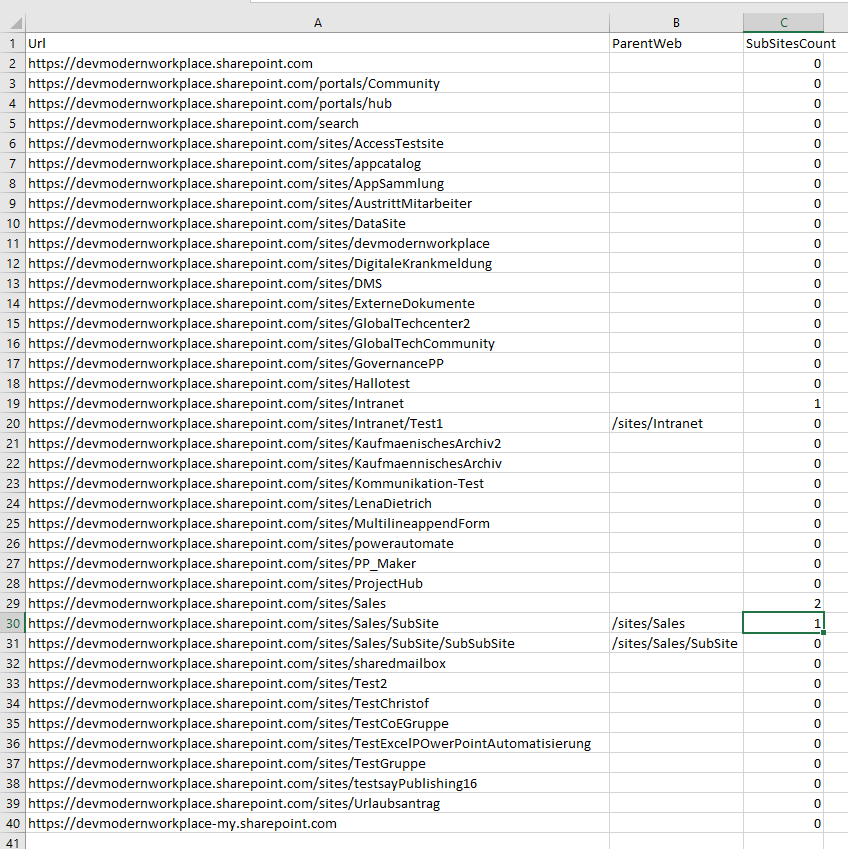
    If you run the script, the export will be created on your desktop, which will look like this:

    Export if you want to get all sites and subsites for SharePoint Online

    Get all sites and subsites for SharePoint Server

    You can use this module for following SharePoint versions:

    • SharePoint 2013
    • SharePoint 2016
    • SharePoint 2019

    If you start this script, your user context is used to run the cmdlets. An dedicated authentication is not needed.

    Prerequisites

    In order to run this script, you need to use a user, with permissions to access each all subsites. For this purpose I am using the SP_Admin account or SP_Farm account.

    If you want to configure it for different users, check out Salaudeen Rajacks article: Access is denied. (Exception from HRESULT: 0x80070005 (E_ACCESSDENIED)) on Get-SPWeb, New-SPUser, Get-SPUser, Set-SPUser, etc. – SharePoint Diary

    PowerShell script to get all sites and subsites for SharePoint Server

    Since we got no authentication, It is way shorter, than the SharePoint Online script. If your export is not delimited properly, consider to change the delimiter, which I have described in the beginning.

    Param(
        $DesktopPath = [System.Environment]::GetFolderPath([System.Environment+SpecialFolder]::Desktop),
        $ExportPath = $DesktopPath + "\SitesExport.csv"
    )
    
    Add-PSSnapin Microsoft.SharePoint.PowerShell
    
    $Export = New-Object System.Collections.Generic.List[object]
    
    $Sites = Get-SPSite -Limit all
    $SitesCount = $Sites.Count
    $i= 1
      
    foreach ($Site in $Sites)
    {
        Write-Host "($i / $SitesCount) Processing site $($Site.Url)"
    
        #get the information of the root
        #removed one site from allwebs, because it contains also the root
        $NewExport = New-Object PsObject -Property @{
        
                Url = $Site.URl
                SubSitesCount = ($Site.AllWebs.Count - 1)
                ParentWeb = $null
        }
        $Export.Add($NewExport)
    
        #get the information of subwebs
        #Skip the first web, since it is the rootweb
        Get-SPWeb -Site $Site.Url -Limit all | Select-Object -Skip 1 | ForEach-Object {
            $NewExport = New-Object PsObject -Property @{
        
                Url = $_.URl
                SubSitesCount = $_.Webs.Count
                ParentWeb = $_.Site.Url
    
            }
            $Export.Add($NewExport)
        }
        $i++
    }
    $Export | Export-Csv -Path $ExportPath -NoTypeInformation -Delimiter ";" -Force

    Conclusion

    Getting an overview for migration/ clean up purposes is key for a clean migration. With the scripts, I have provided, you get a brief overview over your environment. If it does not work for you, please write me a mail: Serkar@workplace-automation.com.

    Further reading

    Here you can find the class for SPSite (SharePoint Server): SPSite Class (Microsoft.SharePoint) | Microsoft Docs

  • SharePoint PowerShell add site collection administrator

    SharePoint PowerShell add site collection administrator

    In this article, I am describing how to add site collection administrator to your SharePoint sites. I use this script, when I need to supply an application service for a new customer. I recommend running this script periodically (every day), so it is ensured, that you have access to new sites later also.

    You will learn how to add a user and an AD group to the site collection administrators.

    Prerequisites

    Before you can add a site collection administrator to a site collection, you need to ensure the following:

    Scheduled runs

    When you run the scripts below, it is only for the current existing sites, but since the departments won’t stop create sites, e.g. by creating a new team in Microsoft Teams, it makes sense to schedule the scripts. If you want to schedule the scripts, ensure that the connection to the tenant is not interactive, by exporting the credentials locally with the service user, which you will run to schedule the script and import the credential in your script. Only the user who exported the credentials object, can read the credential object on the same machine.

    Before you schedule the script, export your service user credential with this cmdlets (change the path before running):

    Get-Credential |Export-Clixml "C:\Users\Serkar\Desktop\devmod.key"

    You will be prompted for credentials and after this, a file will be created.

    Use this credential object before you connect to SharePoint like this:

    $Credential = Import-Clixml "C:\Users\Serkar\Desktop\devmod.key"
    

    And connect to SharePoint Online like this:

    Connect-SPOService -Url  $TenantUrl -Credential $Credential

    I wrote a detailed article about this. If you want to deepen your knowledge, check it out: Use credentials in PowerShell | SPO Scripts

    In the end of this article, I have also provided a script, which shows you how the script has to look, if you want to schedule it periodically.

    Add a user as a site colllection adminstrator

    If you want to add a user as a site collection administrator, you can do it like this:

    Please change the values of the variables.

    Connect-SPOService -Url  "https://devmodernworkplace-admin.sharepoint.com/"
    $User = "Serkar@devmodernworkplace.onmicrosoft.com"
    $SiteUrl = "https://devmodernworkplace.sharepoint.com/sites/Sales"
    
    Set-SPOUser -Site $SiteUrl -LoginName $User -IsSiteCollectionAdmin $true

    Add an AD group as a site collection administrators

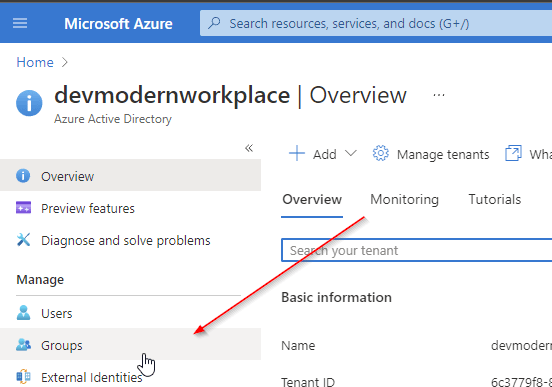
    If you want to add the AD group to the site collection adminstrators, you need the Object ID of the group. You can look it up like this:

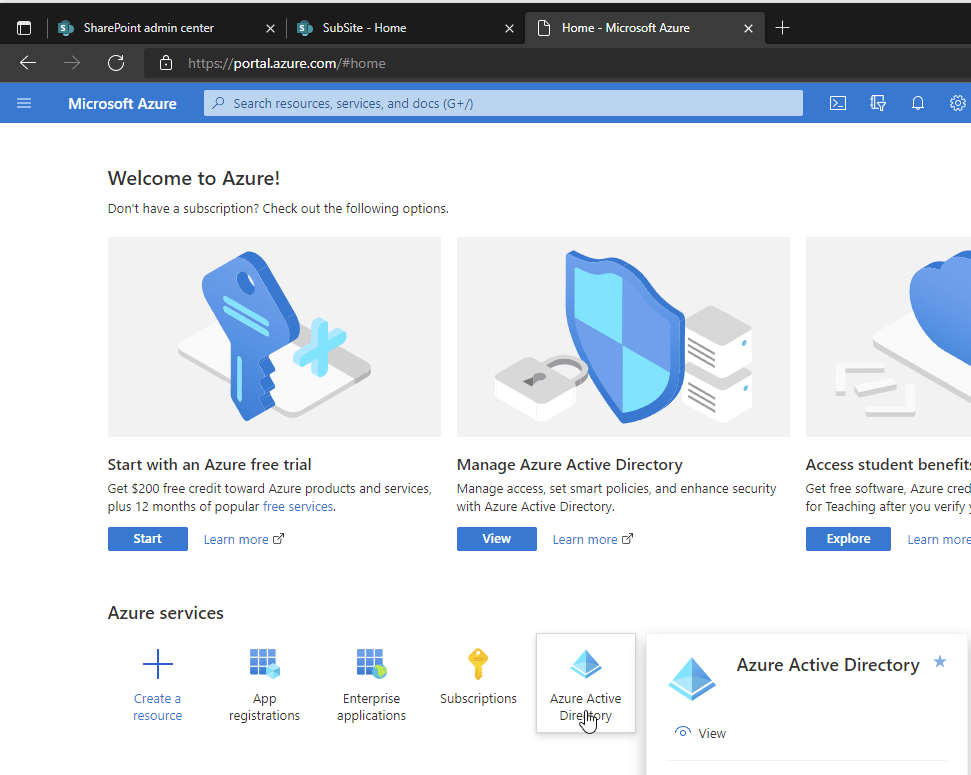
    Visit https://portal.azure.com

    Azure Portal home
    Azure active directory groups

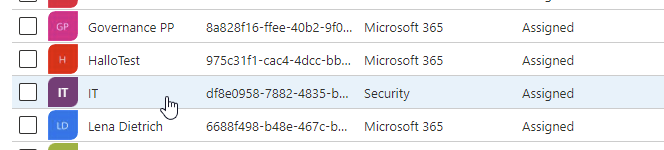
    For this purpose I want to add the IT AD security group to the site collection administrators.

    Screenshot of an ad group, which I want to add as a site collection administrator

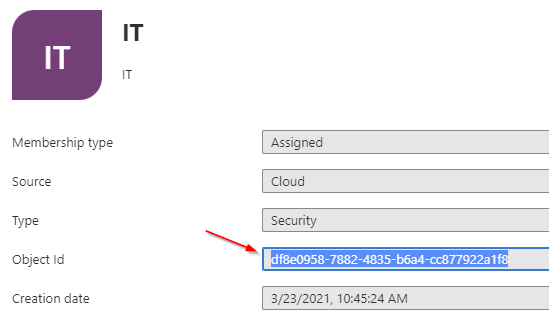
    Take a note of the Object Id

    Object ID of the ad group, which will be added as site collection administrator

    With the Object ID, we can add a group as a site collection administrator:

    Connect-SPOService -Url  "https://devmodernworkplace-admin.sharepoint.com/"
    $Group = "C:0t.c|tenant|df8e0958-7882-4835-b6a4-cc877922a1f8"
    $SiteUrl = "https://devmodernworkplace.sharepoint.com/sites/Sales"
    
    Set-SPOUser -Site $SiteUrl -LoginName $Group -IsSiteCollectionAdmin $true

    Add a user as a site collection administrator to all site collections

    If you want to add a single user as a site collection administrator, you can use this script:

    $TenantUrl = "https://devmodernworkplace-admin.sharepoint.com/"
    $User = "Serkar@devmodernworkplace.onmicrosoft.com"
    
    Connect-SPOService -Url  $TenantUrl 
    
    $SPOSites = Get-SPOSite 
    
    foreach ($SPOSite in $SPOSites)
    {
        Set-SPOUser -Site $SPOSite.Url -LoginName $User -IsSiteCollectionAdmin $true
    }

    Add an AD group as a site collection administrator to all site collections

    $TenantUrl = "https://devmodernworkplace-admin.sharepoint.com/"
    $Group = "C:0t.c|tenant|df8e0958-7882-4835-b6a4-cc877922a1f8"
    
    Connect-SPOService -Url  $TenantUrl 
    
    $SPOSites = Get-SPOSite 
    
    foreach ($SPOSite in $SPOSites)
    {
        Set-SPOUser -Site $SPOSite.Url -LoginName $Group -IsSiteCollectionAdmin $true
    }
    

    Scheduled runs: Add an AD group as a site collection administrator to all site collections

    If you run this script, you won’t get any prompt from PowerShell, but you have to ensure, that you have exported the credential object before, otherwise the script will not work.

    $TenantUrl = "https://devmodernworkplace-admin.sharepoint.com/"
    $Group = "C:0t.c|tenant|df8e0958-7882-4835-b6a4-cc877922a1f8"
    
    $Credential = Import-Clixml -Path "C:\Users\Serkar\Desktop\devmod.key"
    
    Connect-SPOService -Url  $TenantUrl -Credential $Credential
    
    $SPOSites = Get-SPOSite 
    
    foreach ($SPOSite in $SPOSites)
    {
        Set-SPOUser -Site $SPOSite.Url -LoginName $Group -IsSiteCollectionAdmin $true
    }

    Website vector created by stories – www.freepik.com

  • SharePoint Downloader | Comfortable file download in 2 steps

    Downloading SharePoint files might be necessary in areas, where we have lack of good network bandwith, if you want to keep working e.g. when you travel by train or plane. Downloading sharepoint files can be time consuming if you have to do it one by one. In this article, you will learn, how you can do it easily in the GUI, but also how you can download your SharePoint files with a so called SharePoint Downloader – a PowerShell script. If you are only interested in the SharePoint downloader, click here.

    Download SharePoint files in the GUI

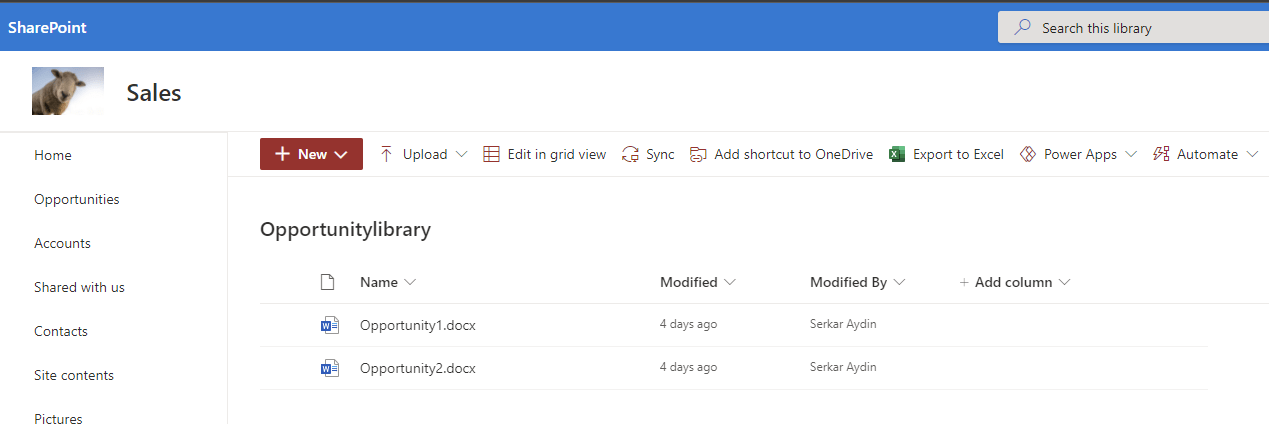
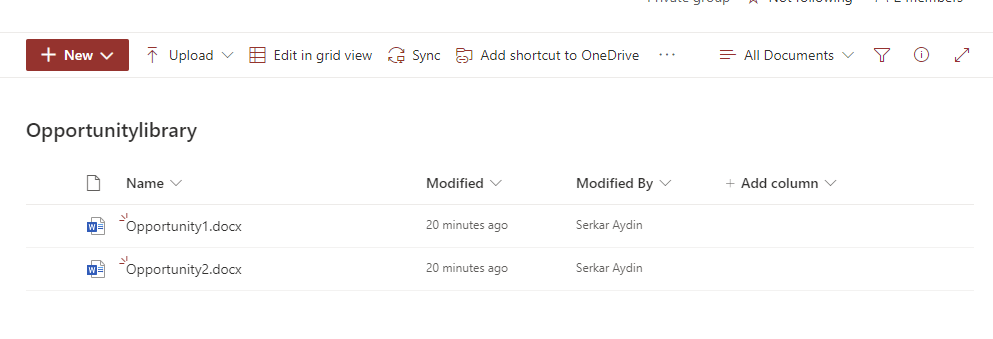
    Before we start doing this with PowerShell, I want to show you how you download the file in the GUI. GUI stands for graphical user interface. I will show you how to download the file Opportunity2 from the SharePoint Library Opportunitylibrary. This is absolutely sufficient in our daily work routine.

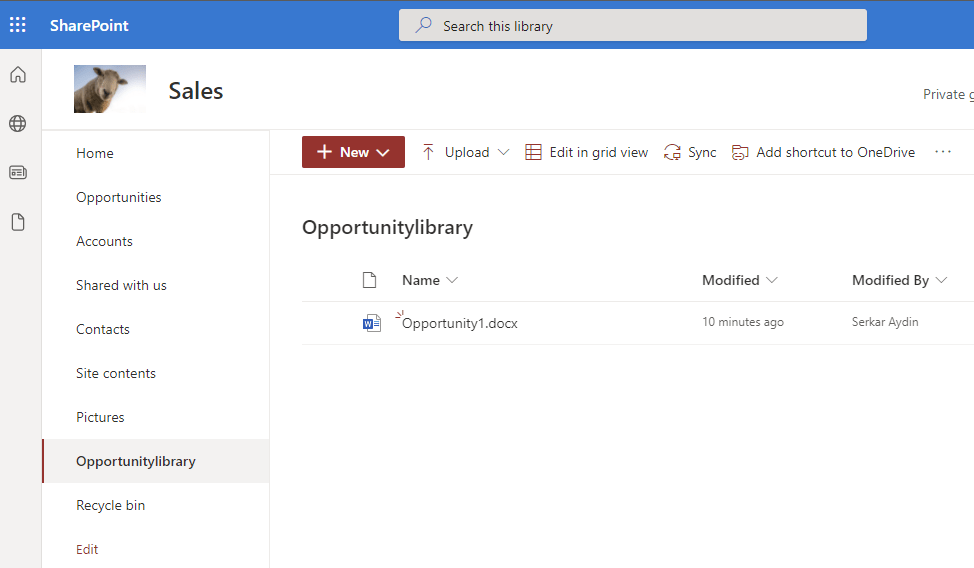
    In the first step we open a SharePoint library:

    Screenshot of a SharePoint Library, where we want to download a SharePoint file

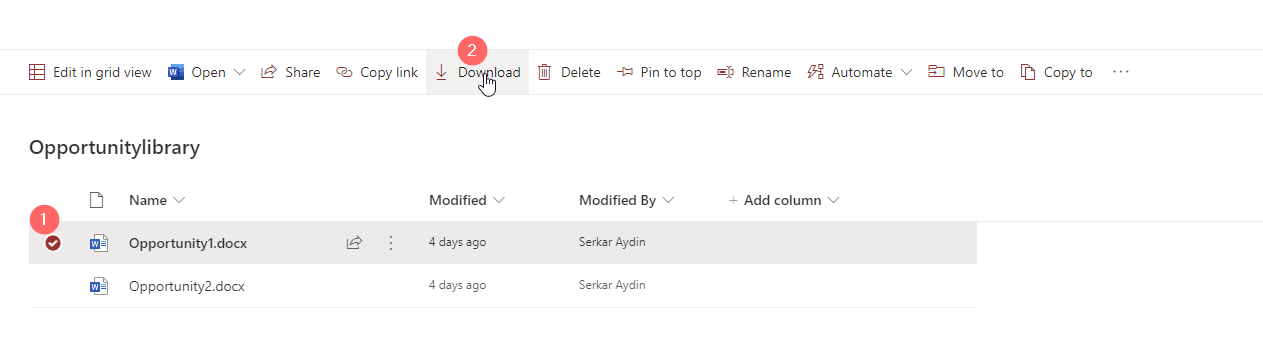
    Here we can mark a file and then download – looks easy right?

    Screenshot of a marked file to download the file

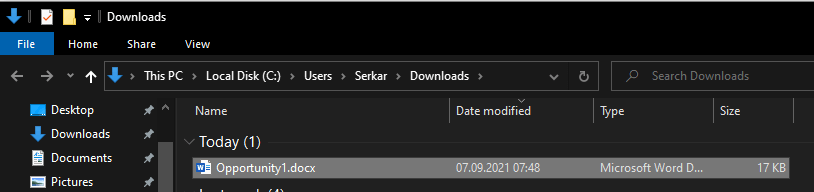
    As you can see the file is downloaded and we can keep working offline – but hey don’t forget to upload it later to SharePoint again :).

    Downloaded SharePoint file

    Download SharePoint files with PowerShell

    Scenario

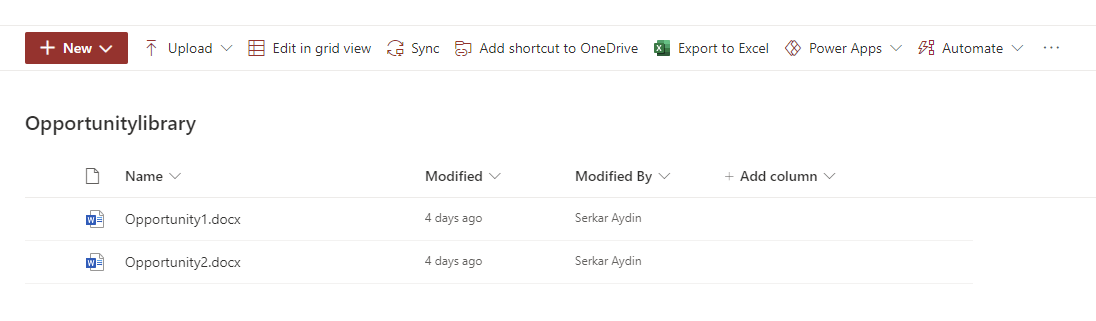
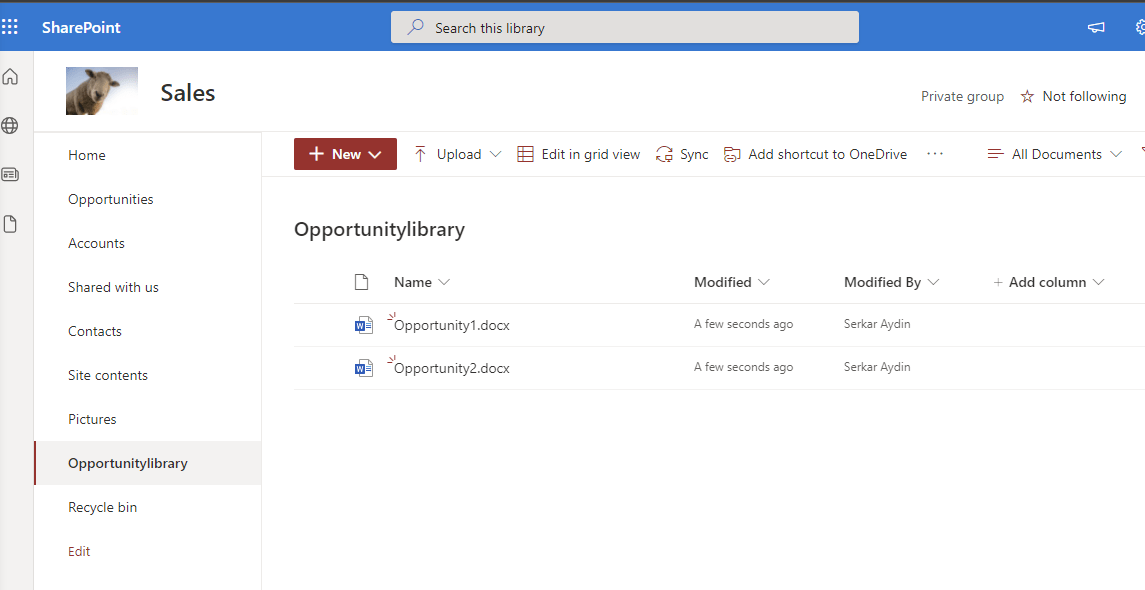
    If you need to download multiple SharePoint files – this makes sense, if you need the files in another system and you need to export the files periodically, you can do it with PNP.PowerShell. In the following scenario, I will show you how to download multiple files by the example of the Library “Opportunitylibrary”, which contains two documents.

    Opportunity library with two documents I want to download

    Authentication and parameters

    In the beginning, we start with connecting to the site. If you are a beginner, you might be interested in a detailed description, which you can find here: Connect to SharePoint with PowerShell | SharePoint Online (workplace-automation.com/)
    I have exported the credential object previously to reuse it, which you also can do. This is strongly recommended if the script shall ran in the background e.g. when you want to make use it in task scheduler. Do not expose the credentials in blank text – this is very bad practise and is a security problem. If you want to make use of saved credentials like I did, check the article: Use credentials in PowerShell | SPO Scripts

    Before you run the scripts, change the parameters to your siteurl, your path, your list and your credential file. The parameters I have provided won’t work, if you don’t change them.

    param
    (
        $SiteUrl = "https://devmodernworkplace.sharepoint.com/sites/Sales",
        $DownloadPath = "C:\temp",
        $ListName = "Invoices",
        $CredPath = "C:\Users\Serkar\Desktop\devmod.key"
    )
    
    $Credential = Import-Clixml -Path  $CredPath
    Connect-PnPOnline -Url $SiteUrl -Credential $Credential

    For interactive PowerShell sessions, you can also choose this authentication mechanism. Interactive means, that a person is running the script and can interact with the PowerShell terminal. The opposite would be if you would schedule the task in the task scheduler and the task would run – let’s say once a day. For this purpose the script would ask the terminal, but since there is nobody responsing the authentication request, the script would be halted and no file would be downloaded.

    param
    (
        $SiteUrl = "https://devmodernworkplace.sharepoint.com/sites/Sales",
        $DownloadPath = "C:\temp",
        $ListName = "Invoices"
    )
    
    
    Connect-PnPOnline -Url $SiteUrl -Interactive

    Download all SharePoint files from a library with PowerShell

    If you want to download all files of a library, you have to run following script. The script iterates through all files in your SharePoint library defined in the parameter block and it will download all the files to the downloadpath you have provided in the parameter block.

    Get-PnPListItem -List $ListName  | 
            ForEach-Object { 
                Get-PnPFile -Url $_.FieldValues.FileRef -Filename $_.FieldValues.FileLeafRef  -Path $DownloadPath -AsFile 
            }

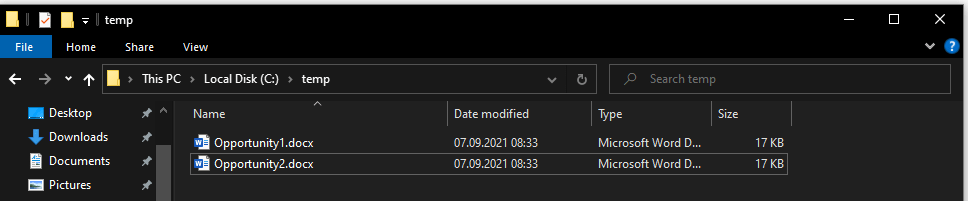
    As you can see, I could download SharePoint files with PowerShell.

    The result of download SharePoint files

    Download specific SharePoint files from a library with PowerShell

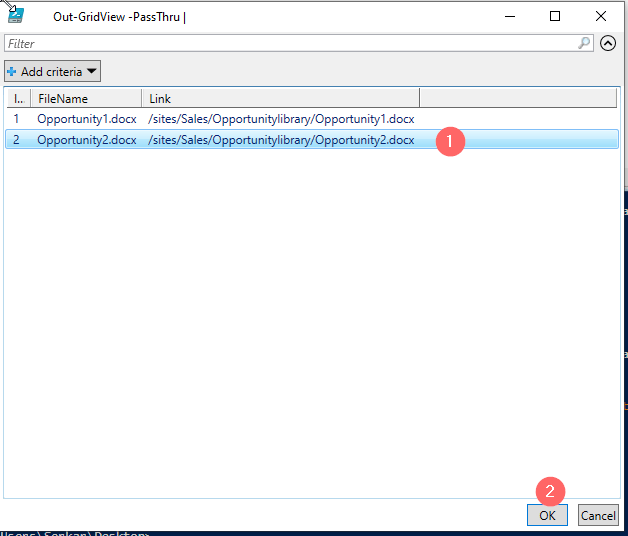
    If you want to download only specific files, you can use following script. This script is using the out-gridview cmdlet to give you the possibility to choose only specific files.

    Get-PnPListItem -List $ListName | 
        Select-Object Id,@{N="FileName";E={$_.FieldValues.FileLeafRef}}, @{N="Link";E={$_.FieldValues.FileRef}} |
            Out-GridView -PassThru |
                ForEach-Object { 
                    Get-PnPFile -Url $_.Link -Filename $_.FileName  -Path $DownloadPath -AsFile 
                }

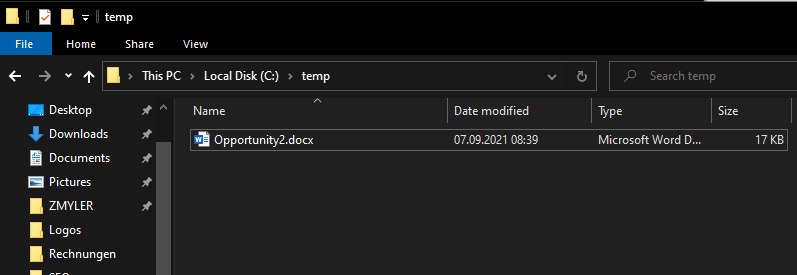
    A grid will pop up, where you can select the documents, which you want to download. I have marked the second file and clicked on OK. If we check the folder, we can see, that the file have been downloaded!

    Screenshot of the grid view for the SharePoint files, which you can download

    Et voilà – the file, which I have marked is downloaded!

    SharePoint Downloader

    In this section I provide you my ready to run scripts. I call them SharePoint Downloader – a small tool with big impact 🙂

    SharePoint Downloader for automation: Ready-to-run script for automation

    With this script you can download SharePoint files to your specified folder. It’s purpose is for automation, means that it can run in the background with azure automation triggered by a runhook or with task scheduler triggered by a time schedule. Please change the parameters of the SharePoint Downloader and ensure, that the credential object is exported to the CredPath before scheduling the script. If you forgot how to do it, check out this article: Use credentials in PowerShell | SPO Scripts

    param
    (
        $SiteUrl = "https://devmodernworkplace.sharepoint.com/sites/Sales",
        $DownloadPath = "C:\temp",
        $ListName = "Opportunitylibrary",
        $CredPath = "C:\Users\Serkar\Desktop\devmod.key",
        $Force = $true
    )
    
    $Credential = Import-Clixml -Path  $CredPath
    Connect-PnPOnline -Url $SiteUrl -Credential $Credential
    
    #create folder if it does not exist
    If (!(Test-Path $DownloadPath))
    {
        New-Item -ItemType Directory $DownloadPath
    }
    
    If ($Force)
    {
        Get-PnPListItem -List $ListName  | 
            ForEach-Object { 
                Get-PnPFile -Url $_.FieldValues.FileRef -Filename $_.FieldValues.FileLeafRef  -Path $DownloadPath -AsFile -Force
            }
    }
    Else
    {
        Get-PnPListItem -List $ListName  | 
            ForEach-Object { 
                Get-PnPFile -Url $_.FieldValues.FileRef -Filename $_.FieldValues.FileLeafRef  -Path $DownloadPath -AsFile 
            }
    }
    

    SharePoint Downloader for interactive: Ready-to-run script for interactive sessions

    This script can be used for interactive sessions, so you need personally to start the script and not the task scheduler or azure automation. You will be asked for each parameter, when starting the script.

    param
    (
        [Parameter(
        Mandatory=$true,
        ValueFromPipelineByPropertyName=$true,
        Position=0, 
        HelpMessage="Please provide the url in this format: https://tenant.sharepoint.com/sites/sitename")
        ]
        $SiteUrl,
        [Parameter(Mandatory=$true,
        ValueFromPipelineByPropertyName=$true,
        Position=1,
        HelpMessage="Please provide path, where the downloaded files should be located at.")
        ]
        $DownloadPath,
        [switch][Parameter(Mandatory=$false,
        ValueFromPipelineByPropertyName=$true,
        Position=2,
        HelpMessage="Use -Force paramater to overwrite existing files.")
        ]
        $Force = $true
    
    )
    
    Connect-PnPOnline -Url $SiteUrl -Interactive
    
    #create folder if it does not exist
    
    If (!(Test-Path $DownloadPath))
    {
        New-Item -ItemType Directory $DownloadPath
    }
    
    
    $ListName = Get-PnPList | Out-GridView -PassThru | Select-Object Title -ExpandProperty Title
    
    If ($Force)
    {
        Get-PnPListItem -List $ListName | 
        Select-Object Id,@{N="FileName";E={$_.FieldValues.FileLeafRef}}, @{N="Link";E={$_.FieldValues.FileRef}} |
            Out-GridView -PassThru |
                ForEach-Object { 
                    Get-PnPFile -Url $_.Link -Filename $_.FileName  -Path $DownloadPath -AsFile -Force -WarningAction Stop
                    Write-Host "Downloaded $($_.FileName) Green to $DownloadPath" -ForegroundColor Green 
                }
    }
    Else
    {
        Get-PnPListItem -List $ListName | 
        Select-Object Id,@{N="FileName";E={$_.FieldValues.FileLeafRef}}, @{N="Link";E={$_.FieldValues.FileRef}} |
            Out-GridView -PassThru |
                ForEach-Object { 
                    Get-PnPFile -Url $_.Link -Filename $_.FileName  -Path $DownloadPath -AsFile -WarningAction Stop
                    Write-Host "Downloaded $($_.FileName) Green to $DownloadPath" -ForegroundColor Green 
                }
    }

    Conclusio

    With PNP.PowerShell we can download SharePoint files easily. In this article I have described, how you can download single and multiple SharePoint files with the GUI and with PowerShell. I have provided you the SharePoint Downloader – a script, which downloads all files in SharePoint library interactively or automated.

    References

    Here is the official reference from microsoft about the main cmdlet get-pnpfile: Get-PnPFile (PnP.Powershell) | Microsoft Docs

    Geschäft Foto erstellt von yanalya – de.freepik.com

  • How to restore SharePoint files with PowerShell

    Shit happens — sometimes we are not that concentrated when we are working. Somebody calls us without an appointment, and we were cleaning up our document libraries and by mistake we delete multiple files from SharePoint libraries. In this article, you will learn, how to restore SharePoint files from the diverse recycle bins in SharePoint. Like every time you will learn it for two ways: manually and automated. These instructions do also work for SharePoint items.

    Restore SharePoint files manually from the first-stage recycle bin

    Let’s assume, that you have a library with two documents in it.

    Screenshot of the document library Opportunitylibrary

    One unfocused moment, and you have deleted the file Opportunity2.docx without intention.

    Screenshot of SharePoint library, where the document have been removed by accident

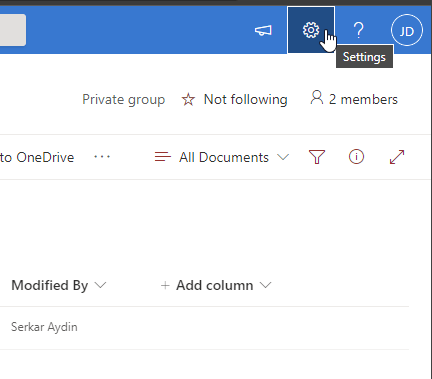
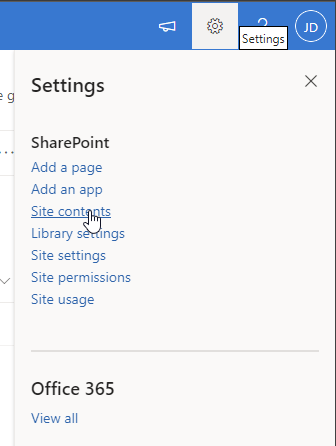
    As a site member, you have in fact the possibility to check your recycle bin to restore the file. In order to do this, click on the settings gear in the upper right corner and click on site contents.

    SharePoint settings gear
    Settings contents setting

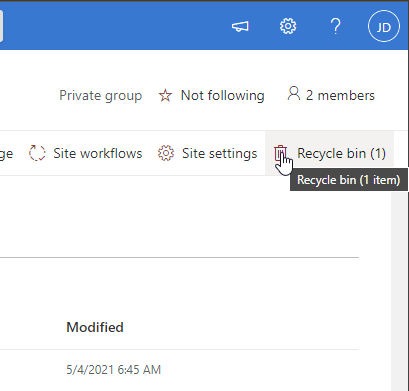
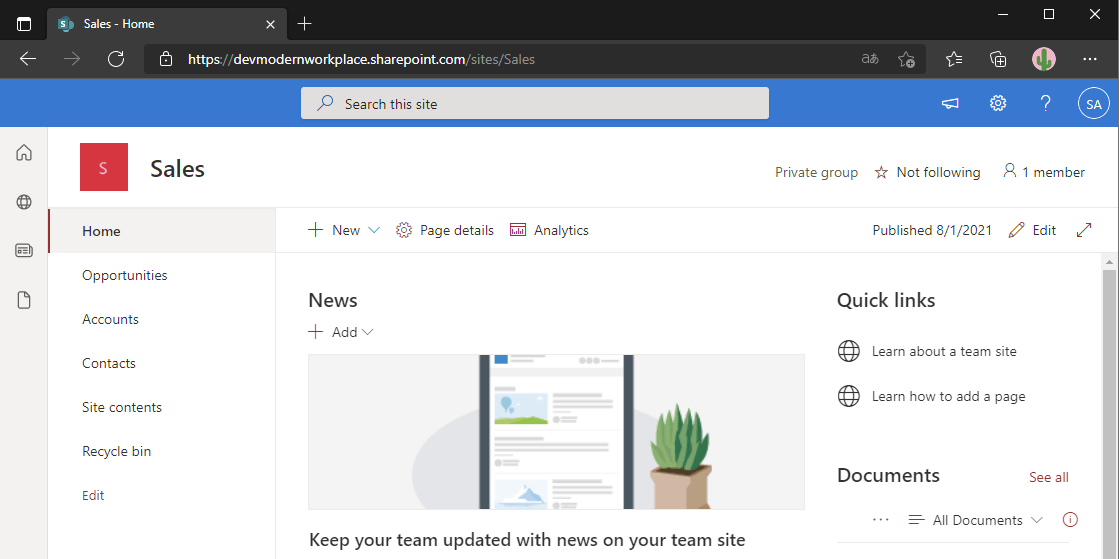
    Now click on Recycle Bin.

    Screenshot of link to the recycle bin

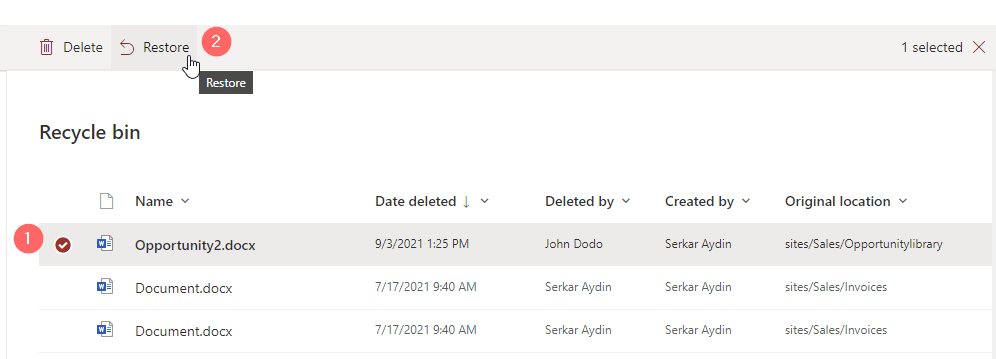
    As you can see, I can see the removed file from John dodo, which is my test user with member access. Now mark the file, you want to restore and click on Restore.

    Screenshot of restoring the file from the SharePoint recycle bin

    Thats it, your file is back at the place, where you have deleted it:

    Screenshot of a SharePoint library, where the opportunity2.docx could be restored succesfully

    If you cannot see the file here, ask your Site collection administrator, to check the second-stage recycle bin (site collection recycle bin), which’s content will be retained for 93 days, unless the limit of the site collection storage is not exceeded or the item have not been removed manually by a site collection administrator. In the following, I will describe how to restore from the second-stage recycle bin.

    Restore SharePoint files manually from the second-stage recycle bin

    Now we assume, that we have removed the file opportunity2.docx accidentially, but we need to restore it. We already have checked the site recycle bin, but we could not find the file in it.

    As you see, there is no opportunity2.docx file:

    Screenshot of a SharePoint site recycle bin, where the file opportunit2.docx could not be found.

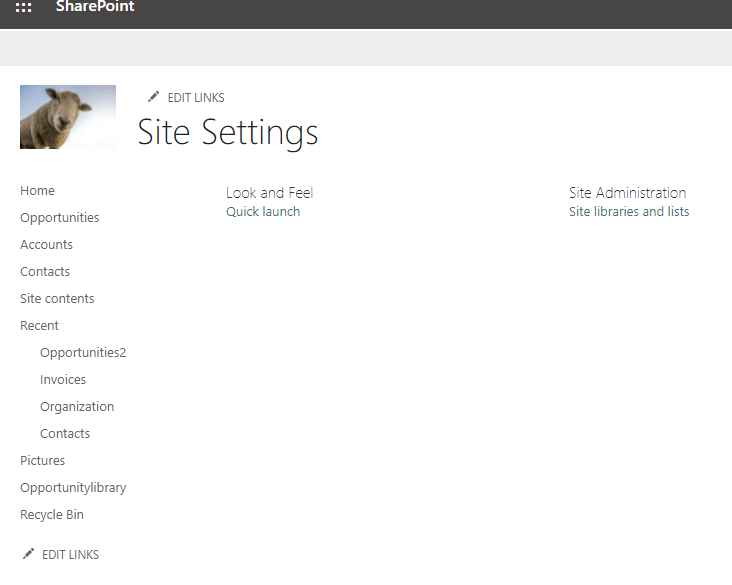
    In this case, we need someone, who has the site collection administrator role, because we have to check the site collection settings. In the view as a member, the site collection settings look like this — so there is no option to visit the site collection recycle bin and therefore no option to restore SharePoint files.

    Screenshot of the site settings from a user, which has no site owner permission

    In order to show you the site settings as an owner, I have promoted John Dodo to Site Owner:

    Screenshot of group membership permissions

    As you can see, I cannot see more as a site owner:

    Screenshot of site settings as a site owner

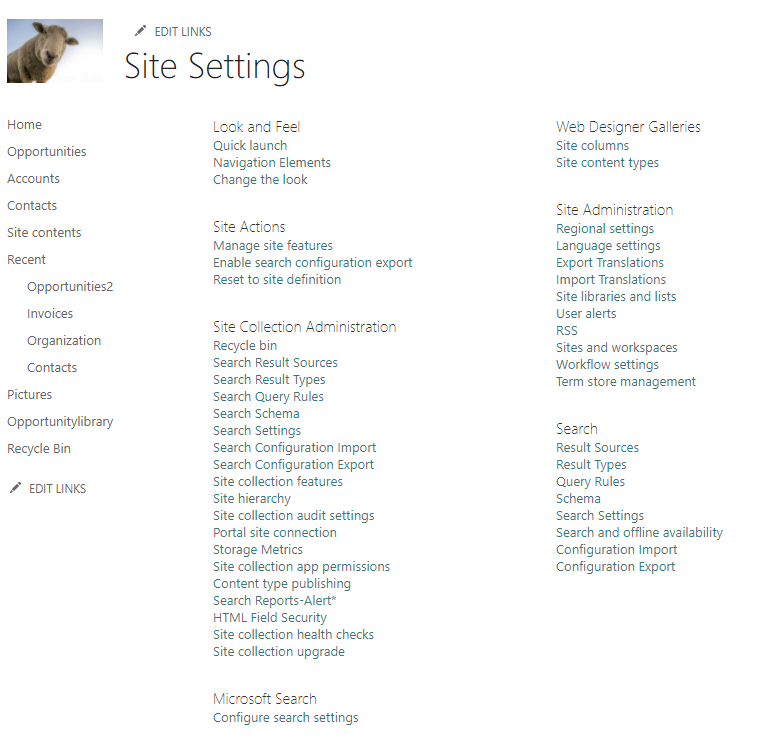
    Therefore, I will switch the user to one with site collection admin rights and we will see way more settings:

    Screenshot of site settings as a site collection admin

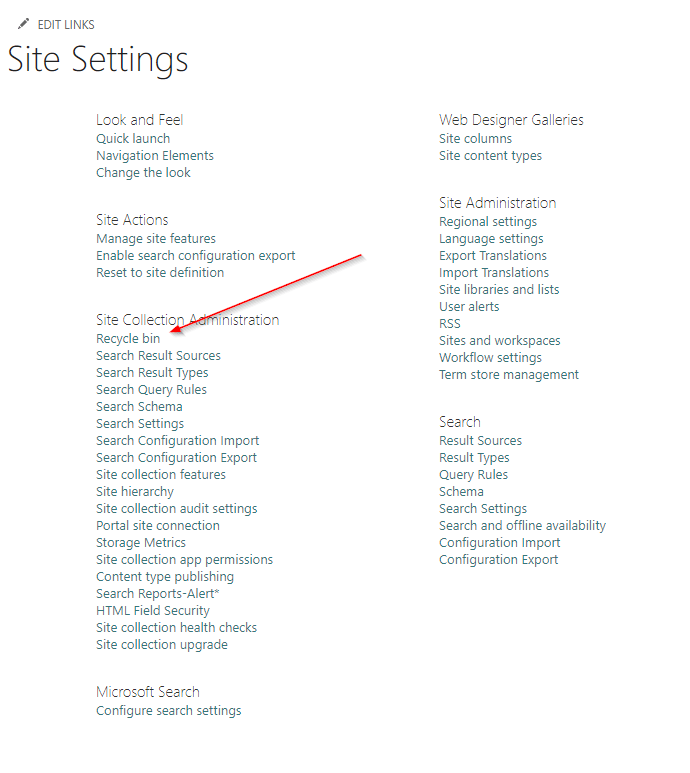
    Maybe you have noticed, that you can see Recycle Bin setting below Site collection Administration

    Screenshot of the recycle bin setting in the site settings

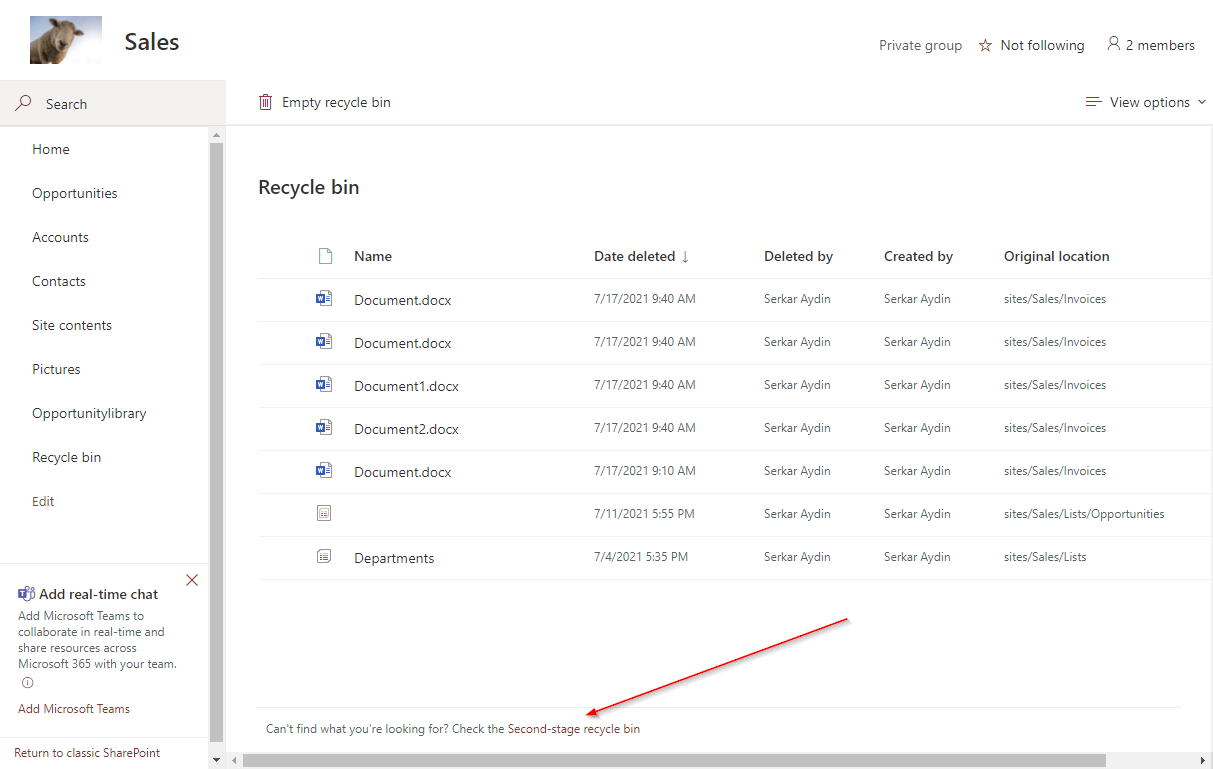
    This is the place, where we can see the files, which are removed, but also can be restored from users without the site collection administrator permission. As you can see, there is a hint to the second-stage recycle bin. Click on the hint.

    Screenshot of first stage recycle bin, with the hint to the second stage recycle bin

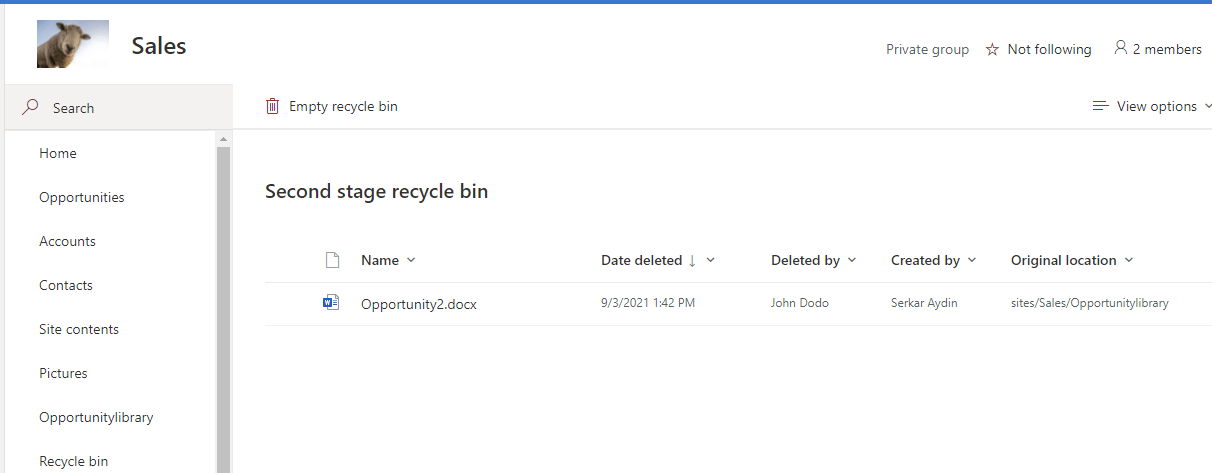
    This is the place, where we can see the files, which are in the second-stage recycle bin. We should see the opportunity2.docx file here:

    Screenshot of the second stage recycle bin

    Restore SharePoint files automatically from the second-stage recycle bin

    Prerequisites

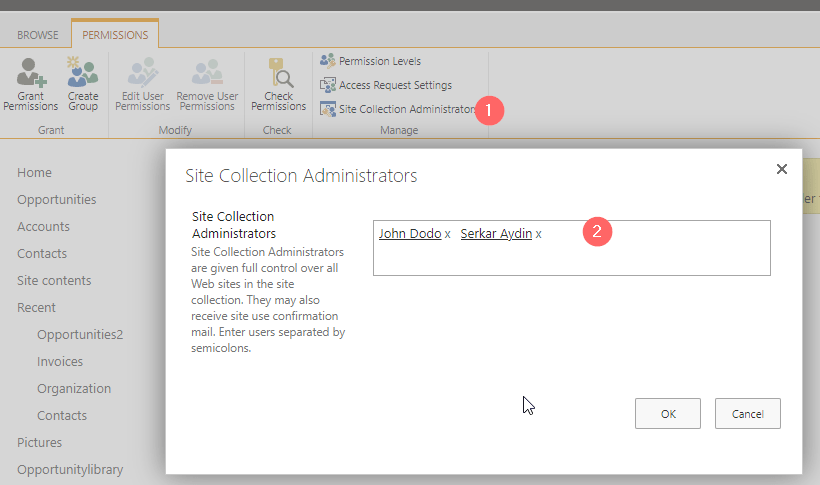
    The prerequisite is, that you have to use a user, which has site collection administrator permissions.

    Screenshot of site collection administrators

    Description

    Previously we saw, that you can restore files easily by hand, but imagine, that you have removed more than 100 files, this might be a bit clicky time-consuming. So let’s check what we can do with PNP PowerShell.

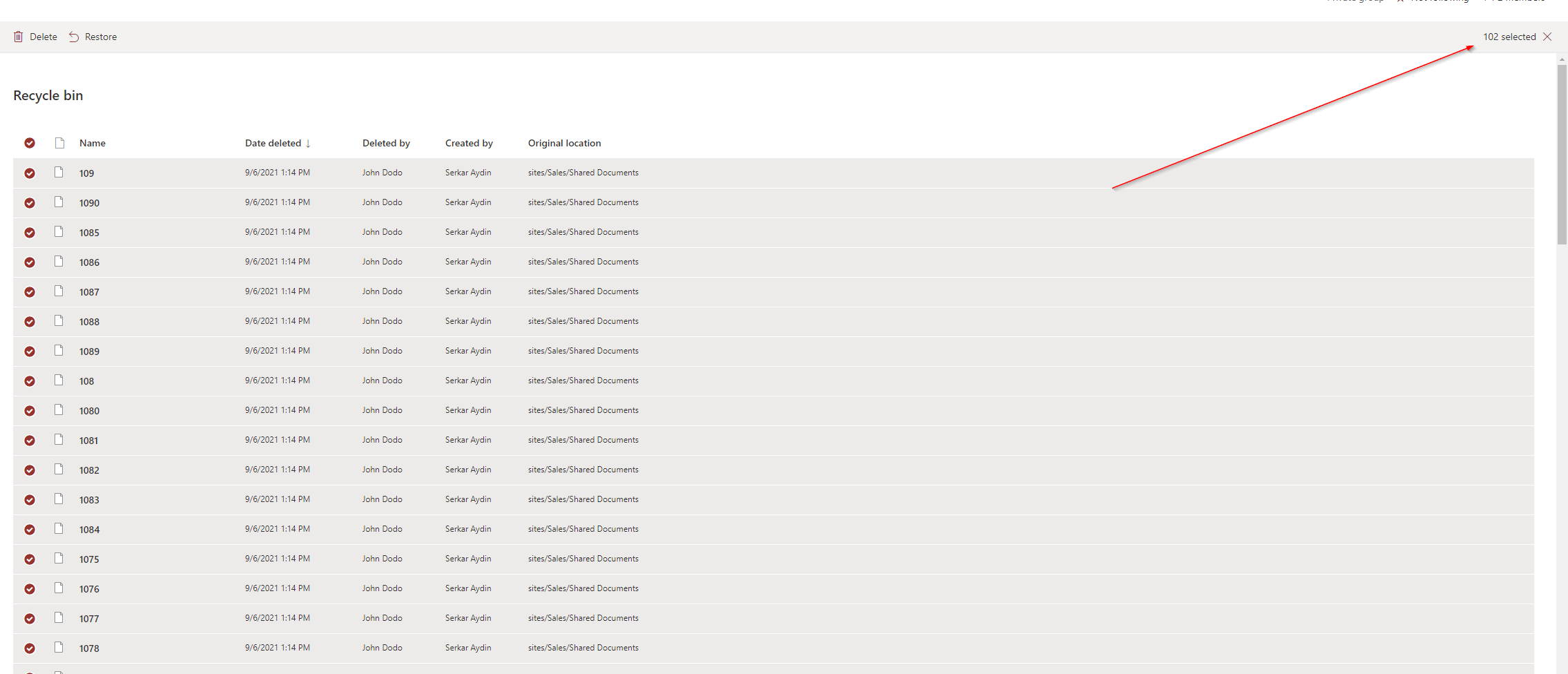
    I am using John Dodo, who is currently a site collection administrator. John Dodo has removed more than 100 files by accident and I want to restore SharePoint files removed by John Dodo. This is currently not possible in GUI.

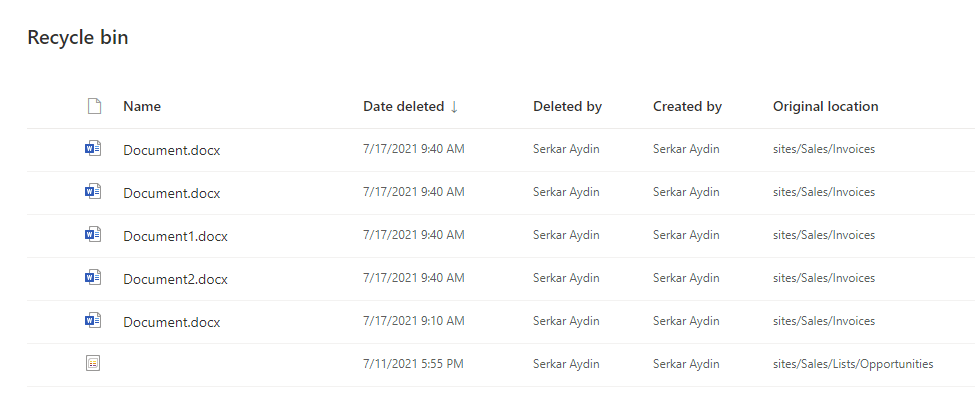
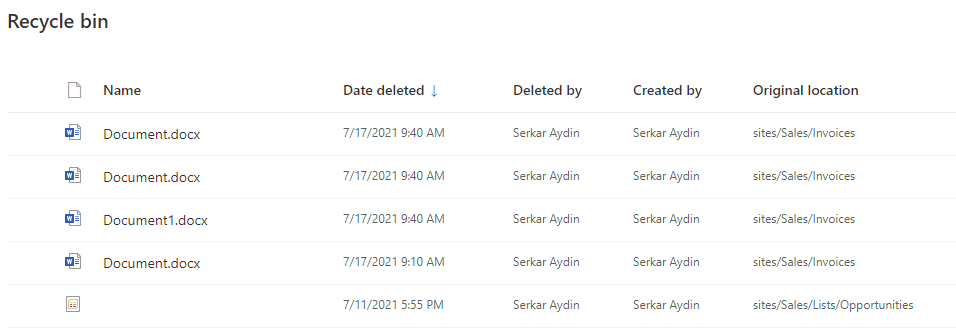
    Screenshot of removed items in the recycle bin

    In order to restore SharePoint files, I am using the PowerShell Module PNP.PowerShell.

    I am connecting to the sales site. If you feel unsafe with connecting, check out the post Connect to SharePoint with PowerShell | SharePoint Online (workplace-automation.com/)

    Connect-PnPOnline https://devmodernworkplace.sharepoint.com/sites/Sales/ -Interactive

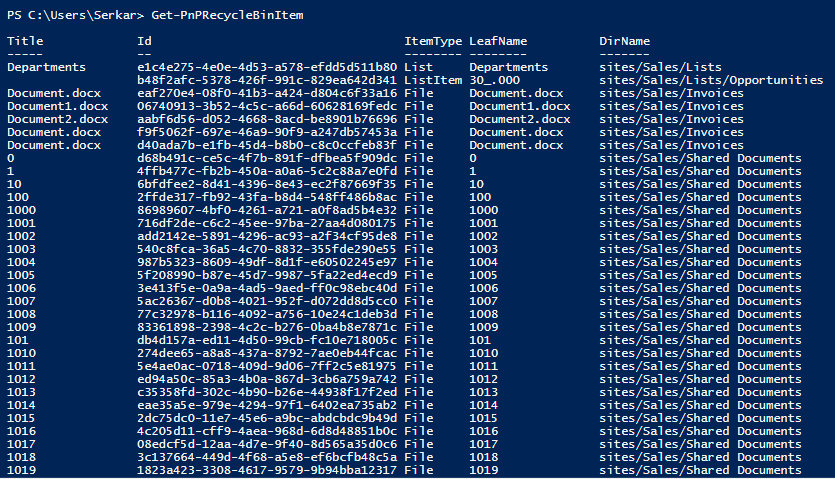
    After connecting, I can see the items in the recycle bin. I have removed more than 100 files. You can do it with the cmdlet:

    Get-PNPRecycleBinItem
    Screenshot of the removed files in PowerShell

    When you pass the ID, you can also get seperate recycle bin items:

    
    Get-PnPRecycleBinItem -Identity "eaf270e4-08f0-41b3-a424-d804c6f33a16"

    If you pipe the Item, you can directly restore it:

    Get-PnPRecycleBinItem  -Identity "eaf270e4-08f0-41b3-a424-d804c6f33a16" | Restore-PnPRecycleBinItem -Force
    
    Screenshot of a specific item in the recycle bin in PowerShell

    I want to restore only the files, from John Dodo, so I am doing the restore with the out grid view cmdlet:

    Get-PnPRecycleBinItem  |
        Select-Object Title, ID, AuthorEmail, DeletedbyEmail, DeletedDate, DirName | 
            Out-GridView -PassThru |
                ForEach-Object { Restore-PnPRecycleBinItem -Identity $_.Id.Guid -Force}

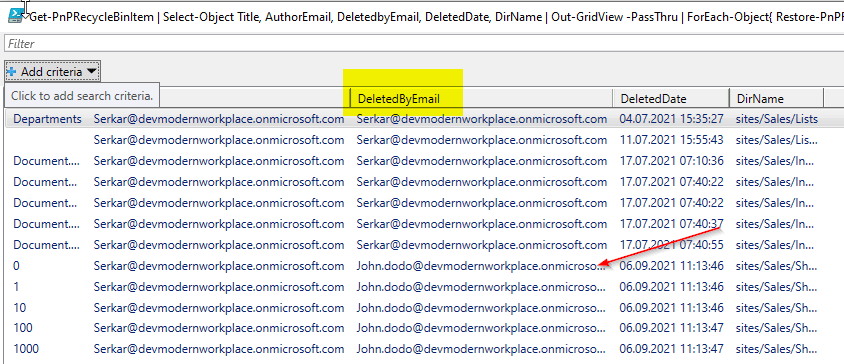
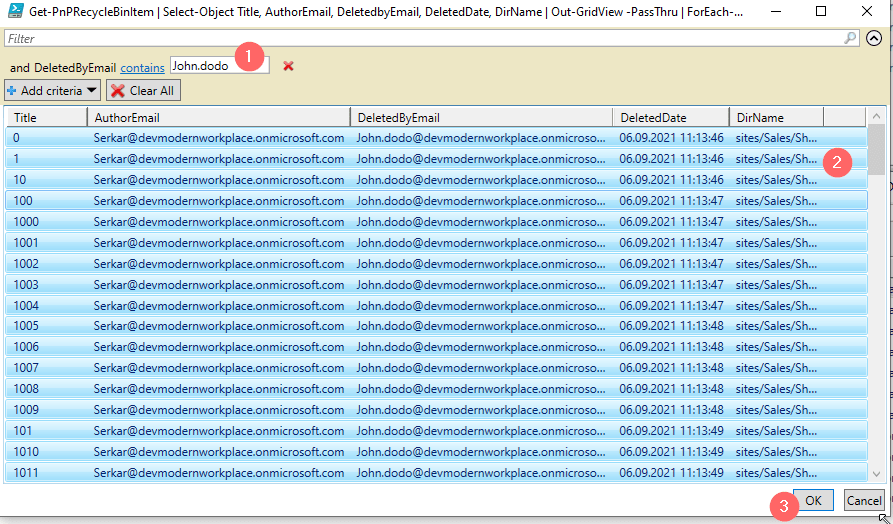
    Now you can see the grid, where you can choose John Dodo as the deletor:

    Screenshot of the out gridview output, which shows all the items in the recycle bin

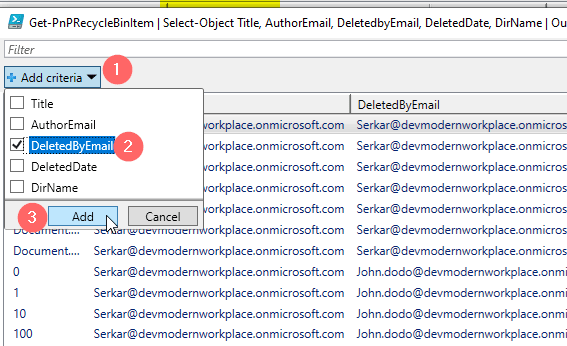
    I add a filter criteria:

    Screenshot of the out gridview output, which shows the SharePoint files, with filtering options

    Now I can add John Dodos mailaddress and with CTRL + A you can mark all entries and confirm with ok

    Screenshot of the out gridview output, which shows the SharePoint files, before the restore filtered on John.Dodo

    After doing this, the files, which have been by John Dodo are restored!

    Screenshot of the recycle bin after the restore of SharePoint files

    Troubleshooting

    If you experience this issue, your permission is not sufficient for the site:

    Get-PnPRecycleBinItem : Access is denied. (Exception from HRESULT: 0x80070005 (E_ACCESSDENIED))
    At line:1 char:1
    + Get-PnPRecycleBinItem
    + ~~~~~~~~~~~~~~~~~~~~~
        + CategoryInfo          : WriteError: (:) [Get-PnPRecycleBinItem], ServerUnauthorizedAccessException
        + FullyQualifiedErrorId : EXCEPTION,PnP.PowerShell.Commands.RecycleBin.GetRecycleBinItems

    If you encounter this issue, a file with the name already exists at the location, where it was. Rename the file in the library or remove it, to restore the file.

    Restore-PnPRecycleBinItem : A file with this name "Document.docx" already exists in "sites/Sales/Invoices". To restore the file, rename the existing file and try again.
    At line:17 char:30
    + ... rEach-Object { Restore-PnPRecycleBinItem -Identity $_.Id.Guid -Force}
    +                    ~~~~~~~~~~~~~~~~~~~~~~~~~~~~~~~~~~~~~~~~~~~~~~~~~~~~~
        + CategoryInfo          : WriteError: (:) [Restore-PnPRecycleBinItem], ServerException
        + FullyQualifiedErrorId : EXCEPTION,PnP.PowerShell.Commands.RecycleBin.RestoreRecycleBinItem

    If this error occurs, it is because you have stressed the API.

    Get-PnPRecycleBinItem : The request uses too many resources.
    At line:1 char:1
    + Get-PnPRecycleBinItem | Select-Object Title, ID, AuthorEmail, Deleted ...
    + ~~~~~~~~~~~~~~~~~~~~~
        + CategoryInfo          : WriteError: (:) [Get-PnPRecycleBinItem], ServerException
        + FullyQualifiedErrorId : EXCEPTION,PnP.PowerShell.Commands.RecycleBin.GetRecycleBinItems

    Retry your cmdlet and if it is still problematic, add -rowlimit 5000, so you will see the first 5000 items.

    If you add rowlimit to your code, it will look like this:

    Get-PnPRecycleBinItem -RowLimit 5000 |
        Select-Object Title, ID, AuthorEmail, DeletedbyEmail, DeletedDate, DirName | 
            Out-GridView -PassThru |
                ForEach-Object { Restore-PnPRecycleBinItem -Identity $_.Id.Guid -Force}

    BONUS: Ready-to-run PowerShell script

    param
    (
        [Parameter(Mandatory=$true,
                       ValueFromPipelineByPropertyName=$true,
                       Position=0)]
         $SiteUrl
    )
    
    
    Connect-PnPOnline -Url $SiteUrl -Interactive -ErrorAction Stop
    
    
    Get-PnPRecycleBinItem  |
        Select-Object Title, ID, AuthorEmail, DeletedbyEmail, DeletedDate, DirName | 
            Out-GridView -PassThru |
                ForEach-Object { Restore-PnPRecycleBinItem -Identity $_.Id.Guid -Force}

    Further Reading

    Out-Gridview gives us many possibilities to filter objects interactively, check out the blog post to learn more: How to filter for PowerShell objects easily | SPO Scripts

    Here you can find the official reference of Microsoft regarding the recycle bin: Manage the Recycle bin of a SharePoint site (microsoft.com)

    References

    Cover picture:

    Haus Foto erstellt von kues1 – de.freepik.com
  • 3 of the most important SharePoint PowerShell Modules and Snappins

    In my role as an automation consultant, I encounter several challenges, where you have to think out of the box. Thinking out of the box also means, to reconsider the tools, which you are using. If you start with SharePoint/ M365 automation, you will notice that there are at least three SharePoint PowerShell modules and snappins, with which you can automate your SharePoint environment. All of the SharePoint PowerShell modules/ snappins have indeed a reason for existence. In this article, I will show you where the focus of each module is, so you can get an idea, when to use which module. You will also get a overview, how to use all of them and what pros and cons eacht SharePoint PowerShell module/ snappin has.

    Think out of the box when designing an automation solution

    PNP PowerShell

    The beginning of PNP PowerShell was a community project of several developers, which have developed many client side object model (CSOM) wrappers for SharePoint 2013, 2016 and 2019. In fact PNP stands for Patterns and Practices. The modules are known as SharePointPnPPowerShell20xx or SharePointPnPPowerShellOnline. About the turn of the year all consolidated to PNP.PowerShell. Also the main focus from “catchall” have changed to the cloud version of SharePoint.

    When to use PNP PowerShell

    PNP.PowerShell is developing to one of the overreaching modules in Microsoft 365 cosmos. I would recommend to try everything first with PNP.PowerShell before you try doing it with SharePointOnlinePowerShell, since the development of the module goes on and on and you can do way more things with PNP PowerShell, than with SharePointOnlinePowerShell in terms of business process automation.

    Topics covered by PNP PowerShell

    Currently PNP PowerShell covers following topics and services:

    • SharePoint Online
    • SharePoint Server (on premises)
    • M365 Groups
    • Power Automate
    • Azure AD
    • SharePoint Syntex
    • Microsoft Teams
    • Microsoft Planner

    Pros and Cons of PNP PowerShell

    ProsCons
    ✅ You can use it for on-premises and cloud services❌ Some cmdlets are not working as expected e.g. Set-PNPSite -SitecollectionAdmin
    ✅ You can use it on all servers/ clients, which have access to the tenant/ farm (online or on-premises)❌ With constant development, cmdlets might change, so you have to monitor the changes, when updating the module
    ✅ Constant development of module❌ You have to consent the access with the global admin role
    ✅ Supports many branches of M365 (SharePoint, Teams, Planner etc.)❌ Microsoft Support won’t support if there is a bug in the modules. You have to open a request in github
    ✅ You don’t have to make breaking changes to your scripts if you move from SharePoint Server to SharePoint Online
    ✅ You can change a wide range of content in SharePoint (Sites, Lists, Items)
    ✅ You don’t need SharePoint Admin permission to connect to a site

    How to make use of PNP PowerShell?

    If you want to make use of PNP PowerShell, check out this blog post, which describes every step of it in detail: Connect to SharePoint with PowerShell | SharePoint Online (workplace-automation.com/)
    What can I change with PNP PowerShell?

    In this section, I want to give you an overview of what you can change with PNP Powershell. Indeed there are more objects in SharePoint. I focus in the first place on objects, which I think are mostly changed with PowerShell for business process automation.

    ObjectChanging
    possible
    with
    PNP PowerShell?
    CmdletPrequisitesReference
    TenantSet-PNPTenantSharePoint Admin RoleSet-PnPTenant (PnP.Powershell) | Microsoft Docs
    Hub SiteSet-PNPHubSite Access to SiteSet-PnPHubSite (PnP.Powershell) | Microsoft Docs
    SiteSet-PNPSiteAccess to Site Set-PnPSite (PnP.Powershell) | Microsoft Docs
    Sub SiteSet-PNPWeb Access to Site and SubsiteSet-PnPWeb (PnP.Powershell) | Microsoft Docs
    ListSet-PNPList Access to Site & ListSet-PnPList (PnP.Powershell) | Microsoft Docs
    LibrarySet-PNPSite Access to Site & Library Set-PnPList (PnP.Powershell) | Microsoft Docs
    ItemSet-PNPListItemAccess to Site & List & ItemSet-PnPListItem (PnP.Powershell) | Microsoft Docs
    FileSet-PNPListItem Access to Site & Library & FileSet-PnPListItem (PnP.Powershell) | Microsoft Docs
    PageSet-PNPage Access to Site & Library & Page Set-PnPPage (PnP.Powershell) | Microsoft Docs

    Who is maintaing PNP PowerShell?

    The module is maintained by the PNP Developer Community. At this stage I have to thank you guys for your hard and good work. It was really a game changer, when I didn’t had to use scripts on the SharePoint Server.

    Since it is all open source, you can also check the source code here: Microsoft 365 Community (github.com)

    You can find more about the community here: SharePoint Developer Community (SharePoint PnP) resources | Microsoft Docs

    What if I find a bug in PNP Powershell?

    Be sure to follow their rules, when you open an issue, so they can help you faster. In the first step check the discussions. You have to be patient, since it is a community developed module.

    If you find a bug, you have to open a github issue here: pnp/powershell: PnP PowerShell (github.com)

    SharePointOnlinePowerShell

    SharePointOnlinePowerShell is the official Module, which is published by Microsoft. In comparison to PNP Powershell, SharePointOnlinePowerShell focuses only on the administration of SharePoint Online.

    When to use SharePointOnlinePowerShell

    My strategy is to use SharePointOnlinePowerShell, when I experience a buggy behaviour by PNP.PowerShell. Altough it is the official SharePoint PowerShell module, you cannot change e.g. list items.

    Topics covered by SharePointOnlinePowerShell

    SharePointOnlinePowerShell is only focussing on SharePoint Online. You cannot connect to another service or to SharePoint Server (on premises).

    Pros and Cons of SharePointOnlinePowerShell

    ProsCons
    ✅ I have experienced more stability on this module – It tends to have less bugs❌ You can only administer SharePoint. Business process automation will be hard to cover with this module, because you cannot change webs, lists or items
    ✅ It is supported by Microsoft❌ You can use it only for SharePoint Online
    ✅ Constant development of module – I have not experienced any breaking changes❌ You have to have SharePoint admin role

    How to make use of SharePointOnlinePowerShell?

    I have described how to install and connect with this SharePoint PowerShell Module here: SharePointOnlinePowerShell: How to connect to SharePoint Online (workplace-automation.com/)
    What can I change with SharePointOnlinePowerShell ?

    In this section, I want to give you a overview of what you can change with PNP Powershell.

    ObjectChanging
    possible
    with
    SharePointOnlinePowerShell?
    CmdletPrequisitesReference
    TenantSet-SPOTenantSharePoint Admin RoleSet-SPOTenant (SharePointOnlinePowerShell) | Microsoft Docs
    Hub SiteSet-PNPHubSite SharePoint Admin RoleSet-SPOHubSite (SharePointOnlinePowerShell) | Microsoft Docs
    SiteSet-SPOSiteSharePoint Admin RoleSet-SPOSite (SharePointOnlinePowerShell) | Microsoft Docs
    Sub Site
    List
    Library
    Item
    File
    Page

    Who is maintaing SharePointOnlinePowerShell?

    The module is developed and maintained by Microsoft. You can find the source code is here: Microsoft 365 Community (github.com)

    What if I find a bug in SharePointOnlinePowerShell ?

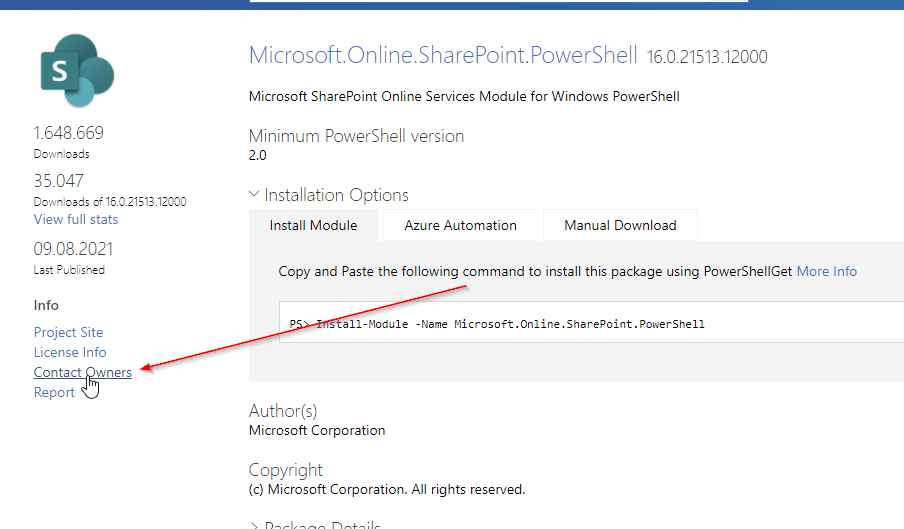
    You can contact Microsoft Support or try to “Contact Owners” in PowerShellGallery: https://www.powershellgallery.com/packages/Microsoft.Online.SharePoint.PowerShell

    SharePointOnlinePowerShell PowerShell Gallery

    Microsoft.SharePoint.PowerShell

    Microsoft.SharePoint PowerShell is the only type of cmdlets, which is not a SharePoint PowerShell Module, but a PSSnappin. Snapins are considered as the old way to add cmdlets and other resources. It’s focus is SharePoint Server.

    When to use Microsoft.SharePoint.PowerShell

    I recommend to use Microsoft.SharePoint.PowerShell in following situations:

    • You don’t plan to migrate the automation solution to SharePoint Online
    • You have access to the SharePoint Servers
    • You want to administer SharePoint Server

    Topics covered by Microsoft.SharePoint.PowerShell

    With Microsoft.SharePoint.PowerShell you can only connect to SharePoint Server (on premises). You can see all cmdlets here from the Microsoft reference: SharePointServer Module | Microsoft Docs

    Pros and Cons of Microsoft.SharePoint.PowerShell

    ProsCons
    ✅ Microsoft.SharePoint.PowerShell is a established PSSNappin, which tends to have very few bugs❌ You have to readapt the scripts, if you want to migrate to SharePoint Online
    ✅ It is supported by Microsoft❌ You can use it only for SharePoint Server
    ✅ You can change nearly everything with this SharePoint PowerShell Module on your SharePoint Server❌ You need SPShellAdmin rights to access SharePoint Server with this SharePoint PowerShell Module

    How to make use of Microsoft.SharePoint.PowerShell?

    1. Connect to SharePoint Server with a user, which is SPShellAdmin
    2. Start Windows PowerShell
    3. Type Add-PSSnapin Microsoft.SharePoint.Powershell
    4. You are connected!

    What can I change with Microsoft.SharePoint.PowerShell?

    If you work with this SharePoint PowerShell snappin, you will notice, that you have to use mostly the SpWeb classes to change everything below a SpWeb. Check out the Microsoft docs to see, which classes are below SPWeb: SPWeb Class (Microsoft.SharePoint) | Microsoft Docs. If you need help, don’t hesitate to contact me: Serkar@workplace-automation.com

    ObjectChanging
    possible
    with
    PNP PowerShell?
    CmdletPrequisitesReference
    FarmSet-SPFarmConfigSPShellAdminAcessSet-SPFarmConfig (SharePointServer) | Microsoft Docs
    SiteSet-SPSite SPShellAdminAcess Set-SPSite (SharePointServer) | Microsoft Docs
    Sub SiteSet-SPWeb SPShellAdminAcess Set-SPWeb (SharePointServer) | Microsoft Docs
    ListNo dedicated cmdlet. You have to call lists from web object
    (get-spweb "url").lists
    SPShellAdminAcess
    Library No dedicated cmdlet. You have to call libraries from web object

    (get-spweb "url").lists
    SPShellAdminAcess
    ItemNo dedicated cmdlet. You have to call libraries from list object

    (get-spweb "url").lists.items
    SPShellAdminAcess
    FileNo dedicated cmdlet -You have to call the file from the item object

    (get-spweb "url").lists.items[0].file
    SPShellAdminAcess
    PageNo dedicated cmdlet – You have to call it from the sitepages library. SPShellAdminAcess

    Who is maintaing Microsoft.SharePoint.PowerShell?

    The module is maintained by Microsoft.

    What if I find a bug in Microsoft.SharePoint.PowerShell?

    You can contact Microsoft Support and report the bug there.

    Conclusio

    As you saw each of the SharePoint PowerShell module / snappin got its pros and cons. PNP PowerShell is the number one choice, if you want to automate processes in Microsoft Cloud. Beside this SharePointOnlinePowerShell is the second tool recommended, If you only seek to administer SharePoint Online. As a final point Microsoft.SharePoint.PowerShell should be mentioned as a powerful tool if you want to administer SharePoint Server (on-premises). If I missed a point, I would appreciate, if you contact me: serkar@workplace-automation.com.

    Further Documentation

    This is the direct link to PNP documentation: http://aka.ms/m365pnp

    PNP provide code samples, which you can find here: PnP | Microsoft 365

    You can check out the PNP repro on github here. GitHub – pnp/powershell: PnP PowerShell