

The corporate design covers besides colors and fonts a logo, which is located in the upper left corner of the SharePoint site collection. If you want to automate your SharePoint intranet, you might want, that your corporate design is applied to your SharePoint Sites automatically. Changing Change SharePoint site collection logos can be done in various ways. I want to show you how you can change your SharePoint site collection logo in the GUI and with PowerShell.
Change SharePoint site collection logo in the GUI
As one can see, the logo is displayed with the initials of the SharePoint site:
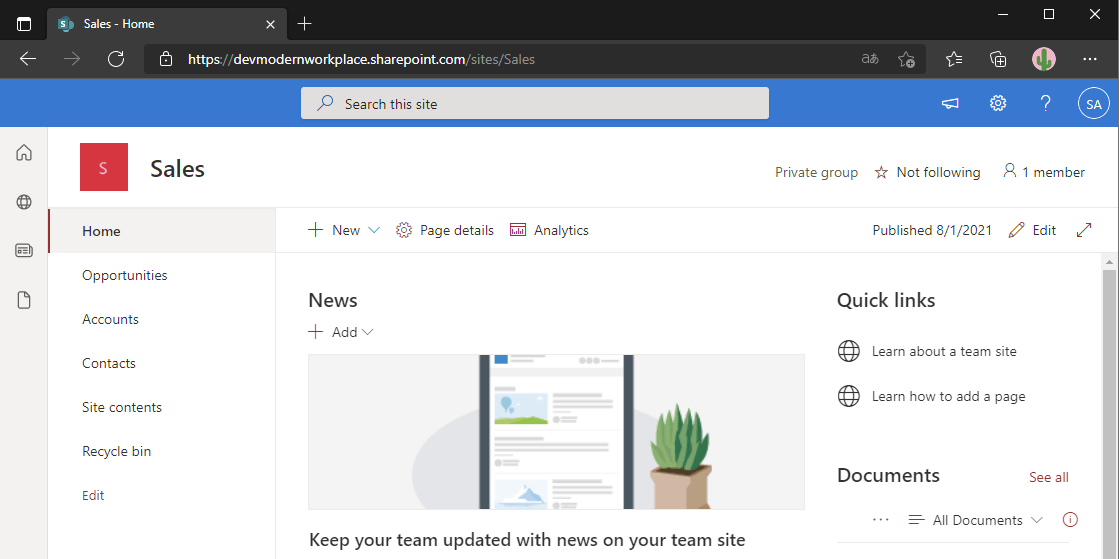
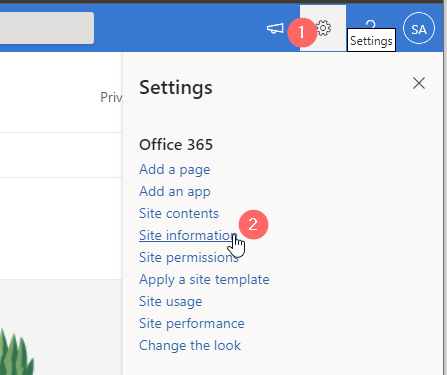
So if we want to change the logo, we have to open the SharePoint Site settings -> Site information:
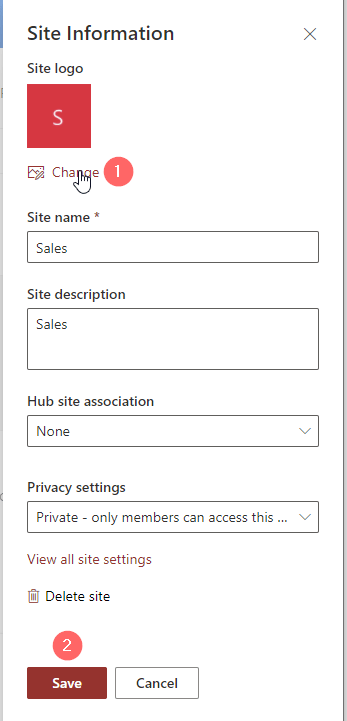
Here you can change the logo and save it.
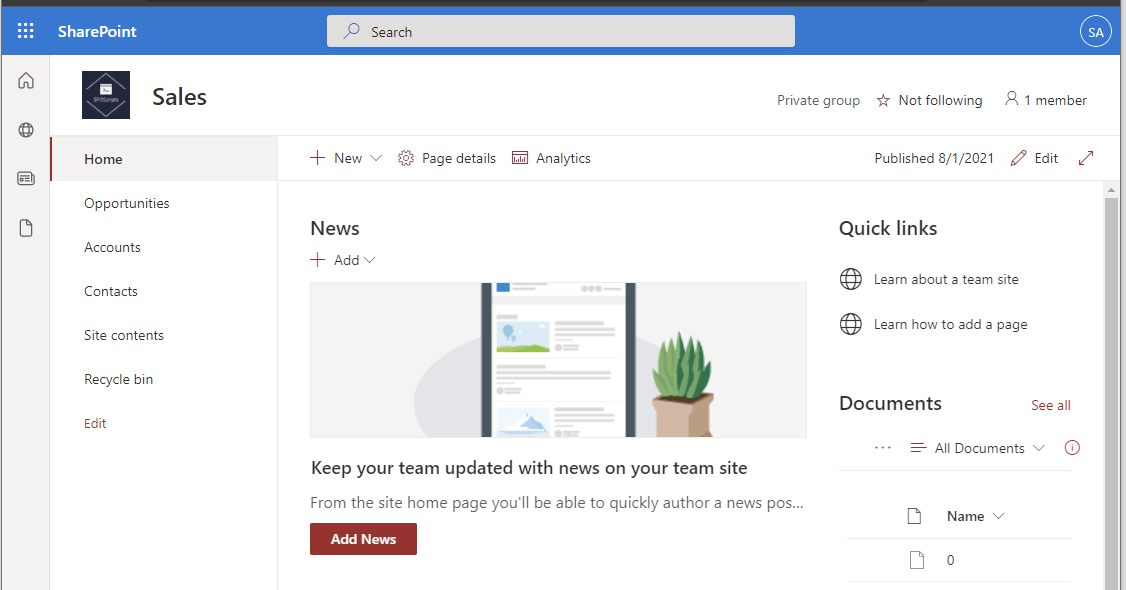
I took the logo of SPOScripts.
Change SharePoint site collection logo from local File
You can change your SharePoint site collection logo from a local file, like your file system. You cannot use this method easily in azure automation, since you got no “local client”.
First connect to you SharePoint with PNP. If you don’t know how to, check following article: Connect to SharePoint with PowerShell | SharePoint Online (workplace-automation.com/)
In my case I am connecting to the sales site.
$Url = "https://devmodernworkplace.sharepoint.com/sites/Sales"

$Credential = Get-Credential
Connect-PnPOnline -Url $Url -Credentials $Credential
After connecting, you can set the logo like this:
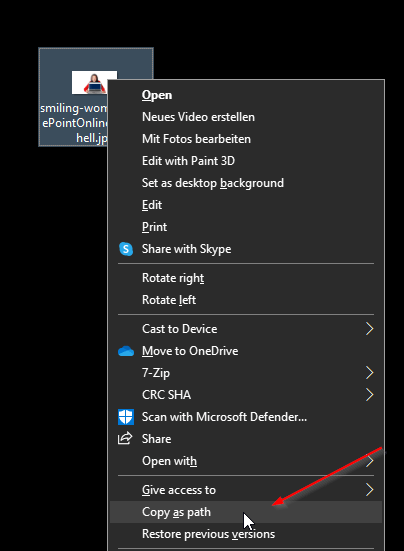
Set-PnPSite -Identity $Url -LogoFilePath "C:\Users\Serkar\Downloads\business-15822_1280.jpg"Did you know that you can copy the path with CTRL + Right mouse button?
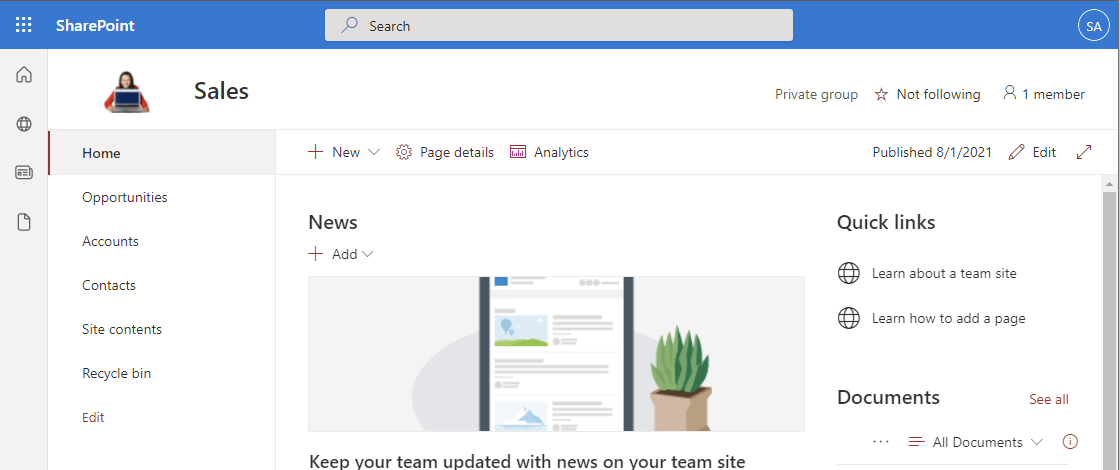
After doing this, the logo changes:
Change SharePoint site collection logo from Library
Now it gets interesting. This approach let’s you choose a logo from a SharePoint site library, doesn’t matter wether you choose your current site or another site.
This is especially interesting for Azure Automation, since you got no easy local file access. You could create a storage account and access the local file over a blob storage. Since I got an easier way for azure automation, I will describe the easy way.
I have located a photo image in the library, which we will use as the logo.
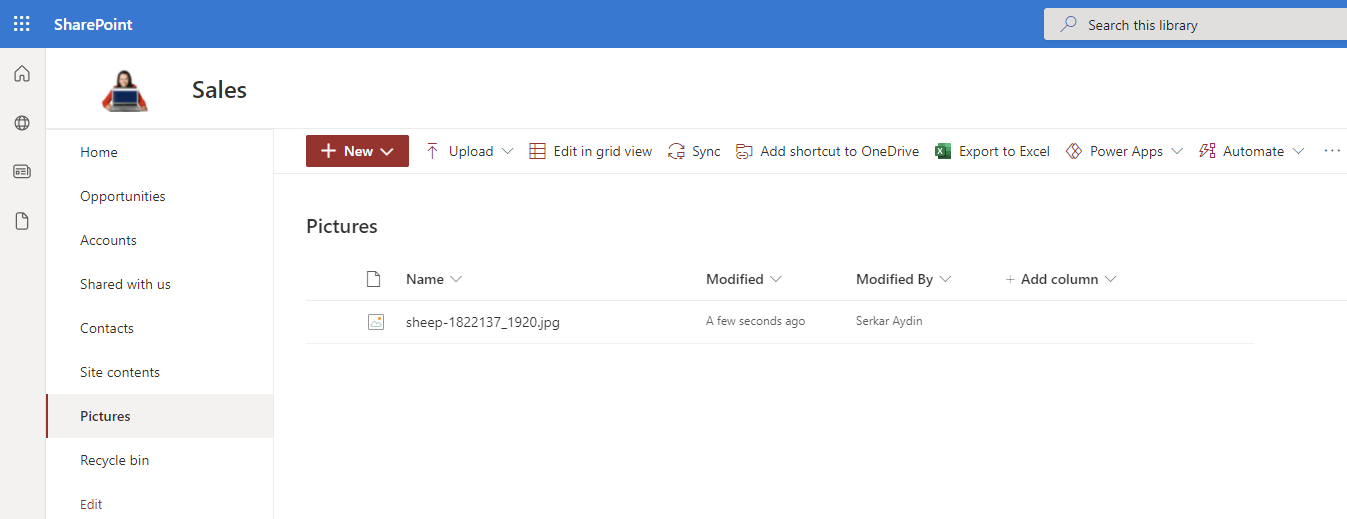
We have to copy the URL of the picture.
Click on the picture

Click on View original
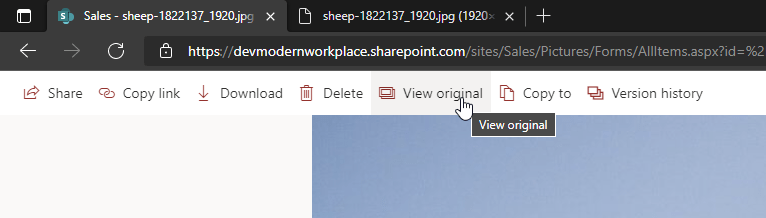
Now copy the url

Connect to your SharePoint Site.
$Url = "https://devmodernworkplace.sharepoint.com/sites/Sales"

$Credential = Get-Credential
Connect-PnPOnline -Url $Url -Credentials $Credential
After connecting, replace the variable SiteLogoUrl and run the cmdlets:
$SiteLogoUrl  = "https://devmodernworkplace.sharepoint.com/sites/Sales/Pictures/sheep-1822137_1920.jpg"

$Ctx = Get-PnPContext
$Web = Get-PnPWeb

$Ctx.Load($Web)
$Ctx.ExecuteQuery()
$Web.SiteLogoURL = $SiteLogoUrl
$Web.Update()
$Ctx.ExecuteQuery()
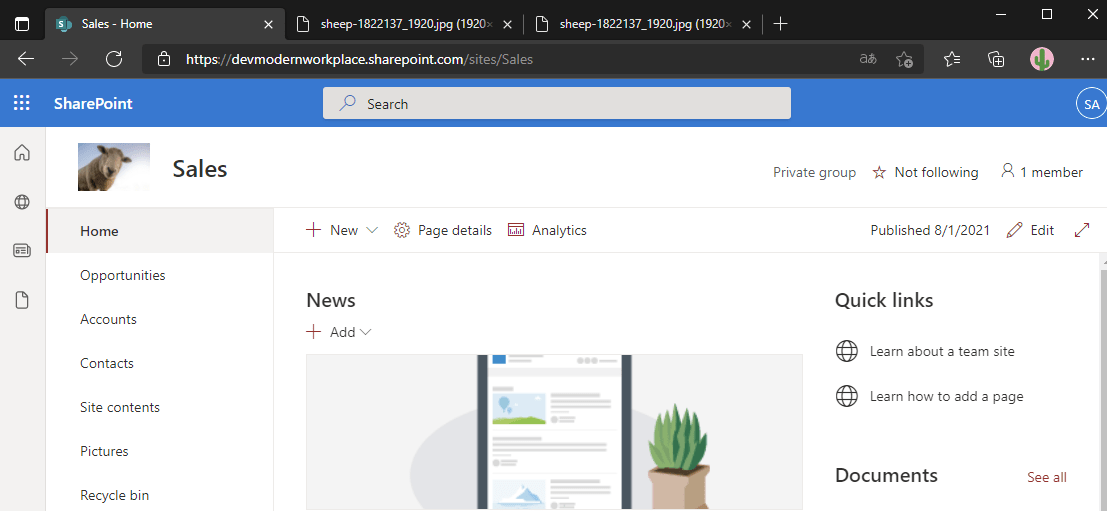
As you can see, we could update the logo succesfully
Further Reading
Here you can find the official reference for Set-PNPSite: Set-PnPSite (PnP.Powershell) | Microsoft Docs
Leave a Reply