Tag: sharepoint powershell

  • Upload documents to SharePoint (PNP.PowerShell)

    Upload documents to SharePoint (PNP.PowerShell)

    Since SharePoint is not the only system you are using in your company, it might help to know how to upload documents to SharePoint from different systems programmatically. In this article, I want to show you what you can upload all types of files to SharePoint and what to consider, when you want to upload documents to SharePoint with PowerShell.

    Prerequisites

    In order to upload documents to SharePoint programmatically, you have to ensure, that these prerequisites are met.

    Before you run the scripts

    In the following script, I have used a credential file, which you also should generate. Why? Because the purpose of this script, is to run in the background, without a credential prompt, so you can use it in a scheduled task. Don’t forget to change the parameters to your corresponding scenario.
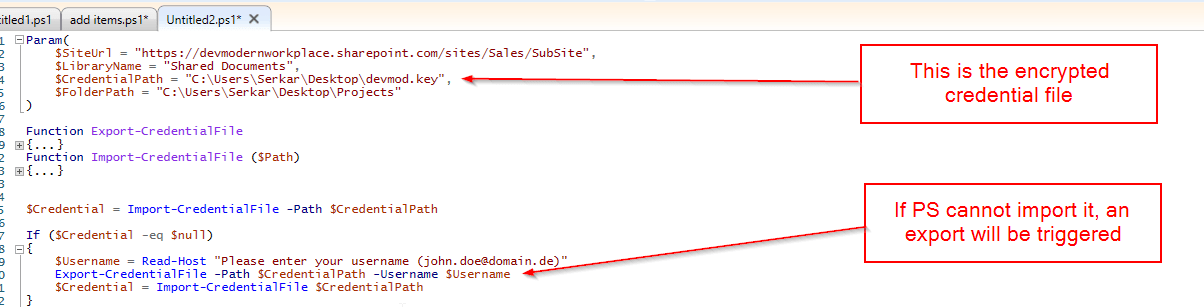
    Explanation of credential handling

    PowerShell Scripts

    I have provided a script to upload a single file and one to upload multiple files to the library.

    Upload single document to SharePoint with PowerShell

    With this script you can upload a single document to SharePoint with a PowerShell script. The script is ready to be used for a scheduled task, but before you plan it, run it with your service account.

    Before:
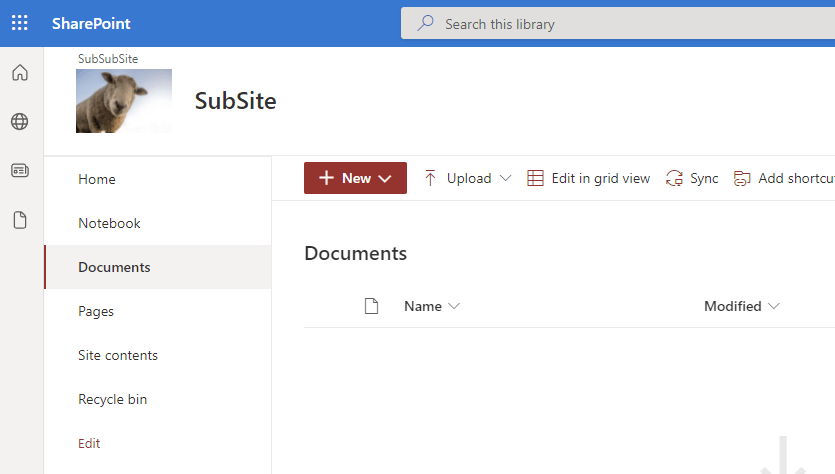
    SharePoint library before upload documents to SharePoint proceeded

    Param(
        $SiteUrl = "https://devmodernworkplace.sharepoint.com/sites/Sales/SubSite",
        $LibraryName = "Documents",
        $CredentialPath = "C:\Users\Serkar\Desktop\devmod.key",
        $FilePath = "C:\Users\Serkar\Desktop\Projectscope.xlsx"
    )
    
    Function Export-CredentialFile 
    {
        param(
        $Username,
        $Path
        )
        While ($Username -eq "" -or $null -eq $Username)
        {
            $Username = Read-Host "Please enter your username (john.doe@domain.de)"
        }
        
        While ($Path -eq ""-or $null -eq $Path)
        {
            $Path = Read-Host "Where should the credentials be exported to?"
        }
        $ParentPath = Split-Path $Path
        If ((Test-Path $ParentPath) -eq $false)
        {
            New-Item -ItemType Directory -Path $ParentPath
        }
        $Credential = Get-Credential($Username)
        $Credential | Export-Clixml -Path $Path
        Return $Credential
    }
    Function Import-CredentialFile ($Path)
    {
        if (! (Test-Path $Path))
        {
            Write-Host "Could not find the credential object at $Path. Please export your credentials first"
        }
        else
        {
            Import-Clixml -Path $Path
        }
    }
    
    
    $Credential = Import-CredentialFile -Path $CredentialPath 
    
    If ($Credential -eq $null)
    {
        $Username = Read-Host "Please enter your username (john.doe@domain.de)"
        Export-CredentialFile -Path $CredentialPath -Username $Username
        $Credential = Import-CredentialFile $CredentialPath
    }
    
    #Connect to site
    Connect-PnPOnline -Url $SiteUrl -Credentials $Credential
    
    #upload documents to SharePoint
    Add-PnPFile -Path $FilePath -Folder $LibraryName

    After:
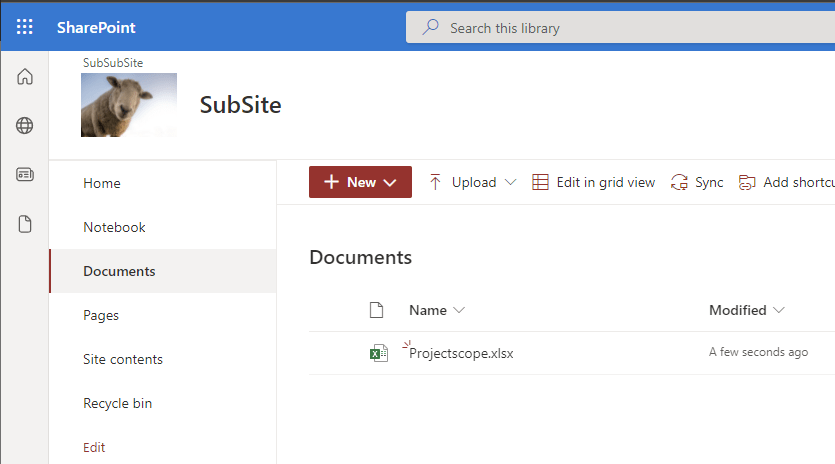
    SharePoint library after upload documents to SharePoint proceeded

    Upload multiple documents to SharePoint with PowerShell

    In order to upload multiple documents to SharePoint, I recommend putting the files in a dedicated folder, so the script can iterate through all documents in the folder.
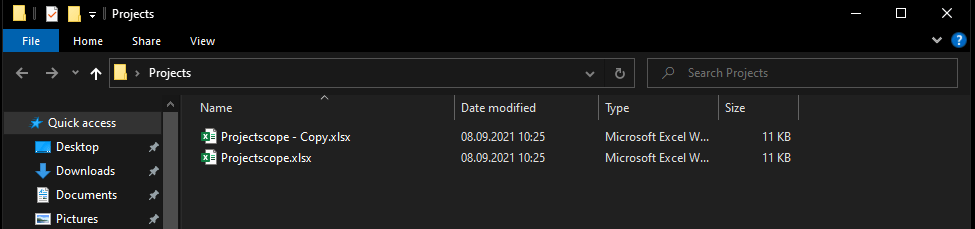
    Screenshot of a folder, where all documents are located in

    Before:

    SharePoint library before upload documents to SharePoint proceeded
    Param(
        $SiteUrl = "https://devmodernworkplace.sharepoint.com/sites/Sales/SubSite",
        $LibraryName = "Shared Documents",
        $CredentialPath = "C:\Users\Serkar\Desktop\devmod.key",
        $FolderPath = "C:\Users\Serkar\Desktop\Projects"
    )
    
    Function Export-CredentialFile 
    {
        param(
        $Username,
        $Path
        )
        While ($Username -eq "" -or $null -eq $Username)
        {
            $Username = Read-Host "Please enter your username (john.doe@domain.de)"
        }
        
        While ($Path -eq ""-or $null -eq $Path)
        {
            $Path = Read-Host "Where should the credentials be exported to?"
        }
        $ParentPath = Split-Path $Path
        If ((Test-Path $ParentPath) -eq $false)
        {
            New-Item -ItemType Directory -Path $ParentPath
        }
        $Credential = Get-Credential($Username)
        $Credential | Export-Clixml -Path $Path
        Return $Credential
    }
    Function Import-CredentialFile ($Path)
    {
        if (! (Test-Path $Path))
        {
            Write-Host "Could not find the credential object at $Path. Please export your credentials first"
        }
        else
        {
            Import-Clixml -Path $Path
        }
    }
    
    
    $Credential = Import-CredentialFile -Path $CredentialPath 
    
    If ($Credential -eq $null)
    {
        $Username = Read-Host "Please enter your username (john.doe@domain.de)"
        Export-CredentialFile -Path $CredentialPath -Username $Username
        $Credential = Import-CredentialFile $CredentialPath
    }
    
    #Connect to site
    Connect-PnPOnline -Url $SiteUrl -Credentials $Credential
    
    
    #upload documents to SharePoint
    Get-ChildItem -Path $FolderPath |ForEach-Object {
        Add-PnPFile -Path $_.FullName -Folder $LibraryName
    
    }

    After:
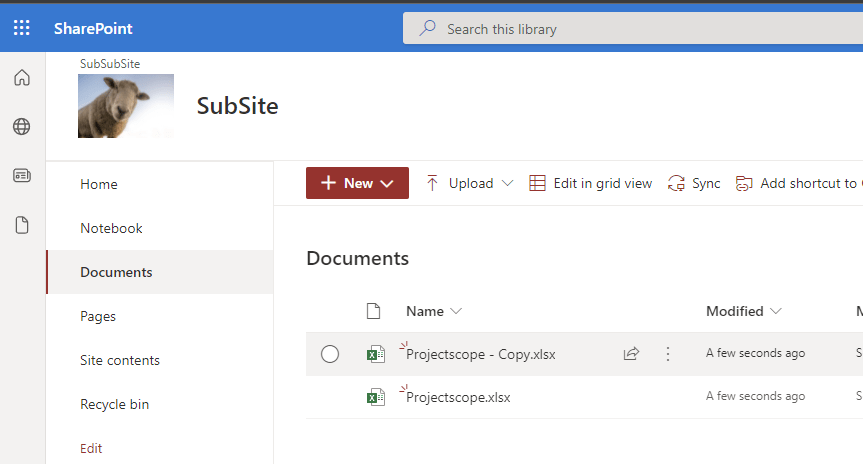
    SharePoint library after upload documents to SharePoint proceeded

    Troubleshooting

    Access denied

    Access denied error message
    Add-PnPFile -Path $FilePath -Folder $LibraryName
    Add-PnPFile : Access denied.
    At line:1 char:1
    + Add-PnPFile -Path $FilePath -Folder $LibraryName
    + ~~~~~~~~~~~~~~~~~~~~~~~~~~~~~~~~~~~~~~~~~~~~~~~~
        + CategoryInfo          : WriteError: (:) [Add-PnPFile], ServerUnauthorizedAccessException
        + FullyQualifiedErrorId : EXCEPTION,PnP.PowerShell.Commands.Files.AddFile

    If you experience this issue, custom scripts are not allowed on this site. You have to enable it by connecting to the tenant with a SharePoint Administrator and enabling custom scripts:

    $SiteUrl = "https://devmodernworkplace.sharepoint.com/sites/Sales"
    $TenantUrl = "https://devmodernworkplace-admin.sharepoint.com/"
    
    Connect-PnPOnline $TenantUrl -interactive
    Set-PnPTenantSite $SiteUrl -DenyAddAndCustomizePages:$false
    Disconnect-PnPOnline

    If you want to read more about custom site scripts, check out this article: Allow or prevent custom script – SharePoint in Microsoft 365 | Microsoft Docs

    Further Readin

    If you want to upload files with Graph, check out the recent blog post:

    How to Upload Files to SharePoint using Graph API PowerShell (workplace-automation.com/)
  • SharePoint Site Usage: Get active Sites for last 6 months with PowerShell

    SharePoint Site Usage: Get active Sites for last 6 months with PowerShell

    Hi folks, when migrating our SharePoint to SharePoint Online, it can be really hard to separate the wheat from the chaff. SharePoint Site usage helps you find, what is actually used in your current farm. SharePoint farms grow by new projects and with the change of structures. If you want to have an overview, it is every time a good idea, to get rid of old stuff.

    Administrators, who is searching for SharePoint Site usage

    In a previous article, I showed you how to get all sites and subsites in SharePoint Online. This is a good basis, but if you need more, you should definitely continue reading. In this article, I want to show you one of my tools, which shows you the SharePoint site usage for previous months, so you understand what is needed in your new environment and what’s not. I am getting the data by using the interface IAnalyticsItemData of the search analytics component.

    Prerequisites

    • SharePoint Search is up and running
    • You have access to SharePoint Server with a highly privileged account (SP_Admin or SP_Farm)

    Description of the PowerShell script

    This script iterates through all sites and asks the Search service application for the roll-up analytics data for the month specific month. The offset is the integer, which states a gap between the current month and the offset month.

    Example:

    If the variable PrevMonthOffset is 3, it is 3 months ago from the current month.

    After you run the script and export will be created at your user’s desktop with all the site usage for the previous months. The current configuration in the script shows the SharePoint Site usage for the previous six months ($PrevMonthOffset = 6). You can change it for more months, if you need to.

    SharePoint Site Usage PowerShell script

    If you run the script like this, you do get the SharePoint site usage statistics for the last six months.

    param (
        $DesktopPath = [System.Environment]::GetFolderPath([System.Environment+SpecialFolder]::Desktop),
        $global:exportpath = $DesktopPath + "\sitestats.csv",
        $PrevMonthOffset = 6
    )
    
    Add-PSSnapin "Microsoft.SharePoint.PowerShell"
    
    $global:SuccesCount = 0
    $global:ErrorCount= 0
    
    $SearchApp = Get-SPEnterpriseSearchServiceApplication
    
    function Get-Stats {
        param
        (
            $SiteCollection,
            $Subsite,
            $PrevMonthOffset
        )
    
        $Offset = $PrevMonthOffset
        while ($Offset -lt 6)
        {
            [System.Int32]$Hits =0
            [System.Int32]$UniqueVisitor =0
            $Offsetfactor = -1 * $Offset
            $RootResult = $SearchApp.GetRollupAnalyticsItemData(1,[System.Guid]::Empty,$SiteCollection.ID,$Subsite.id)
            $Date = (Get-Date).AddMonths($Offsetfactor)    
            
            $RootResult.GetMonthlyData($Date,[REF]$Hits,[REF]$UniqueVisitor)
            $HitsPreviousName = "_HitsPrevious"+$Offset + "month" 
            $UniqueVisitorName = "_UniqueVisitor" +$Offset +"month"
    
            $Subsite | Add-Member -MemberType NoteProperty -Name $HitsPreviousName -Value $Hits -Force
            $Subsite | Add-Member -MemberType NoteProperty -Name $UniqueVisitorName -Value $UniqueVisitor -Force


            $Offset ++
        }
        try
        {
            $Subsite | Select-Object url, *_* | Export-Csv -Path $exportpath -Append -Delimiter ";" -NoTypeInformation -ErrorAction Stop
            $global:SuccesCount++
        }
        catch
        {
            $Subsite.url
            $global:ErrorCount++
        }
    }
    
    $SiteCollections = Get-SPSite -Limit All
    
    Foreach ($SiteCollection in $SiteCollections)
    {
        $SiteCollection.AllWebs | ForEach-Object{ Get-Stats -SiteCollection $SiteCollection -Subsite $_ -PrevMonthOffset $PrevMonthOffset}
    
    }
    
    Write-Host "success: $global:SuccesCount error: $global:ErrorCount "

    Further reading

    There are a few more methods the analytics item data provides. You can find them here:

    GetDailyData(DateTime, Int32, Int32)
    GetHitCountForDay(DateTime)
    GetHitCountForMonth(DateTime)
    GetMonthlyData(DateTime, Int32, Int32)
    GetUniqueUsersCountForDay(DateTime)
    GetUniqueUsersCountForMonth(DateTime)

    IAnalyticsItemData Interface (Microsoft.Office.Server.Search.Analytics) | Microsoft Docs

    Image reference

    Data vector created by stories – www.freepik.com

    Image by mohamed Hassan from Pixabay

  • How to connect to SharePoint Online with SharePointOnlinePowerShell

    Besides the possibility to manage your SharePoint Online in the SharePoint admin center, you have the option to do it with PowerShell. For this tasks Microsoft has published the PowerShell module SharePointOnlinePowerShell. It’s focus is more administrative tasks, than process automation. You can e.g. change the SharePoints Tenants policies, but you cannot create list items with this PowerShell module. The module is constantly developed by Microsoft it bears 223 cmdlets (16.08.2021).

    Scope of SharePointOnlinePowerShell

    I recommend checking the scope with following cmdlet:

    Get-Command -Module Microsoft.Online.SharePoint.PowerShell | out-gridview -passthru

    Prerequisites

    • If you want to connect to SharePoint Online with SharePointOnlinePowerShell, you need a user with the SharePoint Administrator role.
    • You need Windows PowerShell 2.0 or higher to run the module

    Installation of SharePointOnlinePowerShell

    The name for the installation is different then in the documentation. The technical name is Microsoft.Online.SharePoint.PowerShell. You can install the module Microsoft.Online.SharePoint.PowerShell with following PowerShell cmdlet:

    Install-Module -Name Microsoft.Online.SharePoint.PowerShell

    If you have not trusted PSGallery yet, you will be prompted if you trust this repository. You can confirm it with “y”.

    Screenshot of the installation of SharePointOnlinePowerShell

    If you encounter this issue, start the PowerShell Session as an administrator:

    PS C:\Users\Serkar> Install-Module -Name Microsoft.Online.SharePoint.PowerShell
    Install-Module : Administrator rights are required to install modules in 'C:\Program Files\WindowsPowerShell\Modules'.
    Log on to the computer with an account that has Administrator rights, and then try again, or install
    'C:\Users\Serkar\Documents\WindowsPowerShell\Modules' by adding "-Scope CurrentUser" to your command. You can also try
    running the Windows PowerShell session with elevated rights (Run as Administrator).
    At line:1 char:1
    + Install-Module -Name Microsoft.Online.SharePoint.PowerShell
    + ~~~~~~~~~~~~~~~~~~~~~~~~~~~~~~~~~~~~~~~~~~~~~~~~~~~~~~~~~~~
        + CategoryInfo          : InvalidArgument: (:) [Install-Module], ArgumentException
        + FullyQualifiedErrorId : InstallModuleNeedsCurrentUserScopeParameterForNonAdminUser,Install-Module

    You can start PowerShell as an administrator like this:

    Start-Process powershell -Verb runAs

    You can also download it manually from PSGallery: PowerShell Gallery | Microsoft.Online.SharePoint.PowerShell 16.0.21513.12000

    Connect to SharePoint Online with SharePointOnlinePowerShell

    You can connect to SharePoint Online with an credential object or interactively. In this post I am describing both scenarios. Currently there is now way to do it with an Azure enterprise application, so you need a user. If you want to automate processes, I highly recommend a service user for this, since you don’t want your automation to crash, when you leave the company.

    Connect to SharePoint Online with SharePointOnlinePowerShell with Credential

    Note: You can only connect with an user with the SharePoint administrator role. It also won’t function, if you have multi factor authentication (MFA) enabled. For MFA check out the interactive instruction of this post.

    In the first step create an credential object:

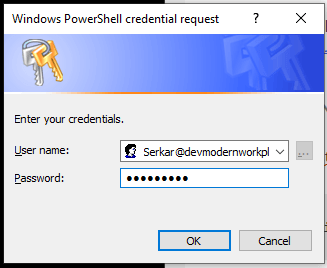
    $Credential = Get-Credential
    credential object for connecting to SharePoint Online

    After doing this, replace the adminurl and connect to SharePoint Online:

    Connect-SPOService -Url "ADMINURL" -Credential $Credential

    In my case it looks like this:

    Connect-SPOService -Url "https://devmodernworkplace-admin.sharepoint.com/" -Credential $Credential

    If you got no error, you have established the connection successfully.

    Connect to SharePoint Online with SharePointOnlinePowerShell interactively

    You can connect interactively with following cmdlet:

    Connect-SPOService -Url "ADMINNURL"

    In my case it is:

    Connect-SPOService -Url "https://devmodernworkplace-admin.sharepoint.com/"

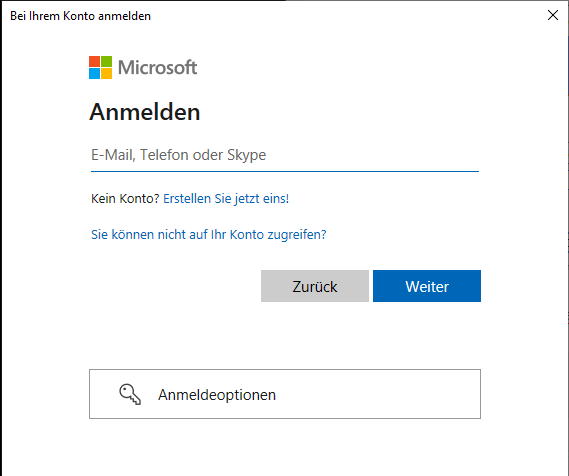
    You will see, that a login prompt will pop up:

    Login prompt, when logging in interactively

    Disconnect from SharePoint Online

    Disconnecting from SharePoint Online can be done like this. If you close your PowerShell Sesssion, you don’t have to do it. The connection is dropping automatically.

    Disconnect-SPOService

    Conclusio

    As you can see, there are at least two PowerShell modules – PNP.PowerShell and SharePointOnlinePowerShell to manage and automate your SharePoint tenant. With this module you can approach your Sharepoint Tenant more on as an administrator, than as somebody, who wants to automate business processes. I would not miss this module out of sight, when automating processes, because some cmdlets might be missing in the PNP PowerShell module or they might not work as expected.

    Further Reading

    If you want to focus more on automating processes, than on administering SharePoint, you should definitely check out how to connect with PNP.Powershell: Connect to SharePoint with PowerShell | SharePoint Online (workplace-automation.com/)

    If you want to see the original docs of Microsoft check out this article: Erste Schritte mit der SharePoint Online-Verwaltungsshell. | Microsoft Docs