Tag: SharePoint Scripting

  • Upload documents to SharePoint (PNP.PowerShell)

    Upload documents to SharePoint (PNP.PowerShell)

    Since SharePoint is not the only system you are using in your company, it might help to know how to upload documents to SharePoint from different systems programmatically. In this article, I want to show you what you can upload all types of files to SharePoint and what to consider, when you want to upload documents to SharePoint with PowerShell.

    Prerequisites

    In order to upload documents to SharePoint programmatically, you have to ensure, that these prerequisites are met.

    Before you run the scripts

    In the following script, I have used a credential file, which you also should generate. Why? Because the purpose of this script, is to run in the background, without a credential prompt, so you can use it in a scheduled task. Don’t forget to change the parameters to your corresponding scenario.
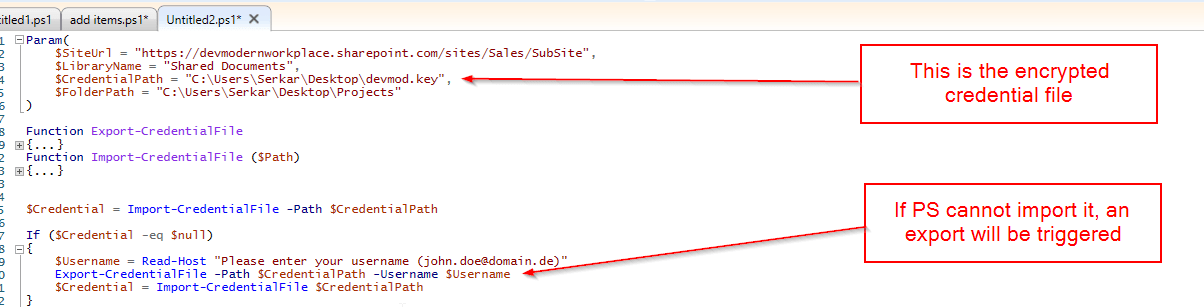
    Explanation of credential handling

    PowerShell Scripts

    I have provided a script to upload a single file and one to upload multiple files to the library.

    Upload single document to SharePoint with PowerShell

    With this script you can upload a single document to SharePoint with a PowerShell script. The script is ready to be used for a scheduled task, but before you plan it, run it with your service account.

    Before:
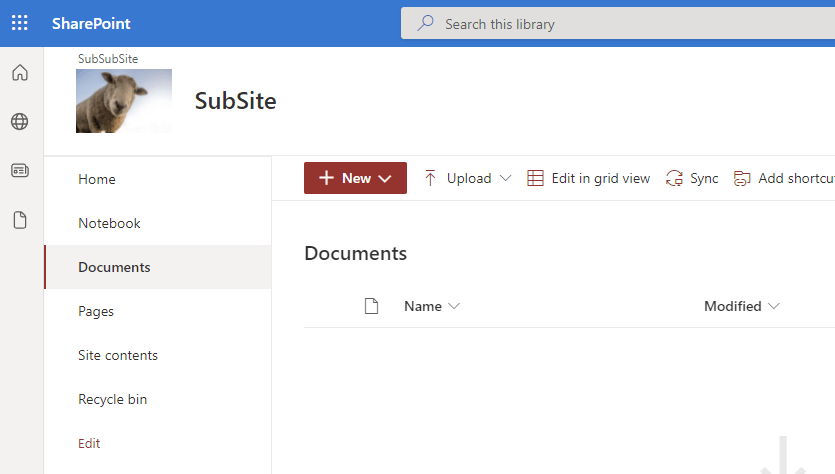
    SharePoint library before upload documents to SharePoint proceeded

    Param(
        $SiteUrl = "https://devmodernworkplace.sharepoint.com/sites/Sales/SubSite",
        $LibraryName = "Documents",
        $CredentialPath = "C:\Users\Serkar\Desktop\devmod.key",
        $FilePath = "C:\Users\Serkar\Desktop\Projectscope.xlsx"
    )
    
    Function Export-CredentialFile 
    {
        param(
        $Username,
        $Path
        )
        While ($Username -eq "" -or $null -eq $Username)
        {
            $Username = Read-Host "Please enter your username (john.doe@domain.de)"
        }
        
        While ($Path -eq ""-or $null -eq $Path)
        {
            $Path = Read-Host "Where should the credentials be exported to?"
        }
        $ParentPath = Split-Path $Path
        If ((Test-Path $ParentPath) -eq $false)
        {
            New-Item -ItemType Directory -Path $ParentPath
        }
        $Credential = Get-Credential($Username)
        $Credential | Export-Clixml -Path $Path
        Return $Credential
    }
    Function Import-CredentialFile ($Path)
    {
        if (! (Test-Path $Path))
        {
            Write-Host "Could not find the credential object at $Path. Please export your credentials first"
        }
        else
        {
            Import-Clixml -Path $Path
        }
    }
    
    
    $Credential = Import-CredentialFile -Path $CredentialPath 
    
    If ($Credential -eq $null)
    {
        $Username = Read-Host "Please enter your username (john.doe@domain.de)"
        Export-CredentialFile -Path $CredentialPath -Username $Username
        $Credential = Import-CredentialFile $CredentialPath
    }
    
    #Connect to site
    Connect-PnPOnline -Url $SiteUrl -Credentials $Credential
    
    #upload documents to SharePoint
    Add-PnPFile -Path $FilePath -Folder $LibraryName

    After:
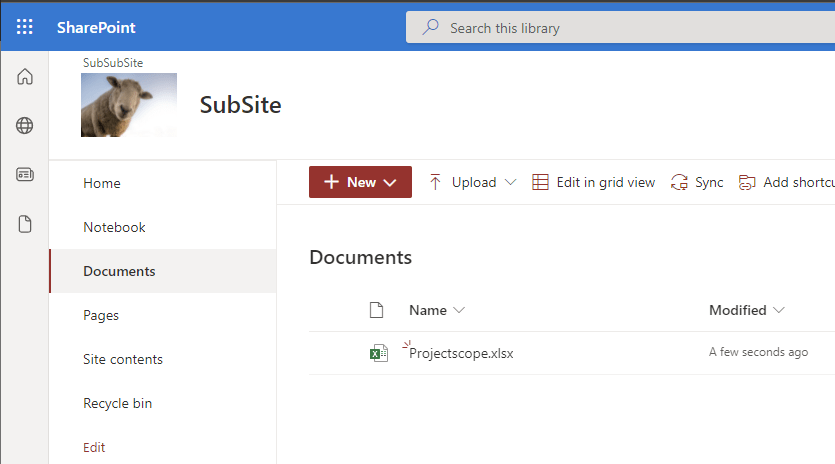
    SharePoint library after upload documents to SharePoint proceeded

    Upload multiple documents to SharePoint with PowerShell

    In order to upload multiple documents to SharePoint, I recommend putting the files in a dedicated folder, so the script can iterate through all documents in the folder.
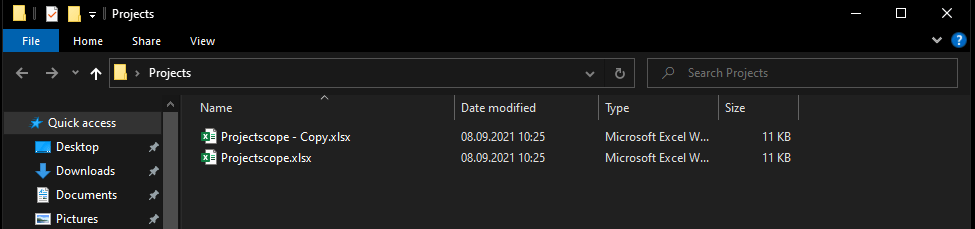
    Screenshot of a folder, where all documents are located in

    Before:

    SharePoint library before upload documents to SharePoint proceeded
    Param(
        $SiteUrl = "https://devmodernworkplace.sharepoint.com/sites/Sales/SubSite",
        $LibraryName = "Shared Documents",
        $CredentialPath = "C:\Users\Serkar\Desktop\devmod.key",
        $FolderPath = "C:\Users\Serkar\Desktop\Projects"
    )
    
    Function Export-CredentialFile 
    {
        param(
        $Username,
        $Path
        )
        While ($Username -eq "" -or $null -eq $Username)
        {
            $Username = Read-Host "Please enter your username (john.doe@domain.de)"
        }
        
        While ($Path -eq ""-or $null -eq $Path)
        {
            $Path = Read-Host "Where should the credentials be exported to?"
        }
        $ParentPath = Split-Path $Path
        If ((Test-Path $ParentPath) -eq $false)
        {
            New-Item -ItemType Directory -Path $ParentPath
        }
        $Credential = Get-Credential($Username)
        $Credential | Export-Clixml -Path $Path
        Return $Credential
    }
    Function Import-CredentialFile ($Path)
    {
        if (! (Test-Path $Path))
        {
            Write-Host "Could not find the credential object at $Path. Please export your credentials first"
        }
        else
        {
            Import-Clixml -Path $Path
        }
    }
    
    
    $Credential = Import-CredentialFile -Path $CredentialPath 
    
    If ($Credential -eq $null)
    {
        $Username = Read-Host "Please enter your username (john.doe@domain.de)"
        Export-CredentialFile -Path $CredentialPath -Username $Username
        $Credential = Import-CredentialFile $CredentialPath
    }
    
    #Connect to site
    Connect-PnPOnline -Url $SiteUrl -Credentials $Credential
    
    
    #upload documents to SharePoint
    Get-ChildItem -Path $FolderPath |ForEach-Object {
        Add-PnPFile -Path $_.FullName -Folder $LibraryName
    
    }

    After:
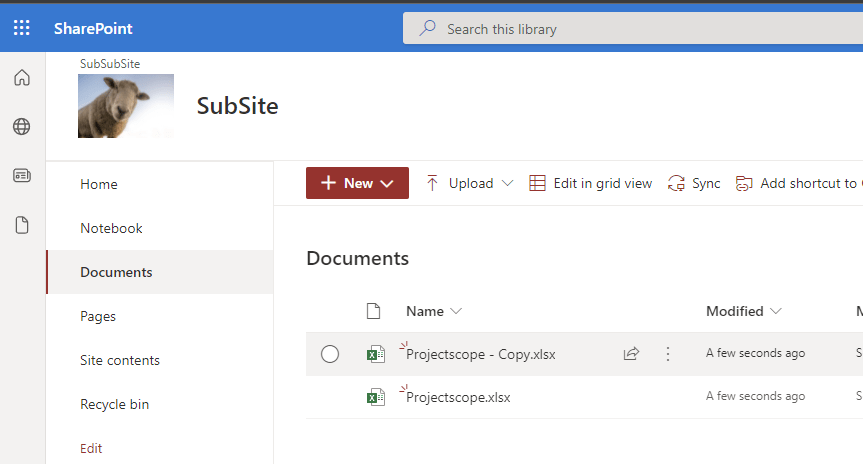
    SharePoint library after upload documents to SharePoint proceeded

    Troubleshooting

    Access denied

    Access denied error message
    Add-PnPFile -Path $FilePath -Folder $LibraryName
    Add-PnPFile : Access denied.
    At line:1 char:1
    + Add-PnPFile -Path $FilePath -Folder $LibraryName
    + ~~~~~~~~~~~~~~~~~~~~~~~~~~~~~~~~~~~~~~~~~~~~~~~~
        + CategoryInfo          : WriteError: (:) [Add-PnPFile], ServerUnauthorizedAccessException
        + FullyQualifiedErrorId : EXCEPTION,PnP.PowerShell.Commands.Files.AddFile

    If you experience this issue, custom scripts are not allowed on this site. You have to enable it by connecting to the tenant with a SharePoint Administrator and enabling custom scripts:

    $SiteUrl = "https://devmodernworkplace.sharepoint.com/sites/Sales"
    $TenantUrl = "https://devmodernworkplace-admin.sharepoint.com/"
    
    Connect-PnPOnline $TenantUrl -interactive
    Set-PnPTenantSite $SiteUrl -DenyAddAndCustomizePages:$false
    Disconnect-PnPOnline

    If you want to read more about custom site scripts, check out this article: Allow or prevent custom script – SharePoint in Microsoft 365 | Microsoft Docs

    Further Readin

    If you want to upload files with Graph, check out the recent blog post:

    How to Upload Files to SharePoint using Graph API PowerShell (workplace-automation.com/)
  • SharePoint PowerShell add site collection administrator

    SharePoint PowerShell add site collection administrator

    In this article, I am describing how to add site collection administrator to your SharePoint sites. I use this script, when I need to supply an application service for a new customer. I recommend running this script periodically (every day), so it is ensured, that you have access to new sites later also.

    You will learn how to add a user and an AD group to the site collection administrators.

    Prerequisites

    Before you can add a site collection administrator to a site collection, you need to ensure the following:

    Scheduled runs

    When you run the scripts below, it is only for the current existing sites, but since the departments won’t stop create sites, e.g. by creating a new team in Microsoft Teams, it makes sense to schedule the scripts. If you want to schedule the scripts, ensure that the connection to the tenant is not interactive, by exporting the credentials locally with the service user, which you will run to schedule the script and import the credential in your script. Only the user who exported the credentials object, can read the credential object on the same machine.

    Before you schedule the script, export your service user credential with this cmdlets (change the path before running):

    Get-Credential |Export-Clixml "C:\Users\Serkar\Desktop\devmod.key"

    You will be prompted for credentials and after this, a file will be created.

    Use this credential object before you connect to SharePoint like this:

    $Credential = Import-Clixml "C:\Users\Serkar\Desktop\devmod.key"
    

    And connect to SharePoint Online like this:

    Connect-SPOService -Url  $TenantUrl -Credential $Credential

    I wrote a detailed article about this. If you want to deepen your knowledge, check it out: Use credentials in PowerShell | SPO Scripts

    In the end of this article, I have also provided a script, which shows you how the script has to look, if you want to schedule it periodically.

    Add a user as a site colllection adminstrator

    If you want to add a user as a site collection administrator, you can do it like this:

    Please change the values of the variables.

    Connect-SPOService -Url  "https://devmodernworkplace-admin.sharepoint.com/"
    $User = "Serkar@devmodernworkplace.onmicrosoft.com"
    $SiteUrl = "https://devmodernworkplace.sharepoint.com/sites/Sales"
    
    Set-SPOUser -Site $SiteUrl -LoginName $User -IsSiteCollectionAdmin $true

    Add an AD group as a site collection administrators

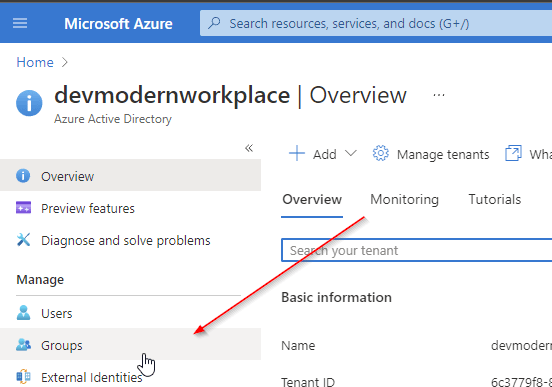
    If you want to add the AD group to the site collection adminstrators, you need the Object ID of the group. You can look it up like this:

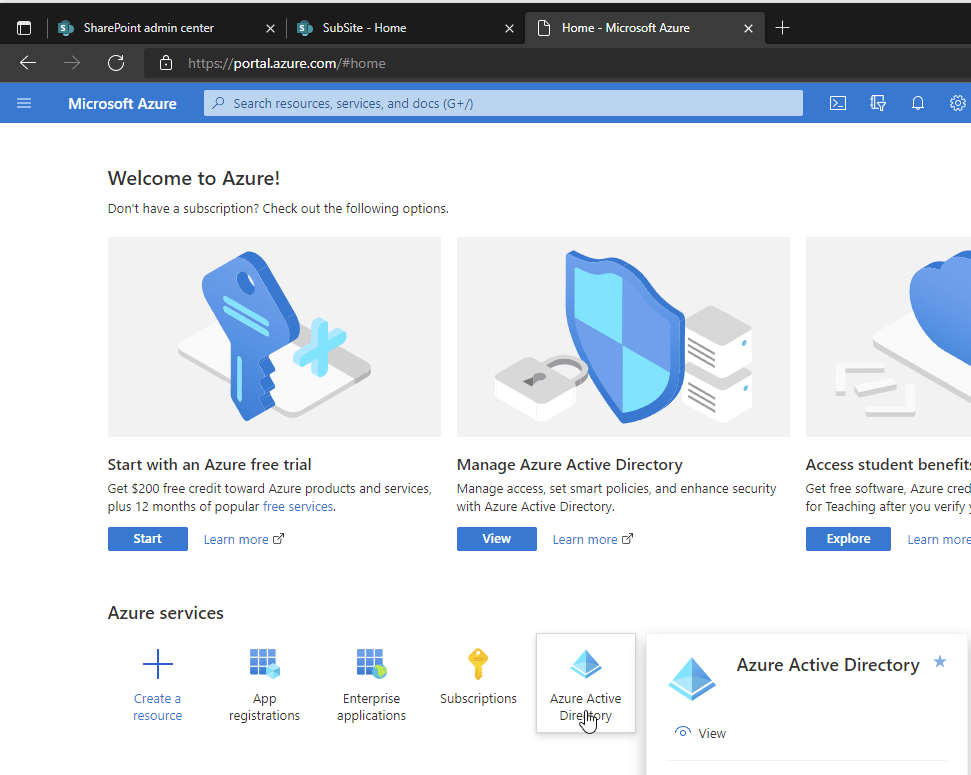
    Visit https://portal.azure.com

    Azure Portal home
    Azure active directory groups

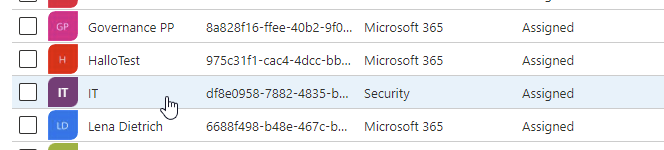
    For this purpose I want to add the IT AD security group to the site collection administrators.

    Screenshot of an ad group, which I want to add as a site collection administrator

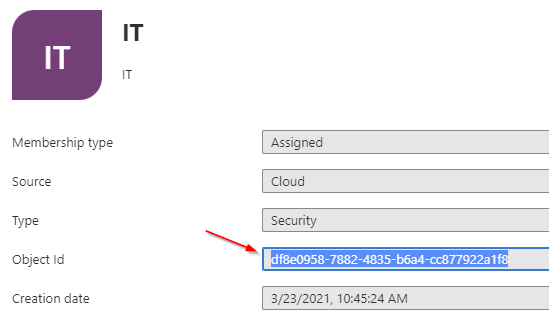
    Take a note of the Object Id

    Object ID of the ad group, which will be added as site collection administrator

    With the Object ID, we can add a group as a site collection administrator:

    Connect-SPOService -Url  "https://devmodernworkplace-admin.sharepoint.com/"
    $Group = "C:0t.c|tenant|df8e0958-7882-4835-b6a4-cc877922a1f8"
    $SiteUrl = "https://devmodernworkplace.sharepoint.com/sites/Sales"
    
    Set-SPOUser -Site $SiteUrl -LoginName $Group -IsSiteCollectionAdmin $true

    Add a user as a site collection administrator to all site collections

    If you want to add a single user as a site collection administrator, you can use this script:

    $TenantUrl = "https://devmodernworkplace-admin.sharepoint.com/"
    $User = "Serkar@devmodernworkplace.onmicrosoft.com"
    
    Connect-SPOService -Url  $TenantUrl 
    
    $SPOSites = Get-SPOSite 
    
    foreach ($SPOSite in $SPOSites)
    {
        Set-SPOUser -Site $SPOSite.Url -LoginName $User -IsSiteCollectionAdmin $true
    }

    Add an AD group as a site collection administrator to all site collections

    $TenantUrl = "https://devmodernworkplace-admin.sharepoint.com/"
    $Group = "C:0t.c|tenant|df8e0958-7882-4835-b6a4-cc877922a1f8"
    
    Connect-SPOService -Url  $TenantUrl 
    
    $SPOSites = Get-SPOSite 
    
    foreach ($SPOSite in $SPOSites)
    {
        Set-SPOUser -Site $SPOSite.Url -LoginName $Group -IsSiteCollectionAdmin $true
    }
    

    Scheduled runs: Add an AD group as a site collection administrator to all site collections

    If you run this script, you won’t get any prompt from PowerShell, but you have to ensure, that you have exported the credential object before, otherwise the script will not work.

    $TenantUrl = "https://devmodernworkplace-admin.sharepoint.com/"
    $Group = "C:0t.c|tenant|df8e0958-7882-4835-b6a4-cc877922a1f8"
    
    $Credential = Import-Clixml -Path "C:\Users\Serkar\Desktop\devmod.key"
    
    Connect-SPOService -Url  $TenantUrl -Credential $Credential
    
    $SPOSites = Get-SPOSite 
    
    foreach ($SPOSite in $SPOSites)
    {
        Set-SPOUser -Site $SPOSite.Url -LoginName $Group -IsSiteCollectionAdmin $true
    }

    Website vector created by stories – www.freepik.com

  • 3 of the most important SharePoint PowerShell Modules and Snappins

    In my role as an automation consultant, I encounter several challenges, where you have to think out of the box. Thinking out of the box also means, to reconsider the tools, which you are using. If you start with SharePoint/ M365 automation, you will notice that there are at least three SharePoint PowerShell modules and snappins, with which you can automate your SharePoint environment. All of the SharePoint PowerShell modules/ snappins have indeed a reason for existence. In this article, I will show you where the focus of each module is, so you can get an idea, when to use which module. You will also get a overview, how to use all of them and what pros and cons eacht SharePoint PowerShell module/ snappin has.

    Think out of the box when designing an automation solution

    PNP PowerShell

    The beginning of PNP PowerShell was a community project of several developers, which have developed many client side object model (CSOM) wrappers for SharePoint 2013, 2016 and 2019. In fact PNP stands for Patterns and Practices. The modules are known as SharePointPnPPowerShell20xx or SharePointPnPPowerShellOnline. About the turn of the year all consolidated to PNP.PowerShell. Also the main focus from “catchall” have changed to the cloud version of SharePoint.

    When to use PNP PowerShell

    PNP.PowerShell is developing to one of the overreaching modules in Microsoft 365 cosmos. I would recommend to try everything first with PNP.PowerShell before you try doing it with SharePointOnlinePowerShell, since the development of the module goes on and on and you can do way more things with PNP PowerShell, than with SharePointOnlinePowerShell in terms of business process automation.

    Topics covered by PNP PowerShell

    Currently PNP PowerShell covers following topics and services:

    • SharePoint Online
    • SharePoint Server (on premises)
    • M365 Groups
    • Power Automate
    • Azure AD
    • SharePoint Syntex
    • Microsoft Teams
    • Microsoft Planner

    Pros and Cons of PNP PowerShell

    ProsCons
    ✅ You can use it for on-premises and cloud services❌ Some cmdlets are not working as expected e.g. Set-PNPSite -SitecollectionAdmin
    ✅ You can use it on all servers/ clients, which have access to the tenant/ farm (online or on-premises)❌ With constant development, cmdlets might change, so you have to monitor the changes, when updating the module
    ✅ Constant development of module❌ You have to consent the access with the global admin role
    ✅ Supports many branches of M365 (SharePoint, Teams, Planner etc.)❌ Microsoft Support won’t support if there is a bug in the modules. You have to open a request in github
    ✅ You don’t have to make breaking changes to your scripts if you move from SharePoint Server to SharePoint Online
    ✅ You can change a wide range of content in SharePoint (Sites, Lists, Items)
    ✅ You don’t need SharePoint Admin permission to connect to a site

    How to make use of PNP PowerShell?

    If you want to make use of PNP PowerShell, check out this blog post, which describes every step of it in detail: Connect to SharePoint with PowerShell | SharePoint Online (workplace-automation.com/)

    What can I change with PNP PowerShell?

    In this section, I want to give you an overview of what you can change with PNP Powershell. Indeed there are more objects in SharePoint. I focus in the first place on objects, which I think are mostly changed with PowerShell for business process automation.

    ObjectChanging
    possible
    with
    PNP PowerShell?
    CmdletPrequisitesReference
    TenantSet-PNPTenantSharePoint Admin RoleSet-PnPTenant (PnP.Powershell) | Microsoft Docs
    Hub SiteSet-PNPHubSite Access to SiteSet-PnPHubSite (PnP.Powershell) | Microsoft Docs
    SiteSet-PNPSiteAccess to Site Set-PnPSite (PnP.Powershell) | Microsoft Docs
    Sub SiteSet-PNPWeb Access to Site and SubsiteSet-PnPWeb (PnP.Powershell) | Microsoft Docs
    ListSet-PNPList Access to Site & ListSet-PnPList (PnP.Powershell) | Microsoft Docs
    LibrarySet-PNPSite Access to Site & Library Set-PnPList (PnP.Powershell) | Microsoft Docs
    ItemSet-PNPListItemAccess to Site & List & ItemSet-PnPListItem (PnP.Powershell) | Microsoft Docs
    FileSet-PNPListItem Access to Site & Library & FileSet-PnPListItem (PnP.Powershell) | Microsoft Docs
    PageSet-PNPage Access to Site & Library & Page Set-PnPPage (PnP.Powershell) | Microsoft Docs

    Who is maintaing PNP PowerShell?

    The module is maintained by the PNP Developer Community. At this stage I have to thank you guys for your hard and good work. It was really a game changer, when I didn’t had to use scripts on the SharePoint Server.

    Since it is all open source, you can also check the source code here: Microsoft 365 Community (github.com)

    You can find more about the community here: SharePoint Developer Community (SharePoint PnP) resources | Microsoft Docs

    What if I find a bug in PNP Powershell?

    Be sure to follow their rules, when you open an issue, so they can help you faster. In the first step check the discussions. You have to be patient, since it is a community developed module.

    If you find a bug, you have to open a github issue here: pnp/powershell: PnP PowerShell (github.com)

    SharePointOnlinePowerShell

    SharePointOnlinePowerShell is the official Module, which is published by Microsoft. In comparison to PNP Powershell, SharePointOnlinePowerShell focuses only on the administration of SharePoint Online.

    When to use SharePointOnlinePowerShell

    My strategy is to use SharePointOnlinePowerShell, when I experience a buggy behaviour by PNP.PowerShell. Altough it is the official SharePoint PowerShell module, you cannot change e.g. list items.

    Topics covered by SharePointOnlinePowerShell

    SharePointOnlinePowerShell is only focussing on SharePoint Online. You cannot connect to another service or to SharePoint Server (on premises).

    Pros and Cons of SharePointOnlinePowerShell

    ProsCons
    ✅ I have experienced more stability on this module – It tends to have less bugs❌ You can only administer SharePoint. Business process automation will be hard to cover with this module, because you cannot change webs, lists or items
    ✅ It is supported by Microsoft❌ You can use it only for SharePoint Online
    ✅ Constant development of module – I have not experienced any breaking changes❌ You have to have SharePoint admin role

    How to make use of SharePointOnlinePowerShell?

    I have described how to install and connect with this SharePoint PowerShell Module here: SharePointOnlinePowerShell: How to connect to SharePoint Online (workplace-automation.com/)

    What can I change with SharePointOnlinePowerShell ?

    In this section, I want to give you a overview of what you can change with PNP Powershell.

    ObjectChanging
    possible
    with
    SharePointOnlinePowerShell?
    CmdletPrequisitesReference
    TenantSet-SPOTenantSharePoint Admin RoleSet-SPOTenant (SharePointOnlinePowerShell) | Microsoft Docs
    Hub SiteSet-PNPHubSite SharePoint Admin RoleSet-SPOHubSite (SharePointOnlinePowerShell) | Microsoft Docs
    SiteSet-SPOSiteSharePoint Admin RoleSet-SPOSite (SharePointOnlinePowerShell) | Microsoft Docs
    Sub Site
    List
    Library
    Item
    File
    Page

    Who is maintaing SharePointOnlinePowerShell?

    The module is developed and maintained by Microsoft. You can find the source code is here: Microsoft 365 Community (github.com)

    What if I find a bug in SharePointOnlinePowerShell ?

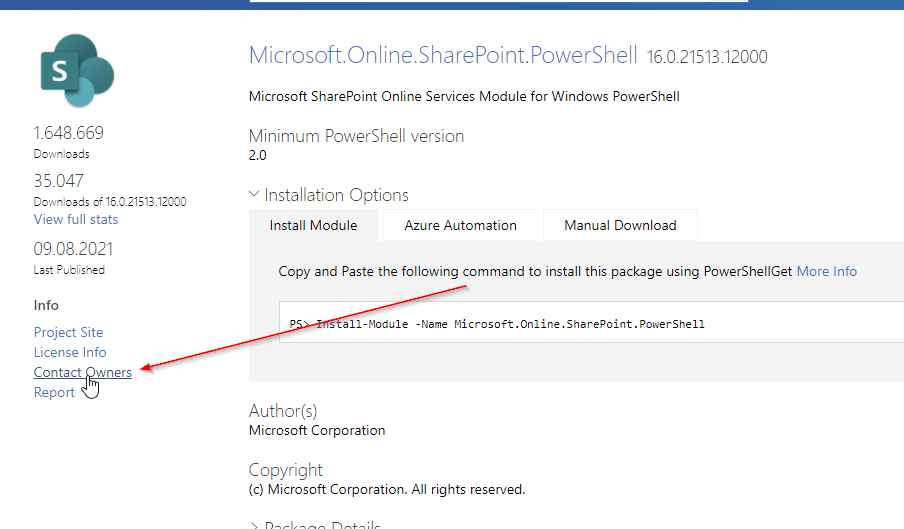
    You can contact Microsoft Support or try to “Contact Owners” in PowerShellGallery: https://www.powershellgallery.com/packages/Microsoft.Online.SharePoint.PowerShell

    SharePointOnlinePowerShell PowerShell Gallery

    Microsoft.SharePoint.PowerShell

    Microsoft.SharePoint PowerShell is the only type of cmdlets, which is not a SharePoint PowerShell Module, but a PSSnappin. Snapins are considered as the old way to add cmdlets and other resources. It’s focus is SharePoint Server.

    When to use Microsoft.SharePoint.PowerShell

    I recommend to use Microsoft.SharePoint.PowerShell in following situations:

    • You don’t plan to migrate the automation solution to SharePoint Online
    • You have access to the SharePoint Servers
    • You want to administer SharePoint Server

    Topics covered by Microsoft.SharePoint.PowerShell

    With Microsoft.SharePoint.PowerShell you can only connect to SharePoint Server (on premises). You can see all cmdlets here from the Microsoft reference: SharePointServer Module | Microsoft Docs

    Pros and Cons of Microsoft.SharePoint.PowerShell

    ProsCons
    ✅ Microsoft.SharePoint.PowerShell is a established PSSNappin, which tends to have very few bugs❌ You have to readapt the scripts, if you want to migrate to SharePoint Online
    ✅ It is supported by Microsoft❌ You can use it only for SharePoint Server
    ✅ You can change nearly everything with this SharePoint PowerShell Module on your SharePoint Server❌ You need SPShellAdmin rights to access SharePoint Server with this SharePoint PowerShell Module

    How to make use of Microsoft.SharePoint.PowerShell?

    1. Connect to SharePoint Server with a user, which is SPShellAdmin
    2. Start Windows PowerShell
    3. Type Add-PSSnapin Microsoft.SharePoint.Powershell
    4. You are connected!

    What can I change with Microsoft.SharePoint.PowerShell?

    If you work with this SharePoint PowerShell snappin, you will notice, that you have to use mostly the SpWeb classes to change everything below a SpWeb. Check out the Microsoft docs to see, which classes are below SPWeb: SPWeb Class (Microsoft.SharePoint) | Microsoft Docs. If you need help, don’t hesitate to contact me: Serkar@workplace-automation.com

    ObjectChanging
    possible
    with
    PNP PowerShell?
    CmdletPrequisitesReference
    FarmSet-SPFarmConfigSPShellAdminAcessSet-SPFarmConfig (SharePointServer) | Microsoft Docs
    SiteSet-SPSite SPShellAdminAcess Set-SPSite (SharePointServer) | Microsoft Docs
    Sub SiteSet-SPWeb SPShellAdminAcess Set-SPWeb (SharePointServer) | Microsoft Docs
    ListNo dedicated cmdlet. You have to call lists from web object
    (get-spweb "url").lists
    SPShellAdminAcess
    Library No dedicated cmdlet. You have to call libraries from web object

    (get-spweb "url").lists
    SPShellAdminAcess
    ItemNo dedicated cmdlet. You have to call libraries from list object

    (get-spweb "url").lists.items
    SPShellAdminAcess
    FileNo dedicated cmdlet -You have to call the file from the item object

    (get-spweb "url").lists.items[0].file
    SPShellAdminAcess
    PageNo dedicated cmdlet – You have to call it from the sitepages library. SPShellAdminAcess

    Who is maintaing Microsoft.SharePoint.PowerShell?

    The module is maintained by Microsoft.

    What if I find a bug in Microsoft.SharePoint.PowerShell?

    You can contact Microsoft Support and report the bug there.

    Conclusio

    As you saw each of the SharePoint PowerShell module / snappin got its pros and cons. PNP PowerShell is the number one choice, if you want to automate processes in Microsoft Cloud. Beside this SharePointOnlinePowerShell is the second tool recommended, If you only seek to administer SharePoint Online. As a final point Microsoft.SharePoint.PowerShell should be mentioned as a powerful tool if you want to administer SharePoint Server (on-premises). If I missed a point, I would appreciate, if you contact me: serkar@workplace-automation.com.

    Further Documentation

    This is the direct link to PNP documentation: http://aka.ms/m365pnp

    PNP provide code samples, which you can find here: PnP | Microsoft 365

    You can check out the PNP repro on github here. GitHub – pnp/powershell: PnP PowerShell

  • How to connect to SharePoint Online with SharePointOnlinePowerShell

    Besides the possibility to manage your SharePoint Online in the SharePoint admin center, you have the option to do it with PowerShell. For this tasks Microsoft has published the PowerShell module SharePointOnlinePowerShell. It’s focus is more administrative tasks, than process automation. You can e.g. change the SharePoints Tenants policies, but you cannot create list items with this PowerShell module. The module is constantly developed by Microsoft it bears 223 cmdlets (16.08.2021).

    Scope of SharePointOnlinePowerShell

    I recommend checking the scope with following cmdlet:

    Get-Command -Module Microsoft.Online.SharePoint.PowerShell | out-gridview -passthru

    Prerequisites

    • If you want to connect to SharePoint Online with SharePointOnlinePowerShell, you need a user with the SharePoint Administrator role.
    • You need Windows PowerShell 2.0 or higher to run the module

    Installation of SharePointOnlinePowerShell

    The name for the installation is different then in the documentation. The technical name is Microsoft.Online.SharePoint.PowerShell. You can install the module Microsoft.Online.SharePoint.PowerShell with following PowerShell cmdlet:

    Install-Module -Name Microsoft.Online.SharePoint.PowerShell

    If you have not trusted PSGallery yet, you will be prompted if you trust this repository. You can confirm it with “y”.

    Screenshot of the installation of SharePointOnlinePowerShell

    If you encounter this issue, start the PowerShell Session as an administrator:

    PS C:\Users\Serkar> Install-Module -Name Microsoft.Online.SharePoint.PowerShell
    Install-Module : Administrator rights are required to install modules in 'C:\Program Files\WindowsPowerShell\Modules'.
    Log on to the computer with an account that has Administrator rights, and then try again, or install
    'C:\Users\Serkar\Documents\WindowsPowerShell\Modules' by adding "-Scope CurrentUser" to your command. You can also try
    running the Windows PowerShell session with elevated rights (Run as Administrator).
    At line:1 char:1
    + Install-Module -Name Microsoft.Online.SharePoint.PowerShell
    + ~~~~~~~~~~~~~~~~~~~~~~~~~~~~~~~~~~~~~~~~~~~~~~~~~~~~~~~~~~~
        + CategoryInfo          : InvalidArgument: (:) [Install-Module], ArgumentException
        + FullyQualifiedErrorId : InstallModuleNeedsCurrentUserScopeParameterForNonAdminUser,Install-Module

    You can start PowerShell as an administrator like this:

    Start-Process powershell -Verb runAs

    You can also download it manually from PSGallery: PowerShell Gallery | Microsoft.Online.SharePoint.PowerShell 16.0.21513.12000

    Connect to SharePoint Online with SharePointOnlinePowerShell

    You can connect to SharePoint Online with an credential object or interactively. In this post I am describing both scenarios. Currently there is now way to do it with an Azure enterprise application, so you need a user. If you want to automate processes, I highly recommend a service user for this, since you don’t want your automation to crash, when you leave the company.

    Connect to SharePoint Online with SharePointOnlinePowerShell with Credential

    Note: You can only connect with an user with the SharePoint administrator role. It also won’t function, if you have multi factor authentication (MFA) enabled. For MFA check out the interactive instruction of this post.

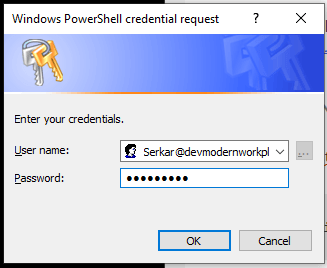
    In the first step create an credential object:

    $Credential = Get-Credential
    credential object for connecting to SharePoint Online

    After doing this, replace the adminurl and connect to SharePoint Online:

    Connect-SPOService -Url "ADMINURL" -Credential $Credential

    In my case it looks like this:

    Connect-SPOService -Url "https://devmodernworkplace-admin.sharepoint.com/" -Credential $Credential

    If you got no error, you have established the connection successfully.

    Connect to SharePoint Online with SharePointOnlinePowerShell interactively

    You can connect interactively with following cmdlet:

    Connect-SPOService -Url "ADMINNURL"

    In my case it is:

    Connect-SPOService -Url "https://devmodernworkplace-admin.sharepoint.com/"

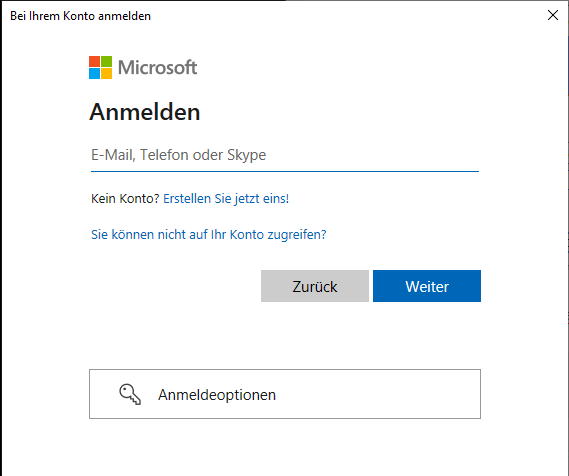
    You will see, that a login prompt will pop up:

    Login prompt, when logging in interactively

    Disconnect from SharePoint Online

    Disconnecting from SharePoint Online can be done like this. If you close your PowerShell Sesssion, you don’t have to do it. The connection is dropping automatically.

    Disconnect-SPOService

    Conclusio

    As you can see, there are at least two PowerShell modules – PNP.PowerShell and SharePointOnlinePowerShell to manage and automate your SharePoint tenant. With this module you can approach your Sharepoint Tenant more on as an administrator, than as somebody, who wants to automate business processes. I would not miss this module out of sight, when automating processes, because some cmdlets might be missing in the PNP PowerShell module or they might not work as expected.

    Further Reading

    If you want to focus more on automating processes, than on administering SharePoint, you should definitely check out how to connect with PNP.Powershell: Connect to SharePoint with PowerShell | SharePoint Online (workplace-automation.com/)

    If you want to see the original docs of Microsoft check out this article: Erste Schritte mit der SharePoint Online-Verwaltungsshell. | Microsoft Docs