
Downloading files from SharePoint is a common use case, when we are integrating 3rd party systems with SharePoint. In my previous articles, I have been explaining how you can upload files to SharePoint using PNP module. In this article, I want to show you how you can achieve download files from SharePoint using Graph API.
In the beginning, we will create an Entra ID Enterprise Application in Entra ID, grant the created Enterprise Application the permission to interact with selected sites. At the end, I will share a PowerShell script to download files from the SharePoint using Graph API.
What do I need to download files to SharePoint using Graph API?
To downlaod a file to SharePoint using Graph API, you need the following prerequisites fulfilled:
- You need your global administrator in your organization to grant the sites.selected permission for an Entra ID Enterprise Application
Please follow this article below. I have explained how to do it there:
How to configure Azure App registration for MS Graph | SPO Scripts
Your Sites.Selected App registration shall have following permission (at least):

How to Download Files from SharePoint using Graph API?
As we have created an app registration and gave it the permission to write to a selected site, we can use to download files from SharePoint using Graph API. In my example, I want to download an Excel file from the SharePoint Library Shared Documents. Make sure, that you have adjusted the parameters and have the client secret handy, which we have created in the previous steps.
Before you run the code, change the value of there parameters:
$Tenant = “m365x323732” -> Name of the tenant. You can fetch it from the URL of your SharePoint: https://m365x16735261.sharepoint.com
$AppID = “e0b8aefa-cb52-4bda-93a0-7d87120bcdbb” -> App ID, which you previously created in Entra ID
$SiteID = “e35cee33-6d10-4e2c-a83b-496a26062ad3” -> ID of the Site, where you want to download the file from. In my example it would be https://m365x323732.sharepoint.com/sites/SalesAndMarketing/_api/site/id
$LibraryURL = “https://m365x323732.sharepoint.com/sites/SalesAndMarketing/Shared%20Documents” -> URL to the SharePoint Library, where the file is located, which you want to download.
$Path = “C:\Users\Serkar\Desktop\DG-2000 Product Specification.docx” – Path to where the file should be downloaded to
$FileName = “DG-2000 Product Specification.docx” -> Name of the file
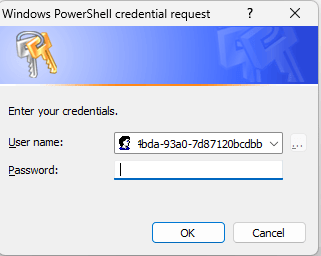
When you run the code, you will be asked to provide the client secret for your app registration.
Param (
    $Tenant = "m365x323732",
    $AppID = "e0b8aefa-cb52-4bda-93a0-7d87120bcdbb",
    $SiteID = "e35cee33-6d10-4e2c-a83b-496a26062ad3",
    $LibraryURL = "https://m365x323732.sharepoint.com/sites/SalesAndMarketing/Shared%20Documents",
    $Path = "C:\Users\Serkar\Desktop\DG-2000 Product Specification.docx",
    $FileName = "DG-2000 Product Specification.docx"
)

$AppCredential = Get-Credential($AppID)

#region authorize
$Scope = "https://graph.microsoft.com/.default"

$Body = @{
    client_id = $AppCredential.UserName
    client_secret = $AppCredential.GetNetworkCredential().password
    scope = $Scope
    grant_type = 'client_credentials'
}

$GraphUrl = "https://login.microsoftonline.com/$($Tenant).onmicrosoft.com/oauth2/v2.0/token"
$AuthorizationRequest = Invoke-RestMethod -Uri $GraphUrl -Method "Post" -Body $Body
$Access_token = $AuthorizationRequest.Access_token

$Header = @{
    Authorization = $AuthorizationRequest.access_token
    "Content-Type"= "application/json"
}
#endregion

#region get drives

$GraphUrl = "https://graph.microsoft.com/v1.0/sites/$SiteID/drives"

$BodyJSON = $Body | ConvertTo-Json -Compress
$Result = Invoke-RestMethod -Uri $GraphUrl -Method 'GET' -Headers $Header -ContentType "application/json"
$DriveID = $Result.value| Where-Object {$_.webURL -eq $LibraryURL } | Select-Object id -ExpandProperty id

If ($DriveID -eq $null){

    Throw "SharePoint Library under $LibraryURL could not be found."
}

#endregion

#region download file

$Url  = "https://graph.microsoft.com/v1.0/drives/$DriveID/items/root:/$($FileName)"

$Response =  Invoke-RestMethod -Uri $Url -Headers $Header -Method Get -ContentType 'multipart/form-data'

Invoke-WebRequest -Uri $Response.'@microsoft.graph.downloadUrl' -OutFile $Path

#endregion
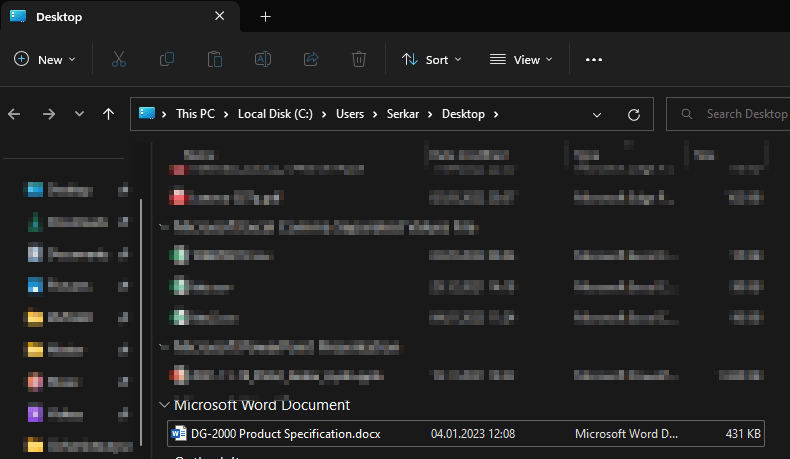
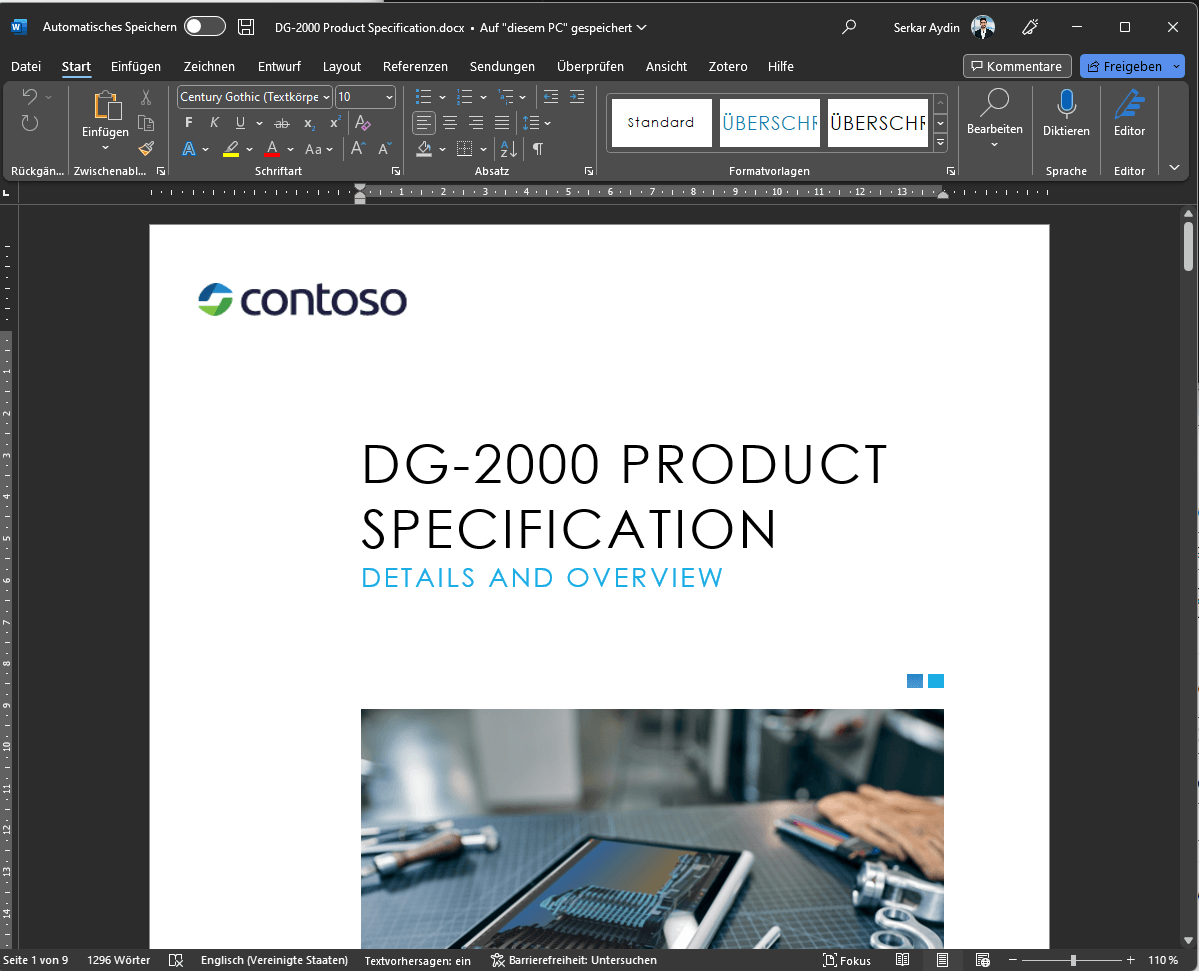
At the end you will receive the following response as example
As you can see, the file was downloaded successfully from the SharePoint Library
Further Reference
You might be also interested in following articles, which are related to MS Graph API:
Security of app registration in Entra ID | SPO Scripts
Create SharePoint list items using Graph API (PowerShell) (workplace-automation.com/)
How to get SharePoint List Items with Graph API (PowerShell) | SPO Scripts


Leave a Reply to Aaron Cancel reply