Author: Serkar

  • How to Create SharePoint List Items with MS Graph API: A Step-by-Step Guide

    In this article I’ll elaborate how to create SharePoint List Items with MS Graph API. You might have use cases, which require the automatic list item creations – example: Your customer is providing feedback and you want to process it in SharePoint to integrate it to other tools like PowerAutomate.

    In my current engagement, I am populating demo data to our rollout automation tool. Using a programmatic approach ensures that the demo data is provided equally for every new demo.

    Following endpoint is used to create SharePoint List Items:

    POST /sites/{site-id}/lists/{list-id}/items
    

    In this article, I’ll walk you through the approach, which enables you to use the endpoint. To call the provided endpoint, following four steps need to be followed:

    • Obtain bearer token: The bearer token is required to authenticate with Microsoft Graph API.
    • Obtain Site ID: Based on the site name, the site id is getting obtained, which is required for the list item creation with MS Graph
    • Obtain List ID: the List ID is required to specify the list in which the SharePoint list item shall be created. The ID will be fetched by the specification of the list title.

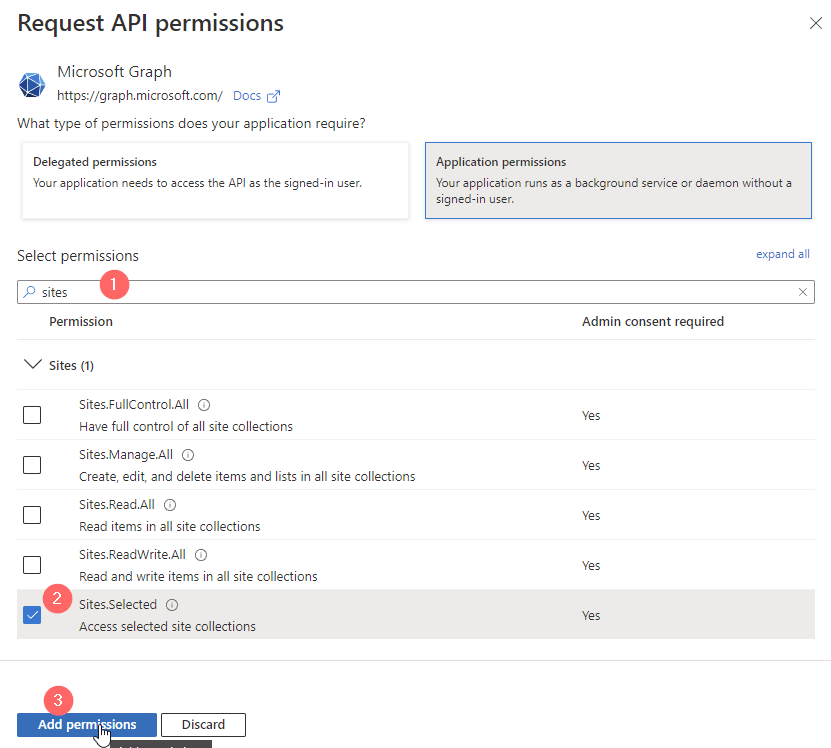
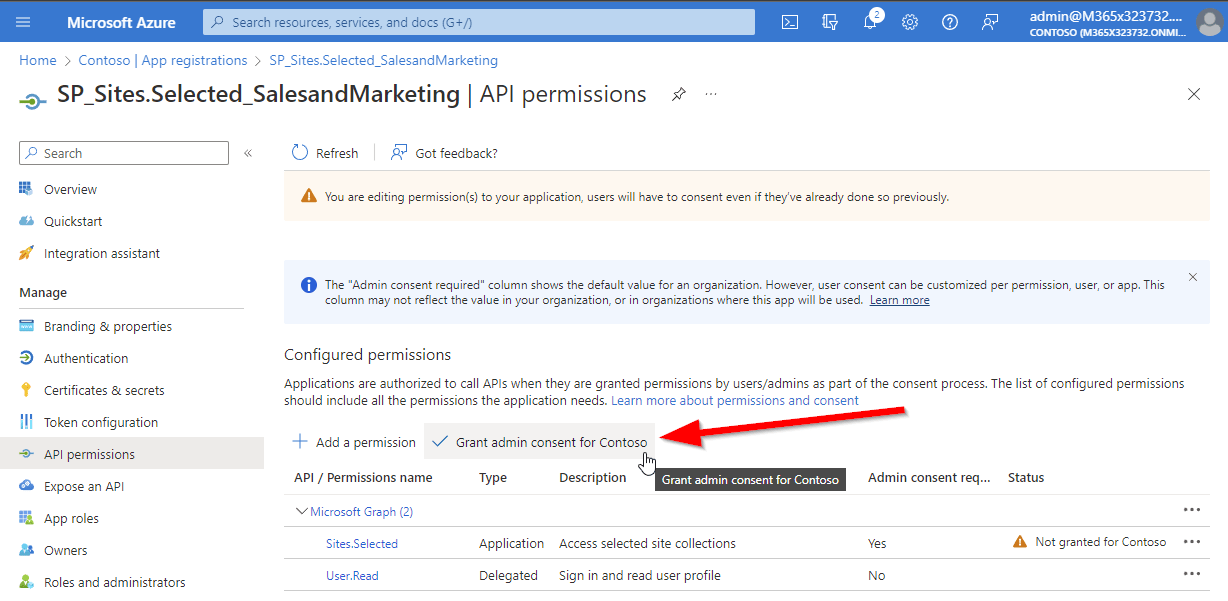
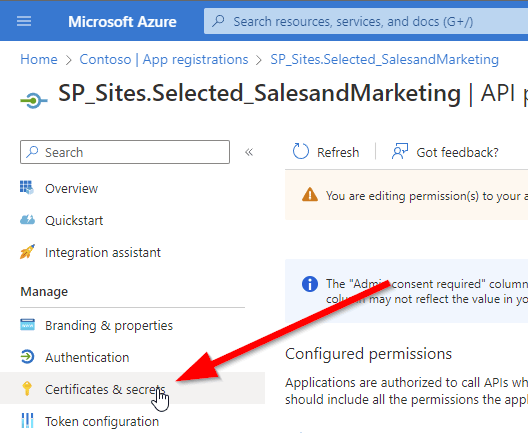
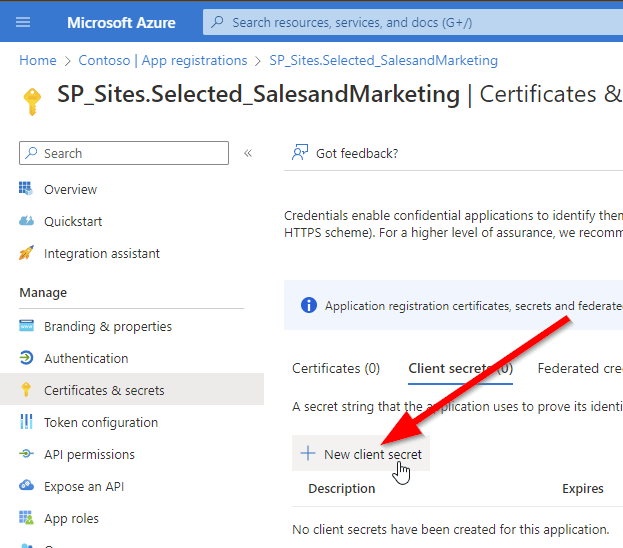
    Prerequisites to Create SharePoint List Items with MS Graph

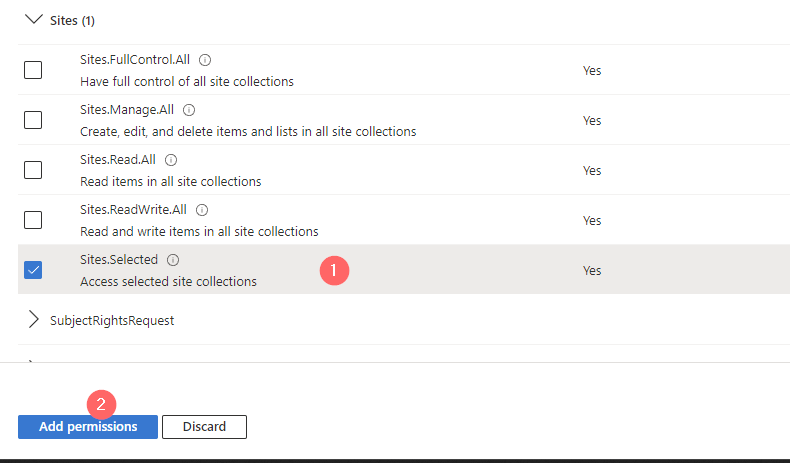
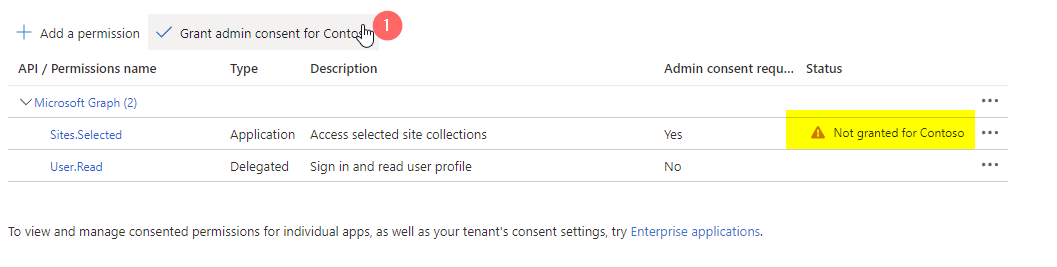
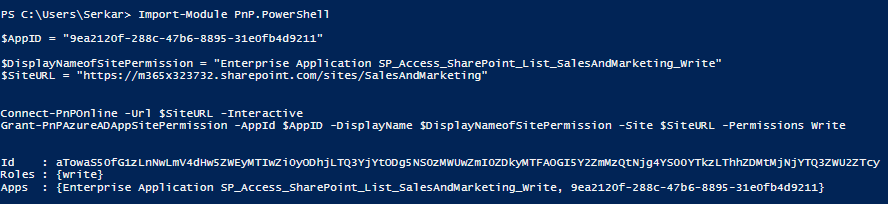
    In order to create SharePoint List items with MS Graph, following prerequisites are required:


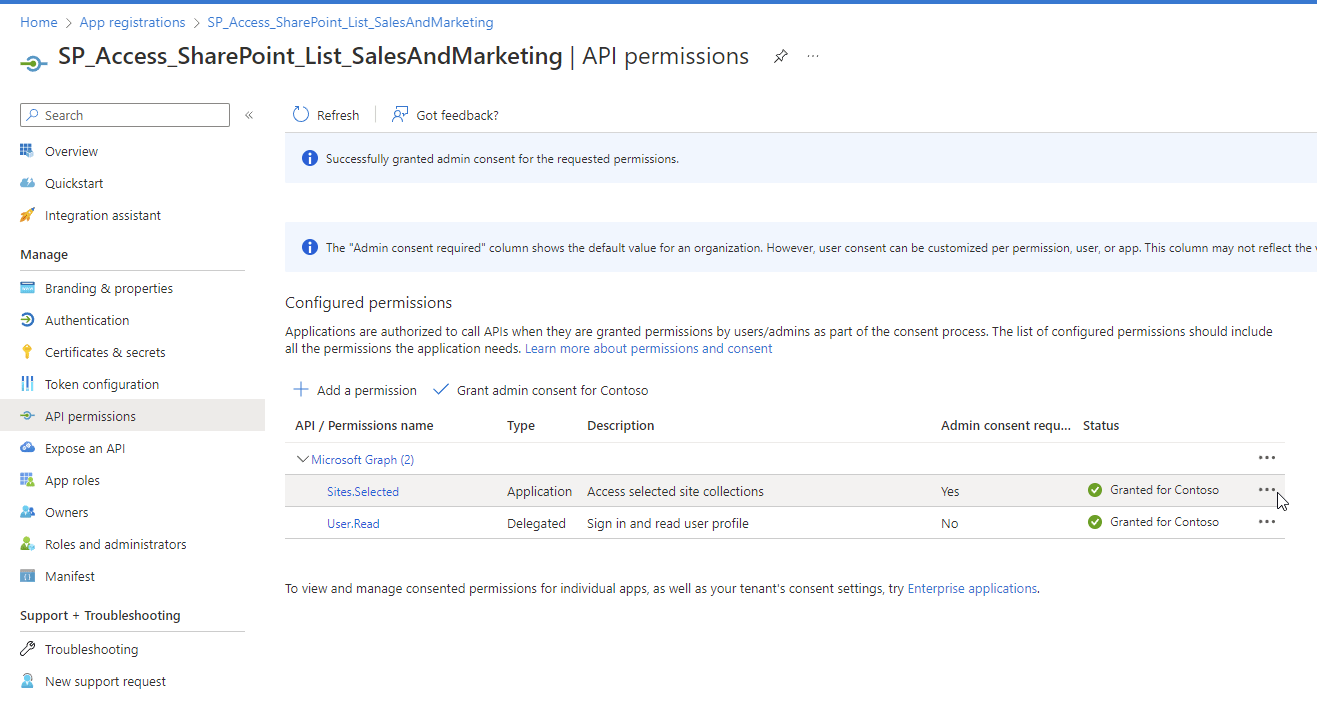
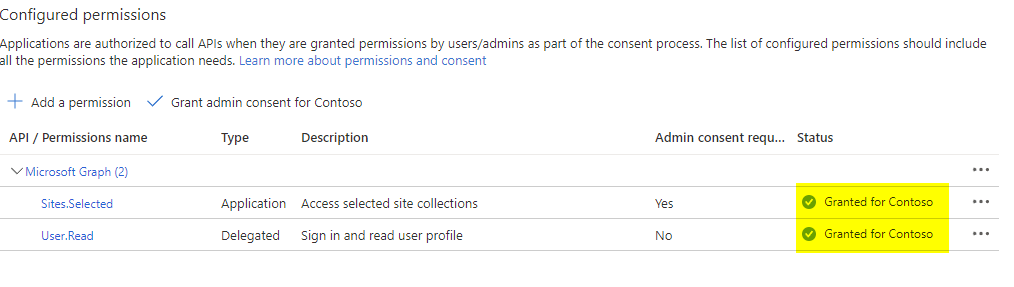
    Your App Registration should look like this in terms of granted permissions:

    Obtain Bearer Token to create SharePoint List Items with MS Graph API

    In order to obtain the bearer token, you need to conduct a POST call for the endpoint /oauth2/v2.0/token.

    You can use the script below, to obtain a bearer token. Make sure to provide your SharePoint tenant name (https://tenantname.sharepoint.com) and the app ID of your app registration in the parameters.

    param (
        [string]$Tenant = "m365x16735261",
        [string]$AppID = "39180af4-ad90-442f-a4ca-028b9221b133"
    )
    
    $AppCredential = Get-Credential ($AppID)
    
    # Define the required scope for accessing the Microsoft Graph API
    $Scope = "https://graph.microsoft.com/.default"
    
    # Prepare the body for the token request with client ID, client secret, and scope
    $Body = @{
        client_id     = $AppCredential.UserName                     # Client ID from app registration
        client_secret = $AppCredential.GetNetworkCredential().password   # Securely retrieve the client secret
        scope         = $Scope                                         # API scope required for MS Graph API access
        grant_type    = 'client_credentials'                      # Grant type for app-only authentication
    }
    
    # Azure AD endpoint to request an OAuth token
    $GraphUrl = "https://login.microsoftonline.com/$($Tenant).onmicrosoft.com/oauth2/v2.0/token"
    
    try
    {
        # Request the access token from Azure AD
        $AuthorizationRequest = Invoke-RestMethod -Uri $GraphUrl -Method "Post" -Body $Body
        # Retrieve the access token from the response
        $Access_token = $AuthorizationRequest.Access_token
        Write-Output $Access_token
    }
    catch
    {
        # Handle authentication errors, if any
        Write-Error "Error during token retrieval: $_"
        return $null
    }

    When running the code, you’ll get prompted for the app secret. Once you have executed the code, you’ll receive following output with the bearer access token:

    Obtain Site ID to create SharePoint List Items with MS Graph API

    With the bearer token, you can obtain the Site ID. You can obtain the Site ID by running the code below – make sure to update the parameters Hostname and ServerRelativePath.

    Param (
        # The API version of MS Graph
        $ApiVersion = "v1.0",
    
        # hostname of the tenant
        $HostName = "m365x16735261.sharepoint.com",
        
        # The relative path of the site, beginning with /sites/, /teams/, or another valid site type path.
        $ServerRelativePath = "sites/GraphSite1"
    
    )
    
    # Set the Authorization header with the bearer token for API requests
    $Header = @{
        Authorization  = "Bearer $Access_token"              # Bearer token for API authorization
        "Content-Type" = "application/json"                 # JSON content type for the request body
    }
    
    #Obtain the SiteID of the Site
    
    $Url = "https://graph.microsoft.com/$ApiVersion/sites/${HostName}:/$ServerRelativePath"
    $Site = Invoke-RestMethod -Uri $Url -Headers $Header
    Write-Output $Site

    Once you execute the script, you should see a similar output:

    Obtain List ID to create SharePoint List Items with MS Graph API

    As we were able to obtain the Site ID, we can now obtain the List ID in which we want to create SharePoint List Items. In the script below, I am obtaining the SharePoint List “Tools2”. Make sure to update Parameters, so that you get the list, in which you want to create the SharePoint List Items.

    Param (
        # The API version of MS Graph
        $ApiVersion = "v1.0",
    
        # The displayname of the List
        $ListTitle = "Tools2"
    )
    
    # Set the Authorization header with the bearer token for API requests
    $Header = @{
        Authorization  = "Bearer $Access_token"              # Bearer token for API authorization
        "Content-Type" = "application/json"                 # JSON content type for the request body
    }
    
    #Obtain the listID of the list
    
    $Url = "https://graph.microsoft.com/$ApiVersion/sites/$($Site.id)/lists/$ListTitle"
    $List = Invoke-RestMethod -Uri $Url -Headers $Header
    Write-Output $List

    Create SharePoint List Items with MS Graph API

    In order to create SharePoint List Items with Graph API, you need to specify how your items shall look like. You can do this by defining a Body as a JSON as per your list. In my List I have two columns in place: Title [string], NumberOfOffices [Integer], Blank Character Attribute [string].

    For that reason the body of my SharePoint List Item looks like this:

    $Body = @{
        fields = @{
            Title = "ListItemTest1"
            NumberOfOffices = 1
            BlankCharacterAttribute = "TEST"
        }
    }

    Note: Make sure that you take the internal name of your columns. You can do it by browsing to the column settings of your SharePoint List column.

    Now as we have all three components: Bearer Token, Site ID and ListID, we can create SharePoint List Items with MS Graph API:

    # The API version of MS Graph
    $ApiVersion = "v1.0"
    
    # The displayname of the List
    $ListTitle = "Tools2"
    
    
    # Set the Authorization header with the bearer token for API requests
    $Header = @{
        Authorization  = "Bearer $Access_token"              # Bearer token for API authorization
        "Content-Type" = "application/json"                 # JSON content type for the request body
    }
    
    
    # Define the list item properties for the new list creation request
    $Body = @{
        fields = @{
            Title = "ListItemTest1"
            NumberOfOffices = 1
            BlankCharacterAttribute = "TEST"
        }
    }
    
    # Set the endpoint URL for creating a list item in Microsoft Graph API
    $Url = "https://graph.microsoft.com/$ApiVersion/sites/$($Site.id)/lists/$($List.id)/items"
    
    # Convert the list item properties to JSON format required for the API request
    $BodyJSON = $Body | ConvertTo-Json -Compress -Depth 3
     
    # Send the HTTP POST request to create the list items with the defined properties
    $Response = Invoke-RestMethod -Uri $Url -Headers $Header -Method Post -Body $BodyJSON
    # Output the ID of the newly created list for confirmation
    Write-Output "List Item $BodyJSON created successfully"
    Write-Output $Response

    Once you run the script, you’ll get a similar output like this:

    Ready-to-Use PowerShell Script: Create SharePoint List Items with MS Graph

    Enclosed you’ll find a ready-to-use PowerShell script to create SharePoint List Items with MS Graph. Make sure to update the parameters of the script as explained before and also to adjust the $ItemBody hashtable, so that the list items are created as per your preference.

    # Define parameters for the tenant, application ID, site name, and mail nickname
    Param (
        # The API version of MS Graph
        $ApiVersion = "v1.0",
    
        # The Azure AD tenant ID for authentication
        $Tenant = "m365x16735261", 
    
        # The Application (client) ID of the registered Entra ID application registration, which is supposed to create SharePoint List (TenantAdminApp)
        $TenantAdminAppID = "3342565c-dca1-4b55-b107-7aa0e2f7bfd6",   
    
        # hostname of the tenant
        $HostName = "m365x16735261.sharepoint.com",
    
        # The relative path of the site, beginning with /sites/, /teams/, or another valid site type path.
        $ServerRelativePath = "sites/GraphSite1",
        
        # The displayname of the List
        $ListTitle = "Tools2"
    )
    
    function Get-GraphToken {
        param (
            [string]$Tenant,
            [PSCredential]$AppCredential
        )
        
        # Define the required scope for accessing the Microsoft Graph API
        $Scope = "https://graph.microsoft.com/.default"
    
        # Prepare the body for the token request with client ID, client secret, and scope
        $Body = @{
            client_id = $AppCredential.UserName                     # Client ID from app registration
            client_secret = $AppCredential.GetNetworkCredential().password   # Securely retrieve the client secret
            scope = $Scope                                         # API scope required for MS Graph API access
            grant_type = 'client_credentials'                      # Grant type for app-only authentication
        }
    
        # Azure AD endpoint to request an OAuth token
        $GraphUrl = "https://login.microsoftonline.com/$($Tenant).onmicrosoft.com/oauth2/v2.0/token"
    
        try {
            # Request the access token from Azure AD
            $AuthorizationRequest = Invoke-RestMethod -Uri $GraphUrl -Method "Post" -Body $Body
            # Retrieve the access token from the response
            return $AuthorizationRequest.Access_token
        } catch {
            # Handle authentication errors, if any
            Write-Error "Error during token retrieval: $_"
            return $null
        }
    }
    
    #region authentication - obtain bearer token
    while ($null -eq $TenantAdminAppCredential)
    {
        $TenantAdminAppCredential = Get-Credential -UserName $TenantAdminAppID -Message "Enter the client secret for the app TenantAdminAppID $TenantAdminAppID"
    }
    
    # Call the Get-GraphToken function and store the result
    $Access_token = Get-GraphToken -Tenant $Tenant -AppCredential $TenantAdminAppCredential
    
    # Check if access token is successfully obtained
    if (-not $Access_token) 
    {
        Write-Error "Failed to retrieve access token. Exiting script."
        return
    }
    
    # Set the Authorization header with the bearer token for API requests
    $Header = @{
        Authorization  = "Bearer $Access_token"              # Bearer token for API authorization
        "Content-Type" = "application/json"                 # JSON content type for the request body
    }
    Write-Output "Access token retrieved successfully."
    #endregion
    
    #Obtain the SiteID of the Site
    
    $Url = "https://graph.microsoft.com/$ApiVersion/sites/${HostName}:/$ServerRelativePath"
    $Site = Invoke-RestMethod -Uri $Url -Headers $Header
    
    #Obtain the listID of the list
    
    $Url = "https://graph.microsoft.com/$ApiVersion/sites/$($Site.id)/lists/$ListTitle"
    $List = Invoke-RestMethod -Uri $Url -Headers $Header
    
    #region create list item
    
    # Define which values your SharePoint List items shall contain
    $ItemBody = @{
        fields = @{
            Title = "ListItemTest"
            NumberOfOffices = 1
            BlankCharacterAttribute = "TEST"
        }
    }
    
    # Set the endpoint URL for creating a list item in Microsoft Graph API
    $Url = "https://graph.microsoft.com/$ApiVersion/sites/$($Site.id)/lists/$($List.id)/items"
    
    # Convert the list item properties to JSON format required for the API request
    $BodyJSON = $ItemBody | ConvertTo-Json -Compress -Depth 3
     
    try
    {
        # Send the HTTP POST request to create the list item with the defined properties
        $response = Invoke-RestMethod -Uri $Url -Headers $Header -Method Post -Body $BodyJSON
        # Output the ID of the newly created list item for confirmation
        Write-Output "List item $BodyJSON created successfully"
        Write-Output $response
    }
    catch
    {
        # Handle errors that may occur during the list creation request
        Write-Error "Failed to create list item: $_"
    }
    #endregion

    I hope this article helped you to create SharePoint List Items with MS Graph. For which use cases are you looking forward to create SharePoint List Items? Let us connect on LinkedIn:
    Serkar Aydin | LinkedIn

    References

    Here you can find the official reference from Microsoft, which elaborates on the POST endpoint to create SharePoint List Items:
    Create a new entry in a SharePoint list – Microsoft Graph v1.0 | Microsoft Learn

  • How to create SharePoint Lists with MS Graph

    In this post I want to showcase how to create a SharePoint Library and SharePoint List using MS Graph. You might need to create a SharePoint List with MS Graph if you have scenarios, where you need to ensure that your SharePoint Site is following a strict guideline in terms of predefined lists and libraries.

    I am currently crafting an asset and whenever we deploy this asset to new customers, we need to make sure that certain lists and libraries are also created as part of the asset. I can imagine you were facing dozens of similar requirements.

    The approach is quite simple:

    1. Create an App registration with Sites.FullControll.All Permissions to manage permissions of sites – I’ll call this app registration the TenantAdminApp – unfortunately the sites.selected permission is as of 16. November 2024 not sufficient. You’ll get an access denied response with sites.selcted.
    2. Obtain a Token with the TenantAdminApp App
    3. Create the SharePoint Lists using MS Graph with the TenantAdminApp App

    I’ll delve into each of the steps, so that you can create the same on your end and have it up and running.

    The benefit using MS Graph is ultimately, that you don’t need PowerShell at all to do so. So if you want to do it with Logic Apps or PowerAutomate, Postman you name it, you could do it.

    How to create the App registrations to create SharePoint Lists using MS Graph (TenantAdminApp)

    Make sure that you create the App registration as per this article, but just use the Site.Fullcontroll.All Application Permission:

    The TenantAdminApp should look like this:


    How to create the SharePoint List using MS Graph with PowerShell

    Now as our TenantAdminApp has the necessary permissions, we can create SharePoint Lists with MS Graph using PowerShell:

    Make sure to change the parameters to cover your use case.

    # Define parameters for the tenant, application ID, site name, and mail nickname
    Param (
        # The API version of MS Graph
        $ApiVersion = "v1.0",
    
        # The Azure AD tenant ID for authentication
        $Tenant = "m365x16735261", 
        # The Application (client) ID of the registered Entra ID application registration, which is supposed to create SharePoint List (TenantAdminApp)
        $TenantAdminAppID = "39180af4-ad90-442f-a4ca-028b9221b133",   
    
        # hostname of the tenant
        $HostName = "m365x16735261.sharepoint.com",
        # The relative path of the site, beginning with /sites/, /teams/, or another valid site type path.
        $ServerRelativePath = "sites/GraphSite1",
        
        # The displayname of the List
        $ListDisplayName = "Tools2"
    )
    function Get-GraphToken {
        param (
            [string]$Tenant,
            [PSCredential]$AppCredential
        )
        
        # Define the required scope for accessing the Microsoft Graph API
        $Scope = "https://graph.microsoft.com/.default"
    
        # Prepare the body for the token request with client ID, client secret, and scope
        $Body = @{
            client_id = $AppCredential.UserName                     # Client ID from app registration
            client_secret = $AppCredential.GetNetworkCredential().password   # Securely retrieve the client secret
            scope = $Scope                                         # API scope required for MS Graph API access
            grant_type = 'client_credentials'                      # Grant type for app-only authentication
        }
    
        # Azure AD endpoint to request an OAuth token
        $GraphUrl = "https://login.microsoftonline.com/$($Tenant).onmicrosoft.com/oauth2/v2.0/token"
    
        try {
            # Request the access token from Azure AD
            $AuthorizationRequest = Invoke-RestMethod -Uri $GraphUrl -Method "Post" -Body $Body
            # Retrieve the access token from the response
            return $AuthorizationRequest.Access_token
        } catch {
            # Handle authentication errors, if any
            Write-Error "Error during token retrieval: $_"
            return $null
        }
    }
    
    #region authentication - obtain bearer token
    while ($null -eq $TenantAdminAppCredential)
    {
        $TenantAdminAppCredential = Get-Credential -UserName $TenantAdminAppID -Message "Enter the client secret for the app TenantAdminAppID $TenantAdminAppID"
    }
    
    # Call the Get-GraphToken function and store the result
    $Access_token = Get-GraphToken -Tenant $Tenant -AppCredential $TenantAdminAppCredential
    
    # Check if access token is successfully obtained
    if (-not $Access_token) 
    {
        Write-Error "Failed to retrieve access token. Exiting script."
        return
    }
    
    # Set the Authorization header with the bearer token for API requests
    $Header = @{
        Authorization  = "Bearer $Access_token"              # Bearer token for API authorization
        "Content-Type" = "application/json"                 # JSON content type for the request body
    }
    Write-Output "Access token retrieved successfully."
    #endregion
    
    #Obtain the SiteID of the Site
    
    $Url = "https://graph.microsoft.com/$ApiVersion/sites/${HostName}:/$ServerRelativePath"
    $Site = Invoke-RestMethod -Uri $Url -Headers $Header
    
    #region create site
    # Define the list properties for the new list creation request
    $Body = @{
        displayName = $ListDisplayName
        list        = @{
            template = "genericList"
        }
    }
    
    # Set the endpoint URL for creating a list in Microsoft Graph API
    $Url = "https://graph.microsoft.com/$ApiVersion/sites/$(($site.id -split ",")[1])/lists"
    
    # Convert the list properties to JSON format required for the API request
    $BodyJSON = $Body | ConvertTo-Json -Compress
     
    try
    {
        # Send the HTTP POST request to create the list with the defined properties
        $response = Invoke-RestMethod -Uri $Url -Headers $Header -Method Post -Body $BodyJSON
        # Output the ID of the newly created list for confirmation
        Write-Output "List $ListDisplayName created successfully"
        Write-Output $response
    }
    catch
    {
        # Handle errors that may occur during the list creation request
        Write-Error "Failed to create list: $_"
    }
    #endregion

    After running the script, following response is provided:

    Access token retrieved successfully.
    List Tools2 created successfully
    
    @odata.context       : https://graph.microsoft.com/v1.0/$metadata#sites('e5320bcc-9e60-49b4-8ba4-2b63412c4e5c')/lists/$entity
    @odata.etag          : 62e80bab-b52a-44c0-a669-6a20de47f86c,0
    createdDateTime      : 16.11.2024 13:47:42
    description          : 
    eTag                 : 62e80bab-b52a-44c0-a669-6a20de47f86c,0
    id                   : 62e80bab-b52a-44c0-a669-6a20de47f86c
    lastModifiedDateTime : 16.11.2024 13:47:42
    name                 : Tools2
    webUrl               : https://m365x16735261.sharepoint.com/sites/GraphSite1/Lists/Tools2
    displayName          : Tools2
    parentReference      : @{siteId=m365x16735261.sharepoint.com,e5320bcc-9e60-49b4-8ba4-2b63412c4e5c,313e2cc9-70da-4859-8660-9ca104c56d1a}
    list                 : @{contentTypesEnabled=False; hidden=False; template=genericList}


    As we can see, we could create SharePoint List “Tools2” with MS Graph.

    How to create the SharePoint Libraries with MS Graph using PowerShell

    To create SharePoint Libraries with MSGraph using PowerShell, we just need to apply a different template, namely DocumentLibary:

    # Define parameters for the tenant, application ID, site name, and mail nickname
    Param (
        # The API version of MS Graph
        $ApiVersion = "v1.0",
    
        # The Azure AD tenant ID for authentication
        $Tenant = "m365x16735261", 
        # The Application (client) ID of the registered Entra ID application registration, which is supposed to create SharePoint List (TenantAdminApp)
        $TenantAdminAppID = "39180af4-ad90-442f-a4ca-028b9221b133",   
    
        # hostname of the tenant
        $HostName = "m365x16735261.sharepoint.com",
        # The relative path of the site, beginning with /sites/, /teams/, or another valid site type path.
        $ServerRelativePath = "sites/GraphSite1",
        
        # The displayname of the List
        $ListDisplayName = "Solutions",
        # The template, based on which the list/library must be created - for list it is genericList, for a library it is DocumentLibrary. Find here all templates: https://learn.microsoft.com/en-us/previous-versions/office/sharepoint-server/ms413878(v=office.15)?redirectedfrom=MSDN#members
        $ListTemplate = "DocumentLibrary"
    )
    function Get-GraphToken {
        param (
            [string]$Tenant,
            [PSCredential]$AppCredential
        )
        
        # Define the required scope for accessing the Microsoft Graph API
        $Scope = "https://graph.microsoft.com/.default"
    
        # Prepare the body for the token request with client ID, client secret, and scope
        $Body = @{
            client_id = $AppCredential.UserName                     # Client ID from app registration
            client_secret = $AppCredential.GetNetworkCredential().password   # Securely retrieve the client secret
            scope = $Scope                                         # API scope required for MS Graph API access
            grant_type = 'client_credentials'                      # Grant type for app-only authentication
        }
    
        # Azure AD endpoint to request an OAuth token
        $GraphUrl = "https://login.microsoftonline.com/$($Tenant).onmicrosoft.com/oauth2/v2.0/token"
    
        try {
            # Request the access token from Azure AD
            $AuthorizationRequest = Invoke-RestMethod -Uri $GraphUrl -Method "Post" -Body $Body
            # Retrieve the access token from the response
            return $AuthorizationRequest.Access_token
        } catch {
            # Handle authentication errors, if any
            Write-Error "Error during token retrieval: $_"
            return $null
        }
    }
    
    #region authentication - obtain bearer token
    while ($null -eq $TenantAdminAppCredential)
    {
        $TenantAdminAppCredential = Get-Credential -UserName $TenantAdminAppID -Message "Enter the client secret for the app TenantAdminAppID $TenantAdminAppID"
    }
    
    # Call the Get-GraphToken function and store the result
    $Access_token = Get-GraphToken -Tenant $Tenant -AppCredential $TenantAdminAppCredential
    
    # Check if access token is successfully obtained
    if (-not $Access_token) 
    {
        Write-Error "Failed to retrieve access token. Exiting script."
        return
    }
    
    # Set the Authorization header with the bearer token for API requests
    $Header = @{
        Authorization  = "Bearer $Access_token"              # Bearer token for API authorization
        "Content-Type" = "application/json"                 # JSON content type for the request body
    }
    Write-Output "Access token retrieved successfully."
    #endregion
    
    #Obtain the SiteID of the Site
    
    $Url = "https://graph.microsoft.com/$ApiVersion/sites/${HostName}:/$ServerRelativePath"
    $Site = Invoke-RestMethod -Uri $Url -Headers $Header
    
    #region create list
    
    # Define the list properties for the new list creation request
    $Body = @{
        displayName = $ListDisplayName
        list        = @{
            template = $ListTemplate
        }
    }
    
    # Set the endpoint URL for creating a list in Microsoft Graph API
    $Url = "https://graph.microsoft.com/$ApiVersion/sites/$(($site.id -split ",")[1])/lists"
    
    # Convert the list properties to JSON format required for the API request
    $BodyJSON = $Body | ConvertTo-Json -Compress -Depth 3
     
    try
    {
        # Send the HTTP POST request to create the list with the defined properties
        $response = Invoke-RestMethod -Uri $Url -Headers $Header -Method Post -Body $BodyJSON
        # Output the ID of the newly created list for confirmation
        Write-Output "List $ListDisplayName created successfully"
        Write-Output $response
    }
    catch
    {
        # Handle errors that may occur during the list creation request
        Write-Error "Failed to create list: $_"
    }
    #endregion

    As you can see, the SharePoint Library Solutions was created with MSGraph:

    How to add columns, when creating SharePoint Lists/ Libraries?

    The approach, which was showcased before will create simple lists and libraries with default columns. The approach can be extended further by adding columns to the SharePoint Lists/ Libraries. This can be done by extending the JSON body of the POST /Lists call.

    Add a Single Line of Text column to the SharePoint List

    Here you can find an example to add a single line of text column to the SharePoint list. You need to create a hash table, which elaborates about your columns. I added the Comment column to the SharePoint list.

    $Body = @{
        displayName = $ListDisplayName
        columns = @(
    		@{
    			name = "Comment"
                text = @{
                    allowMultipleLines = $false
                    appendChangesToExistingText = $false
                    linesForEditing = 0
                    maxLength = 255
                }
    		}
    	)
        list        = @{
            template = $ListTemplate
        }
    }

    Add a Integer Column to the SharePoint List

    Below you can find an example, which shows how to add a integer column to a SharePoint List/Library:

    $Body = @{
        displayName = $ListDisplayName
        columns = @(
    		@{
    			name = "Number of Entities"
    			number = @{
                    decimalPlaces= "none"
                    displayAs = "number"
                  }
    		}
    	)
        list        = @{
            template = $ListTemplate
        }
    }
    

    References

    Here you can find the definition of the column resource type, which describes which properties need to be considered, when adding a column:
    columnDefinition resource type – Microsoft Graph v1.0 | Microsoft Learn

    You could might also want to create SharePoint Sites using MS Graph:
    How to create SharePoint Sites using Graph | SPO Scripts


  • How to create SharePoint Sites using Graph

    In the previous article I was showcasing how to create a SharePoint Site with PNP.PowerShell. In this article I want to elaborate how to create a SharePoint Site with MS Graph.

    Creating SharePoint Sites with MS Graph can be interesting for integration scenarios as part of a overarching process. Let’s assume, that you want to create a SharePoint Site for each Sales opportunity or whenever a new Project is initiated, for this purpose it makes sense to create SharePoint Sites using Graph.

    The benefit for this approach in comparison to the PNP.PowerShell is, that you don’t need PowerShell for it, so you could theoretically also leverage every other programming language. In this article, I will create SharePoint sites using Graph in PowerShell, but you can easily replicate the approach to every different programing language as long as you stick to the foundation.

    You could create the SharePoint Sites using either a user account or an Azure Application Permission. In this article I will explain the SharePoint site creation based on an Azure Application Registration.

    In this article, I’ll leverage the MS Graph call POST /groups. With the creation of the M365 Group, a SharePoint teams site will be created.

    Why would you prioritize direct Graph Access vs Pnp.Powershell?

    There are integration scenarios, where you cannot install PowerShell modules. Either because it is not permitted by your organization or because your automation execution host is not using PowerShell as the programing language. This might be the case when you use ServiceNow Orchestration. Having an standard REST API adds flexibility in comparison to a PowerShell module, which can be only used on PowerShell execution hosts.

    Prerequisites to Create SharePoint Sites using Graph

    In order to create SharePoint Sites using Graph, you need to setup an App Registration in Azure Portal. The App Registration needs to have following permission.

    Permission typeLeast privileged permissionsHigher privileged permissions
    Delegated (work or school account)Group.ReadWrite.AllDirectory.ReadWrite.All
    Delegated (personal Microsoft account)Not supported.Not supported.
    ApplicationGroup.CreateDirectory.ReadWrite.All, Group.ReadWrite.All
    Permission Reference for creating SharePoint sites using Graph

    Looking forward, I’ll utilize the Application permission Group.Create following least privilege principles.

    Azure App Registration to Create SharePoint Sites using graph

    In order to create SharePoint sites using Graph, we need the Azure App registration considering the aforementioned application permission Group.Create.

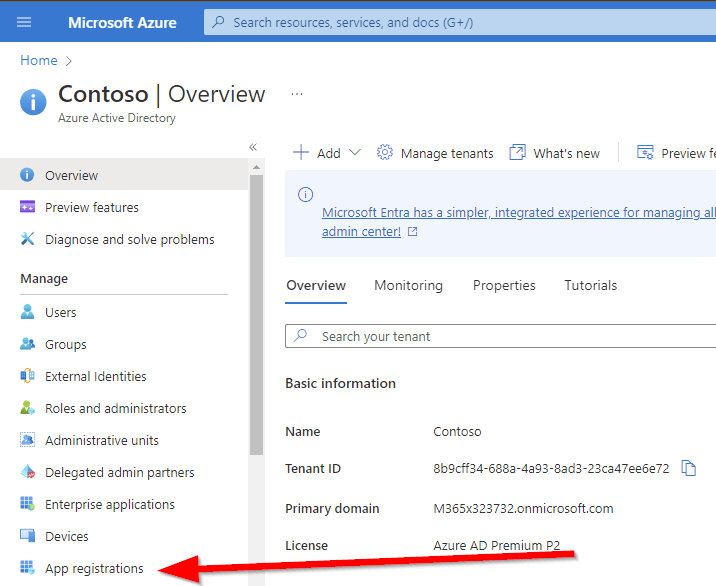
    To create the Azure App Registration, browse to the Azure App Registration page in the Microsoft Azure Portal:

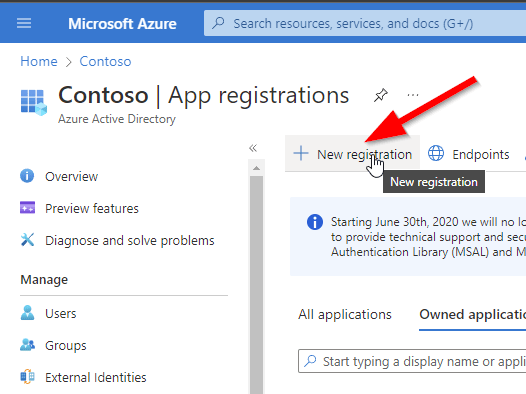
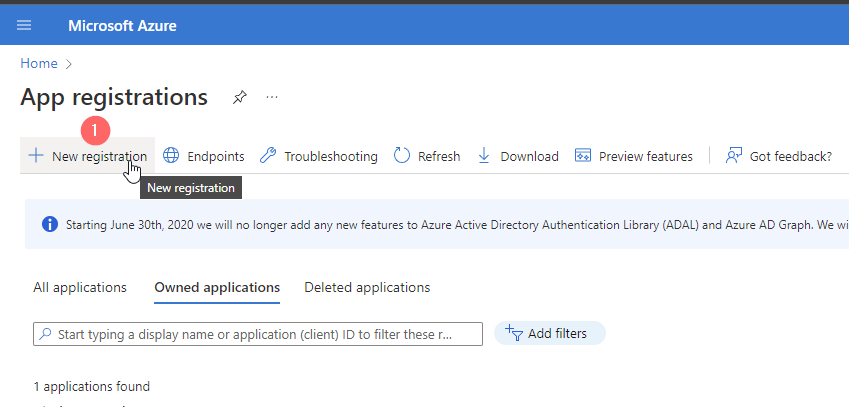
    Click on New registration:

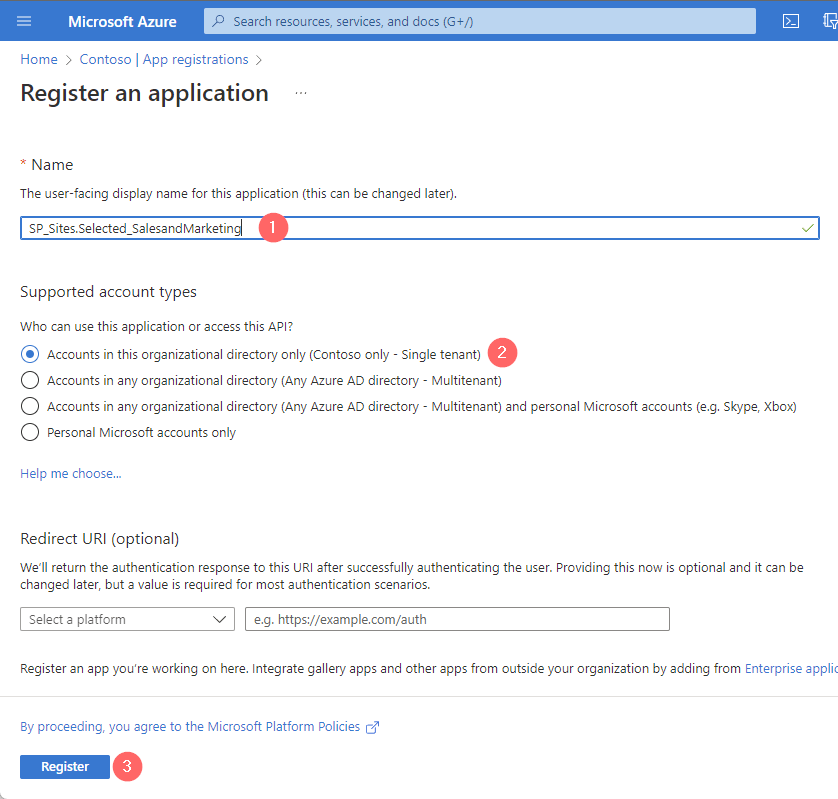
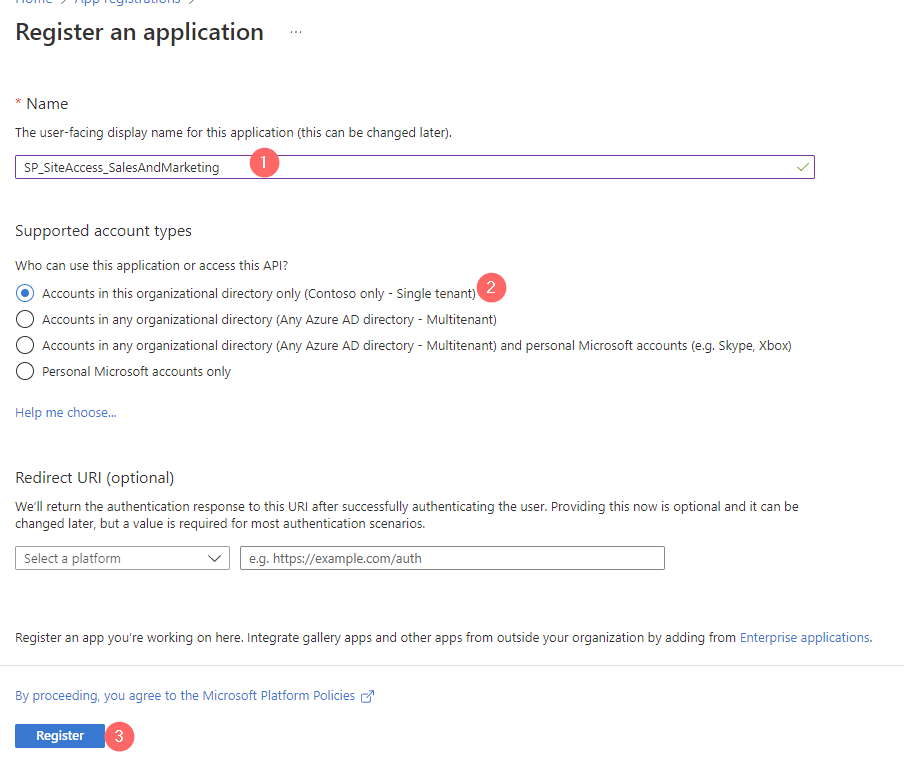
    Provide a meaningful name and register the App by clicking on Register.

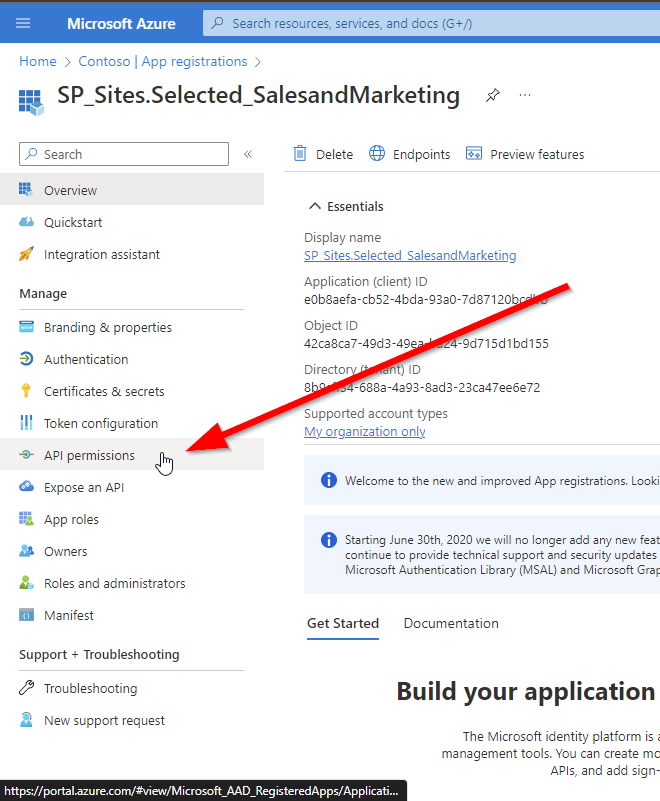
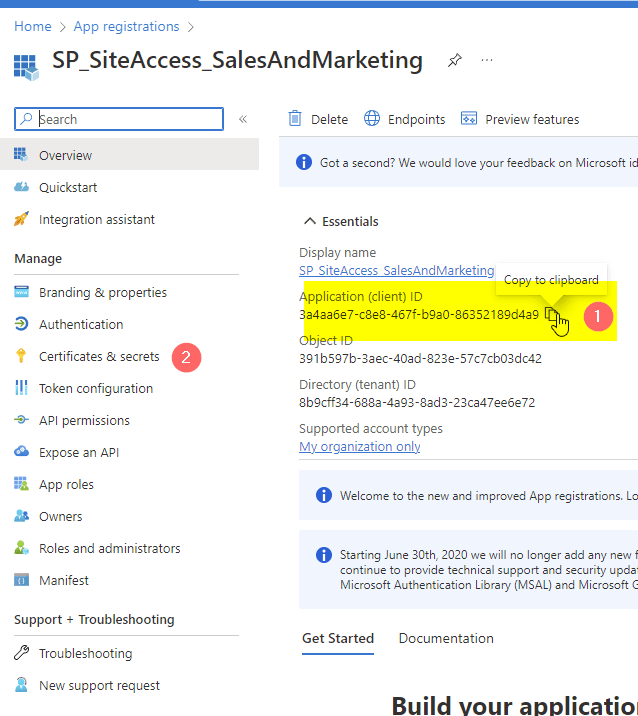
    Click on API Permissions

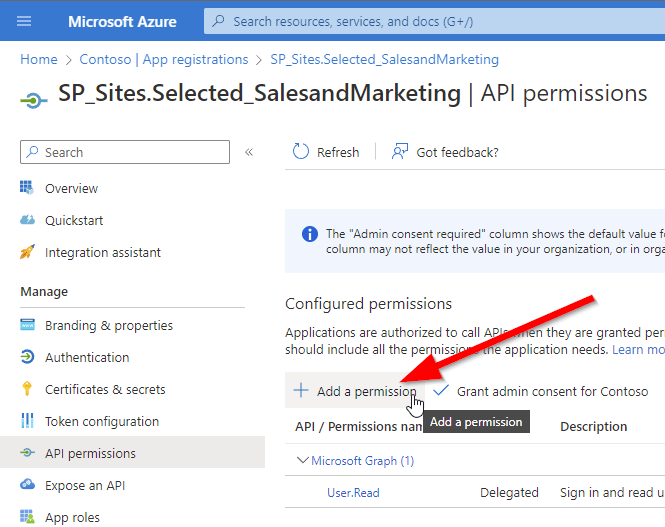
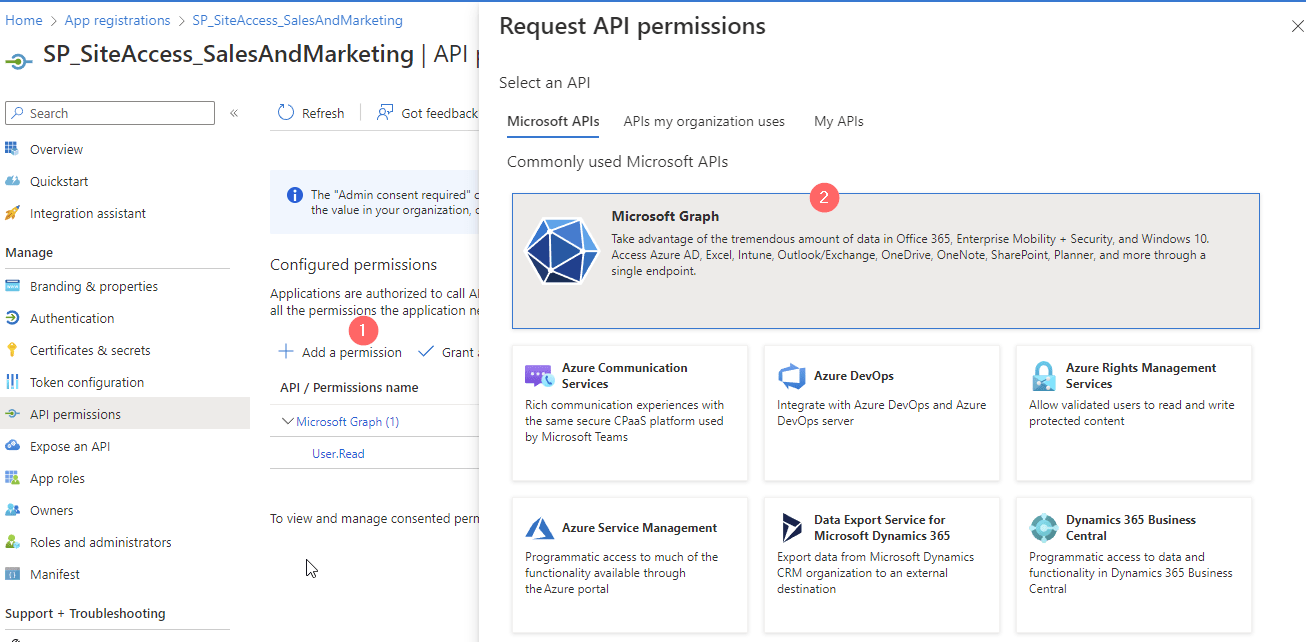
    By default the App is able to read user information from Entra ID. Click on Add a permission to add permissions.

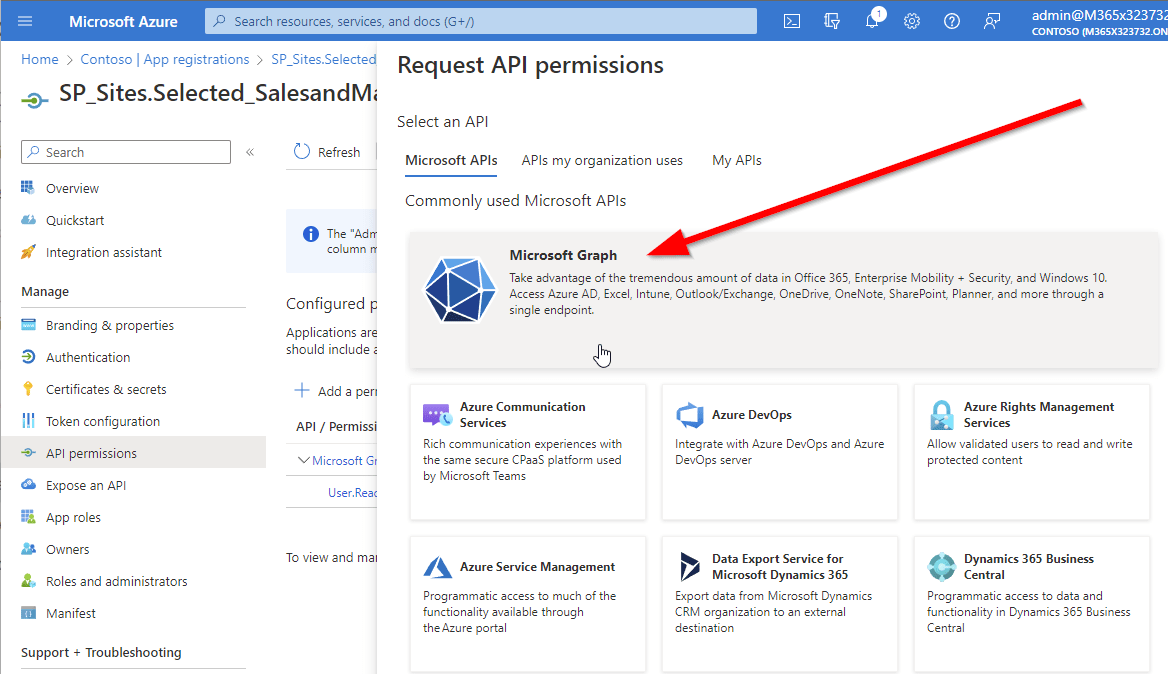
    Now select Microsoft Graph

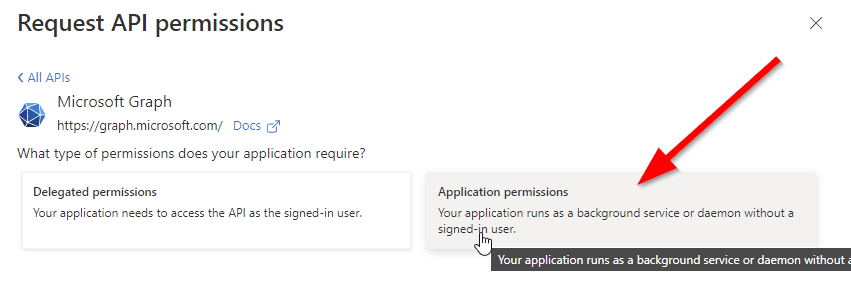
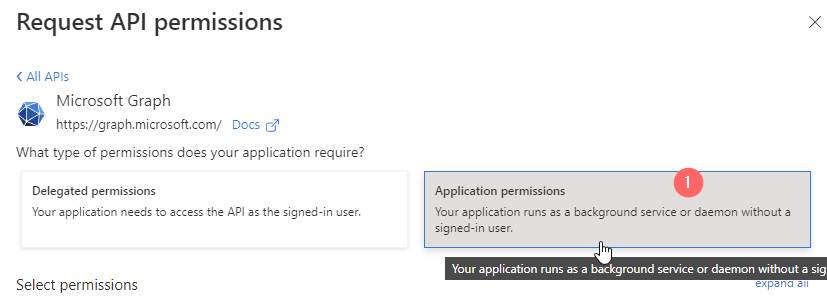
    Now click on Application Permissions, search for Group and provide the Group.Create permission.

    Now you have requested the permission. Make sure that the permission is also granted. You can grant it by a Global Administrator, Application Administrator, or Cloud Application Administrator.

    Once the permission is granted, the page should look like this:

    Now we made sure that the App registration is created and the necessary permissions are granted. We just need to make sure to configure the authentication of the Application. There are two approaches, which can be used to authenticate with Entra ID:

    1. Certificate based authentication
    2. Secret based authentication

    For this article, I’ll use the secret based authentication. However in production use, consider using a certificate, which is considered to be more secure.

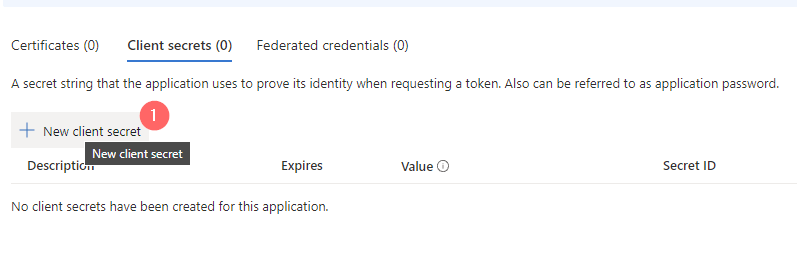
    Browse to the Certificates and secrets blade, click on Client secrets and on New client secret.

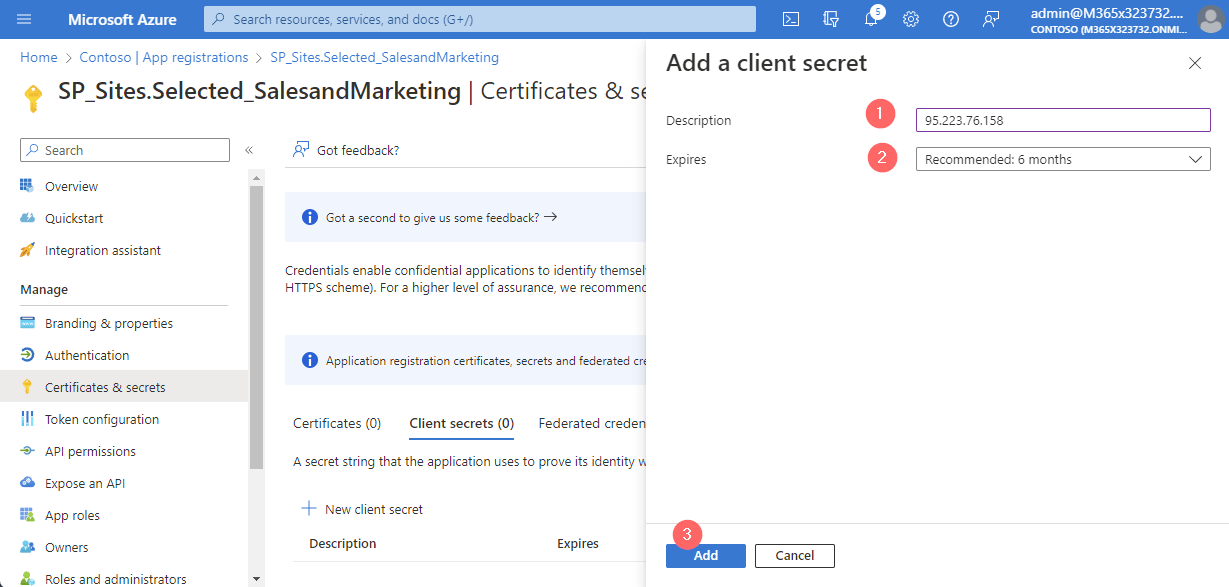
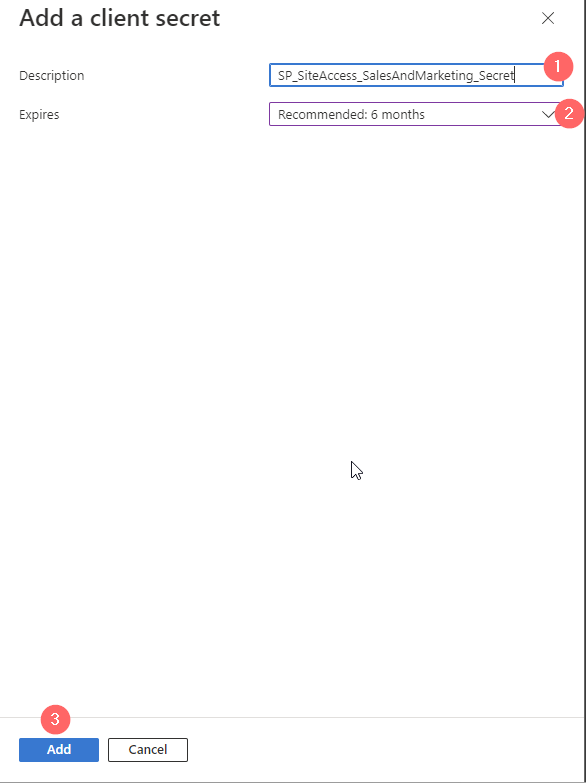
    Provide a meaningful name to the client secret. I’ll use GroupMgmt_GroupCreate_180days and configure the lifetime. I’ll use the default lifetime of 180 days. Before expiration you need to make sure to create an additional client secret, and change it in your code. Else your app and the use case won’t work.

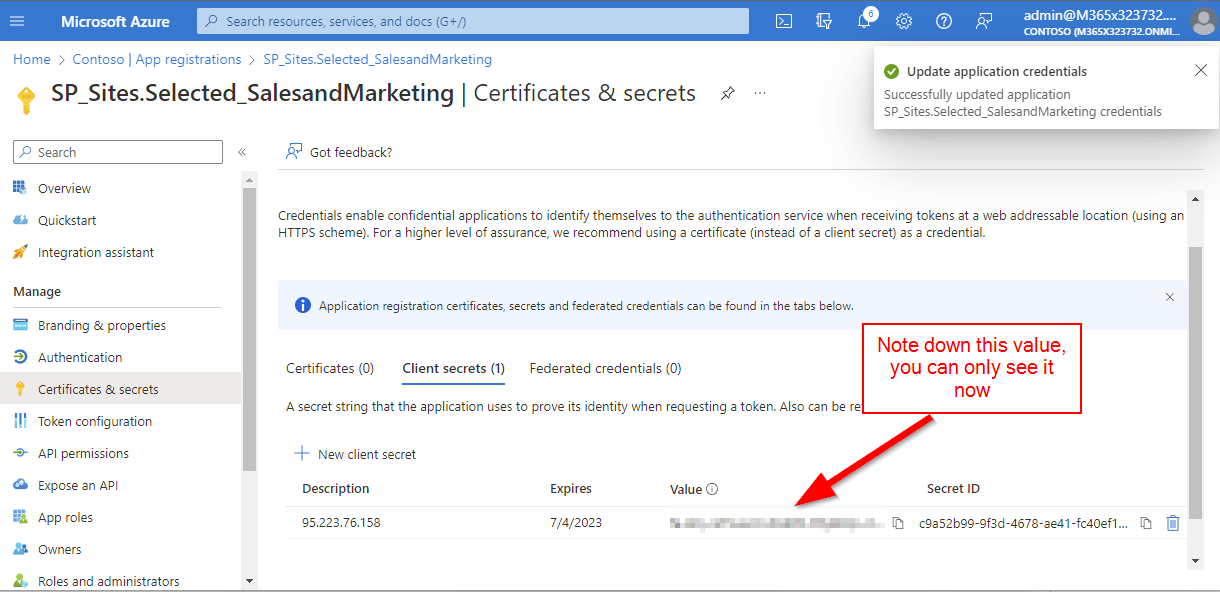
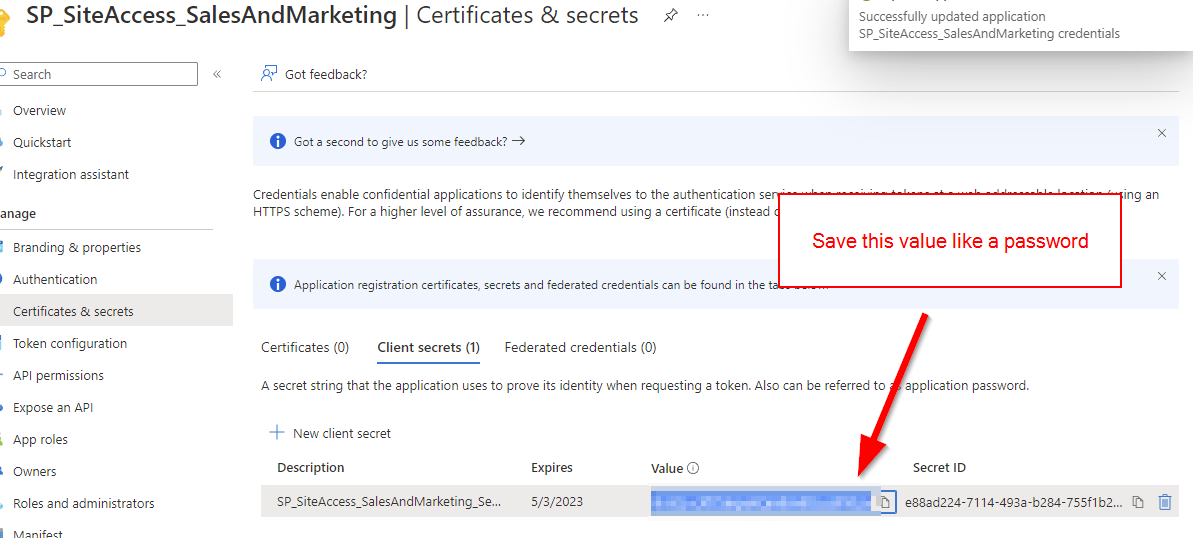
    After addition, you’ll be shown only once the value of the client secret. Make sure to store it in a secure place like a key vault.

    Create SharePoint Site Using Graph: PowerShell code

    With the code below you can create SharePoint Sites using Graph with PowerShell. Before you run the code, make sure that you change the parameters.

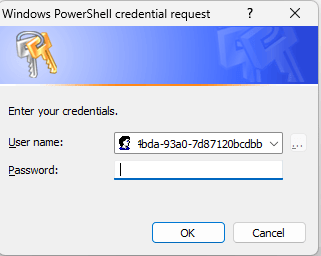
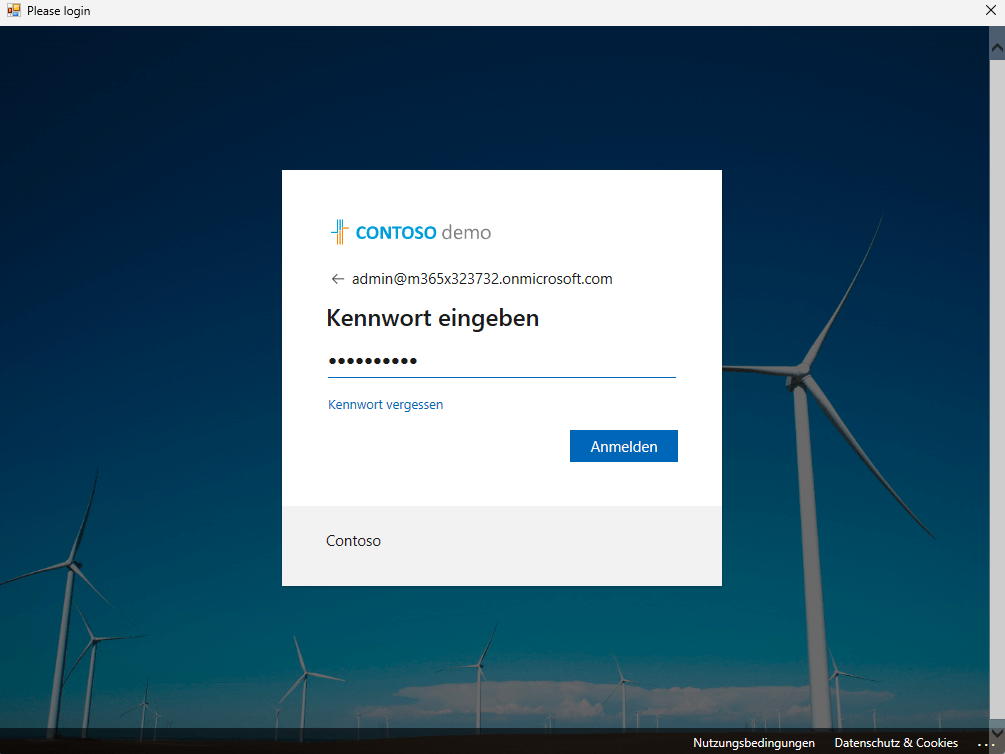
    If you trigger the code below, you’ll get prompted the app secret, which you have created previously.

    How can I avoid getting prompted on Windows?

    To avoid getting prompted each time for the app secret value, make sure to export it like this:

    Make sure that you export the credential with the user account, with which you want to run the code, and also the machine, on which the code shall run. If you copy the credential xml to another machine or try to decode the credential file with a different user account, you’ll notice that you won’t be able to do so.

    If you use the PowerShell code in Azure (like in Azure Automation, Azure Functions), make sure that you store the credentials in a secure place e.g. Azure Key Vault.

    # Export the Credential path to specified path   
    Get-Credential | Export-CliXml -Path c:\creds\credential.xml
    
    # Import the credential object from specified path
    $Credential = Import-CliXml -Path c:\creds\credential.xml

    The code below is first attempting to obtain a bearer token from Entra Id. Once the token is obtained, it is intended to create an Entra ID group, based on which the SharePoint Site is getting created.

    # Define parameters for the tenant, application ID, site name, and mail nickname
    Param (
        # The Azure AD tenant ID for authentication
        $Tenant = "m365x16735261", 
        # The Application (client) ID of the registered Azure AD application
        $AppID = "730efedf-b000-4deb-92c6-25da0e27e24d",   
        # The display name of the group to be created
        $SiteName = "GraphSite7",   
        # The mail nickname for the group (used for email addressing)
        $Mailnickname = "GraphSite7"   
    )
    
    # Securely prompts for application credentials (Client ID and Secret)
    #$AppCredential = Get-Credential -UserName $AppID -Message "Enter the client secret"
    
    # Function to obtain the Microsoft Graph API token
    function Get-GraphToken {
        param (
            [string]$Tenant,
            [PSCredential]$AppCredential
        )
        
        # Define the required scope for accessing the Microsoft Graph API
        $Scope = "https://graph.microsoft.com/.default"
    
        # Prepare the body for the token request with client ID, client secret, and scope
        $Body = @{
            client_id = $AppCredential.UserName                     # Client ID from app registration
            client_secret = $AppCredential.GetNetworkCredential().password   # Securely retrieve the client secret
            scope = $Scope                                         # API scope required for MS Graph API access
            grant_type = 'client_credentials'                      # Grant type for app-only authentication
        }
    
        # Azure AD endpoint to request an OAuth token
        $GraphUrl = "https://login.microsoftonline.com/$($Tenant).onmicrosoft.com/oauth2/v2.0/token"
    
        try {
            # Request the access token from Azure AD
            $AuthorizationRequest = Invoke-RestMethod -Uri $GraphUrl -Method "Post" -Body $Body
            # Retrieve the access token from the response
            return $AuthorizationRequest.Access_token
        } catch {
            # Handle authentication errors, if any
            Write-Error "Error during token retrieval: $_"
            return $null
        }
    }
    
    # Call the Get-GraphToken function and store the result
    $Access_token = Get-GraphToken -Tenant $Tenant -AppCredential $AppCredential
    
    # Check if access token is successfully obtained
    if (-not $Access_token) {
        Write-Error "Failed to retrieve access token. Exiting script."
        return
    }
    
    # Set the Authorization header with the bearer token for API requests
    $Header = @{
        Authorization = "Bearer $Access_token"              # Bearer token for API authorization
        "Content-Type" = "application/json"                 # JSON content type for the request body
    }
    Write-Output "Access token retrieved successfully."
    
    #region create site
    # Define the group properties for the new group creation request
    $Body = @{
        displayName = $SiteName                   # Name displayed for the new group in Azure AD
        groupTypes = @("Unified")                 # "Unified" indicates an Office 365 group
        mailEnabled = $false                       # Enable mail functionality for the group
        mailNickname = $Mailnickname              # The mail alias for the group, unique for Microsoft 365 groups in the organization
        securityEnabled = $false                  # Indicates that this is not a security group
    }
    
    # Set the endpoint URL for creating a group in Microsoft Graph API
    $Url = "https://graph.microsoft.com/v1.0/groups"
    # Convert the group properties to JSON format required for the API request
    $BodyJSON = $Body | ConvertTo-Json -Compress
    
    try {
        # Send the HTTP POST request to create the group with the defined properties
        $response = Invoke-RestMethod -Uri $Url -Headers $Header -Method Post -Body $BodyJSON
        # Output the ID of the newly created group for confirmation
        Write-Output "Group created successfully: $($response.id)"
        Write-Output "Site created succesfully: $SiteName"
    } catch {
        # Handle errors that may occur during the group creation request
        Write-Error "Failed to create group: $_"
    }
    #endregion

    Upon submission of the code, you’ll get following similar output:

    With the execution of the code, the SharePoint site https://m365x16735261.sharepoint.com/sites/GraphSite8 was just created:

    Create SharePoint Sites using Graph: Postman

    I want to showcase the strength of the usage of MS Graph by showing how to create SharePoint sites with Postman. The approach consists of a two staged process: Obtain Bearer Token and creation of Entra ID group.

    Create SharePoint Sites using Graph: Postman – Prerequisites

    Make sure that you install Postman or utilize the web version of postman. You can download it from the official website: Postman API Platform

    Create SharePoint Sites using Graph: Postman – Obtain bearer token

    To create the bearer token, you need to trigger a POST call for the endpoint https://login.microsoftonline.com/<tenanturl>/oauth2/v2.0/token

    In my example it is: https://login.microsoftonline.com/m365x16735261.onmicrosoft.com/oauth2/v2.0/token

    Make sure you maintain following body as x-www-form-urlencoded:

    KeyValue
    grant_typeclient_credentials
    client_id<app id of the Azure App registration>
    In my example:
    730efedf-b000-4deb-92c6-25da0e27e24d
    client_secret<secret of the Azure App registration>
    scope.default

    Your call shall look like this:

    After calling it you should receive a bearer token as part of a response:

    {
        "token_type": "Bearer",
        "expires_in": 3599,
        "ext_expires_in": 3599,
        "access_token": "eyJ0eXAiOiJKV1QiLCJub2...<SANITIZED>"
    }

    Copy the bearer token value, you’ll need it in the next step.

    Create SharePoint Sites using Graph: Postman – Create Group

    Now as you have obtained the bearer token, create another tab and make sure to Enter following header information:

    KeyValue
    Content-Typeapplication/json
    AuthorizationBearer eyJ0eXAiOiJKV1QiLCJub25jZSI6ImkyQUxLTktKMVpoRXdTU2xoWDJrYXZ1a09IRVFocUdQMnRESzhGWS1naGciLCJhbGciOiJSUzI1NiIsIng1dCI6IjNQYUs0RWZ5Qk5RdTNDdGpZc2EzWW1oUTVFMCIsImtpZCI6<SANITIZED>

    Proceed with the body configuration:

    Provide the body as JSON. Make sure to adjust it based on your scenario:

    {
      "mailEnabled": false,
      "displayName": "GraphSite10",
      "mailNickname": "GraphSite10",
      "securityEnabled": false,
      "groupTypes": [
        "Unified"
      ]
    }

    After submitting the POST request, you’ll get the Entra ID group and the Site created. This is a sample response, upon submission of the request.

    {
        "@odata.context": "https://graph.microsoft.com/v1.0/$metadata#groups/$entity",
        "id": "d32e29f1-68e2-4a55-a9cd-bda027125522",
        "deletedDateTime": null,
        "classification": null,
        "createdDateTime": "2024-11-01T23:32:57Z",
        "creationOptions": [],
        "description": null,
        "displayName": "GraphSite10",
        "expirationDateTime": null,
        "groupTypes": [
            "Unified"
        ],
        "isAssignableToRole": null,
        "mail": "GraphSite10@M365x16735261.onmicrosoft.com",
        "mailEnabled": true,
        "mailNickname": "GraphSite10",
        "membershipRule": null,
        "membershipRuleProcessingState": null,
        "onPremisesDomainName": null,
        "onPremisesLastSyncDateTime": null,
        "onPremisesNetBiosName": null,
        "onPremisesSamAccountName": null,
        "onPremisesSecurityIdentifier": null,
        "onPremisesSyncEnabled": null,
        "preferredDataLocation": null,
        "preferredLanguage": null,
        "proxyAddresses": [
            "SMTP:GraphSite10@M365x16735261.onmicrosoft.com"
        ],
        "renewedDateTime": "2024-11-01T23:32:57Z",
        "resourceBehaviorOptions": [],
        "resourceProvisioningOptions": [],
        "securityEnabled": false,
        "securityIdentifier": "S-1-12-1-3543017969-1247111394-2696793513-576000551",
        "theme": null,
        "uniqueName": null,
        "visibility": "Public",
        "onPremisesProvisioningErrors": [],
        "serviceProvisioningErrors": []
    }

    As one can see below, the SharePoint site was created.

    With the Postman approach, you can see the benefit: You really don’t rely anymore on PowerShell. With Graph you can create SharePoint Sites, with every REST API execution host.

    Conclusion

    With the approach, we have a straight forward approach to create SharePoint sites, without being dependent on PowerShell. Now I am curious about your setup: Do you create SharePoint Sites as part of a workflow? Which business use case are you supporting with it and what else are you creating apart from the SharePoint Site?

    References

  • A Complete Guide For SharePoint Site Creation with PowerShell

    In this article I want to show you how you can streamline the SharePoint Site creation with PowerShell. You can save time by doing it with PowerShell especially, if you want to create multiple sites as part of a backend process.

    Typical backend processes could be:

    You have a domain specific process – e.g. as part of each opportunity you want to gather content in a separate SharePoint site. After the opportunity closure you want to make sure that the content is handled as per your organizational guidelines. With the automated approach to create SharePoint sites, you can make sure that the Site is following specified structure – e.g. you keep a naming concept, language settings etc. This is a common use case for many customers I am working with when it comes to SharePoint Site creation with PowerShell.

    The SharePoint site creation with PowerShell is a basic task for administrators looking to efficiently manage and scale their SharePoint environments. Especially if the SharePoint environment need to follow a consistent design.

    The approach for SharePoint Site creation with PowerShell is pretty straight forward, you just need to authenticate with the admin console, define the parameters and create the SharePoint site.

    Process for SharePoint Site Creation with PowerShell

    Prerequisites for SharePoint Site Creation with PowerShell

    In order to create SharePoint sites with PowerShell, following prerequisites need to be fulfilled:

    Step-by-Step Instructions for SharePoint Site Creation with PowerShell

    First of all you need to connect to the SharePoint Admin center in your PowerShell console. Make sure that you adjust the variable SharePointAdminURL, so that you connect to your tenant. The SharePoint Admin URL is specifying the backend address for administrative purposes for your SharePoint tenant. In my case it is “https://m365x04995906-admin.sharepoint.com”, which is derived from the M365 demo tenant prefix.

    Import-Module -Name Microsoft.Online.SharePoint.PowerShell
    $sharePointAdminURL= "https://m365x04995906-admin.sharepoint.com"
    
    Connect-SPOService -Url $sharePointAdminURL

    If you run the code an interactive authentication prompt window will show up, make sure that you use the SharePoint Administrator or Global Administrator for the tenant.

    Now you can create the site with following code – again make sure that you update the parameters for your specific use case.

    Parameters Explained: SharePoint Site Creation with PowerShell

    • Owner (owner)
      The owner of the site is defined using the UPN (User Principal Name), which is typically the email address of the user. In this example I use “admin@M365x04995906.onmicrosoft.com”, which is the global admin for M365 demo tenants.
    • Storage Quota (storageQuota)
      This parameter sets the storage limit for the SharePoint site. Here, I have specified 1000, meaning the site will have 1 GB of storage. Adjust this value according to the needs of your organization, as storage quotas help in managing SharePoint resources efficiently.
    • Site URL (url)
      This is the URL where the new SharePoint site will be accessible. In this case, it’s set to “https://m365x04995906.sharepoint.com/sites/Demo2”. Each site in SharePoint must have a unique URL, so you’ll need to customize this for each new site you create.
    • Template (template)
      SharePoint offers a variety of site templates for different use cases (e.g., team sites, communication sites). In this example, I use “STS#3”, which refers to a Team Site template. You can view all available templates using the Get-SPOWebTemplate cmdlet to find one that suits your needs.
    • Time Zone (timezoneID)
      Setting the correct time zone for your site is important for accurate scheduling and regional settings. The timezoneID parameter uses numeric codes to specify time zones. Here, 4 refers to a specific time zone, and you can find a full list of time zone IDs in the Microsoft documentation.
    • Site Title (title)
      The title is how your site will be identified within SharePoint. In this example, I named the site “Demo2”. This title will be visible in the site header and navigation.
    • No Wait (noWait)
      By setting this parameter to $true, the script does not wait for the site creation process to complete before continuing. This is useful when you need to deploy multiple sites in parallel or run the script in an environment where you don’t need immediate feedback.
    $SpoSiteArguments = @{
        owner = "admin@M365x04995906.onmicrosoft.com" #type in the upn of the owner of the site
        storageQuota = 1000  #specify the quota of the site in MB
        url= "https://m365x04995906.sharepoint.com/sites/Demo2" #specify the url of the site
        template = "STS#3" #specify, which template shall be used, run Get-SPOWebTemplate to find available templates
        timezoneID = 4  #specify the time zone for the site https://learn.microsoft.com/en-us/previous-versions/office/sharepoint-csom/jj171282(v=office.15)#remarks
        title= "Demo2" #specify the title of the site
        noWait = $true
    }
    
    New-SPOSite @SpoSiteArguments

    Using the New-SPOSite command, you can streamline SharePoint site creation with PowerShell by specifying parameters like owner, storage quota, and site template, so you could make sure that the owner is a specific Entra ID group for e.g. your sales support team.

    Create SharePoint Site: Interactive PowerShell code

    Below you’ll find the code to create sites interactively. The interactive approach makes sense to get a hands on experience how the code works, before you implement it in production as part of a backend automation. With that you’ll be sure that your infrastructure and modules are all set and settled and that you don’t run into any surprise.

    Before you run the code, You need to change the values in the SharePoint Admin URL variable and SPOSiteArguments hashtable.

    Param{
        $sharePointAdminURL= "https://m365x04995906-admin.sharepoint.com"
    }
    
    Import-Module -Name Microsoft.Online.SharePoint.PowerShell
    
    
    Connect-SPOService -Url $sharePointAdminURL
    
    $SpoSiteArguments = @{
        owner = "admin@M365x04995906.onmicrosoft.com" #type in the upn of the owner of the site
        storageQuota = 1000  #specify the quota of the site in MB
        url= "https://m365x04995906.sharepoint.com/sites/Demo2" #specify the url of the site
        template = "STS#3" #specify, which template shall be used, run Get-SPOWebTemplate to find available templates
        timezoneID = 4  #specify the time zone for the site https://learn.microsoft.com/en-us/previous-versions/office/sharepoint-csom/jj171282(v=office.15)#remarks
        title= "Demo2" #specify the title of the site
        noWait = $true
    }
    
    New-SPOSite @SpoSiteArguments

    Create SharePoint Site: Non-Interactive PowerShell Code

    With the code below, you won’t get any prompt, but you need to make sure that you have stored the credentials locally. This code can be used if you are looking forward to create sites as part of a backend process.

    If you have not exported your credentials, you can do it like this:
    $credentialPath = "C:\Users\Serka\OneDrive\Desktop\PS\Keys\admin@M365x323732.onmicrosoft.com.txt" #Path, where the encrypted credential file will be stored at
    $username = "admin@M365x323732.onmicrosoft.com" #Usename of the credential object
    
    $credential = Get-Credential($username)
    $credential | Export-Clixml -Path $credentialPath
    Return $Credential

    Param(
        $sharePointAdminURL= "https://m365x04995906-admin.sharepoint.com",
        $credentialPath = "C:\Users\Serkar\OneDrive\Desktop\PS\Keys\admin@M365x04995906.onmicrosoft.com.txt"
    )
    
    Import-Module -Name Microsoft.Online.SharePoint.PowerShell
    
    #region credential import
    $credential | Import-Clixml -Path $credentialPath
    Return $Credential
    
    #endregion
    
    #region create the SPOSite
    
    Connect-SPOService -Url $sharePointAdminURL -Credential $credential 
    
    $SpoSiteArguments = @{
        owner = "admin@M365x04995906.onmicrosoft.com" #type in the upn of the owner of the site
        storageQuota = 1000  #specify the quota of the site in MB
        url= "https://m365x04995906.sharepoint.com/sites/Demo2" #specify the url of the site
        template = "STS#3" #specify, which template shall be used, run Get-SPOWebTemplate to find available templates
        timezoneID = 4  #specify the time zone for the site https://learn.microsoft.com/en-us/previous-versions/office/sharepoint-csom/jj171282(v=office.15)#remarks
        title= "Demo2" #specify the title of the site
        noWait = $true
    }
    
    New-SPOSite @SpoSiteArguments
    
    #endregion


    With this code, we are now able to create SharePoint sites in bulk in interactive sessions or as part of backend automations. Do you have any questions or ideas for future automation topics? Let me know in the comments below!

    References, which you want to check for SharePoint Site creation with Powershell

    • To deepen your understanding of SharePoint site creation with PowerShell, check out the official Microsoft documentation.
    • You could also handle SharePoint Sites creation with Powershell utilizing Pnp.PowerShell – however it’s limited to some communication sites:
      New-PnPSite | PnP PowerShell
  • Assign Sensitivity Labels In SharePoint with MSGraph (PowerShell)

    What are Sensitvity Labels?

    Organizations have the need to tag their documents regarding sensitivity. This need is arising among ISO 27001. Sensitivity labels in Microsoft 365 enable organizations to tag documents regarding their sensitivity. In general the sensitivity of a document can be classified roughly in three categories: public, confidential, highly confidential. Each organization might have a different understanding when to use which sensitivity label.

    How to assign Sensitivity Labels in SharePoint with PowerShell?

    In this article, I will describe following four steps to assign sensitivity labels with PowerShell:

    1. Make sure that sensitivity Labels are enabled
    2. Create Azure AD App Registration with the permissions to assign sensitivity labels for SharePoint Sites
    3. Enable metered APIs and Service in Microsoft Graph.
    4. Run the script, which is provided in this article

    How to enable Sensitivtiy Labels for SharePoint? (Short Summary)

    In order to enable sensitivity labels, you need to enable sensitivity labels in Microsofts Purview (Compliance Center) as a global administrator.

    1. Sign in to Purview Portal as a global administrator
    2. Click on Information protection -> Labels
      screenshot of Azure purview portal showing the protection selection
    3. Click on Turn on now
      Screenshot of button to turn on sensitivity labels in SharePoint

    Now you can set Sensitivity Labels in SharePoint.

    Assign sensitivity Label in SharePoint Online - Browser view

    Details about about supported file types, limitations etc. can be obtained here: Enable sensitivity labels for Office files | Microsoft Learn

    How to configure the Azure App Registration to set Sensitivity Labels in SharePoint

    Make sure that you have configured following permissions for your Azure App Registration if you want to authenticate via client secret or certificate. This permissions allow you to update documents in all SharePoint Sites:


    Sites.ReadWrite.All
    ApplicationRead and write items in all site collections

    If you want to do it only on one Site, use Sites.Selected permission and add the permission as per following documentation:

    If you want to get familiar on how to create an Azure App registration, check out following article, where I describe in detail, what an Azure App Registration is and how you can configure it in order to use MS Graph.
    How to configure Azure App registration for MS Graph | SPO Scripts

    I have configured the app with the Sites.ReadWrite.All permission and authenticate with a certificate.

    Screenshot of Azure App registration permissions

    Enable Metered Graph API services for MS Graph

    The API to assigning sensitivity labels for SharePoint files involve additional cost for metered API services. In order to set up metered Graph API services, I have created an resource by following the article: Enable metered APIs and services in Microsoft Graph. The pricing is based on the ammount of API calls (currently $0.00185 (USD) per API call as per 09th October 2023). Metered APIs are currently only available in Microsoft Global environment.

    You can create the resource for metered APIs by running following cmdlet in the Azure cloud shell:

    az resource create --resource-group myRG --name myGraphAppBilling --resource-type Microsoft.GraphServices/accounts --properties  "{`"appId`": `"myAppGUID`"}" --location Global --subscription mySubscriptionGUID

    In my case it looks like this:

    az resource create --resource-group MeteredAPI --name myGraphAppBilling --resource-type Microsoft.GraphServices/accounts --properties  "{`"appId`": `"90747925-550c-4658-850f-b19d26ed1a43`"}" --location Global --subscription "Azure subscription 1"

    Running it in Azure cloud shell, I received following output:

    PS /home/mod> az resource create --resource-group MeteredAPI --name myGraphAppBilling --resource-type Microsoft.GraphServices/accounts --properties  "{`"appId`": `"90747925-550c-4658-850f-b19d26ed1a43`"}" --location Global --subscription "Azure subscription 1"
    Resource provider 'Microsoft.GraphServices' used by this operation is not registered. We are registering for you.
    
    Registration succeeded.
    {
      "extendedLocation": null,
      "id": "/subscriptions/ff5e7ad9-f695-45b4-9a68-e0bb85c02731/resourceGroups/MeteredAPI/providers/Microsoft.GraphServices/accounts/myGraphAppBilling",
      "identity": null,
      "kind": null,
      "location": "Global",
      "managedBy": null,
      "name": "myGraphAppBilling",
      "plan": null,
      "properties": {
        "appId": "90747925-550c-4658-850f-b19d26ed1a43",
        "billingPlanId": "e81f3875-03e9-47ee-b1db-5da2697468bb",
        "provisioningState": "Succeeded"
      },
      "resourceGroup": "MeteredAPI",
      "sku": null,
      "systemData": {
        "createdAt": "2023-09-23T20:04:50.6961011Z",
        "createdByType": "User",
        "lastModifiedAt": "2023-09-23T20:04:50.6961011Z",
        "lastModifiedByType": "User"
      },
      "tags": null,
      "type": "microsoft.graphservices/accounts"
    }
    PS /home/mod>                                              

    If you try it without the registration, you will receive following error message

    Set-MgDriveItemSensitivityLabel_AssignExpanded: Payment Required. Ensure that your application is able to call this premium API.For details see https://aka.ms/graph-metered-overview
    
    Status: 402 (PaymentRequired)
    ErrorCode: paymentRequired
    Date: 2023-09-23T19:27:33
    
    Headers:
    Cache-Control                 : no-store, no-cache
    Transfer-Encoding             : chunked
    Vary                          : Accept-Encoding
    Strict-Transport-Security     : max-age=31536000
    request-id                    : bb607711-f87b-4974-87a4-632a70d5985a
    client-request-id             : 152c36fa-971c-47c1-aa00-6342fe6d9c3b
    x-ms-ags-diagnostic           : {"ServerInfo":{"DataCenter":"Germany West Central","Slice":"E","Ring":"5","ScaleUnit":"000","RoleInstance":"FR1PEPF00000B9E"}}
    Date                          : Sat, 23 Sep 2023 19:27:33 GMT

    How to assign a Sensitivity Label for a SharePoint File with PowerShell

    Let’s assume, we want to change the sensitivity label for this file to confidential:

    Screenshot of a document, which obtained the confidential sensitivity label in SharePoint

    If you want to assign a sensitivity label for one file, you first need to identify the DriveItem ID and Drive ID for the SharePoint file, where you want to set the sensitivity label. You can get the DriveItem ID by executing the script in following article:

    In order to assign a sensitivity label, I wrote following function:

    function Assign-SensitivityLabel
    {
        [CmdletBinding()]
        param (
            [Parameter(Mandatory = $true)]
            $DriveId,
            
            [Parameter(Mandatory = $true)]
            $DriveItemId,
            
            [Parameter(Mandatory = $false)]
            $AssignmentMethod = "privileged", # The assignment method of the label on the document. Can be obtained here: https://learn.microsoft.com/en-us/dotnet/api/microsoft.informationprotection.assignmentmethod?view=mipsdk-dotnet-1.10
            
            [Parameter(Mandatory = $false)]
            $JustificationText = "No justification provIded", # Justification why this sensitivity label is applied.
    
            [Parameter(Mandatory = $true)]
            $SensitivityLabelId # Id of the sensitivitylabel. Can be obtained here: https://compliance.microsoft.com/informationprotection/labels
        )
    
        $Body = @{
            Any                = $null
            AssignmentMethod   = $AssignmentMethod
            JustificationText  = $JustificationText
            SensitivityLabelId = $SensitivityLabelId #Trusted People https://compliance.microsoft.com/informationprotection/labels
        }
        $Uri = "https://graph.microsoft.com/v1.0/drives/$($DriveId)/items/$($DriveItemId)/assignSensitivityLabel"
        
        try
        {
    
            $Response = Invoke-MgGraphRequest -Method "POST" -Uri $Uri  -Body $Body -OutputType PSObject
            Return $Response
        }
        catch
        {
            $Error[0].Exception
        }
    }
    

    I recommend to export the certificate password as an encrypted file, which will be used in the upcomming scripts. A hardcoded password in a script is not recommended.

    Get-credential("CertificateName") | Export-Clixml -Path "C:\Users\Serka\OneDrive\Desktop\PS\SPSitesReadAll.key"

    With the execution of the script below, the sensitivity of the Subfoldderdocument.docx becomes a confidential. If you want to use the script, replace the parameters to fit your scenario.

    Param (
        $AppId = "90747925-550c-4658-850f-b19d26ed1a43", # Replace with the App Id of your App registration
        $Tenant = "1f795e95-c06b-4109-924e-3569fddf499f", # Replace with the Tenant prefix
        $CertificatePath = "C:\Users\Serka\OneDrive\Desktop\PS\SPSitesReadAll.pfx", # Replace with the path to your certificate,
        $CertificatePasswordPath = "C:\Users\Serka\OneDrive\Desktop\PS\SPSitesReadAll.key", # Replace with the password of your certificate,
        $SensitivityLabelId = "defa4170-0d19-0005-0005-bc88714345d2",  # Id of the sensitivitylabel. Can be obtained here: https://compliance.microsoft.com/informationprotection/labels
        $Justificationtext = "Labelled by Serkar", #Here you can justify your labelling
        $AssignmentMethod = "Auto", # The assignment method of the label on the document. Can be obtained here: https://learn.microsoft.com/en-us/dotnet/api/microsoft.informationprotection.assignmentmethod?view=mipsdk-dotnet-1.10,
        $DriveId = "b!kJV0CniHeUeAiju7m8Gl4ZmfCOoRAXJNrYB9wjbkfZ-Vmuw3EELGQ7bZlNIfSaf4", #ID of the drive, which is typically the SharePoint Library
        $DriveitemId = "01NLC4VWO4XBKMOKUMUVH3Z6GINE5TGTRT" #ID of the SharePoint file, for which the Sensitivitylabel shall be adjusted
    )
    
    
    function Assign-SensitivityLabel
    {
        [CmdletBinding()]
        param (
            [Parameter(Mandatory = $true)]
            $DriveId,
            
            [Parameter(Mandatory = $true)]
            $DriveItemId,
            
            [Parameter(Mandatory = $false)]
            $AssignmentMethod = "privileged", # The assignment method of the label on the document. Can be obtained here: https://learn.microsoft.com/en-us/dotnet/api/microsoft.informationprotection.assignmentmethod?view=mipsdk-dotnet-1.10
            
            [Parameter(Mandatory = $false)]
            $JustificationText = "No justification provIded", # Justification why this sensitivity label is applied.
    
            [Parameter(Mandatory = $true)]
            $SensitivityLabelId # Id of the sensitivitylabel. Can be obtained here: https://compliance.microsoft.com/informationprotection/labels
        )
    
        $Body = @{
            Any                = $null
            AssignmentMethod   = $AssignmentMethod
            JustificationText  = $JustificationText
            SensitivityLabelId = $SensitivityLabelId #Trusted People https://compliance.microsoft.com/informationprotection/labels
        }
        $Uri = "https://graph.microsoft.com/v1.0/drives/$($DriveId)/items/$($DriveItemId)/assignSensitivityLabel"
        
        try
        {
    
            $Response = Invoke-MgGraphRequest -Method "POST" -Uri $Uri  -Body $Body -OutputType PSObject
            Return $Response
        }
        catch
        {
            $Error[0].Exception
        }
    }
    
    
    # Load required Modules
    Import-Module Microsoft.Graph.Authentication, Microsoft.Graph.Files
    
    # Load the certificate from file
    $CertificatePassword = (Import-Clixml -Path $CertificatePasswordPath).getnetworkcredential().Password
    $Certificate = New-Object System.Security.Cryptography.X509Certificates.X509Certificate2($CertificatePath, $CertificatePassword)
    
    # Authenticate
    Connect-MgGraph -ClientId $AppId -TenantId $Tenant -CertificateThumbprint $Certificate.Thumbprint -NoWelcome
     
    #region prepare export
    
    # Get drive
    $Drive = Get-MgSite -SiteId $SiteId -Property Drives -ExpandProperty Drives | Select-Object Drives -ExpandProperty Drives | Where-Object { $_.Name -eq $LibraryName }
    
    # Get drive item
    $DriveItems = Invoke-MgGraphRequest -Uri "v1.0/drives/$($Drive.Id)/root/children"
    
    $ItemExportRaw = New-Object System.Collections.Generic.List[object]
    
    foreach ($DriveItem in $DriveItems.Value)
    {
        #Get All drivitems below root
        $ItemExportRaw.Add( $(List-MgDriveItem -Drive $Drive -DriveItem $DriveItem))
    }
    
    $ItemExport = New-Object System.Collections.Generic.List[object]
    
    
    $ItemExportRaw |ForEach-Object {
    
            $_ | ForEach-Object {$ItemExport.add($_)}    
    }
    #endregion
    
    #region assign sensitivity label
    
    $SensitivyLabelParams  =$null
    $SensitivyLabelParams = @{
        DriveId            = $DriveId
        DriveitemId        = $DriveitemId
        AssignmentMethod   = $AssignmentMethod
        Justificationtext  = $Justificationtext
        SensitivityLabelId = $SensitivityLabelId
    }
    
    Write-Output "Assigining sensitivity label to $($Item.DriveItemName)"
    Assign-SensitivityLabel @SensitivyLabelParams
    
    
    #endregon

    I oberserved that it took a few moments until the sensitivity label was updated in SharePoint as it happens asychronously.

    Assigned confidential sensitivity label to SharePoint file

    How to assign Sensitivity Labels for a SharePoint Library with PowerShell

    In order to assign sensitivity labels a whole SharePoint library with PowerShell, you need to obtain first the DriveItemIDs for each SharePoint file and then proceed with assigning the sensitivity labels.

    To showcase the functionality, I have prepared following SharePoint Library with various sensitivity labels. My aim is to assign the confidential sensitivity label for each file. This script recurses subfolders, so that child items of folders are assigned with the sensitivity label of choice.

    SharePoint Library to assign sensitivity labels

    Param (
        $AppId = "90747925-550c-4658-850f-b19d26ed1a43", # Replace with the App Id of your App registration
        $Tenant = "1f795e95-c06b-4109-924e-3569fddf499f", # Replace with the Tenant prefix
        $SiteId = "0a749590-8778-4779-808a-3bbb9bc1a5e1", # Replace it with the SiteId of your SharePoint Site https://m365x04995906.sharepoint.com/sites/Remoteliving/_api/site/Id
        $LibraryName = "Documents", # Replace with the list name,
        $CertificatePath = "C:\Users\Serka\OneDrive\Desktop\PS\SPSitesReadAll.pfx", # Replace with the path to your certificate,
        $CertificatePasswordPath = "C:\Users\Serka\OneDrive\Desktop\PS\SPSitesReadAll.key", # Replace with the password of your certificate,
        $SensitivityLabelId = "defa4170-0d19-0005-0005-bc88714345d2",  # Id of the sensitivitylabel. Can be obtained here: https://compliance.microsoft.com/informationprotection/labels
        $Justificationtext = "Labelled by Serkar", #Here you can justify your labelling
        $AssignmentMethod = "Auto" # The assignment method of the label on the document. Can be obtained here: https://learn.microsoft.com/en-us/dotnet/api/microsoft.informationprotection.assignmentmethod?view=mipsdk-dotnet-1.10
            
    )
    
    function List-MgDriveItem
    {
        [CmdletBinding()]
        param (
            [Parameter()]
            $Drive,
            [Parameter()]
            $DriveItem
        )
    
        Try
        {
            if ($DriveItem.folder)
            {
                # Recurse in the folder to get the childitems of the folder
                $ChildItems = (Get-MgDriveItem -DriveId $Drive.Id -DriveItemId $DriveItem.Id  -ExpandProperty Children ).Children
    
                if ($ChildItems.Count -gt 0)
                {
                    <# Action to perform if the condition is true #>
                    $ChildItems | ForEach-Object { 
                        List-MgDriveItem -Drive $Drive -DriveItem (Get-MgDriveItem -DriveId $Drive.Id -DriveItemId $($_.Id) ) 
                    }
                }
    
            }
    
                $Result = New-Object psobject -Property @{
                DriveItemName = $DriveItem.name;
                DriveitemId   = $DriveItem.Id;
                DriveId       = $Drive.Id;
                DriveItemURL  = $DriveItem.webUrl
            }
            return $Result
        }
        catch
        {
            Return $Error[0]
        }
    
    }
    function Assign-SensitivityLabel
    {
        [CmdletBinding()]
        param (
            [Parameter(Mandatory = $true)]
            $DriveId,
            
            [Parameter(Mandatory = $true)]
            $DriveItemId,
            
            [Parameter(Mandatory = $false)]
            $AssignmentMethod = "privileged", # The assignment method of the label on the document. Can be obtained here: https://learn.microsoft.com/en-us/dotnet/api/microsoft.informationprotection.assignmentmethod?view=mipsdk-dotnet-1.10
            
            [Parameter(Mandatory = $false)]
            $JustificationText = "No justification provIded", # Justification why this sensitivity label is applied.
    
            [Parameter(Mandatory = $true)]
            $SensitivityLabelId # Id of the sensitivitylabel. Can be obtained here: https://compliance.microsoft.com/informationprotection/labels
        )
    
        $Body = @{
            Any                = $null
            AssignmentMethod   = $AssignmentMethod
            JustificationText  = $JustificationText
            SensitivityLabelId = $SensitivityLabelId #Trusted People https://compliance.microsoft.com/informationprotection/labels
        }
        $Uri = "https://graph.microsoft.com/v1.0/drives/$($DriveId)/items/$($DriveItemId)/assignSensitivityLabel"
        
        try
        {
    
            $Response = Invoke-MgGraphRequest -Method "POST" -Uri $Uri  -Body $Body -OutputType PSObject
            Return $Response
        }
        catch
        {
            $Error[0].Exception
        }
    }
    
    
    # Load required Modules
    Import-Module Microsoft.Graph.Authentication, Microsoft.Graph.Files
    
    # Load the certificate from file
    $CertificatePassword = (Import-Clixml -Path $CertificatePasswordPath).getnetworkcredential().Password
    $Certificate = New-Object System.Security.Cryptography.X509Certificates.X509Certificate2($CertificatePath, $CertificatePassword)
    
    # Authenticate
    Connect-MgGraph -ClientId $AppId -TenantId $Tenant -CertificateThumbprint $Certificate.Thumbprint -NoWelcome
     
    #region prepare export
    
    # Get drive
    $Drive = Get-MgSite -SiteId $SiteId -Property Drives -ExpandProperty Drives | Select-Object Drives -ExpandProperty Drives | Where-Object { $_.Name -eq $LibraryName }
    
    # Get drive item
    $DriveItems = Invoke-MgGraphRequest -Uri "v1.0/drives/$($Drive.Id)/root/children"
    
    $ItemExportRaw = New-Object System.Collections.Generic.List[object]
    
    foreach ($DriveItem in $DriveItems.Value)
    {
        #Get All drivitems below root
        $ItemExportRaw.Add( $(List-MgDriveItem -Drive $Drive -DriveItem $DriveItem))
    }
    
    $ItemExport = New-Object System.Collections.Generic.List[object]
    
    
    $ItemExportRaw |ForEach-Object {
    
            $_ | ForEach-Object {$ItemExport.add($_)}    
    }
    
    #endregion
    
    #region assign sensitivity label
    
    foreach ($Item in $ItemExport)
    {
        <# $Item is the current item #>
    
        $SensitivyLabelParams  =$null
        $SensitivyLabelParams = @{
            DriveId            = $Item.DriveId
            DriveitemId        = $Item.DriveitemId
            AssignmentMethod   = $AssignmentMethod
            Justificationtext  = $Justificationtext
            SensitivityLabelId = $SensitivityLabelId
        }
    
        Write-Output "Assigining sensitivity label to $($Item.DriveItemName)"
        Assign-SensitivityLabel @SensitivyLabelParams
    }
    
    #endregon

    The output of the script shows, that not every file type is supported for assigining sensitivity labels to it. Currently only Word, Excel and PowerPoint file types support sensitivity label per default.

    Screenshot of PowerShell script highlighting that SharePoint files received the sensitivity labels

    Further Reference

    If you are new to Graph API, consider reading following article, which will help you to configure the Azure Application correctly:

    How to configure Azure App registration for MS Graph | SPO Scripts

  • How to Get SharePoint Files with MSGraph with PowerShell

    With the newest MSGraph module one has the capability to get SharePoint files with MSGraph. I recently figured out, how to fetch them in a recursed manner. In this article I want to share with you how to get SharePoint files with MSGraph. You will need to get the files with MSGraph, if you are thinking about to do following things:

    • Read/ Write/ Delete Metadata of SharePoint Files
    • Obtain DriveItem IDs, if you want to upload files to specific folders
    • Download specific SharePoint files
    • Assess the storage of your SharePoint libraries

    What do you need to get SharePoint Files with MSGraph

    You need to fulfil two requirements, so that you can get SharePoint files with MSGraph recursedly.

    1. You need to configure an Azure App registration with read permission to the SharePoint sites, where you want to obtain the files from. If you have never done this, follow my article, where I explain how to configure your Azure App registration for MSGraph access.
      How to configure Azure App registration for MS Graph | SPO Scripts
    2. Install the MSGraph module for PowerShell
      Install the Microsoft Graph PowerShell SDK | Microsoft Learn

    Demo Setup

    In my demo setup I have a SharePoint Library, where I have stored some files and folders. I am showcasing you, so that you can understand what you can expect from the solution. I have also some files in a folder, which will show that the solution is able to fetch folder items.

    Get SharePoint Files with MSGraph
    SharePoint Subfolder

    I have created an Azure App registration with the Sites Read All permission. The authentication will be done with a self signed certificate.

    Azure App Registration with MSGraph permission

    Azure App Registration with certificate for authentication

    How to Get all SharePoint Files with MSGraph in PowerShell (recursively)

    Below you can find the PowerShell script to get all SharePoint files. I have created the function List-MgDriveItem in order to list the drive items of a drive. A drive item is either a file or a folder within a SharePoint Library You can adjust the function, if you want to have different attributes.

    function List-MgDriveItem
    {
        [CmdletBinding()]
        param (
            [Parameter()]
            $Drive,
            [Parameter()]
            $DriveItem
        )
    
        Try
        {
            if ($DriveItem.folder)
            {
                # Recurse in the folder to get the childitems of the folder
                $ChildItems = (Get-MgDriveItem -DriveId $Drive.Id -DriveItemId $DriveItem.Id  -ExpandProperty Children ).Children
    
                if ($ChildItems.Count -gt 0)
                {
                    <# Action to perform if the condition is true #>
                    $ChildItems | ForEach-Object { 
                        List-MgDriveItem -Drive $Drive -DriveItem (Get-MgDriveItem -DriveId $Drive.Id -DriveItemId $($_.Id) ) 
                    }
                }
    
            }
    
                $Result = New-Object psobject -Property @{
                DriveItemName = $DriveItem.name;
                DriveitemSize   = $DriveItem.Size
            }
            return $Result
        }
        catch
        {
            Return $Error[0]
        }
    
    }

    A sample output of a folder driveitem looks like this:

    PS C:\Users\Serka\OneDrive\Desktop\PS> $driveitem | Select-Object *
    
    webUrl               : https://m365x04995906.sharepoint.com/sites/Remoteliving/Shared%20Documents/General
    id                   : 01NLC4VWP4YR6WIO6O6JFIFTARZGEQZMAL
    createdBy            : {[user, System.Collections.Hashtable], [application, System.Collections.Hashtable]}
    lastModifiedBy       : {[user, System.Collections.Hashtable], [application, System.Collections.Hashtable]}
    lastModifiedDateTime : 31.07.2023 12:17:50
    name                 : General
    folder               : {[childCount, 3]}
    size                 : 4505145
    fileSystemInfo       : {[lastModifiedDateTime, 31.07.2023 12:17:50], [createdDateTime, 31.07.2023 12:17:50]}
    createdDateTime      : 31.07.2023 12:17:50
    parentReference      : {[id, 01NLC4VWN6Y2GOVW7725BZO354PWSELRRZ], [path, /drives/b!kJV0CniHeUeAiju7m8Gl4ZmfCOoRAXJNrYB9wjbkfZ-Vmuw3EELGQ7bZlNIfSaf4/root:], [driveType, documentLibrary], [driveId, b!kJV0CniHeUeAiju7m8Gl4ZmfCOoRAXJNrYB9wjbkfZ-Vmuw3EELGQ7bZlNIfSaf4]…}
    eTag                 : "{647DC4FC-CE3B-4AF2-82CC-11C9890CB00B},2"
    cTag                 : "c:{647DC4FC-CE3B-4AF2-82CC-11C9890CB00B},0"
    shared               : {[scope, users]}

    A sample output of a file driveitem looks like this:

    PS C:\Users\Serka\OneDrive\Desktop\PS> $driveitem | select-object * |Format-list
    
    createdDateTime              : 19.08.2023 20:56:39
    cTag                         : "c:{6C722880-DCC4-45F4-B64C-96805B32D473},2"
    lastModifiedBy               : {[user, System.Collections.Hashtable]}
    @microsoft.graph.downloadUrl : https://m365x04995906.sharepoint.com/sites/Remoteliving/_layouts/15/download.aspx?UniqueId=6c722880-dcc4-45f4-b64c-96805b32d473&Translate=false&tempauth=eyJ0eXAiOiJKV1QiLCJhbGciOiJIUzI1NiJ9.eyJhdWQiOiIwMDAwMDAwMy0wMDAwLTBmZjEtY2UwMC0wMDAwMDAwMDAwMDAvbTM2NXgwNDk5NTkwNi5zaGFyZXBvaW50LmNvbUAxZjc5NWU5NS1jMDZiLTQxMDktOTI0ZS0zNTY5ZmRkZjQ5OWYiLCJpc3MiOiIwMDAwMDAwMy0wMDAwLTBmZjEtY2UwMC0wMDAwMDAwMDAwMDAiLCJuYmYiOiIxNjk0OTc0NTMzIiwiZXhwIjoiMTY5NDk3ODEzMyIsImVuZHBvaW50dXJsIjoib0dEUzI3bnFpOEtUSHd5NHRaQ1NYVzE1Mk1KVGFMVkpZZmh0VUhBTVUrUT0iLCJlbmRwb2ludHVybExlbmd0aCI6IjE0MyIsImlzbG9vcGJhY2siOiJUcnVlIiwiY2lkIjoiVWxYbUJaczF1MHU4d3ZpSTFwTGhudz09IiwidmVyIjoiaGFzaGVkcHJvb2Z0b2tlbiIsInNpdGVpZCI6Ik1HRTNORGsxT1RBdE9EYzNPQzAwTnpjNUxUZ3dPR0V0TTJKaVlqbGlZekZoTldVeCIsImFwcF9kaXNwbGF5bmFtZSI6IlNQX1NlbnNpdGl2aXR5X0xhYmVscyIsIm5hbWVpZCI6IjkwNzQ3OTI1LTU1MGMtNDY1OC04NTBmLWIxOWQyNmVkMWE0M0AxZjc5NWU5NS1jMDZiLTQxMDktOTI0ZS0zNTY5ZmRkZjQ5OWYiLCJyb2xlcyI6ImFsbHNpdGVzLndyaXRlIiwidHQiOiIxIiwiaXBhZGRyIjoiMjAuMTkwLjE5MC4xMDMifQ.knKrUliPCxeMF4NQ2-3_FSAkEYRBD5nlTOvAVurT_gQ&ApiVersion=2.0
    file                         : {[mimeType, image/png], [hashes, System.Collections.Hashtable]}
    photo                        : {}
    name                         : 2023-06-25 00_18_51-Alfahosting.de® • Meine Rechnungen and 2 more pages - Personal - Microsoft​ Edge.png
    fileSystemInfo               : {[lastModifiedDateTime, 19.08.2023 20:56:39], [createdDateTime, 19.08.2023 20:56:39]}
    id                           : 01NLC4VWMAFBZGZRG46RC3MTEWQBNTFVDT
    shared                       : {[scope, users]}
    image                        : {[width, 868], [height, 406]}
    createdBy                    : {[user, System.Collections.Hashtable]}
    size                         : 23175
    eTag                         : "{6C722880-DCC4-45F4-B64C-96805B32D473},1"
    lastModifiedDateTime         : 19.08.2023 20:56:39
    webUrl                       : https://m365x04995906.sharepoint.com/sites/Remoteliving/Shared%20Documents/2023-06-25%2000_18_51-Alfahosting.de%C2%AE%20%E2%80%A2%20Meine%20Rechnungen%20and%202%20more%20pages%20-%20Personal%20-%20Microsoft%E2%80%8B%20Edge.png
    parentReference              : {[id, 01NLC4VWN6Y2GOVW7725BZO354PWSELRRZ], [path, /drives/b!kJV0CniHeUeAiju7m8Gl4ZmfCOoRAXJNrYB9wjbkfZ-Vmuw3EELGQ7bZlNIfSaf4/root:], [driveType, documentLibrary], [driveId, b!kJV0CniHeUeAiju7m8Gl4ZmfCOoRAXJNrYB9wjbkfZ-Vmuw3EELGQ7bZlNIfSaf4]…}

    Here you can find the PowerShell script to get all SharePoint files with MSGraph. Keep in mind that you replace the param block with the values from your tenant, app etc.

    Param (
        $AppID = "90747925-550c-4658-850f-b19d26ed1a43", # Replace with the App ID of your App registration
        $Tenant = "1f795e95-c06b-4109-924e-3569fddf499f", # Replace with the Tenant ID
        $SiteID = "0a749590-8778-4779-808a-3bbb9bc1a5e1", # Replace it with the SiteID of your SharePoint Site https://m365x04995906.sharepoint.com/sites/Remoteliving/_api/site/id
        $LibraryName = "Documents", # Replace with the list name,
        $CertificatePath = "C:\Users\Serka\OneDrive\Desktop\PS\SPSitesReadAll.pfx", # Replace with the path to your certificate,
        $CertificatePassword = "XXX" # Replace with the password of your certificate
    )
    
    function List-MgDriveItem {
        [CmdletBinding()]
        param (
            [Parameter()]
            $Drive,
            [Parameter()]
            $DriveItem
        )
        
        if ($DriveItem.folder) {
            <# Action to perform if the condition is true #>
            Write-Output "Folder $($DriveItem.Name), size $($DriveItem.Size) `n"
    
            # Recurse in the folder to get the childitems of the folder
            $ChildItems = $null
            $ChildItems = (Get-MgDriveItem -DriveId $Drive.id -DriveItemId $DriveItem.id  -ExpandProperty Children ).Children
    
            if ($ChildItems.Count -gt 0) {
                <# Action to perform if the condition is true #>
                $ChildItems | ForEach-Object { 
                    List-MgDriveItem -Drive $Drive -DriveItem (Get-MgDriveItem -DriveId $Drive.ID -DriveItemId $($_.Id) ) 
                }
            }
            
        }   
        elseif ($null -ne $DriveItem.file) {
            <# Action when this condition is true #>
            Write-Output "File $($DriveItem.Name), size $($DriveItem.Size) `n"
        }
    }
    
    #region prerequistes
    Import-Module microsoft.graph.authentication
    
    # Load the certificate from file
    $Certificate = New-Object System.Security.Cryptography.X509Certificates.X509Certificate2($CertificatePath, $CertificatePassword)
    
    # Authenticate
    Connect-MgGraph -ClientID $AppID -TenantId $Tenant -CertificateThumbprint $Certificate.Thumbprint
    #endregion
    
    #region main
    # Get drive
    $Drive = Get-MgSite -SiteId $SiteID -Property Drives -ExpandProperty Drives | Select-Object Drives -ExpandProperty Drives | Where-Object { $_.Name -eq $LibraryName }
    
    # Get drive item
    $DriveItems = Invoke-MgGraphRequest -Uri "v1.0/drives/$($Drive.ID)/root/children"
    
    foreach ($DriveItem in $DriveItems.Value) {
    
        #Get All drivitems below root
        List-MgDriveItem -Drive $Drive -DriveItem $DriveItem
    }
    
    #
    #endregion

    As you can see below, the script populates the space ocupation for each SharePoint file/ folder.

    Output of get SharePoint files for MSGraph

    How to get DriveItemIDs for SharePoint Files?

    I have modified the script, so that you can get all driveItemIDs for all SharePoint Files in your library. Below you can find the script with certificate based authentication.

    Param 
    (
        $AppId = "90747925-550c-4658-850f-b19d26ed1a43", # Replace with the App Id of your App registration
        $Tenant = "1f795e95-c06b-4109-924e-3569fddf499f", # Replace with the Tenant prefix
        $SiteId = "0a749590-8778-4779-808a-3bbb9bc1a5e1", # Replace it with the SiteId of your SharePoint Site https://m365x04995906.sharepoint.com/sites/Remoteliving/_api/site/Id
        $LibraryName = "Documents", # Replace with the list name,
        $CertificatePath = "C:\Users\Serka\OneDrive\Desktop\PS\SPSitesReadAll.pfx", # Replace with the path to your certificate,
        $CertificatePasswordPath = "C:\Users\Serka\OneDrive\Desktop\PS\SPSitesReadAll.key" # Replace with the path to the password of your certificate,
    )
    
    function List-MgDriveItem
    {
        [CmdletBinding()]
        param (
            [Parameter()]
            $Drive,
            [Parameter()]
            $DriveItem
        )
    
        Try
        {
            if ($DriveItem.folder)
            {
                # Recurse in the folder to get the childitems of the folder
                $ChildItems = (Get-MgDriveItem -DriveId $Drive.Id -DriveItemId $DriveItem.Id  -ExpandProperty Children ).Children
    
                if ($ChildItems.Count -gt 0)
                {
                    <# Action to perform if the condition is true #>
                    $ChildItems | ForEach-Object { 
                        List-MgDriveItem -Drive $Drive -DriveItem (Get-MgDriveItem -DriveId $Drive.Id -DriveItemId $($_.Id) ) 
                    }
                }
    
            }
    
                $Result = New-Object psobject -Property @{
                DriveItemName = $DriveItem.name;
                DriveitemId   = $DriveItem.Id;
                DriveId       = $Drive.Id;
                DriveItemURL  = $DriveItem.webUrl
            }
            return $Result
        }
        catch
        {
            Return $Error[0]
        }
    
    }
    
    
    # Load required Modules
    Import-Module Microsoft.Graph.Authentication, Microsoft.Graph.Files
    
    # Load the certificate from file
    $CertificatePassword = (Import-Clixml -Path $CertificatePasswordPath).getnetworkcredential().Password
    $Certificate = New-Object System.Security.Cryptography.X509Certificates.X509Certificate2($CertificatePath, $CertificatePassword)
    
    # Authenticate
    Connect-MgGraph -ClientId $AppId -TenantId $Tenant -CertificateThumbprint $Certificate.Thumbprint -NoWelcome
     
    #region prepare export
    
    # Get drive
    $Drive = Get-MgSite -SiteId $SiteId -Property Drives -ExpandProperty Drives | Select-Object Drives -ExpandProperty Drives | Where-Object { $_.Name -eq $LibraryName }
    
    # Get drive item
    $DriveItems = Invoke-MgGraphRequest -Uri "v1.0/drives/$($Drive.Id)/root/children"
    
    $ItemExportRaw = New-Object System.Collections.Generic.List[object]
    
    foreach ($DriveItem in $DriveItems.Value)
    {
        #Get All drivitems below root
        $ItemExportRaw.Add( $(List-MgDriveItem -Drive $Drive -DriveItem $DriveItem))
    }
    
    $ItemExport = New-Object System.Collections.Generic.List[object]
    
    
    $ItemExportRaw |ForEach-Object {
    
            $_ | ForEach-Object {$ItemExport.add($_)}    
    }
    
    $ItemExport
    #endregion

    If you want to use app secrets instead of certificate based authentication, you can use following script

    Param 
    (
        $AppId = "13b20636-5165-402e-aedc-5e05eeb4a57f", # Replace with the App Id of your App registration
        $Tenant = "b7b0953d-d866-4606-9199-7642f06a0b2e", # Replace with the Tenant prefix
        $SiteId = "2dfd508f-98ab-46ad-839b-f0435730c79a", # Replace it with the SiteId of your SharePoint Site https://m365x04995906.sharepoint.com/sites/Remoteliving/_api/site/Id
        $LibraryName = "Documenten" # Replace with the list name,
    )
    
    function List-MgDriveItem
    {
        [CmdletBinding()]
        param (
            [Parameter()]
            $Drive,
            [Parameter()]
            $DriveItem
        )
    
        Try
        {
            if ($DriveItem.folder)
            {
                # Recurse in the folder to get the childitems of the folder
                $ChildItems = (Get-MgDriveItem -DriveId $Drive.Id -DriveItemId $DriveItem.Id  -ExpandProperty Children ).Children
    
                if ($ChildItems.Count -gt 0)
                {
                    <# Action to perform if the condition is true #>
                    $ChildItems | ForEach-Object { 
                        List-MgDriveItem -Drive $Drive -DriveItem (Get-MgDriveItem -DriveId $Drive.Id -DriveItemId $($_.Id) ) 
                    }
                }
    
            }
    
                $Result = New-Object psobject -Property @{
                DriveItemName = $DriveItem.name;
                DriveitemId   = $DriveItem.Id;
                DriveId       = $Drive.Id;
                DriveItemURL  = $DriveItem.webUrl
            }
            return $Result
        }
        catch
        {
            Return $Error[0]
        }
    
    }
    
    
    # Load required Modules
    Import-Module Microsoft.Graph.Authentication, Microsoft.Graph.Files
    
    # Complie Client Credential
    $ClientSecretCredential = Get-Credential($AppID)
    
    # Authenticate
    Connect-MgGraph -TenantId $Tenant -ClientSecretCredential $ClientSecretCredential -NoWelcome
    
    #region prepare export
    
    # Get drive
    $Drive = Get-MgSite -SiteId $SiteId -Property Drives -ExpandProperty Drives | Select-Object Drives -ExpandProperty Drives | Where-Object { $_.Name -eq $LibraryName }
    
    # Get drive item
    $DriveItems = Invoke-MgGraphRequest -Uri "v1.0/drives/$($Drive.Id)/root/children"
    
    $ItemExportRaw = New-Object System.Collections.Generic.List[object]
    
    foreach ($DriveItem in $DriveItems.Value)
    {
        #Get All drivitems below root
        $ItemExportRaw.Add( $(List-MgDriveItem -Drive $Drive -DriveItem $DriveItem))
    }
    
    $ItemExport = New-Object System.Collections.Generic.List[object]
    
    
    $ItemExportRaw |ForEach-Object {
    
            $_ | ForEach-Object {$ItemExport.add($_)}    
    }
    
    $ItemExport
    #endregion

    Once the script is exectued, all driveitems are shown like this:

    Output of all driveitems

    Further Reference

    Here you can obtain the permission levels, which are required for your Azure App Registration:
    Microsoft Graph permissions reference – Microsoft Graph | Microsoft Learn

    Here you can find the cmdlet map for MS Graph module

    Find Azure AD and MSOnline cmdlets in Microsoft Graph PowerShell | Microsoft Learn

  • How To Download a SharePoint Library Using Graph API (PowerShell)

    SharePoint is a powerful platform for managing and collaborating on documents, but downloading files from SharePoint libraries can be a tricky, especially when it comes to deal with large files or a large amount of documents. In this post, I want to show you a straightforward guide to download a SharePoint Library using PowerShell with Microsoft’s Graph API for SharePoint administrators, developers or system integrators. This tutorial will help you streamline your automation in terms of downloading SharePoint libraries. At the end, you’ll find a ready to use PowerShell script, which you can use to download the SharePoint Library using Graph API.

    If you want to download a SharePoint library using Graph API, there are certain prerequisites you must fulfil. To successfully download files from SharePoint using Graph API, you need to ensure the following:

    What do I need to download files to SharePoint using Graph API?

    • You have the sites.selected permission for an Azure Enterprise Application. Your global administrator in your organization can consent this permission.
    • You have installed the PNP PowerShell module to allow the Enterprise Application permission to download files from the specific SharePoint Site. Without this module, the Enterprise Application will not be able to access and download the files. Learn here how you can install the PNP PowerShell module:
      Connect to SharePoint with PowerShell | SharePoint Online (workplace-automation.com/)

    By fulfilling these prerequisites, you can easily download SharePoint libraries using Graph API and streamline your document management process.

    How to create the Enterprise Application to Download a SharePoint Library using Graph?

    1. Go to the Azure Active Directory Portal to create an App Registration with Sites.Selected permissions. This allows the Enterprise Application to access and download files from SharePoint.
    2. Create a credential object for the App registration.
    3. Once you have created the credentials for the App Registration, make sure to note down the credentials for future use. These credentials will be required when you are running the PowerShell script to download a SharePoint Library using Graph.

    By following these simple steps, you can create an Enterprise Application with the necessary permissions to download files from SharePoint using Graph API. You will get to know in the upcoming passage how to create the Enterprise Application step-by-step.

    Browse to Azure Active Directory Portal

    Open https://portal.azure.com/#view/Microsoft_AAD_IAM/ActiveDirectoryMenuBlade in your browser.

    If you have the global admin rights, I recommend authenticating with that account, so that you can directly grant your enterprise application the permission. Otherwise, you need to reauthenticate or ask your administrator to grant your enterprise application the permissions.

    Create an App Registration with Sites.Selected permissions

    Browse to the App Registration blade in Azure Active Directory Portal.

    Screenshot of the App registration Azure Active Directory Tenant overview

    Click on “New registration” to create a new App Registration.

    Screenshot of new enterprise app registration

    Define a meaningful name for the App that follows your organization’s standards, so that different administrators can easily recognize the purpose of the App. In this case I am using the name SP_Sites.Selected_Retail name, so that Azure Active directory administrators can recognize that the App Registration will have the permission Sites.Selected for the SharePoint Site Retail

    Browse to the “API Permissions” to grant your App Registraion the permission to download the SharePoint Library using Graph API.

    Screenshot of API Permissions link

    Click on “Add a permission”

    Screenshot of API Permissions overview to add a permission

    As we want to go with Microsoft Graph, please choose “Microsoft Graph”.

    Screenshot of the selection for APIs

    To download a SharePoint library using Graph API, it’s crucial to choose the right permission level. If you want your application to run in the background without requiring user authentication, you’ll need to select the Application permission option. In this tutorial on how to download a SharePoint library using Graph API, we’ll focus on the application permission method to automate the process of downloading files from SharePoint.

    Screenshot of API permission types

    Now add the sites.selected permission, which allows you to access contents of a single SharePoint site.

    Screenshot of Microsoft Graph Permissions for SharePoint Sites

    To grant admin consent for your tenant, you must be signed in with a user account that has global administrator privileges. However, if you don’t have these privileges ask your administrator with the global administrator role to consent permissions for the App Registration.

    Screenshot of granting of admin consent for current tenant

    Create a secret for the App Registration

    Now as you have configured the App permissions, you have to ensure, that you can authenticate with your App Registration. To configure the authentication, click on “Certificates & secrets”.

    Screenshot of certificates & secrets of App Registrations

    Now you can either upload certificates, create client secrets or create federated credentials. In this tutorial I will show you how to work with client secrets.

    Screenshot of Selection for App Registration Authentication

    Now you need to define a credential name. I choose the client and the IP Address to recognize, which Server/ Application will use the client secret.

    Screenshot of Add a client secret

    As you have added a client secret, make sure that you store the value for the secret as you are only able to see it, when you create it.

    Screenshot of exposed client secret value

    How to grant the App Registration Permissions for a SharePoint Site?

    To grant permission to your app registration, it’s essential to ensure that the PNP Module is installed on your client and that you have permission to use it. If you haven’t already installed the PNP Module, check out the documentation: Connect to SharePoint with PowerShell | SharePoint Online (workplace-automation.com/)

    Once you have confirmed that both conditions are met, you can use the following code to grant your app registration the necessary permissions to read from the site. You can find your app ID on the overview page of your app registration.

    Take the App ID from the overview page of your App registration and run the code below.

    Screenshot of App ID
    $AppID = "333d169e-7f2d-417c-b349-8498b2248802"
    $AppRegistrationName = "SP_Sites.Selected_Retail"
    $SiteURL = "https://m365x69801090.sharepoint.com/sites/Retail"
    
    Import-Module PnP.PowerShell
    
    $DisplayNameofSitePermission = "Enterprise Application $AppRegistrationName"
    
    
    Connect-PnPOnline -Url $SiteURL -Interactive
    Grant-PnPAzureADAppSitePermission -AppId $AppID -DisplayName $DisplayNameofSitePermission -Site $SiteURL -Permissions Read

    Now login with your account.

    Screenshot of interactive authentication prompt

    This is how it looks like, when the permission was granted successfully for the App Registration.

    Screenshot of granted site permission

    How to Download Files from SharePoint using Graph API?

    Now that we’ve created an app registration and granted it permission to write to a selected site, we can use it to download a SharePoint Library using Graph API. In this example, we’ll download the SharePoint Library Documents from the Retail SharePoint site. Before running the code, make sure you have adjusted the parameters and have the client secret ready, which we created in the previous steps.

    You can get the SiteID by browsing to the siteID page

    <siteurl>/_api/site/id

    For my example:

    https://m365x69801090.sharepoint.com/sites/Retail/_api/site/id

    When you run the code, you’ll be prompted to enter the client secret for your app registration.

    Screenshot of SharePoint Site ID

    Once you have replaced the parameters with your actual values, you can download aSharePoint Library with Graph using PowerShell. You will get an authentication prompt, where you have to enter the client secret for the App Registration.

    Screenshot of authentication promt for app registration

    # Script to download a SharePoint Library using Graph
    # Author: Serkar Aydin - Serkar@workplace-automation.com
    # Accept input parameters
    Param (
        $Tenant = "m365x69801090",
        $AppID = "333d169e-7f2d-417c-b349-8498b2248802",
        $SiteID = "74667e94-9fcf-41ab-8e2f-0dfaf0294de8",
        $LibraryURL = "https://m365x69801090.sharepoint.com/sites/Retail/Shared%20Documents",
        $Path = "C:\Users\Serkar\Desktop\Retail"
    )
    
    Function DownloadDriveItem {
    
        param(
            $DriveItem,
            $URL,
            $Header,
            $Path
            
        )
        
        #if there is no downloadurl, it is a folder
        If (!$DriveItem. '@microsoft.graph.downloadUrl') {
        
            Write-Output "Downloading the folder $($DriveItem.weburl)"
        
            #Create a folder for the SharePoint folder
            $FolderPath = "$Path\$($DriveItem.name)"
            New-Item -ItemType Directory -Path $FolderPath | Out-Null
    
            $Url  = "https://graph.microsoft.com/v1.0/drives/$DriveID/items/$($DriveItem.ID)/children"
            $Response =  Invoke-RestMethod -Uri $Url -Headers $Header -Method Get -ContentType 'multipart/form-data' 
    
            $Response.value | ForEach-Object {
    
                DownloadDriveItem -DriveItem $_ -URL $Url -Header $Header -Path $FolderPath
    
            }
    
        }
    
        #Else it is a file
        Else{
        
            Write-Output "Downloading the file $($DriveItem.weburl)"
            Invoke-WebRequest -Uri $DriveItem.'@microsoft.graph.downloadUrl' -OutFile "$Path\$($DriveItem.name)"
        }
    }
    
    
    # Prompt for application credentials
    $AppCredential = Get-Credential($AppID)
    
    #region authorize
    
    # Set the scope for the authorization request
    $Scope = "https://graph.microsoft.com/.default"
    
    # Build the body of the authorization request
    $Body = @{
        client_id = $AppCredential.UserName
        client_secret = $AppCredential.GetNetworkCredential().password
        scope = $Scope
        grant_type = 'client_credentials'
    }
    
    # Build the URL for the authorization request
    $GraphUrl = "https://login.microsoftonline.com/$($Tenant).onmicrosoft.com/oauth2/v2.0/token"
    
    # Send the authorization request and retrieve the access token
    $AuthorizationRequest = Invoke-RestMethod -Uri $GraphUrl -Method "Post" -Body $Body
    $Access_token = $AuthorizationRequest.Access_token
    
    # Build the header for API requests
    $Header = @{
        Authorization = $AuthorizationRequest.access_token
        "Content-Type"= "application/json"
    }
    
    #endregion
    
    #region get drives
    
    # Build the URL to retrieve the list of drives in the SharePoint site
    $GraphUrl = "https://graph.microsoft.com/v1.0/sites/$SiteID/drives"
    
    # Convert the body of the authorization request to JSON and send the API request
    $BodyJSON = $Body | ConvertTo-Json -Compress
    $Result = Invoke-RestMethod -Uri $GraphUrl -Method 'GET' -Headers $Header -ContentType "application/json"
    
    # Find the ID of the specified SharePoint library
    $DriveID = $Result.value| Where-Object {$_.webURL -eq $LibraryURL } | Select-Object id -ExpandProperty id
    
    # If the SharePoint library cannot be found, throw an error
    If ($DriveID -eq $null){
        Throw "SharePoint Library under $LibraryURL could not be found."
    }
    
    #endregion
    
    #region create folder. If there is already one, replace it with the new folder
    
    Try {
    
        New-Item -ItemType Directory -Path $Path -ErrorAction Stop | Out-Null
    }
    Catch {
    
            Remove-Item $Path -Force -Recurse
            New-Item -ItemType Directory -Path $Path -Force | Out-Null
    }
    #endregion
    
    #region download library
    
    $Url  = "https://graph.microsoft.com/v1.0/drives/$DriveID/root/children"
    $Response =  Invoke-RestMethod -Uri $Url -Headers $Header -Method Get -ContentType 'multipart/form-data' 
    
    $Response.value | ForEach-Object {
    
        DownloadDriveItem -DriveItem $_ -URL $Url -Header $Header -Path $Path
    
    }
    
    #endregion
    Screenshot of the process "Download a SharePoint Library using Graph"

    As you can see, I was able to download a SharePoint Library using Graph API. All folders and subfolders are created on my local C drive. Result of Download a SharePoint Library using Graph 1

    Result of Download a SharePoint Library using Graph 1
    Result of Download a SharePoint Library using Graph File share 1
    Result of Download a SharePoint Library using Graph 2
    Result of Download a SharePoint Library using Graph File share 2
    Result of Download a SharePoint Library using Graph 3
    Result of Download a SharePoint Library using Graph File share 3

    Further Reference

    You might want to download single files from SharePoint with Graph API? Check this out:
    How to download files from SharePoint using Graph API (PowerShell) (workplace-automation.com/)

    Learn how to access SharePoint via Graph in PowerShell: Access SharePoint via Graph API in PowerShell

    Learn how to upload files to SharePoint using Graph (PowerShell):
    How to Upload Files to SharePoint using Graph API PowerShell (workplace-automation.com/)

  • How to download files from SharePoint using Graph API (PowerShell)

    How to download files from SharePoint using Graph API (PowerShell)

    Downloading files from SharePoint is a common use case, when we are integrating 3rd party systems with SharePoint. In my previous articles, I have been explaining how you can upload files to SharePoint using PNP module. In this article, I want to show you how you can achieve download files from SharePoint using Graph API.

    In the beginning, we will create an Entra ID Enterprise Application in Entra ID, grant the created Enterprise Application the permission to interact with selected sites. At the end, I will share a PowerShell script to download files from the SharePoint using Graph API.

    What do I need to download files to SharePoint using Graph API?

    To downlaod a file to SharePoint using Graph API, you need the following prerequisites fulfilled:

    Your Sites.Selected App registration shall have following permission (at least):

    Screenshot of app registration with sites selected permissions

    How to Download Files from SharePoint using Graph API?

    As we have created an app registration and gave it the permission to write to a selected site, we can use to download files from SharePoint using Graph API. In my example, I want to download an Excel file from the SharePoint Library Shared Documents. Make sure, that you have adjusted the parameters and have the client secret handy, which we have created in the previous steps.

    Before you run the code, change the value of there parameters:

    $Tenant = “m365x323732” -> Name of the tenant. You can fetch it from the URL of your SharePoint: https://m365x16735261.sharepoint.com

    $AppID = “e0b8aefa-cb52-4bda-93a0-7d87120bcdbb” -> App ID, which you previously created in Entra ID

    $SiteID = “e35cee33-6d10-4e2c-a83b-496a26062ad3” -> ID of the Site, where you want to download the file from. In my example it would be https://m365x323732.sharepoint.com/sites/SalesAndMarketing/_api/site/id

    $LibraryURL = “https://m365x323732.sharepoint.com/sites/SalesAndMarketing/Shared%20Documents” -> URL to the SharePoint Library, where the file is located, which you want to download.

    $Path = “C:\Users\Serkar\Desktop\DG-2000 Product Specification.docx” – Path to where the file should be downloaded to

    $FileName = “DG-2000 Product Specification.docx” -> Name of the file

    When you run the code, you will be asked to provide the client secret for your app registration.

    Screenshot of credential prompt
    Param (
        $Tenant = "m365x323732",
        $AppID = "e0b8aefa-cb52-4bda-93a0-7d87120bcdbb",
        $SiteID = "e35cee33-6d10-4e2c-a83b-496a26062ad3",
        $LibraryURL = "https://m365x323732.sharepoint.com/sites/SalesAndMarketing/Shared%20Documents",
        $Path = "C:\Users\Serkar\Desktop\DG-2000 Product Specification.docx",
        $FileName = "DG-2000 Product Specification.docx"
    )
    
    $AppCredential = Get-Credential($AppID)
    
    #region authorize
    $Scope = "https://graph.microsoft.com/.default"
    
    $Body = @{
        client_id = $AppCredential.UserName
        client_secret = $AppCredential.GetNetworkCredential().password
        scope = $Scope
        grant_type = 'client_credentials'
    }
    
    $GraphUrl = "https://login.microsoftonline.com/$($Tenant).onmicrosoft.com/oauth2/v2.0/token"
    $AuthorizationRequest = Invoke-RestMethod -Uri $GraphUrl -Method "Post" -Body $Body
    $Access_token = $AuthorizationRequest.Access_token
    
    $Header = @{
        Authorization = $AuthorizationRequest.access_token
        "Content-Type"= "application/json"
    }
    #endregion
    
    #region get drives
    
    $GraphUrl = "https://graph.microsoft.com/v1.0/sites/$SiteID/drives"
    
    $BodyJSON = $Body | ConvertTo-Json -Compress
    $Result = Invoke-RestMethod -Uri $GraphUrl -Method 'GET' -Headers $Header -ContentType "application/json" 
    $DriveID = $Result.value| Where-Object {$_.webURL -eq $LibraryURL } | Select-Object id -ExpandProperty id
    
    If ($DriveID -eq $null){
    
        Throw "SharePoint Library under $LibraryURL could not be found."
    }
    
    #endregion
    
    #region download file
    
    $Url  = "https://graph.microsoft.com/v1.0/drives/$DriveID/items/root:/$($FileName)"
    
    $Response =  Invoke-RestMethod -Uri $Url -Headers $Header -Method Get -ContentType 'multipart/form-data' 
    
    Invoke-WebRequest -Uri $Response.'@microsoft.graph.downloadUrl' -OutFile $Path
    
    #endregion

    At the end you will receive the following response as example

    As you can see, the file was downloaded successfully from the SharePoint Library

    Screenshot of the downloaded file from SharePoint using Graph API
    Result of download files from SharePoint using Graph

    Further Reference

    You might be also interested in following articles, which are related to MS Graph API:

    Security of app registration in Entra ID | SPO Scripts

    Create SharePoint list items using Graph API (PowerShell) (workplace-automation.com/)

    How to get SharePoint List Items with Graph API (PowerShell) | SPO Scripts

  • How to upload files to SharePoint using Graph API (PowerShell)

    How to upload files to SharePoint using Graph API (PowerShell)

    Uploading files to SharePoint is a common use case, when we are integrating 3rd party systems with SharePoint. In my previous articles, I have been explaining how you can upload files to SharePoint using PNP module. In this article, I want to show you how you can achieve upload files to SharePoint using Graph API.

    Note: This method works for files, where the size is maximum 4 MB.

    In the beginning, we will create an Azure Enterprise Application in Azure Active Directory. Then we will grant the created Enterprise Application the permission to interact with selected sites. At the end, I will share a PowerShell script to upload files to the SharePoint using Graph API.

    What do I need to upload files to SharePoint using Graph API?

    To upload a file to SharePoint using Graph API, you need the following prerequisites fulfilled:

    • You need your global administrator in your organization to grant the sites.selected permission for an Azure Enterprise Application
    • You need to install PNP PowerShell module, to grant the Enterprise Application the permission to upload files to the specific SharePoint Site

    How to create the Enterprise Application to upload Files to SharePoint?

    In the beginning it is import to understand, which permission the Enterprise Application needs so that we can upload files to SharePoint using Graph API.

    1. Browse to Azure Active Directory Portal
    2. Create an App Registration with Sites.Selected permissions
    3. Create and note down credentials for the App Registration


    I will explain how to do it step-by-step.

    Browse to Azure Active Directory Portal

    Open https://portal.azure.com/#view/Microsoft_AAD_IAM/ActiveDirectoryMenuBlade in your browser.

    If you have the global admin rights, I recommend authenticating with that account, so that you can directly grant your enterprise application the permission. Otherwise, you need to reauthenticate or ask your administrator to grant your enterprise application the permissions.

    Create an App Registration with Sites.Selected permissions

    Browse to the App Registration blade

    Screenshot of the App registrations shortcut

    Click on new registration

    Screenshot of new enterprise app registration

    Define for the App a meaningful name, which follows your organization standards (Different admins should recognize what the purpose for this app is) and register it.

    Screenshot on how to create the App registration in MS Azure

    Browse to API permissions to grant your app registration the permission to upload files to SharePoint using Graph API.

    Screenshot of configuration blade for App API permissions

    Click on Add a permission

    Screenshot of how to add the API permission to the App registration

    Now choose Microsoft Graph

    Chose of Microsoft Graph Permission

    If you want your application to work in the background (Without any user authentication), you need to choose Application permission. As my intention is to show you how to automate the process, I am sharing with you the application permission way.

    Screenshot of Application permission path of API permission

    Now search for Sites.Selected and click on add permissions.

    If you are signed in with a user account with global administrator privileges, you can grant administrator admin consent for your tenant. In other case, you either need to sign in with the global administrator account or you have to ask your administrator to grant your app registration the permission.

    Screenshot of grant admin consent for tenant of the app registration

    Create Secret for the App Registration

    To authenticate with your enterprise application, you need to either upload a certificate or create a secret for your enterprise application. In this case I am creating a secret.

    Browse to Certificates & secrets

    Screenshot of Certificates & secrets blade

    Screenshot on how to create a client secret

    For the description, I think it makes sense to define which application is going to use your client secret. For the duration, I would go with the recommendation of Microsoft, as you might have lost this application out of sight in 24 months, which is the maximum duration for a client secret.

    Screenshot of creation of app secret

    Now note down, what you see under value, you can only see it now.

    Screenshot of app secret

    With that last step, your Enterprise application has the right permissions on Azure Active Directory. In the next step you need to grant your enterprise Application the permission to write into the specific SharePoint site.

    How to grant the App Registration Write Permissions for a Selected SharePoint Site?

    In order to grant the app registration the permission, you need to ensure that PNP Module is installed on your client and that you are allowed to use it.

    If you have not yet installed it, check the following documentation:

    Connect to SharePoint with PowerShell | SharePoint Online (workplace-automation.com/)

    If both conditions are applying, you can use this code to grant your App registration right permission to write in the site.

    You can get your App ID by browsing to the overview page of your app registration.

    Screenshot of Application (client) ID

    Import-Module PnP.PowerShell
    
    $AppID = "e0b8aefa-cb52-4bda-93a0-7d87120bcdbb"
    $AppRegistrationName = "SP_Sites.Selected_SalesandMarketing"
    
    $DisplayNameofSitePermission = "Enterprise Application $AppRegistrationName"
    $SiteURL = "https://m365x323732.sharepoint.com/sites/SalesAndMarketing"
    
    
    Connect-PnPOnline -Url $SiteURL -Interactive
    Grant-PnPAzureADAppSitePermission -AppId $AppID -DisplayName $DisplayNameofSitePermission -Site $SiteURL -Permissions Write

    You will be asked to authenticate.

    Screenshot of authentication prompt

    At the end, your app registration has write permissions.

    Screenshot of App registration to write permissions to SharePoint Site

    How to Upload Files to SharePoint using Graph API?

    As we have created an app registration and gave it the permission to write to a selected site, we can use to upload files to SharePoint using Graph API. In my example, I want to upload a picture to the SharePoint Library Shared Documents. Make sure, that you have adjusted the parameters and have the client secret handy, which we have created in the previous steps.

    When you run the code, you will be asked to provide the client secret for your app registration.

    Screenshot of credential prompt
    Param (
        $Tenant = "m365x323732",
        $AppID = "e0b8aefa-cb52-4bda-93a0-7d87120bcdbb",
        $SiteID = "e35cee33-6d10-4e2c-a83b-496a26062ad3",
        $LibraryURL = "https://m365x323732.sharepoint.com/sites/SalesAndMarketing/Shared%20Documents",
        $Path = "C:\Users\Serkar\Desktop\security.png"
    )
    
    $AppCredential = Get-Credential($AppID)
    
    #region authorize
    $Scope = "https://graph.microsoft.com/.default"
    
    $Body = @{
        client_id = $AppCredential.UserName
        client_secret = $AppCredential.GetNetworkCredential().password
        scope = $Scope
        grant_type = 'client_credentials'
    }
    
    $GraphUrl = "https://login.microsoftonline.com/$($Tenant).onmicrosoft.com/oauth2/v2.0/token"
    $AuthorizationRequest = Invoke-RestMethod -Uri $GraphUrl -Method "Post" -Body $Body
    $Access_token = $AuthorizationRequest.Access_token
    
    $Header = @{
        Authorization = $AuthorizationRequest.access_token
        "Content-Type"= "application/json"
    }
    #endregion
    
    #region get drives
    
    
    $GraphUrl = "https://graph.microsoft.com/v1.0/sites/$SiteID/drives"
    
    $BodyJSON = $Body | ConvertTo-Json -Compress
    $Result = Invoke-RestMethod -Uri $GraphUrl -Method 'GET' -Headers $Header -ContentType "application/json" 
    $DriveID = $Result.value| Where-Object {$_.webURL -eq $LibraryURL } | Select-Object id -ExpandProperty id
    
    If ($DriveID -eq $null){
    
        Throw "SharePoint Library under $LibraryURL could not be found."
    }
    
    #endregion
    
    #region upload file
    
    $FileName = $Path.Split("\")[-1]
    $Url  = "https://graph.microsoft.com/v1.0/drives/$DriveID/items/root:/$($FileName):/content"
    
    Invoke-RestMethod -Uri $Url -Headers $Header -Method Put -InFile $Path -ContentType 'multipart/form-data' -Verbose
    #endregion 

    At the end you will receive the following response as example

    VERBOSE: PUT with -1-byte payload
    VERBOSE: received -1-byte response of content type application/json;odata.metadata=minimal;odata.streaming=true;IEEE754Compatible=false;charset=utf-8
    
    
    @odata.context               : https://graph.microsoft.com/v1.0/$metadata#drives('b%21M-5c4xBtLE6oO0lqJgYq04f6JqJ_iTlEhBdXmkuqxRI4cWqlVo8-QKlAJO6KoBgT')/items/$entity
    @microsoft.graph.downloadUrl : https://m365x323732.sharepoint.com/sites/SalesAndMarketing/_layouts/15/download.aspx?UniqueId=9f900d6c-d023-41cc-8839-61f079916c03&Translate=fals
                                   e&tempauth=eyJ0eXAiOiJKV1QiLCJhbGciOiJub25lIn0.eyJhdWQiOiIwMDAwMDAwMy0wMDAwLTBmZjEtY2UwMC0wMDAwMDAwMDAwMDAvbTM2NXgzMjM3MzIuc2hhcmVwb2ludC5jb21AOG
                                   I5Y2ZmMzQtNjg4YS00YTkzLThhZDMtMjNjYTQ3ZWU2ZTcyIiwiaXNzIjoiMDAwMDAwMDMtMDAwMC0wZmYxLWNlMDAtMDAwMDAwMDAwMDAwIiwibmJmIjoiMTY3MjgyMjg4MSIsImV4cCI6IjE
                                   2NzI4MjY0ODEiLCJlbmRwb2ludHVybCI6IjYrUUtpd1NldjBJdksyUFkwS2wyV0YveWNLSnYxQkdPc1RFb1pWclRyems9IiwiZW5kcG9pbnR1cmxMZW5ndGgiOiIxNDYiLCJpc2xvb3BiYWNr
                                   IjoiVHJ1ZSIsImNpZCI6IlpUSTFaakE0WTJJdE5XUTRPUzAwTldRd0xXSmtPVEV0WlRnMFpEUmhZVFJrTW1VMyIsInZlciI6Imhhc2hlZHByb29mdG9rZW4iLCJzaXRlaWQiOiJaVE0xWTJWb
                                   E16TXRObVF4TUMwMFpUSmpMV0U0TTJJdE5EazJZVEkyTURZeVlXUXoiLCJhcHBfZGlzcGxheW5hbWUiOiJTUF9TaXRlcy5TZWxlY3RlZF9TYWxlc2FuZE1hcmtldGluZyIsIm5hbWVpZCI6Im
                                   UwYjhhZWZhLWNiNTItNGJkYS05M2EwLTdkODcxMjBiY2RiYkA4YjljZmYzNC02ODhhLTRhOTMtOGFkMy0yM2NhNDdlZTZlNzIiLCJyb2xlcyI6InNlbGVjdGVkc2l0ZXMiLCJ0dCI6IjEiLCJ
                                   1c2VQZXJzaXN0ZW50Q29va2llIjpudWxsLCJpcGFkZHIiOiIyMC4xOTAuMTkwLjEwMSJ9.c0kydmY4eUFWS2lvWmJkTG1yTjJGbmV0SkVHVHRtdjNZWHppbm1SKytTRT0&ApiVersion=2.0
    createdDateTime              : 2023-01-04T09:01:21Z
    eTag                         : "{9F900D6C-D023-41CC-8839-61F079916C03},1"
    id                           : 01P5GC6MTMBWIJ6I6QZRAYQOLB6B4ZC3AD
    lastModifiedDateTime         : 2023-01-04T09:01:21Z
    name                         : security.png
    webUrl                       : https://m365x323732.sharepoint.com/sites/SalesAndMarketing/Shared%20Documents/security.png
    cTag                         : "c:{9F900D6C-D023-41CC-8839-61F079916C03},2"
    size                         : 129678
    createdBy                    : @{application=; user=}
    lastModifiedBy               : @{application=; user=}
    parentReference              : @{driveType=documentLibrary; driveId=b!M-5c4xBtLE6oO0lqJgYq04f6JqJ_iTlEhBdXmkuqxRI4cWqlVo8-QKlAJO6KoBgT; id=01P5GC6MV6Y2GOVW7725BZO354PWSELRRZ; 
                                   path=/drives/b!M-5c4xBtLE6oO0lqJgYq04f6JqJ_iTlEhBdXmkuqxRI4cWqlVo8-QKlAJO6KoBgT/root:}
    file                         : @{mimeType=image/png; hashes=}
    fileSystemInfo               : @{createdDateTime=2023-01-04T09:01:21Z; lastModifiedDateTime=2023-01-04T09:01:21Z}
    image                        : 
    shared                       : @{scope=users}


    Screenshot of the response

    As you can see, the file was uploaded successfully to the SharePoint Library

    Screenshot of the uploaded files to SharePoint using Graph API
     Screenshot of the picture in the SharePoint Library

    How to Upload Files to a Folder in SharePoint using Graph API?

    In order to upload files to folders, you just need to make sure that your URI contains the folder structure after root:/.
    In my example below, I uploaded apicture to the Subfolder folder.

    $Url = "https://graph.microsoft.com/v1.0/drives/$DriveID/items/root:/General/Subfolder/$($FileName):/content"
    
    Param (
        $Tenant = "m365x04995906",
        $AppID = "3669592a-9085-4f09-8c03-2b2223aa002c",
        $SiteID = "0a749590-8778-4779-808a-3bbb9bc1a5e1",
        $LibraryURL = "https://m365x04995906.sharepoint.com/sites/Remoteliving/Shared%20Documents",
        $Path = "C:\Users\Serka\OneDrive\Desktop\pngs\00003.jpg",
        $Folder = "General/Subfolder"
    )
    
    #$AppCredential = Get-Credential($AppID)
    
    #region authorize
    $Scope = "https://graph.microsoft.com/.default"
    
    $Body = @{
        client_id = $AppCredential.UserName
        client_secret = $AppCredential.GetNetworkCredential().password
        scope = $Scope
        grant_type = 'client_credentials'
    }
    
    $GraphUrl = "https://login.microsoftonline.com/$($Tenant).onmicrosoft.com/oauth2/v2.0/token"
    $AuthorizationRequest = Invoke-RestMethod -Uri $GraphUrl -Method "Post" -Body $Body
    $Access_token = $AuthorizationRequest.Access_token
    
    $Header = @{
        Authorization = $AuthorizationRequest.access_token
        "Content-Type"= "application/json"
    }
    #endregion
    
    #region get drives
    
    
    $GraphUrl = "https://graph.microsoft.com/v1.0/sites/$SiteID/drives"
    
    $BodyJSON = $Body | ConvertTo-Json -Compress
    $Result = Invoke-RestMethod -Uri $GraphUrl -Method 'GET' -Headers $Header -ContentType "application/json" 
    $DriveID = $Result.value| Where-Object {$_.webURL -eq $LibraryURL } | Select-Object id -ExpandProperty id
    
    If ($DriveID -eq $null){
    
        Throw "SharePoint Library under $LibraryURL could not be found."
    }
    
    #endregion
    
    #region upload file
    
    $FileName = $Path.Split("\")[-1]
    $Url = "https://graph.microsoft.com/v1.0/drives/$DriveID/items/root:/$Folder/$($FileName):/content"
    
    Invoke-RestMethod -Uri $Url -Headers $Header -Method Put -InFile $Path -ContentType 'multipart/form-data' -Verbose
    #endregion 

    Once executed, you’ll get back following response:

    VERBOSE: HTTP/1.1 PUT with 232877-byte payload
    VERBOSE: received -byte response of content type application/json
    VERBOSE: Content encoding: utf-8
    
    @odata.context               : https://graph.microsoft.com/v1.0/$metadata#drives('b%21kJV0CniHeUeAiju7m8Gl4ZmfCOoRAXJNrYB9wjbkfZ-Vmuw3EELGQ7bZlNIfSaf4')/items/$entity
    @microsoft.graph.downloadUrl : https://m365x04995906.sharepoint.com/sites/Remoteliving/_layouts/15/download.aspx?UniqueId=2c3c2e98-5be4-4ce2-8a81-2c0d4bab00b4&Translate=false&tempauth=eyJ0eXAiOiJKV1QiLCJhbGciOiJIUzI1NiJ9.eyJhdWQiOiIwMDAwMDAwMy0wMDAwLTBmZjEtY2UwMC0wMDAwMDAwMDAwMDAvbTM2NXgwNDk5NTkwNi5zaGFyZXBvaW50LmNv 
                                   bUAxZjc5NWU5NS1jMDZiLTQxMDktOTI0ZS0zNTY5ZmRkZjQ5OWYiLCJpc3MiOiIwMDAwMDAwMy0wMDAwLTBmZjEtY2UwMC0wMDAwMDAwMDAwMDAiLCJuYmYiOiIxNjk3NDQ0MDk5IiwiZXhwIjoiMTY5NzQ0NzY5OSIsImVuZHBvaW50dXJsIjoiWjA4ZkI5NTdNQklCckgzRUg4VHp1N0RuT3lTWVhCMHQ4VE5zZTNvNmMvMD0iLCJlbmRwb2ludHVybExlbmd0aCI6IjE0MyIsImlzbG 
                                   9vcGJhY2siOiJUcnVlIiwiY2lkIjoiWktRTFZjNHhUMEt2RlF2YSsxMjZJZz09IiwidmVyIjoiaGFzaGVkcHJvb2Z0b2tlbiIsInNpdGVpZCI6Ik1HRTNORGsxT1RBdE9EYzNPQzAwTnpjNUxUZ3dPR0V0TTJKaVlqbGlZekZoTldVeCIsImFwcF9kaXNwbGF5bmFtZSI6IlNQU2l0ZXNfUmVhZFdyaXRlQWxsIiwibmFtZWlkIjoiMzY2OTU5MmEtOTA4NS00ZjA5LThjMDMtMmIyMjIz 
                                   YWEwMDJjQDFmNzk1ZTk1LWMwNmItNDEwOS05MjRlLTM1NjlmZGRmNDk5ZiIsInJvbGVzIjoiYWxsc2l0ZXMud3JpdGUiLCJ0dCI6IjEiLCJpcGFkZHIiOiIyMC4xOTAuMTkwLjk5In0.2EMXEM184-nAFJnbOJy_PM8q5YKvOK66IoqggTX0g_E&ApiVersion=2.0
    createdDateTime              : 16.10.2023 08:14:59
    eTag                         : "{2C3C2E98-5BE4-4CE2-8A81-2C0D4BAB00B4},1"
    id                           : 01NLC4VWMYFY6CZZC34JGIVAJMBVF2WAFU
    lastModifiedDateTime         : 16.10.2023 08:14:59
    name                         : 00003.jpg
    webUrl                       : https://m365x04995906.sharepoint.com/sites/Remoteliving/Shared%20Documents/General/Subfolder/00003.jpg
    cTag                         : "c:{2C3C2E98-5BE4-4CE2-8A81-2C0D4BAB00B4},2"
    size                         : 232877
    createdBy                    : @{application=; user=}
    lastModifiedBy               : @{application=; user=}
    parentReference              : @{driveType=documentLibrary; driveId=b!kJV0CniHeUeAiju7m8Gl4ZmfCOoRAXJNrYB9wjbkfZ-Vmuw3EELGQ7bZlNIfSaf4; id=01NLC4VWOFX4E7TTHLCNB256DE3BDS7OML; name=Subfolder; path=/drives/b!kJV0CniHeUeAiju7m8Gl4ZmfCOoRAXJNrYB9wjbkfZ-Vmuw3EELGQ7bZlNIfSaf4/root:/General/Subfolder;
                                   siteId=0a749590-8778-4779-808a-3bbb9bc1a5e1}
    file                         : @{mimeType=image/jpeg; hashes=}
    fileSystemInfo               : @{createdDateTime=16.10.2023 08:14:59; lastModifiedDateTime=16.10.2023 08:14:59}
    image                        : 
    shared                       : @{scope=users}

    Further Reference

    You might be also interested in following articles, which are related to MS Graph API:

    Security of app registration in Azure Active Directory | SPO Scripts

    Create SharePoint list items using Graph API (PowerShell) (workplace-automation.com/)

    How to get SharePoint List Items with Graph API (PowerShell) | SPO Scripts

  • Create SharePoint list items using Graph API (PNP.PowerShell)

    Create SharePoint list items using Graph API (PNP.PowerShell)

    In this article, I want to show you how you can create SharePoint list items using Graph API.

    Prerequistes

    Step 1: Configure the Azure Enterprise Application

    I am following the least privilege approach and grant only the necessary permission for the app registration to create SharePoint list items using Graph API.

    Hence, I have created an App registration with following permissions:

    Permission NameType
    Sites.Selected Application
    User.ReadDelegated
    Application Registration in Microsoft Azure for reading SharePoint List Items

    If you don’t know how to create it, follow my next steps, otherwise if you are familiar with it, you can also skip to the Step 2 – Grant the Enterprise Application the Permission.

    1. Browse to Azure Portal and Search for Application Registrations and click on New registration

    Create a new Azure App registration Screenshot

    2. Give the App a meaningful name, which follows your organization standards (Different admins should recognize what the purpose for this app is) and Register it

    Registration of new App registration in Azure Portal

    3. Note down the Application ID and go to Certificates & Secrets

    Display of Application Registration in Azure Portal

    4. Create a new client secret or upload a certificate (I will show the secret approach)

    Creation of new client secret in Azure Portal

    5. Also, here a meaningful name is supportive for other colleagues. For the duration, it makes sense to go with a reasonable duration. I would go with the recommendation of Microsoft as you might have lost this application out of sight in 24 months, which is the maximum duration for a client secret.

    Creation of client secret for an App registration


    6. Now you will have ONE chance to note down the client secret. Treat it like a password. Depending on your App Permission your App might be powerful. Hence you should save for instance in a Password Manager.

    Client Secret Exposure for App registration

    7. Now Click on API permissions on the left navigation pane and add a permission for Microsoft Graph

    Adding Permission for Microsoft Graph

    8. Add the Application Permission Sites.Selected if you want the code run in the background without a signed-in user.

    API Permission for Application Permissions
    Sites.Selected Graph Permissions

    9. Once you added that, you will need to consent the permission from a global administrator.

    Not granted permissions for sites.selected

    Granted permissions look like this:

    Granted app registration permissions

    That’s it. You created an Azure App registration with Sites.Selected permission, where you need now to grant the permissions for the specific site.

    Step 2: Grant Enterprise application write permissions for SharePoint site

    For this step, you need to ensure that PNP Module is installed on your client and that you are allowed to use it.

    If both conditions are applying, you can use this code to grant Enterprise App, created in Step 1 the right permission for the site. In this case, I am granting a write role.

    Import-Module PnP.PowerShell
    
    $AppID = "9ea2120f-288c-47b6-8895-31e0fb4d9211"
    
    $DisplayNameofSitePermission = "Enterprise Application SP_Access_SharePoint_List_SalesAndMarketing_Write"
    $SiteURL = "https://m365x323732.sharepoint.com/sites/SalesAndMarketing"
    
    
    Connect-PnPOnline -Url $SiteURL -Interactive
    Grant-PnPAzureADAppSitePermission -AppId $AppID -DisplayName $DisplayNameofSitePermission -Site $SiteURL -Permissions Write

    You will need to log in with an account, which has access to the site.

    After that you will see, that the Enterprise Application has now write access to the Site.

    Screenshot of write permissions for Enterprise Application to create SharePoint list items using Graph API

    Step 3: Create SharePoint list items using Graph API with PowerShell

    As the enterprise application has now the permission to write contents to the designated SharePoint Site, you are able create SharePoint list items using Graph API.

    For this we need the app credentials and the site id of the site in which you want to create SharePoint list items using Graph API.

    Param (
        $AppID = "9ea2120f-288c-47b6-8895-31e0fb4d9211",
        $Scope = "https://graph.microsoft.com/.default",
        $Tenant = "m365x323732",
        $SiteID = "e35cee33-6d10-4e2c-a83b-496a26062ad3",
        $ListTitle = "Product%20List"
    )
    
    Import-Module PnP.PowerShell
    $AppCredential = Get-Credential($AppID)
    
    
    #region authorize
    $Body = @{
        client_id = $AppCredential.UserName
        client_secret = $AppCredential.GetNetworkCredential().password
        scope = $Scope
        grant_type = 'client_credentials'
    }
    $GraphUrl = "https://login.microsoftonline.com/$($Tenant).onmicrosoft.com/oauth2/v2.0/token"
    $AuthorizationRequest = Invoke-RestMethod -Uri $GraphUrl -Method "Post" -Body $Body
    $Access_token = $AuthorizationRequest.Access_token
    
    $Header = @{
        Authorization = $AuthorizationRequest.access_token
        "Content-Type"= "application/json"
    }
    #endregion
    
    
    #region create items
    
    $Body = @{
    	fields = @{
    		Title = "Test"
    	}
    }
    
    
    $GraphUrl = "https://graph.microsoft.com/v1.0/sites/$SiteID/lists/$ListTitle/items"
    
    
    $BodyJSON = $Body | ConvertTo-Json -Compress
    Invoke-RestMethod -Uri $GraphUrl -Method 'POST' -Body $BodyJSON -Headers $Header -ContentType "application/json" 
    
    
    #endregion 

    As you can see the item with the title Test was created in the SharePoint List Product List.

    Screenshot of the result "create SharePoint list items using Graph API"

    Further Reference

    3 of the most important SharePoint PowerShell Modules and Snappins

    Access SharePoint via Graph API in PowerShell

    Add items to SharePoint Online lists with Powershell

    Microsoft Graph overview – Microsoft Graph | Microsoft Learn

    Working with SharePoint sites in Microsoft Graph – Microsoft Graph v1.0 | Microsoft Learn